
User guide › Templates
Templates
A growing library of ready-made documents, spreadsheets, slides and fillable PDF forms, designed by us for work, school and home. Look at every page before you choose, make a file of your own in a few taps and edit everything in it. 41 templates are free to use; the rest of the library comes with Pro.
- Find a template
- Look before you use
- Use a template
- Fill with AI
- With your brand
- Free and Pro
- For work
- Playful decks
- Downloads and offline
- If something goes wrong
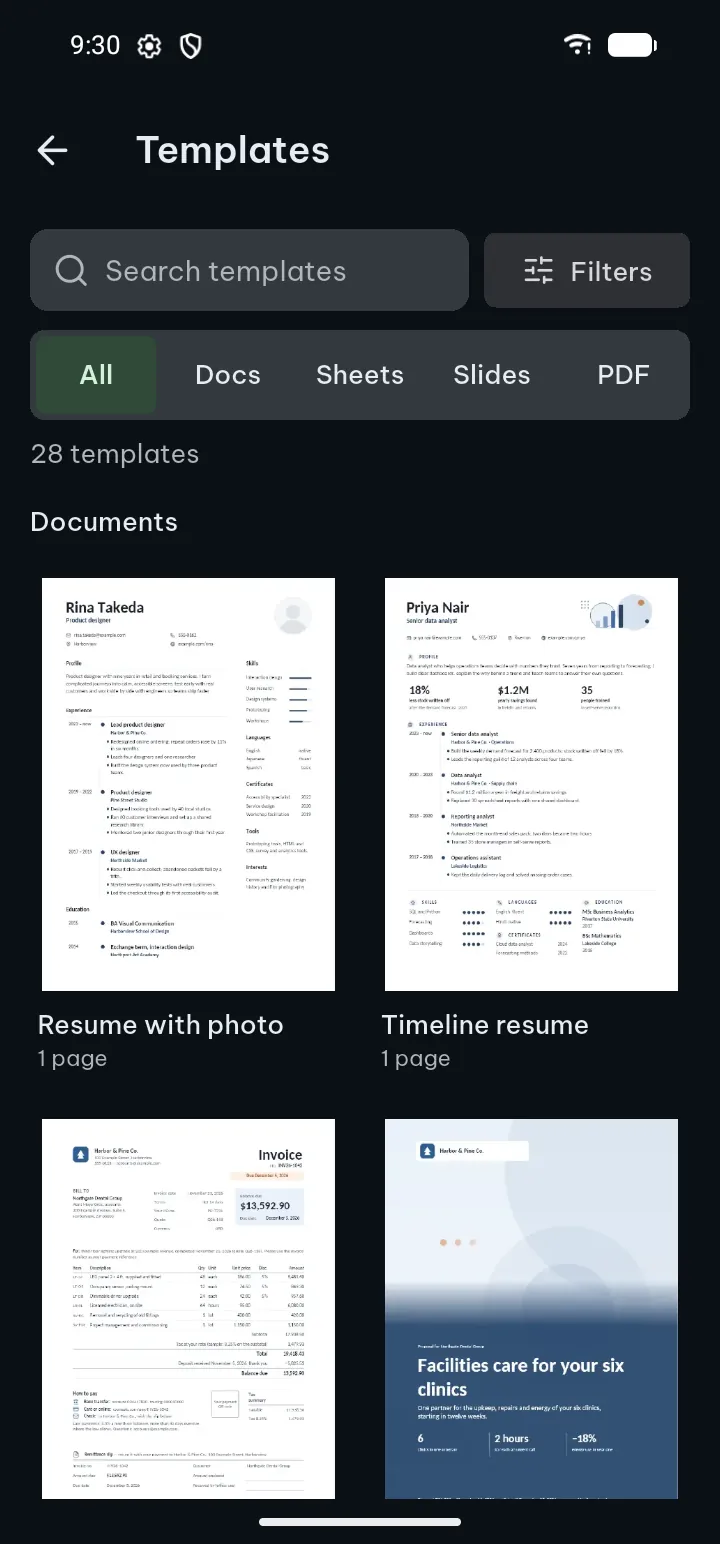
Find a template
- Tap the round + in the bottom bar, then Templates. The sheet shows the templates by kind in tabs, Document, Spreadsheet, Presentation and PDF, with Blank first; More templates lower in each tab has more designs.
- For the whole library with search and filters, tap Template library at the top of that sheet.
- Choose a kind in the row at the top: All, Docs, Sheets, Slides or PDF.
- Type in Search templates, or pick a use: Work, School, Personal, Business, Events, Forms, Careers, Finance or Creative.
- Tap Filters to narrow the list by Style (Minimal, Classic, Modern, Bold, Elegant, Playful), by Pages, sheets or slides (1, 2 to 5, 6 or more), by what it Includes (Pictures, Charts, Fields to fill in, Moves and sounds) and by Price (Free). Tap Show … templates to see them; Clear filters starts again.
Tips
- Favorites and Recently used keep the ones you come back to. Add one with Add to favorites in its preview.
- Template names and search work in all 20 languages of the app, and search runs on the list in the app.
Look before you use
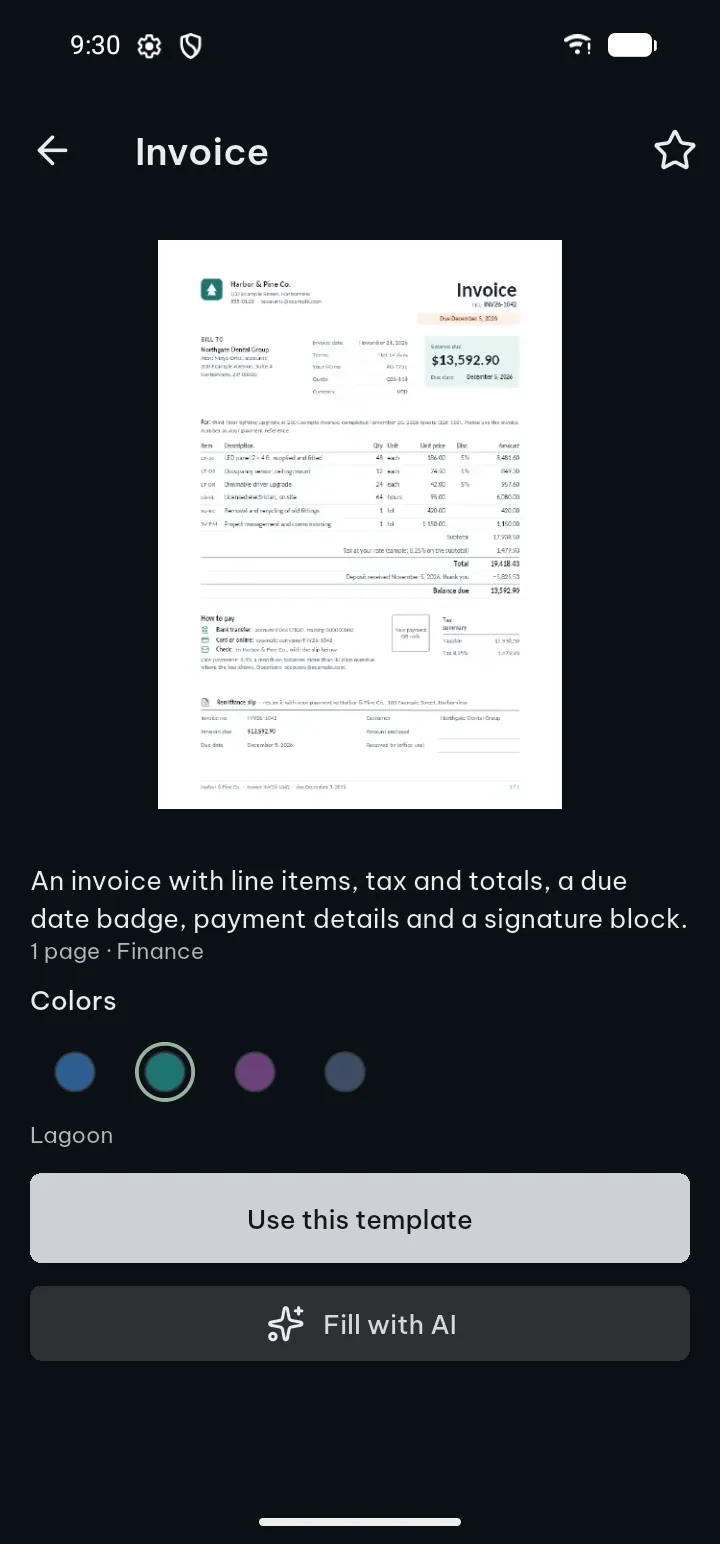
Tap a template to see its pages large. Looking is always free, also for Pro templates.
- Swipe through the pages; the line under them says Page 1 of ….
- Under Colors, tap a color version (Original is the template's own); your file has every page in the colors you pick.
- On some templates, Version chooses With photo or Without photo (a resume, for example).
A long template may show only its first pages; the file you make has every page. Templates use the same building blocks as Create with AI: real headings and styles, tables, charts, infographics and our own designs, so everything stays editable.
Use a template
- In the preview, tap Use this template. A template that is not on your phone yet downloads first; the button shows the progress.
- In Name your file, keep the suggested name (the template's name and today's date) or type your own, and tap Create.
- The new file opens in the editor, ready to change.
The file is yours: a normal .docx, .xlsx, .pptx or PDF form in your library, with your own text and numbers, that opens in other apps too. The template itself never changes, so you can use it again and again. For a blank file instead, tap + and, under Blank, Document, Spreadsheet, Slides or PDF form, then Create.
Fill with AI
Like a template's design but not its sample text? Let AI write it for you.
- In a template's preview, tap Fill with AI (shown on templates that have text to fill).
- Describe what the file is for, for example “an invoice for three days of garden work”.
- Check the price on the button and tap it. AI writes the text of this template; the design stays as it is.
Free tries of Create with AI apply here too, also on a Pro template: the result is yours. Prices and what is sent: Create with AI.
With your brand
With a brand kit and Use my brand in templates on (Settings › Brand kit), files from templates take your business name and contact details where the template has a place for them, such as an invoice or a letterhead, and your colors replace the template's: My brand is then chosen under Colors. The preview pictures show the template's own colors; your file gets your brand colors. Your logo and fonts are used in AI documents only. Using the brand kit in new files is part of Pro.
Free and Pro templates
41 templates are free to use: 11 documents, 14 slide decks, 9 spreadsheets and 7 PDF forms, chosen for the most common jobs (resumes, letters, invoices, reports, proposals, budgets, planners, timesheets, slide decks for pitches, reports and lessons, and forms). Filter by Price › Free to see only them. Blank files are always free, and a template that is free stays free.
The other templates are part of Pro: they are marked Pro, you can look at all of their pages and colors, and Use this template asks for Pro. The library grows over time, and new templates arrive without an app update. Files you made stay yours if Pro ends.
Templates for work
Many templates are made for real business use, with the parts a company document needs:
- Documents: an invoice with line items, tax, totals, payment details and a signature block; a business proposal with scope, timeline, team and pricing; an annual report with chapters, charts and key figures; resumes and cover letters; meeting notes and minutes.
- Spreadsheets: a monthly budget with a dashboard; a project tracker with a weekly Gantt chart and team workload; sales against targets by region and month; an expense report that checks claims against the policy; a team timesheet with overtime.
- Slides: an investor pitch, a monthly business review, a marketing plan with a campaign calendar and budget, a project kickoff and status deck, training and lessons.
- Fillable PDF forms: a job application, a leave request with an approval section, an event registration, a client intake form with consent and a volunteer application, with fields, drop-downs and signature fields.
Contract templates are samples, not legal advice: check the law where you live.
Playful decks
Playful slide decks have bright drawings, and their slides move and play short sounds as each one comes in: for school, parties and celebrations. Filters › Includes › Moves and sounds finds them. They are part of Pro; one of them, Science fair, is free to try. The sounds play in a slide show; turn them off with Settings › Open & edit documents › Play slide sounds.
Downloads and working offline
The free templates and the most used Pro ones are inside the app and work without internet. The others are downloaded when you use them: Use this template shows the progress on the button, usually for a moment, and the file opens as usual. A template with photos gets them the first time you use it; without a connection, a drawn picture takes their place.
- Offline: the library says No connection. Templates marked Available work now; the others need a connection. If you pick one that needs a connection, Poleta says so and shows Similar templates you can use now.
- Before a trip: open Settings › Storage & backup, tap the In use row, then under Downloaded templates tap Download popular templates for offline use. The number and size are shown before you start, and you can cancel.
- Space: the same row shows how much the downloaded templates take and can remove them. Files you made from them stay in your library, and the templates can be downloaded again.
- Privacy: nothing downloads by itself, only when you open the library, a preview or a template, or tap the offline button. Only the template is asked for: nothing about you or your files is sent, and nothing about your searches leaves the phone.
If something goes wrong
- “Needs a connection.” Connect to the internet and tap Try again, or pick one of the Similar templates you can use now.
- “This network asks you to sign in first.” Hotel or café Wi-Fi: sign in with your browser, then try again.
- “Your phone is out of space.” Free some space (for example under Settings › Storage & backup, the In use row), then try again.
- “The download was damaged” or “The template server is not answering.” Wait a moment and tap Try again.
- “This template is no longer available.” It was taken out of the library. Files you made from it are not affected.
- Use this template asks for Pro. It is a Pro template; filter by Price › Free for the free ones.