
Poleta user guide
Step-by-step help for everything in Poleta for Android (version 2.0.1) and for iPhone and iPad (version 2.0.2). Button names are written as they appear in the app, in bold; ⋯ is the menu button at the top right of a screen, and A › B means tap A, then B. Features marked Pro need Poleta Pro. Most sections end with tips and with what to do if something goes wrong.
Quick startThe first start, opening, reading and editing a file, the Save changes question when you leave, a new file from a template, signing a PDF, sharing and scanning: the first ten minutes.
Home, Library and opening filesOpening files, the + (New) sheet, Home, the Library and its filters, On this device, search inside documents, the document menu, choosing several, previous versions, ZIP archives.
Reading and editing PDFPages, zoom, reading view, search, highlights and notes, drawing, forms, signatures, editing text and pictures, cutting out a subject, page tools, read aloud.
Documents, spreadsheets and slidesNew files, editing .docx, .xlsx, .csv and .pptx, the Format panel, find and replace, charts, transitions and color schemes on slides, infographics, spell check and the personal dictionary, AI in the editors, presenting, saving and leaving an edited file.
E-books, study and other filesEPUB and other books, text settings, highlights, read aloud and narration, dictionaries, flashcards, pictures, comics, e-mail, notebooks.
Scan and PDF toolsScan, text from a picture, images to PDF, and every tool in the Tools tab.
Vault, backup, settings and ProVault and app lock, statistics, backup and restore, settings, text size and dark theme, languages, privacy, feedback, Pro plans.
Questions and answersAI credits and free tries, working offline, what is sent and when, restoring Pro, invitation codes, crash reports and statistics.
Create with AIDescribe it and AI designs it: Simple and Advanced, the styles Spectrum, Sunset, Ocean, Bold, Candy, Prism and Photo and their colors, the outline, free photos, changing one part, the brand kit, credits and free tries, what is sent.
TemplatesA growing library of documents, spreadsheets, slides and PDF forms: search, previews, 41 templates without Pro, templates for work, offline use.
Getting started
New to Poleta? The quick start walks through the first ten minutes.
- Install Poleta and open it. No account is needed. The welcome pages can be seen again with Settings › Help & about › Replay welcome.
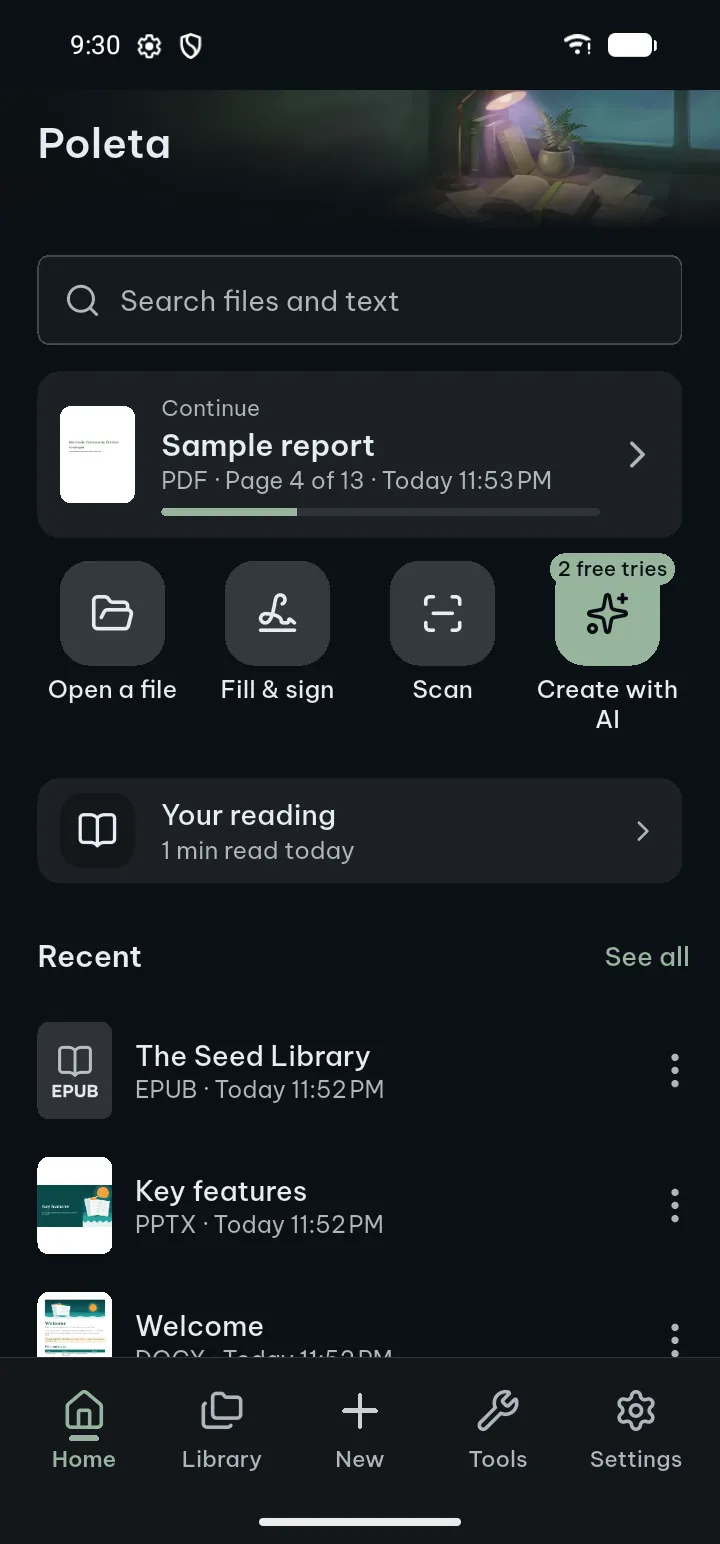
- Open a document: tap Open a file on Home, or open a file from another app and choose Poleta.
- The bar at the bottom takes you to Home, Library, New (the +), Tools and Settings.
- Tap the page of an open document to show or hide its bars. PDFs, documents, spreadsheets, slides and text files have Edit, View, Search, Share and Tools at the bottom; books and other files have their bar at the top, with ⋯ for the rest.
Poleta works offline, except for the AI features, which need the internet. Your documents are read, edited, scanned and recognized on your phone; there is no account and no ads.
Common tasks
- Scan paper to a PDF
- Text from a picture
- Fill in a PDF form and sign it
- Merge PDFs or make one smaller
- Edit a .docx document
- Check the spelling
- Make slides or a document with AI
- Start from a template
- Highlight and take notes
- Have a document read aloud
- Find a word in all your documents
- Get back an earlier version of a file
- Get back changes after the app closed
- Back up your bookmarks and highlights
Which files Poleta opens and edits: file formats. Something not working? See support.