
User guide › Create with AI
Create with AI
Describe what you need and AI makes it: slides, a document, a PDF or a spreadsheet, with real headings, charts, tables, infographics and photos that you can edit afterwards like any other file. You see the price of each step before it runs, you get 2 free creations, and you can change any part of the result later. Create with AI needs an internet connection. AI results can contain mistakes, so check them before you rely on them.
- Open Create with AI
- Simple: in one tap
- Advanced: every choice
- The outline
- When it is ready
- Writing a good description
- Your files
- Styles
- Free photos
- Change part of it
- Look & colors
- In the editors
- Brand kit
- What is sent
- Prices and free tries
- If something goes wrong
Open Create with AI
Create with AI is in three places; they all open the same screen.
- Tap the round + in the bottom bar. Create with AI is the first row of the New sheet.
- Or open the Tools tab and tap the Create with AI card.
- Or, in a template's preview, tap Fill with AI: AI writes the text of that template from your description (see Templates).
The first time, Poleta asks you to confirm your age (AI features are for people aged 13 and over, 16 and over in the EEA, the UK and Switzerland) and names the AI provider; it keeps only that you confirmed. At the top of the screen, Simple and Advanced switch between the two ways of working, and the clock button, Your creations, lists what you made before.
Simple: in one tap
Simple is for when you know what you want and are happy for AI to choose the rest.
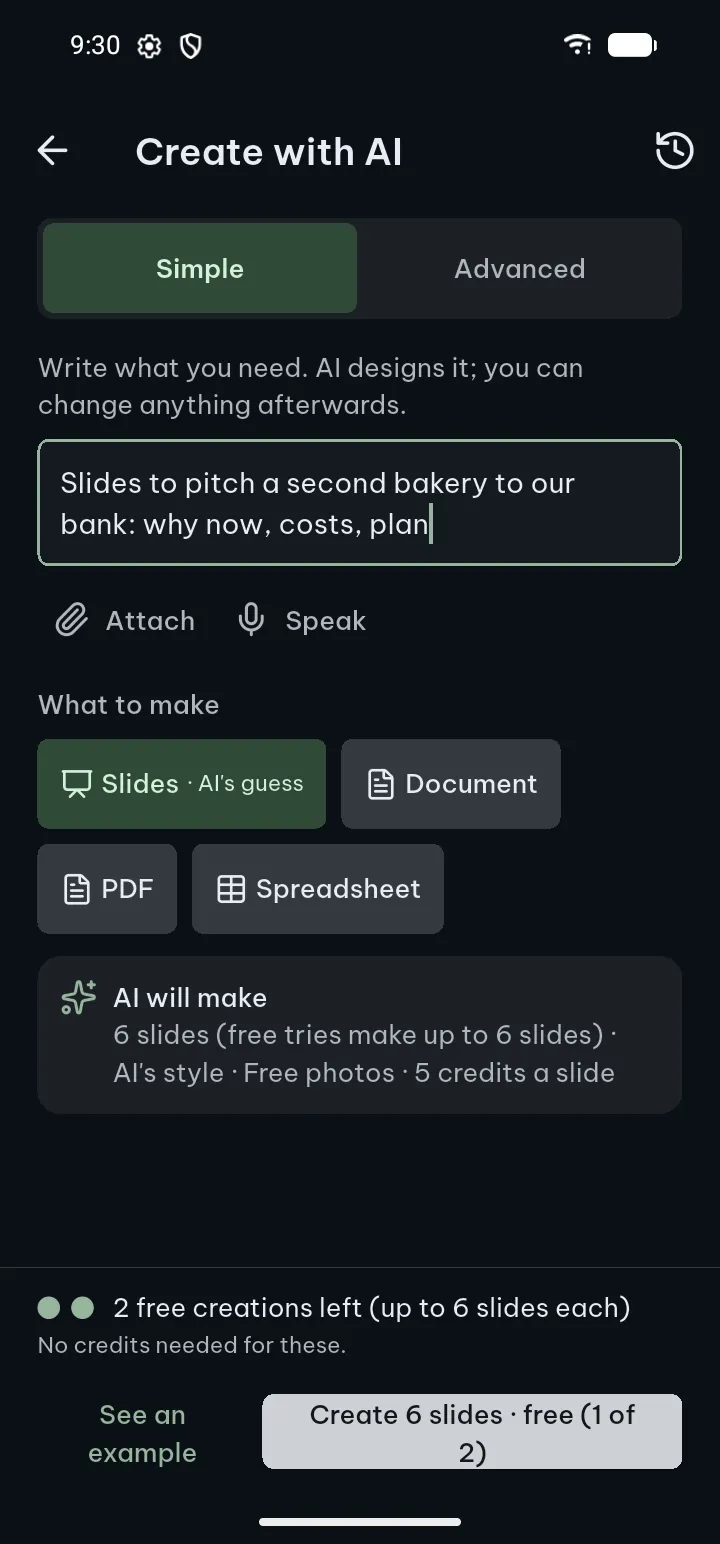
- Make sure Simple is selected at the top.
- Write what you need in What you need (up to 4,000 characters). You can type, paste (headings, lists and tables you paste are kept), tap Speak to dictate, or tap one of the Ideas to start from.
- Under What to make, AI marks its guess with AI's guess: Slides, Document, PDF or Spreadsheet. Tap another one if the guess is wrong.
- The line AI will make says how many slides or pages it plans and in which style. See an example shows a finished sample first.
- Tap Create now. The button shows the price, for example Create now · 50 credits, or, for a free try, Create 6 slides · free (1 of 2).
- Watch the pages appear in the live preview. When it is done, the file is saved in your library and the Ready screen opens.
For a short description, a few quick choices may show under the field (for example who it is for); tap one or ignore them. The credits bar above the button shows what this uses and what you have left.
Tips
- Say the length in your words (“a 6-slide pitch”) and AI plans that many.
- You can leave the screen while AI writes: a bar above the bottom of the screen brings you back, and on Android a notification says when it is ready if you allow notifications. If Poleta is closed during a creation, open it again within 15 minutes and it picks up where it was, at no extra cost.
Advanced: every choice
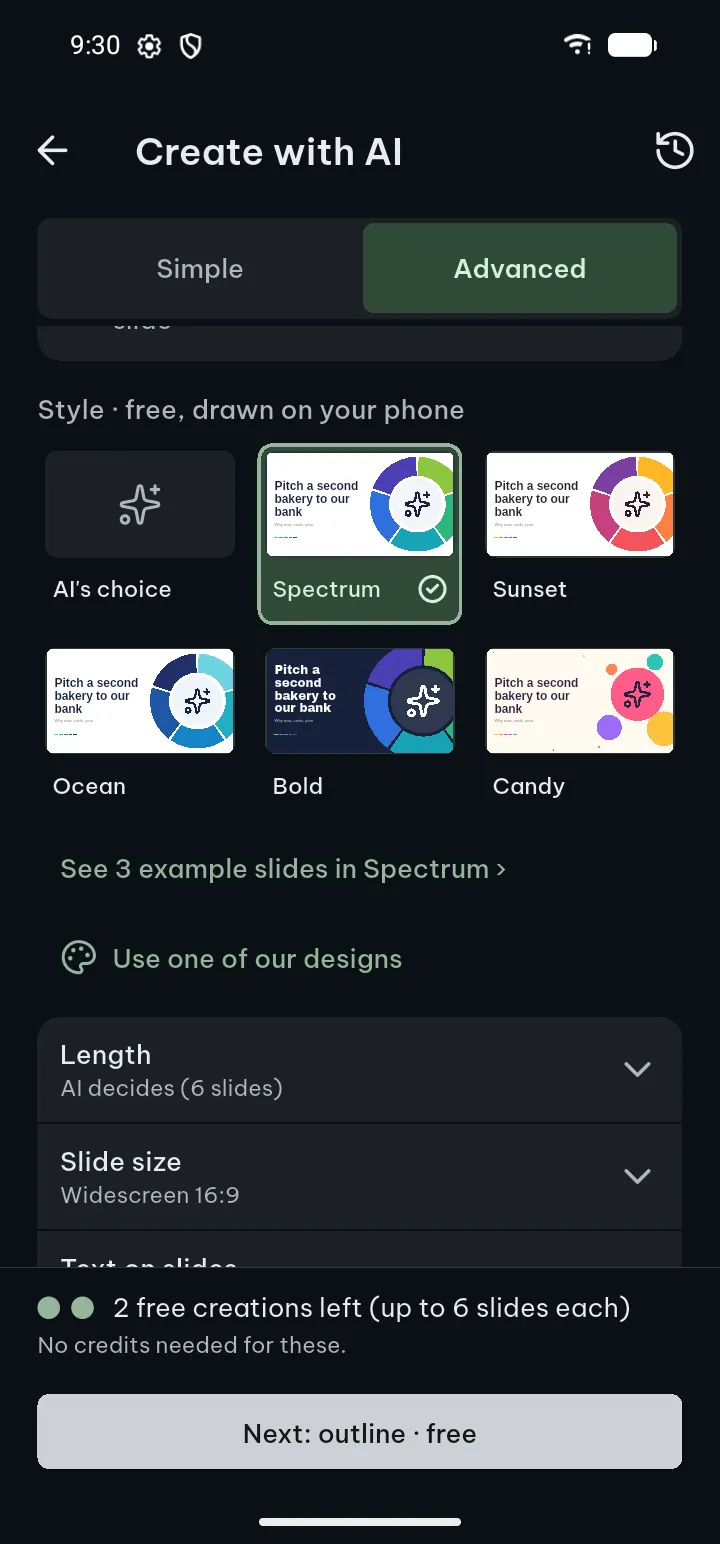
Advanced shows the same field and adds a panel of choices, the style tiles and the outline step, so you can check the plan before AI writes.
- Tap Advanced at the top, write what you need and pick the kind of file under What to make.
- Under Style · free, drawn on your phone, tap a style or AI's choice. See 3 example slides in … (or pages) shows more of the style you picked.
- Open the groups you want to change. Each shows its current value; the ones you leave alone stay as AI decides:
- Length: AI decides, or Fewer and More to set the number of slides, pages or sheets (up to 30 slides or pages and 8 sheets).
- Slide size (slides only): Widescreen 16:9, Portrait 9:16 (stories) or Square 1:1 (posts).
- Text on slides (slides only): Light, Balanced or Detailed; same price.
- Colors and fonts: the style's own colors, or an Accent color of your own (a swatch, or a code such as #1F6FA8 in Or a color code), and a font pair from the open fonts that come with the app. With AI's choice or Photo, the style keeps its own colors.
- Tone: AI decides, Friendly, Professional, Persuasive or Playful.
- Audience: type who it is for.
- Photos: Free photos, My photos (pick from your phone) or No pictures.
- Language and more: the language of the file (Same as my description by default), Animations and Add slide sounds for slides, Protect formulas for spreadsheets, Show where facts come from when you attach files, Use my brand when you have a brand kit, and AI may ask me questions.
- Tap Next: outline · free. If AI may ask me questions is on and the description is short, A few questions appears first: AI's suggestion is already chosen in each, so change only what you like, or tap Let AI choose the rest. Questions are free, up to 3 rounds.
- Check the outline, then tap Create. The button shows the total, for example Create · 10 slides · 50 credits.
Use one of our designs, under the style tiles, makes the file in one of our ready-made designs instead of a free design (other prices, see below). Spreadsheets always use our designs; they open on a dashboard (key numbers, charts, status marks) with the data sheets after it.
The outline
In Advanced, AI first plans the file as an outline: a title and a list of sections, each with its planned visual. The outline is free (up to 20 a day), and it is the cheap place to fix mistakes, before AI writes.
- At the top, the outline shows the kind of file and the design AI will use, with a picture. Tap Change to pick others.
- Tap the Title to change it.
- Tap a section to rename it and, in What goes here (optional), say what it should hold. Left empty, AI plans it from the title.
- Tap the visual of a section (for example Timeline) to choose another: Timeline, Steps, Key numbers, Infographic, Bar chart, Line chart, Pie chart, Table, Picture or Text only.
- The menu of a section has Add section below, Move up, Move down and delete; you can also drag a section to reorder. Add section at the end adds one more.
- Tap Create.
Tips
- A free creation holds up to 5 pages, 6 slides or 2 sheets; if the outline has more, the app asks you to remove some lines first.
When it is ready
Your phone lays out and checks every page before you see it: every text fits, colors are easy to read and nothing is off the page. The Ready screen says how many slides or pages were made and what they used.
- Swipe through the pages, or tap one to see it large.
- Tap Open to open the file in its editor, or Share to send it.
- To change something first, tap the part on the large page and use Change this, or Look & colors for the whole file.
- ⋯ at the top has Back to the original (the file as AI first made it; credits for later changes are not returned, and you can undo it) and Make another like this (the same request and choices, ready to change).
- Report this result tells us about a wrong or offensive result. Only the action, its id, the reason you chose and the app version are sent, never any text.
The file is a normal .pptx, .docx, PDF or .xlsx in your library: real text, shapes, tables and charts, never a picture of text. Numbers AI had to invent are marked Sample numbers; tap Replace to put in your own. Facts from attached files or links can be wrong or out of date: check key figures before you rely on them.
Your creations (the clock button at the top) lists everything you made, kept on this phone and in Pro backups. Tap one and Make another like this fills the screen with the same request; removing an item from the list does not delete its file.
Writing a good description
One or two sentences are enough to start; in Advanced, the quick questions fill the gaps. A description gets better results when it says:
- What and how long: “a 10-slide pitch for opening a second bakery”, “a one-page flyer for our bakery's opening on Saturday”.
- Who it is for and why: investors, new café staff, a client meeting, a team update.
- The facts only you know: names, dates, prices, your own numbers. Numbers you give become real charts and tables; numbers AI has to invent are marked Sample numbers so you can replace them.
- The parts you want: “with a timeline of the launch, a price table and a contact slide”.
- Tone and language, if they differ from your description: set them in Advanced, or write “formal” or “friendly”.
Already have notes? Paste them: headings, lists and tables stay as they are (switch between Formatted and Text to see them), and AI builds on them. Have a report or a spreadsheet with the facts? Attach it instead of retyping it. Do not worry about getting everything right the first time: the outline fixes sections, and any part can be changed later.
Your files
Give AI your own material and it writes from it instead of from general knowledge.
- Tap Attach under the field, or From a file you have (a PDF, a document or slides from your library or phone) before you type.
- Choose documents from your library, From your files (also added to your library) or Photo of a page (its text is read on your phone). Up to 200 pages in all.
- In Advanced, tap the line under an attached file to choose what AI takes from it: Use its content, Copy its look (the layout and style, never the file's text, logo or pictures) or Both.
- Turn on Show where facts come from (Advanced, Language and more) to add the file and page where your documents are used.
Files are read on your phone and only the passages AI needs are sent. A long file shows Long file: AI uses its main parts. Password-protected files, files in the Vault and files that do not allow copying cannot be attached.
Styles
A style is the whole design of the file: its colors, fonts and how numbers and pictures are shown. In Advanced each style is a tile drawn on your phone by the same engine that makes your file, so what you see is what you get. Styles are free, and the style you pick is remembered for each kind of file. AI's choice lets AI pick from what you write.
| Style | For | What it looks like |
|---|---|---|
| Spectrum | Slides, documents, PDF | White pages with a big drawing on each, a color and an icon for every item, from lime to indigo. The default for slides. |
| Sunset | Slides | Warm amber, orange, coral and plum. Good for events, food and marketing. |
| Ocean | Slides, documents, PDF | Sober blues. Good for board papers, finance, compliance and health. |
| Bold | Slides | Full-color covers and section slides with giant type; the other slides stay white. |
| Candy | Slides | A cream ground and candy colors, for school, parties and celebrations. |
| Prism | Documents, PDF | Cobalt, teal, green, amber and coral blocks. Calm for print and data. The default for documents. |
| Photo | Documents, PDF | Deep green and a warm accent on warm paper, with a photo in an arch or circle. |
Spreadsheets take their colors from what you write. An accent color of your own (Colors and fonts) becomes the first color of the style. After the file is made, Look & colors switches it to another style or color set, without AI, and Undo takes it back.
Free photos and their credits
With Free photos (the default in Advanced › Photos), the picture places of a design are filled with photos from Pixabay, Pexels, Unsplash and Openverse, at no cost and with no extra tap.
- The Ready screen lists the Picture credits: one line per photo, in each service's own wording, with a link to the service. The photo and its credit stay in your document.
- The photos are free to use in your document. People, logos and brands in a photo may need their own permission, and a photo should not be sold on its own.
- If a photo cannot be found, its place is kept in the file so you can add a picture there.
- To find photos, only a few general search words that AI wrote for each picture are sent to the photo services, never your document's text. With My photos or No pictures nothing is asked of them.
You can change any picture later: Other picture in Change this, or in the editor.
Change part of an AI document
You do not have to make the whole file again to fix one thing. Only the part you change is written again; the rest stays as it is.
- On the Ready screen, tap a page to see it large (Previous and Next move between pages).
- Tap the part you want to change: a title, a text, a chart, a table, a picture. It shows as selected.
- Tap Change this. For bigger parts use Change this slide or Change this page, or Change the whole deck / Change the whole document; What to change can also pick one section.
- In the sheet, choose one of:
- Free now (no AI, at once): Show as another kind of infographic or chart for the same content, Use my numbers, Look for this part with its Background (Light, Tint or Dark), or Keep this (later changes to the whole file leave it as it is).
- With AI: a chip such as More visual, Shorter, Longer, Make it a timeline, Make it steps, Make it a comparison, Add a chart, Make it a table, Other picture, More formal or Friendlier (only the chips that fit the part are shown).
- Or say what to change in your own words, for example “make this a timeline” or “put our Q3 numbers: Jul 120, Aug 140, Sep 165”.
- Tap the button with the price, such as Change · 2 credits, or Use these numbers · free.
Your own numbers: Use my numbers takes numbers typed or pasted (for example “Jul 120, Aug 140”, or rows copied from a spreadsheet). They are read on your phone, you see what was read before it is applied, and applying them is free. Only numbers written in sentences that the phone cannot read go to AI, at the price on the button.
Undo and Try another: each change, free or with AI, is one Undo step; Undo does not give back the credits a change used. After an AI change, Try another (free) asks once for a different result at no cost. If a change does not fit the design, it is not used and its credits come back.
By hand: Edit by hand opens the file in the editor at that part, to move, resize or retype it yourself. Once you have changed a file in the editor, you change it there from now on; your edits are kept.
Look & colors
Look & colors on the Ready screen changes the whole file at once, on your phone, free and without AI. The pages above the sheet redraw as you tap; each tap is one Undo step, and Back closes the sheet with nothing to confirm.
- Style: Spectrum, Sunset, Ocean, Prism or Candy for the whole file. Your words, numbers and pictures stay.
- Colors (color sets): Lumen, Lagoon, Orchid, Graphite, Clay and Meadow, each shown as a row of its colors. Not offered for the Photo style, which has its own colors.
- Look: the layout of the pages: Editorial, Canvas and tiles, Progress rows, Minimal mono, Bold magazine, Soft friendly, Data-dense or Photo-led.
- Corners: Square, Soft or Round.
- Accent color for: Key figures, Buttons and links or Good and bad marks.
Parts you kept with Keep this get only the new colors and fonts. The current choice of each row is marked.
AI documents in the editors
- Slides: open the deck, select a part AI made and tap Change with AI. Tools also has Change this slide with AI, Change the whole deck with AI and Look & colors (colors, look and corners of the whole deck, free).
- Text documents: Look & colors in the Text tools changes the style and colors of a document AI made; your text and layout stay as they are.
- Infographics: tap one, then Edit: Content holds its words and items, Look its text size, colors, font and style, free.
Parts you made yourself say Made by hand: Change with AI works on the parts AI made. Slides changed in another app keep their layout and get only the colors and fonts. A designed deck of 6 or more slides has slide numbers (not on the title slide); a designed document of 3 or more pages has page numbers and, when it has a contents page, Table of contents › Update table refreshes it after editing. More on the editors: Documents, spreadsheets and slides.
Brand kit
Set up your business once, and new AI documents and files from templates use it.
- Open Settings › Brand kit.
- Logo: tap Add logo and pick a picture (for example a PNG or JPEG, under 40 MB). Remove the white background cleans it up; the preview shows it on a light and a dark page. Use a logo you own or may use.
- Name: type your business or your own name, a tagline and, under Contact (all optional), phone, email, website and address.
- Colors: a main color for headings, title bars and charts, and an accent color for the one thing that should stand out. Take colors from my logo picks them for you.
- Fonts: a pair for headings and text, or The design's own fonts.
- Use: turn on Use my brand in new AI documents and, if you like, Use my brand in templates.
- In AI documents: new files wear your colors and fonts, and the logo goes into the logo places of the design. In Advanced, Use my brand turns it off for one creation.
- In templates: your business name and contact details go where a template has a place for them (an invoice, for example), and your colors replace the template's (My brand under Colors in the preview). Your logo and fonts are used in AI documents only.
- What stays on your phone: the kit is saved on this phone as you type. With AI, only your business name and colors are sent (What AI sees says so); your logo, tagline and contact details stay on this phone. Documents you already made keep your logo even if you remove it from the kit later.
Setting up the kit and its preview are free; using it in new documents is part of Pro.
What is sent, and what never is
Your files stay on your phone. Only when you use an AI feature is the text you choose sent to process it; it is not stored by us and not used for training, and our AI provider normally deletes it within 30 days. Our AI service, run on Cloudflare, passes the text to the AI provider named when you first use AI, and keeps a job for at most 15 minutes. You can turn sending off, or delete your AI data on our server, in Settings › AI & credits.
- Sent when you tap: your description and answers, the passages of attached documents AI needs and their file names, and, for a change, the part you change with your words or numbers. With a brand kit, only your business name and colors.
- For free photos: a few general search words per picture, shared with the photo services; never your document's text.
- Never sent: the files themselves, your other documents, and your logo, tagline and contact details.
- Done on your phone: reading attached files, drawing the style tiles, checking the pages, Use my numbers and Look & colors.
- Speak uses your phone's speech service, which may send the audio to its provider.
More in the privacy policy and the questions and answers.
Prices and free tries
Everyone gets 2 free creations, without Pro: up to 5 pages, 6 slides or 2 sheets each, with free photos. The free creations are per installation of the app; if one fails on our side, it is given back. After that, AI credits pay for each step: the monthly credits of Pro, or a credit pack (no Pro needed). Every step shows its price before you tap, and Advanced shows the estimated total, which is what Create charges.
| Step | Credits |
|---|---|
| Quick questions, styles and examples | free |
| Outline (free design) | free (up to 20 a day), plus 6 for each further 20 pages of attached documents |
| Slides (free design) | 5 a slide |
| Document or PDF pages (free design) | 5 a page |
| With one of our designs: the outline | 10, plus 6 for each further 20 pages of attached documents; nothing when you go back and it is reused |
| With one of our designs: AI chooses the design | 2 |
| With one of our designs: pages, slides, sheets | 4 a page, 3 a slide, 8 a sheet |
| Free photos | free |
| Change | Credits |
|---|---|
| Show as, Use my numbers, Look for this part, Look & colors, Keep this | free |
| One part with AI | 2 |
| One part with numbers written in sentences | 4 |
| The text of one slide (shorter, simpler, notes) | 2 |
| One slide redesigned (More visual) | 15 |
| One page | 5 |
| A change to the whole file | 2 |
| Several slides or pages | 2 a slide, 5 a page |
| Try another, once per change | free |
Example: a 12-slide deck with free photos costs 12 × 5 = 60 credits (the questions, styles and outline are free). Pro includes 300 credits a month (lifetime: 1,200 once). You are never charged more than the price shown, and an error on our side costs nothing. Prices can change; the app always shows the current price before you tap, and if it changed in the meantime it says so and charges nothing until you tap again. Credits, packs and the trial: AI and credits.
If something goes wrong
- “You're offline. AI needs the internet.” Connect and tap Try again; your text is kept.
- The button says Get credits. You have used your free creations, or you have fewer credits than the step needs. Get a credit pack or Pro, or make a shorter file: the app suggests a length you can pay for.
- “We couldn't finish this document.” Your credits (or your free try) come back by themselves; the screen says how many. If it could not reach our server, tap Ask for the refund again when you are online.
- “This document wasn't finished in time.” Poleta was closed or in the background for more than 15 minutes while it was being written. What it used is given back; start again.
- A page “uses a simpler layout”. When AI's page fails its checks, the app uses a simpler layout for it, and that page's credits are returned or not charged; the Ready screen says so.
- “You have made 20 free outlines today.” That is the daily limit; you can make more tomorrow.
- A file cannot be attached. It is protected by a password, in the Vault, does not allow copying, or has no text. Remove the password in the app that made it, or move it out of the Vault, and try again.
- “Your phone's date or time looks wrong.” Set them to automatic in the phone's settings, then try again.
- A change did not fit. It was not used and its credits came back. Try other words, a smaller part, or a free Show as.
Still stuck? Write to us with the contact form or Settings › Help & about › Send feedback.