
User guide › Home, Library and opening files
Home, Library and opening files
The bar at the bottom has Home, Library, New (the bold +), Tools and Settings. Every file you open joins your library on this phone, with its reading place, bookmarks and highlights.
- Opening files
- The + button (New)
- Home
- Library
- On this device
- Search inside documents
- Document menu
- Several documents at once
- Previous versions
- ZIP and other archives
- If something goes wrong
Opening files
- From Poleta: tap Open a file on Home (or + › Open file) and pick the file in the phone's file picker.
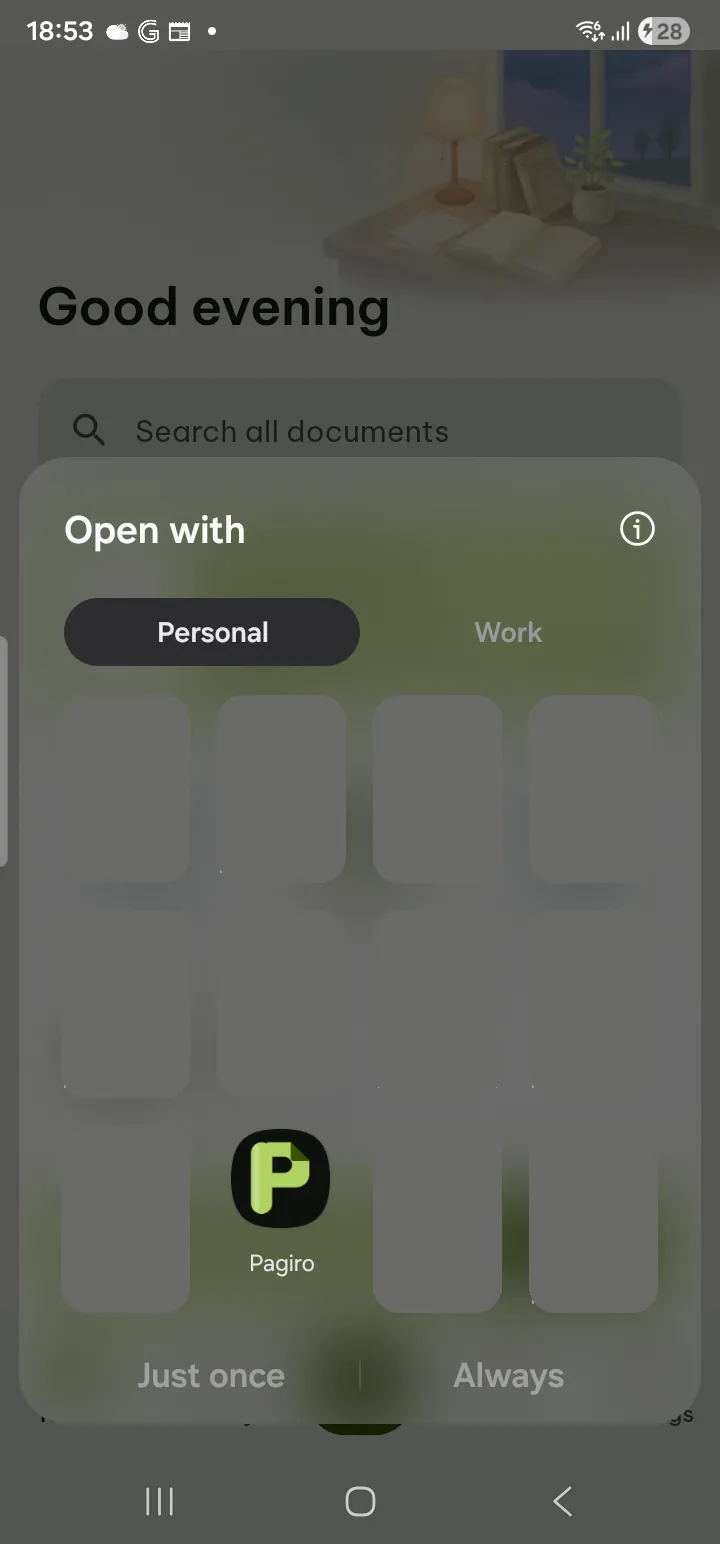
- From another app: in a file manager, e-mail or chat app, tap the file and choose Poleta under Open with, or use Share and pick Poleta.
- From the files on your phone: Library › On this device lists them (see below).
Poleta opens PDF, .docx, .doc, .rtf, .odt, .xlsx, .xls, .csv, .ods, .pptx, .ppt, .odp, EPUB, MOBI, AZW3, FB2, text and code files, Markdown, web pages, pictures, comics (.cbz, .cbt), e-mail (.eml, .msg), notebooks (.ipynb) and archives (.zip, .7z, .tar, .tgz, .gz). The full list: file formats.
Make Poleta open your PDFs
- Open Settings › Help & about › Default PDF reader. It says which app opens PDF files now.
- If another app is the default, tap Open that app's settings, then Open by default and Clear defaults.
- Open any PDF and choose Poleta (and Always).
The + button (New)
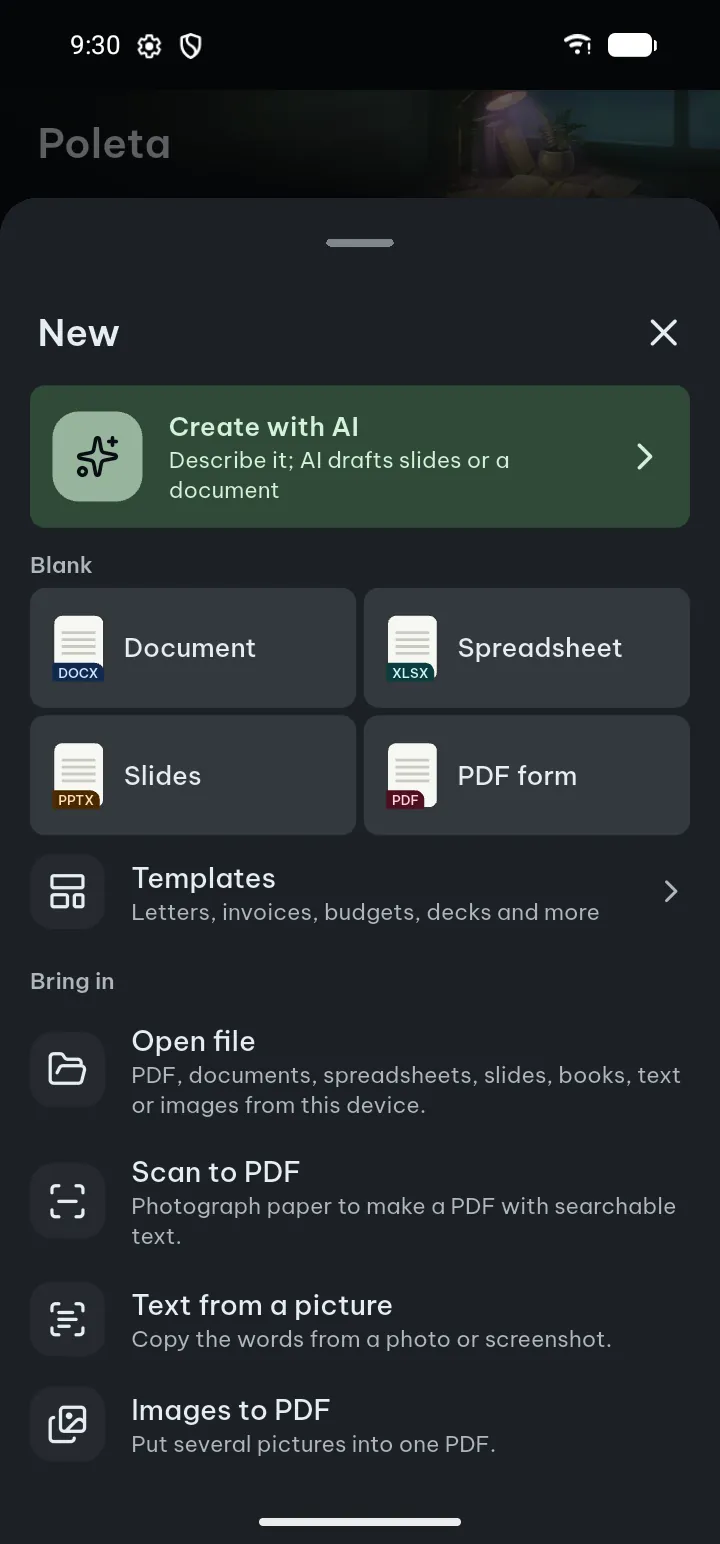
The bold + in the middle of the bottom bar is named New. It opens one sheet; while it is open the + turns into a cross (Close).
- Create with AI first: describe what you need and AI drafts slides or a document (see Create with AI).
- Blank: Document, Spreadsheet, Slides or PDF form. Type a File name and tap Create; the file opens ready to edit.
- Templates: letters, invoices, budgets, decks and more (see Templates).
- Bring in: Open file, Scan to PDF, Text from a picture and Images to PDF.
Back closes the sheet. A new blank file is three taps from Home: +, the kind, Create.
Home
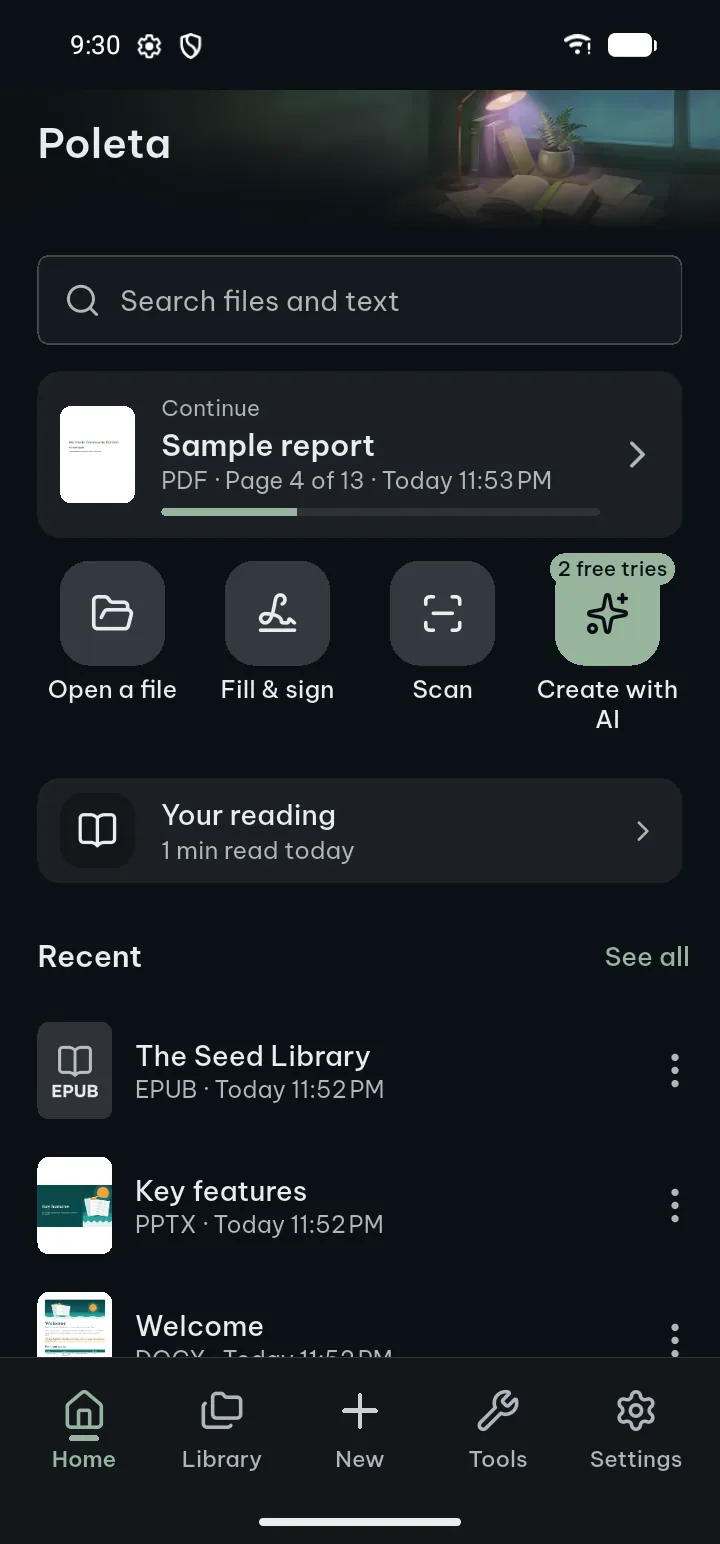
Home is where you start: the file you were reading, the actions you need most, and your latest files. From top to bottom:
- Search files and text: a tap opens search with the keyboard up (see below).
- Continue: a card with the document you were reading, where you left it, when, and a thin progress line. Tap it to carry on at the same page, place or cell; press and hold it for the document menu. A file read to the end, or marked as finished, does not show here.
- The round buttons: Open a file, Fill & sign (choose a PDF to fill in and sign), Scan (paper to a searchable PDF) and Create with AI, which shows how many free tries are left. Press and hold one to see what it does.
- Your reading: a row with today's reading time and your goal. With flashcards due it says, for example, 3 flashcards due, and a tap starts the review. Otherwise a tap opens Your reading: today's time, your streak, the Daily reading goal, and the way on to Reading statistics. The row is hidden while there is nothing to say.
- Recent and Favorites: your latest files and your starred ones, each with See all, which opens the Library.
Tips
- Press and hold a file on Home for its menu.
- Before you open a file of your own, Home shows Samples to try.
- On a tablet held sideways, Home puts the start column (Continue, today's reading, the buttons, a New row) beside your recent files.
Library
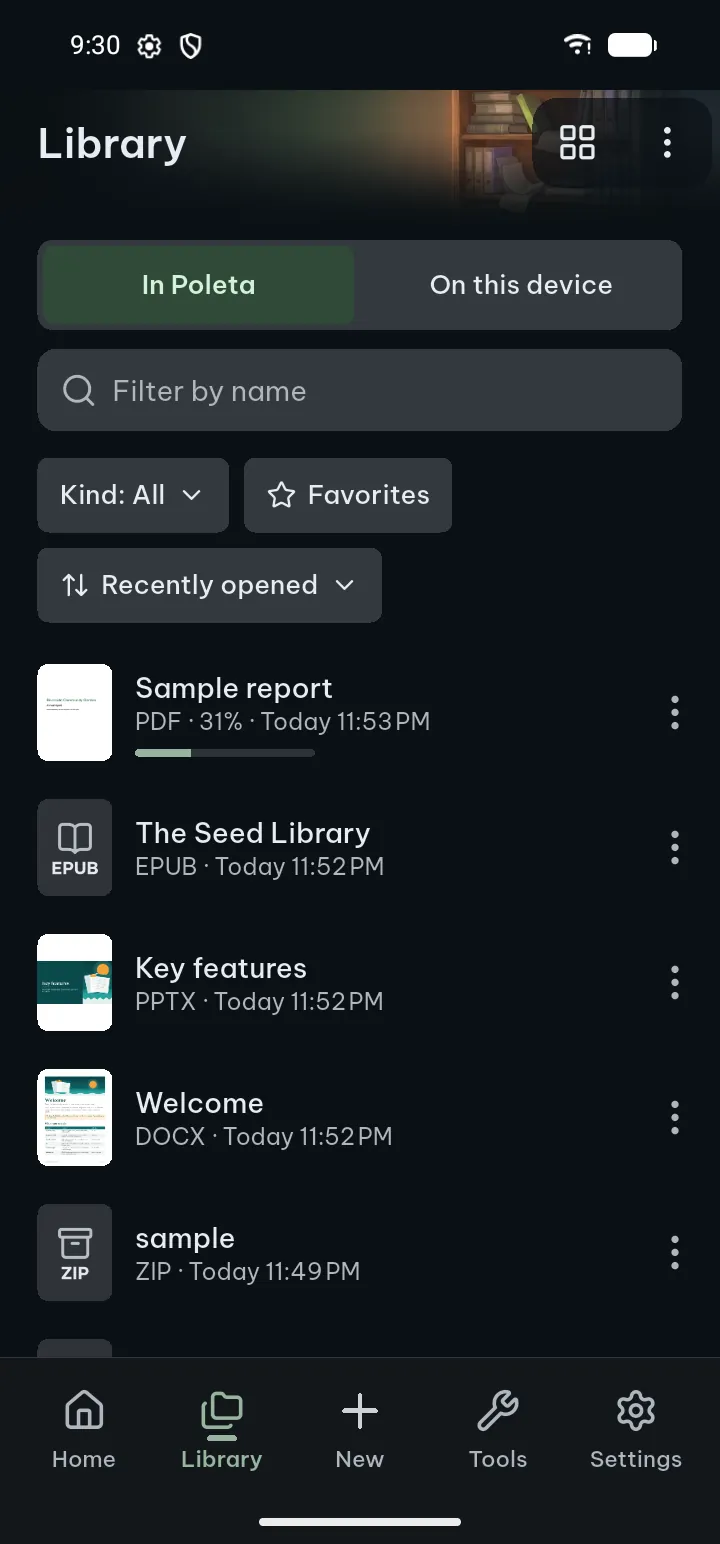
The Library lists every file in Poleta. At the top, In Poleta and On this device switch between your library and the files on the phone.
- Find by name: type in Filter by name. To look for the word inside the files too, tap Search "…" inside documents.
- Filter by kind: tap the Kind: All chip and choose Documents, Spreadsheets, Slides, PDF, Text, Books or Images.
- Favorites only: tap the Favorites chip (tap again for all).
- Sort: tap the sort chip and choose Recently opened, Name A–Z or Size.
- Grid or list: the Grid view / List view button at the top switches between page covers and rows. With very large text the list is always used.
The ⋯ at the top (Library options) has Select, Open a file and Rebuild search index.
Tips
- Each row shows the kind of file, when you opened it and how far you read.
- A kind with nothing in it offers Open file right there.
On this device
On this device lists the documents, pictures and other files on your phone that Poleta can open: in Download, Documents, chat apps, your photos and the rest of the phone (Android 11 and later).
- In the Library tap On this device. The first time, See documents on this device explains what it needs: tap Allow, turn on access for Poleta on the settings page that opens, and come back.
- Find a file: type in Search by file name, tap a type chip (All, PDF, documents and so on, Other), or sort by Newest first or By folder.
- Tap a file to open it. It joins your library; when you save your edits, they go back into that file.
Look again checks the phone for new files. Manage access opens the settings page where you turn the access off or on.
Tips
- With Not now, everything else works as before; open files with Open file.
- Poleta asks for this access only here, or when a search finds nothing in your library (Search the files on this device too?), never at start. It reads a file only when you open it and uploads nothing.
- On a phone with a very large number of files, some folders may not be searched; Poleta says so.
Search inside documents
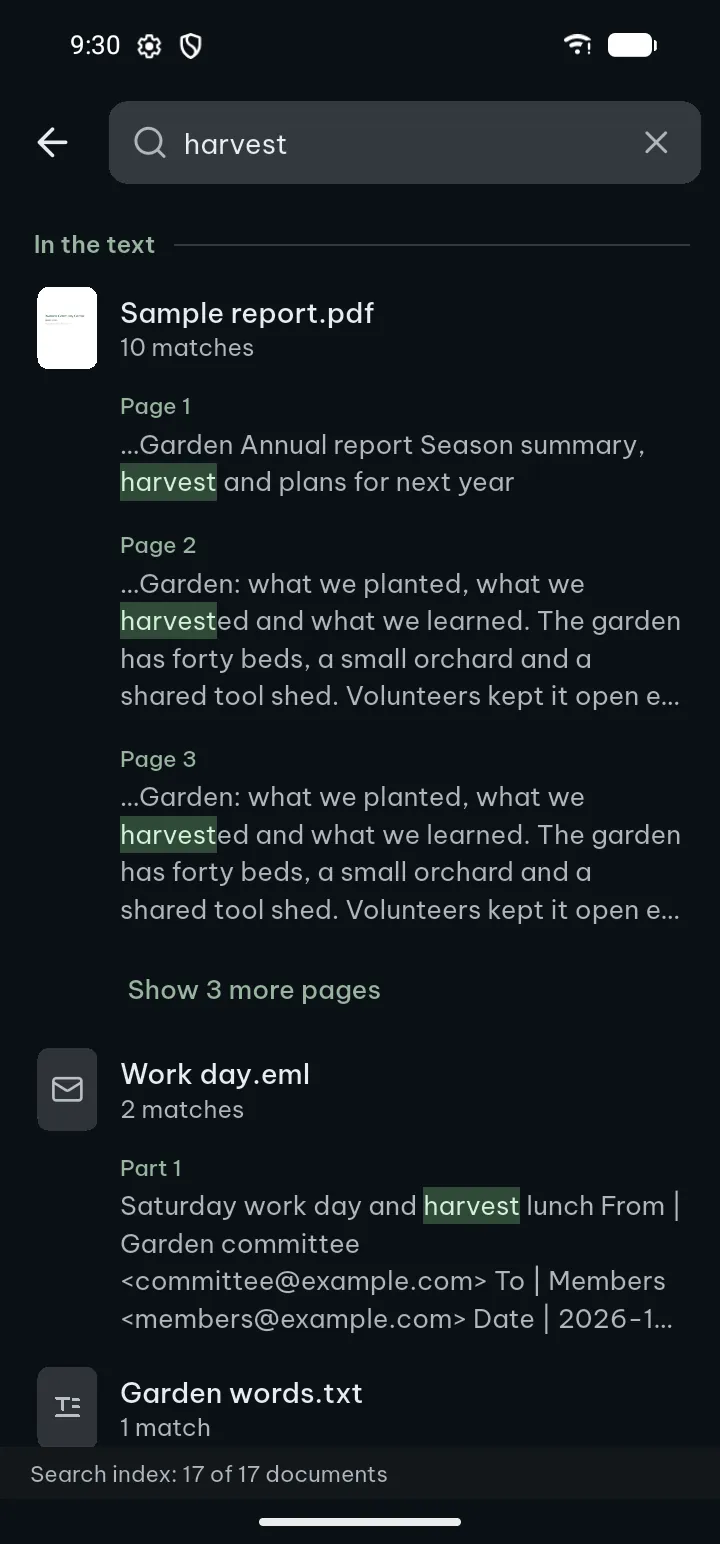
Find a word or phrase in the text of every document in your library, offline.
- On Home tap Search files and text, or in the Library type a word and tap Search "…" inside documents.
- Type a word or phrase. Results come in two groups: Names (files whose name matches) and In the text (each match with its page or slide).
- Tap a result to open the document at that place.
Your last searches are under Recent searches (Clear removes them). If nothing matches, Poleta offers to search the files on this device too; those results are marked On this device · not in the library.
Tips
- The first search builds an index on your phone; while it runs, the screen shows how many documents are done.
- Settings › Open & edit documents has Ignore accents when searching (so “cafe” finds “café”) and Search index with Rebuild.
- Scanned PDFs are searchable once their text is recognized: turn on Recognize text in scanned documents automatically on the same page.
Document menu
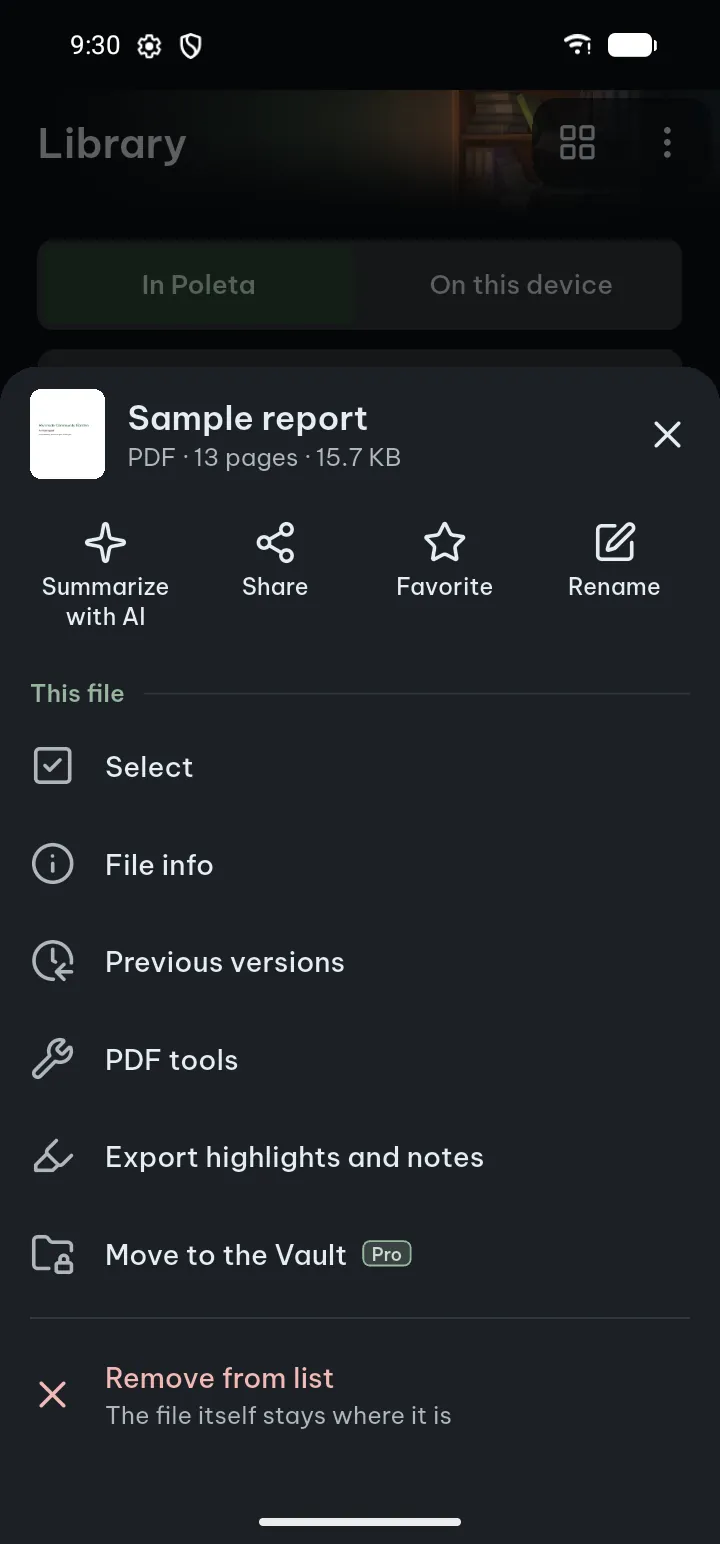
Tap a document's ⋯ (on Home, press and hold the document). At the top are the four things done most:
- Summarize with AI (for files AI can read): the document opens with its summary running. It uses AI credits and needs the internet.
- Share, Favorite / Unfavorite, and Rename (the name shown in the app).
Under This file:
- Select (in the Library) starts choosing several documents.
- File info and Previous versions.
- PDF tools, for a PDF.
- Export highlights and notes: as a PDF with the highlights, .docx, Markdown, HTML or plain text.
- Move to the Vault Pro.
- Remove from list takes it out of the library, with Undo. The file itself stays where it is.
Several documents at once
- In the Library, press and hold a document, or use ⋯ › Select.
- Tap the others you want. The bar at the bottom says how many are chosen.
- Star them (Add to favorites), Share them, or Remove from list (with Undo).
- Done or Back ends the choosing.
Moving to the Vault stays one document at a time.
Previous versions
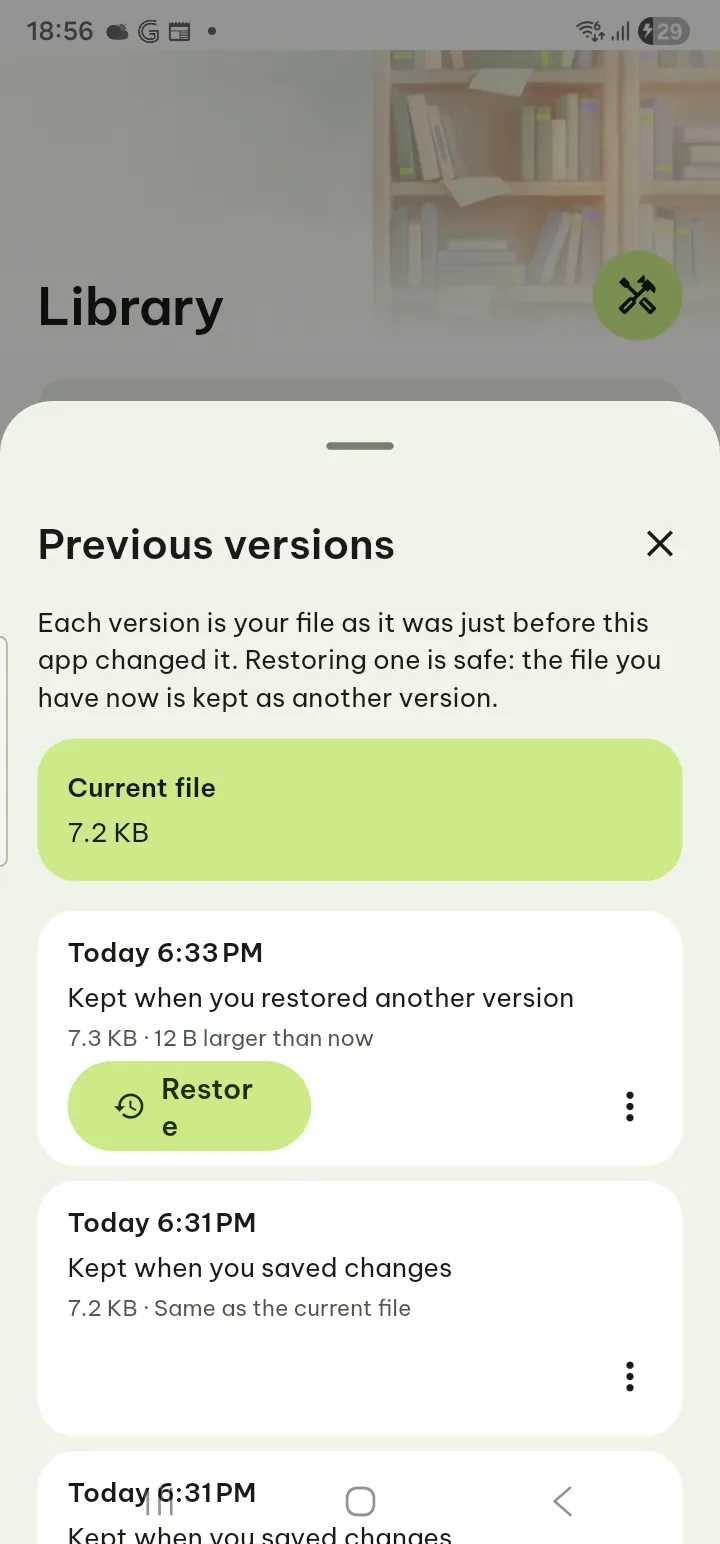
Every time Poleta saves a change, it keeps the file as it was just before. Restoring is safe: the file as it is now is kept as another version, so you can undo that too.
- Open Previous versions from the document menu or a reader's ⋯.
- Each version shows when it was kept and why (for example Kept when you saved changes) and how its size compares with now.
- Tap Restore, and confirm. Or use the version's ⋯: Save as a copy, Share or Delete this version.
Tips
- How many versions, how big and for how long: Settings › Storage & backup › Previous versions (Versions per document, Total size limit, Keep for, and Clear all previous versions). The oldest go first when a limit is reached.
- The first version of a file made with AI is kept until you delete the file.
- A signed or password-protected version comes back exactly as it was.
ZIP and other archives
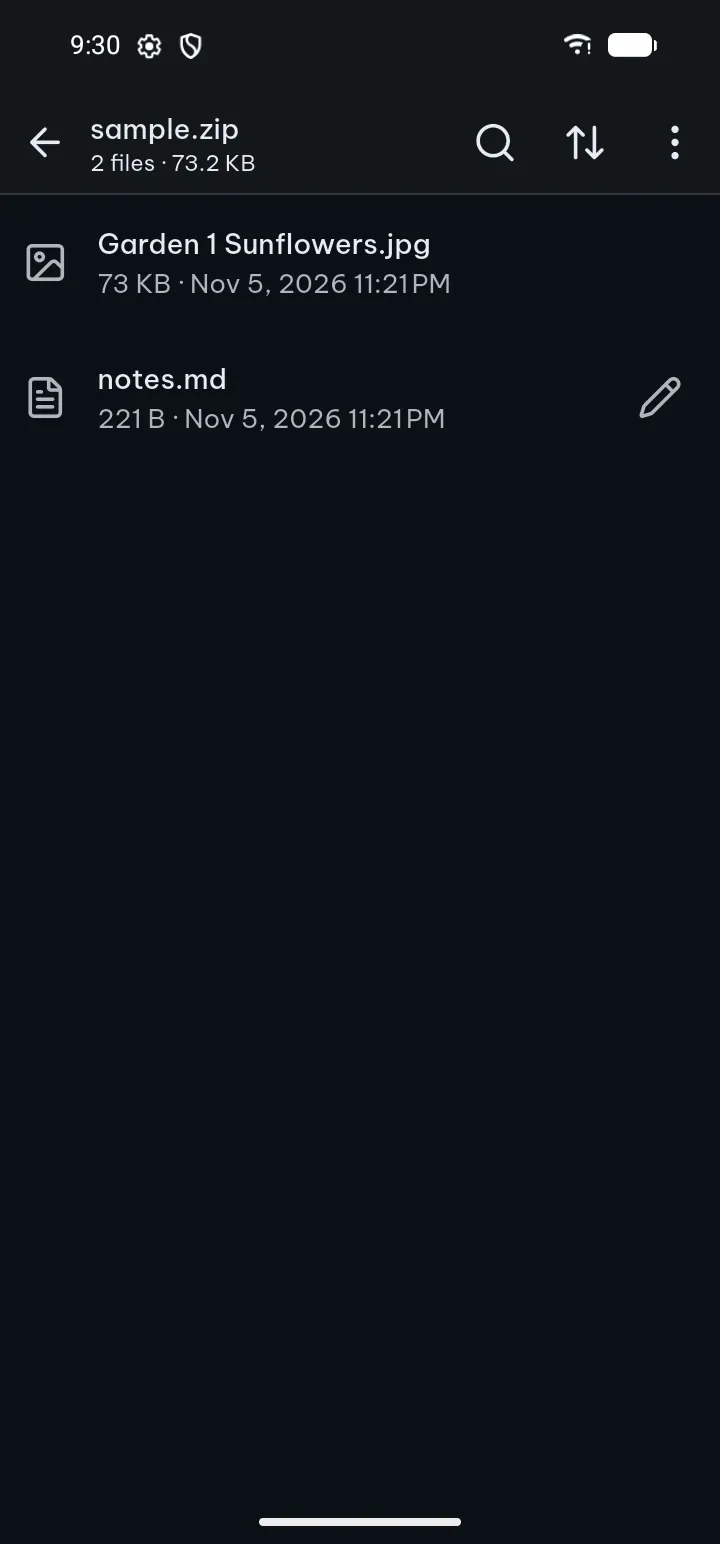
.zip, .7z, .tar, .tgz and .gz files open in an archive browser. Nothing is unpacked until you open an item.
- Tap a folder to go in, or a file to open it in Poleta.
- In big archives, Search names and Sort (Name A–Z, Size, Date, Type, Reverse order) help.
- To take files out: ⋯ › Select, tick them, then Save… or Share. Save all as ZIP… saves everything as one .zip.
Edit a text file inside a ZIP
- Tap the pencil next to a text file (text, code, Markdown, HTML, CSV…): Edit text.
- Make your changes and tap Save.
- Choose Update the file inside the ZIP (every other file stays exactly as it was, and the old ZIP is kept as a previous version) or Save as a separate file.
Tips
- Garbled file names? File name encoding reads them in another encoding.
- A password-protected archive asks for its password. It is used only now and is not saved.
- Only ZIP files can be updated, and not when the ZIP is inside another archive, opened read-only, damaged or very large; then only Save as a separate file is offered, and Poleta says why.
- RAR files are not supported.
If something goes wrong
- "File not on this device" or "Unavailable": the file was moved or deleted outside Poleta. Open it again with Open file, or Remove from list.
- The app closed while a file was opening: next time Poleta opens it in a lighter way, and after more than one crash it no longer opens that file by itself; Open anyway tries again.
- Search misses a file: wait until indexing is done, or Library options › Rebuild search index. A very large document can be left out on a phone with little memory; the search index line says so.
- On this device shows nothing: check that access is on with Manage access, then Look again.
- A saved file did not change where it came from: some apps and folders allow reading only. Use Share › Save a copy to….