User guide › PDF
Reading and editing PDF
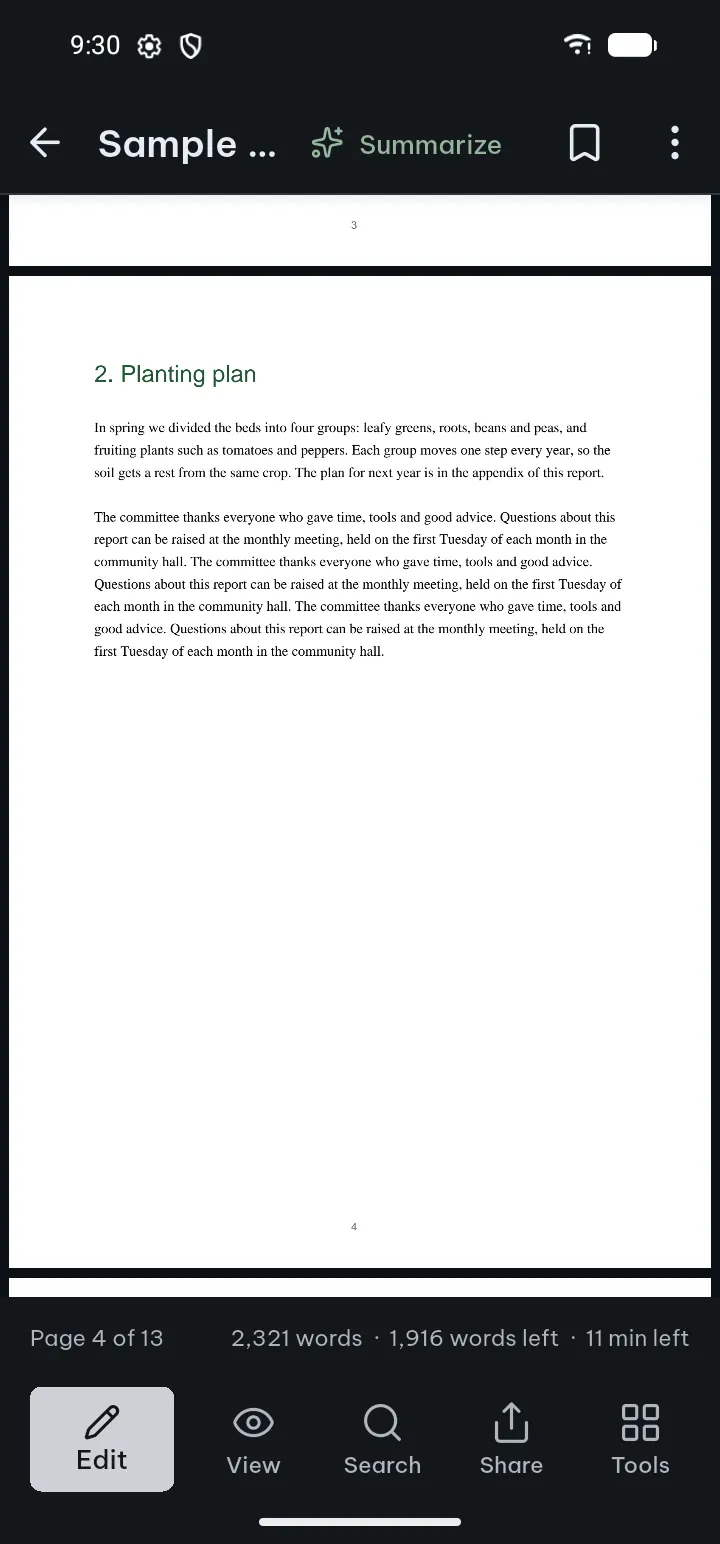
Tap the page to show or hide the bars. The top bar has Back, the bookmark button, Listen (when there is room) and ⋯. The bar at the bottom has Edit, View, Search, Share and Tools; on a PDF form the first button is Fill & Sign. Everything on this page works without Pro except where it says Pro. Pro tools open for everyone: you set them up first, and Poleta asks for Pro only at the last step.
- Pages and contents
- Zoom, scrolling and layout
- Page color and Reading view
- Search
- Bookmarks, highlights, notes
- The editing panel
- Draw and annotate
- Edit text
- Pictures and Cut out subject
- Fill in forms
- Sign, dates, ticks, stamps
- Pages of this PDF
- Recognize text
- Redact
- Compare
- Page labels
- PDF/A and tags
- Save, leave, share
- Read aloud
- Protected and signed PDFs
Pages and contents
Move through a long PDF without scrolling page by page.
Go to a page
- Tap the page number pill (for example 12 / 80).
- Type the page number (or the page's own label, such as iv) and tap Go to page.
To move fast, drag the scroll thumb at the edge of the screen. After you follow a link inside the file, Back to previous position takes you back to where you were.
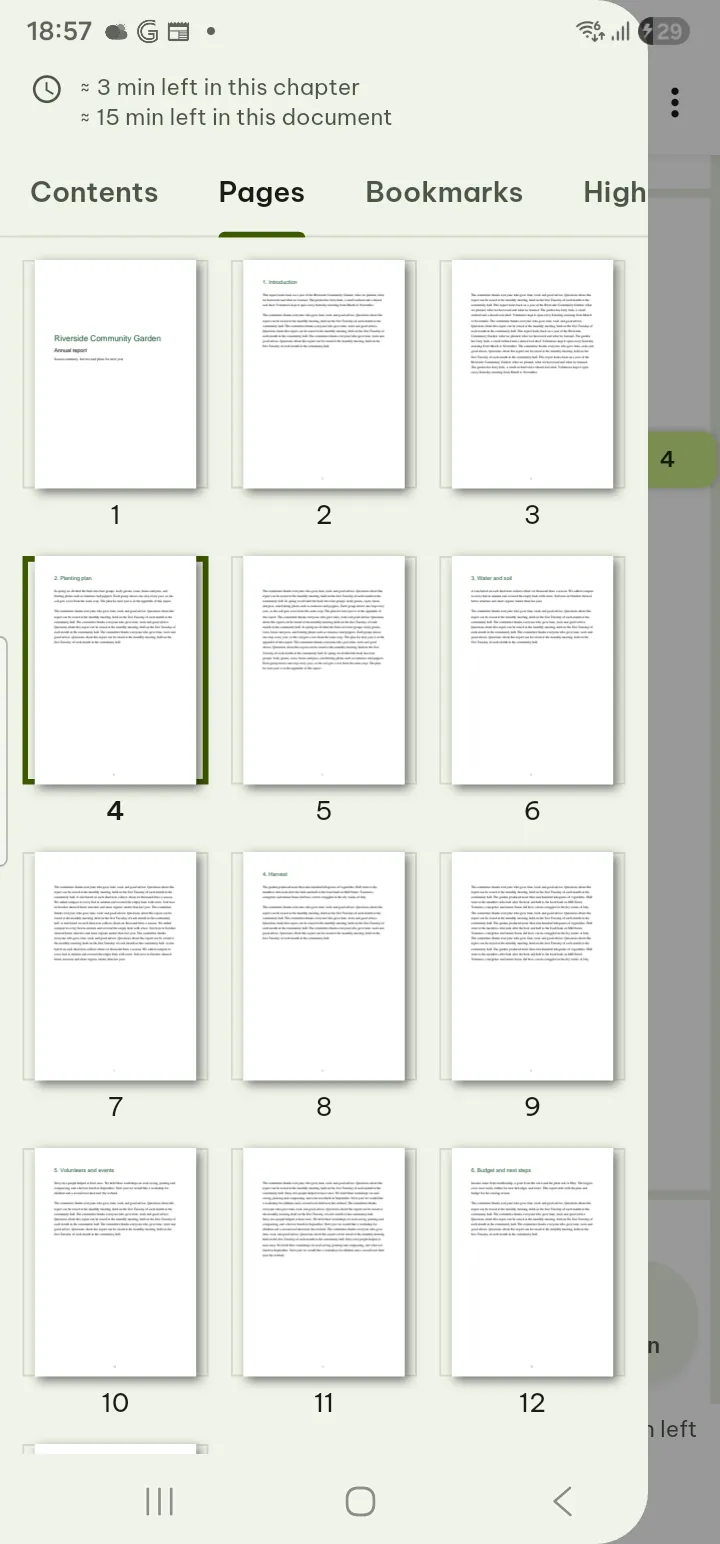
Contents, page thumbnails, bookmarks and highlights
- Tap View.
- Under Go to tap Contents (when the file has an outline), Pages, Bookmarks or Highlights.
- Tap an entry to go there. On a tablet held sideways the list stays open beside the page.
Tips
- ⋯ in the top bar has File info, Previous versions, Mark as finished and Open side by side (two documents at once).
- Poleta opens each PDF again at the page where you left it.
Zoom, scrolling and layout
Pinch to zoom, and double-tap to zoom in and out. The other choices are one step away in the View sheet.
- Tap View › Page and screen.
- Under Scrolling choose Continuous scroll or Page by page. Page by page adds Right-to-left page turning, and on a wide screen Two pages side by side with Cover page alone.
- Choose Fit width or Fit page.
- Turn on Hide white margins to read without the empty borders, and choose Same for all pages, Odd and even pages separately or Each page its own.
- The same step has Brightness, Screen rotation (Auto, Portrait, Landscape) and Keep screen on while reading.
Every change applies at once and the sheet stays open, so you see the result behind it.
Tips
- Hide white margins only changes what you see. To cut the pages of the file itself, use Crop pages.
- View › Reading aids has Reading ruler (dims the text outside a clear band), Auto-scroll with Slower and Faster, and Night colors on a schedule.
Page color and Reading view
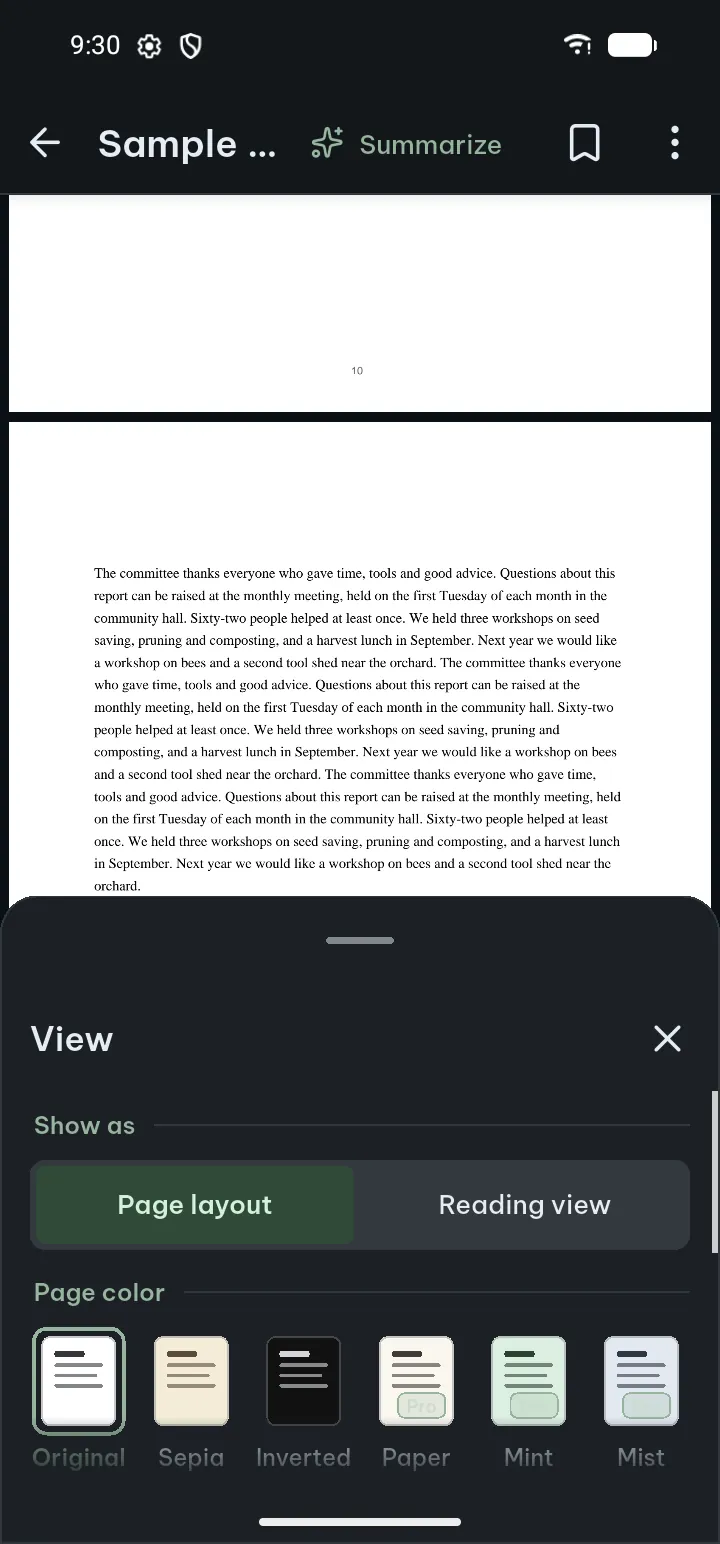
- Tap View.
- Under Page color tap Original, Sepia or Inverted (light text on dark). Paper, Mint and Mist are Pro.
- Under Show as, Reading view reflows the text to the width of your phone, with its own text size and font; Page layout goes back to the pages.
The page color changes only how the page looks on screen; the file stays as it is. Night colors can switch on by themselves at the hours you choose: View › Reading aids › Night colors on a schedule, or in Settings.
Search
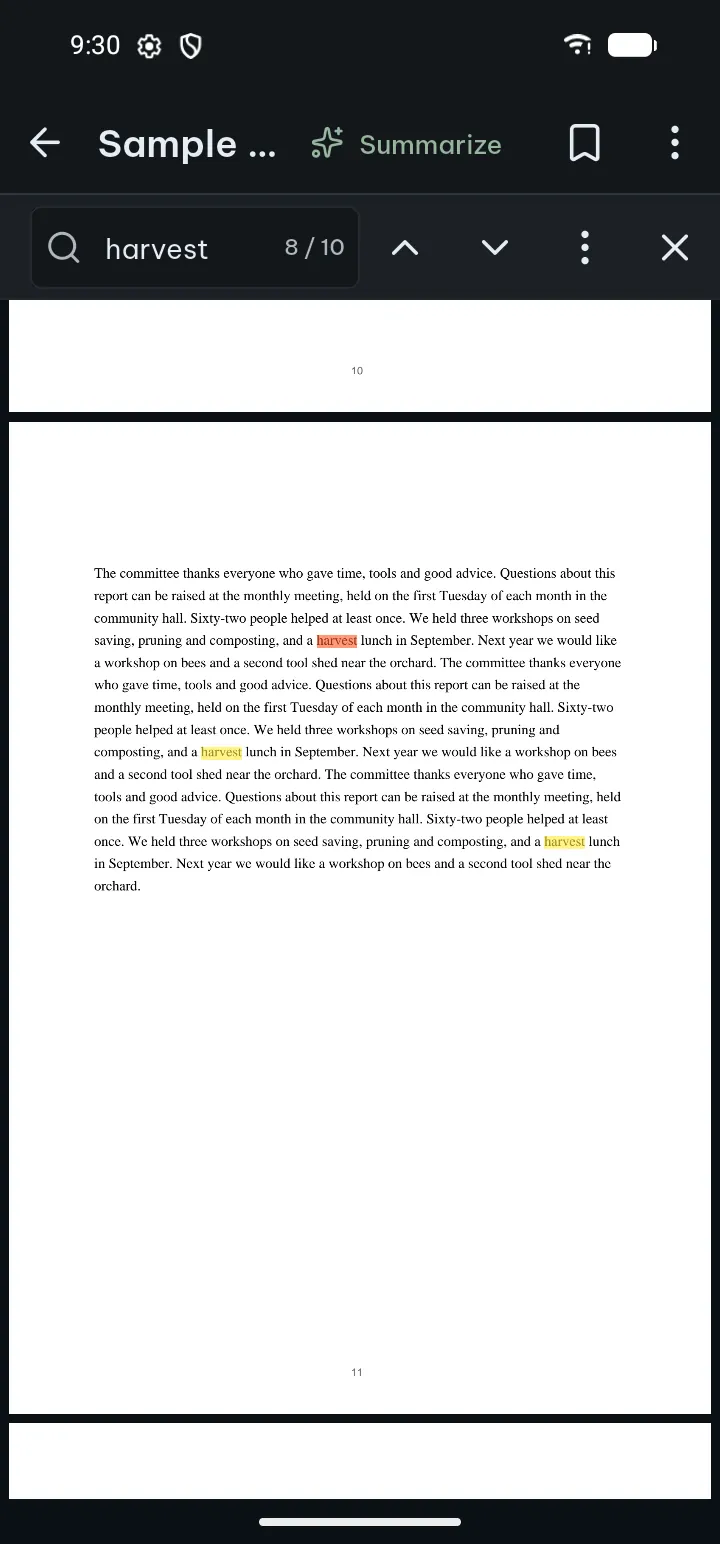
- Tap Search. The search bar takes the place of the bottom bar, right above the keyboard, with the cursor in Search in document.
- Type a word. The count (for example 3 / 12) shows in the field, and the hits are highlighted on the page.
- Move with Previous result and Next result. The ⋮ button has Whole words and All results (a list of every hit with its page).
- Tap × to close the search bar.
If something goes wrong
- A scanned PDF finds nothing: its pages are pictures. The search bar says so and offers Recognize text; after that the pages can be searched (see Recognize text).
- A long file is still being searched: a progress line shows how many pages are done; Stop searching ends it.
Bookmarks, highlights and notes
Bookmark a page
- Tap the bookmark button in the top bar (Add bookmark). Tap it again to remove it.
- Find your bookmarks under View › Bookmarks, where you can rename one (Edit bookmark) or swipe it away.
Highlight text
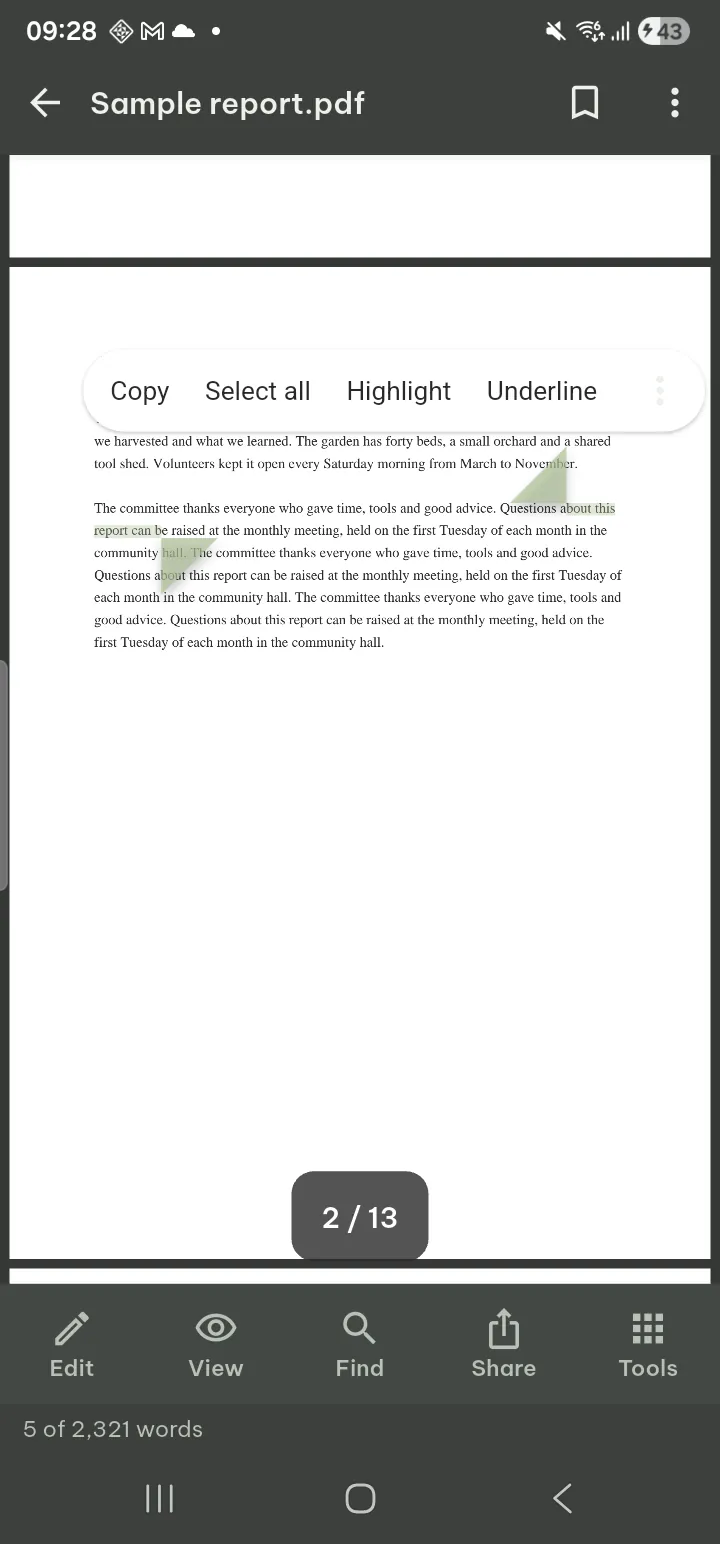
- Press and hold a word, then drag the handles over the text you want.
- In the menu, tap Highlight, or Highlight colour… to pick the color first. The same menu has Copy, Look up (your dictionaries), Share text, Read from here, Underline, Strikethrough, Wavy underline and Search in document.
Add a note to a highlight
- Tap the highlight.
- Choose Add note (or Edit note), Make flashcard, Copy or Delete highlight, or change its color.
Tips
- Share › Export highlights and notes puts all of them in one file to share.
- Tools › Make flashcards from highlights turns them into cards for Study.
- A highlight you chose not to save into the PDF stays in Poleta; tapping it offers Put it in the PDF.
- If the author of the PDF does not allow copying, Copy and Share text are not offered.
The editing panel
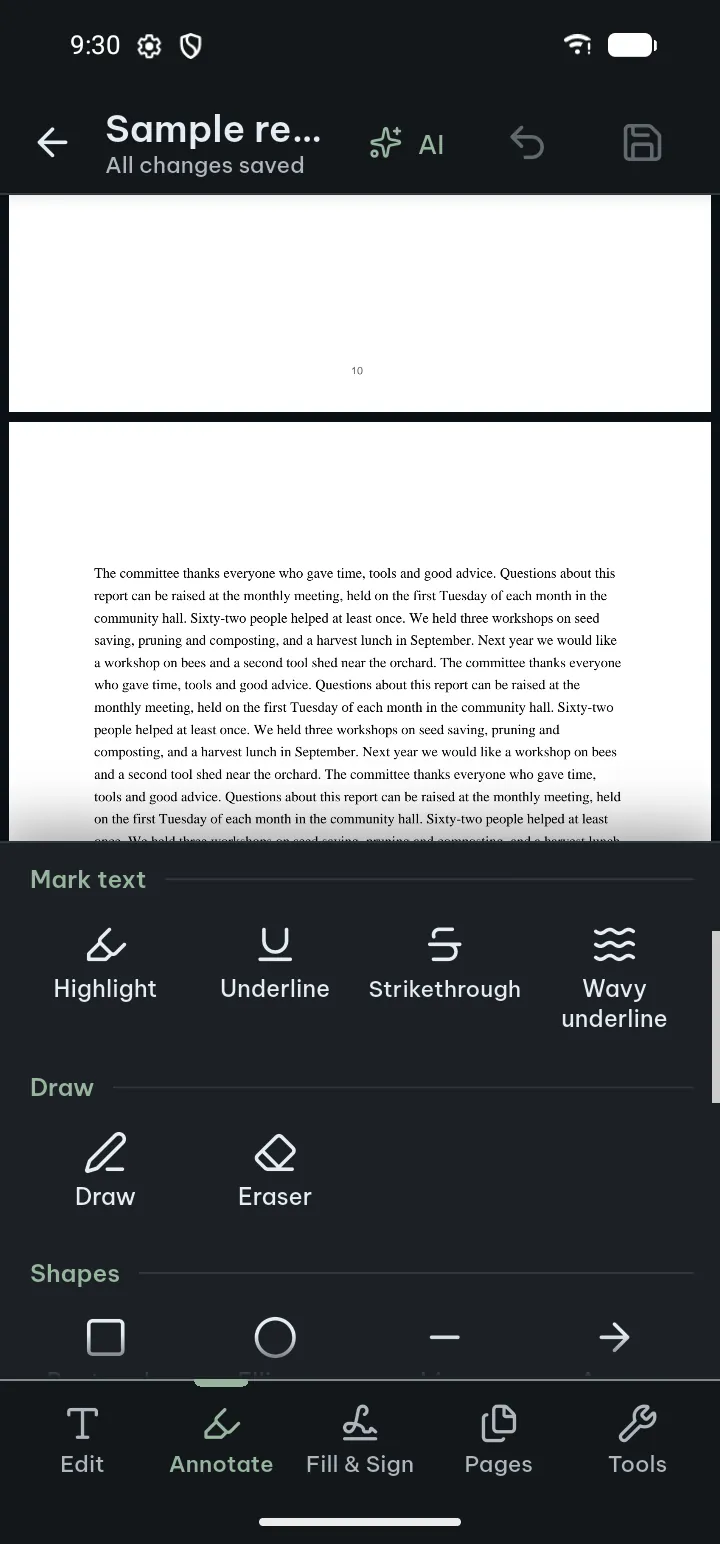
Tap Edit. A panel opens at the bottom with five named tabs. Each tool has its name under its icon, in groups, the most used first:
- Edit: Edit text, Text (type anywhere on the page), Picture and Camera Pro, Select.
- Annotate: Highlight, Underline, Strikethrough, Wavy underline; Draw, Eraser; the shapes Rectangle, Ellipse, Line, Arrow, Callout, Polygon; Sticky note, Stamp, Cover; Select.
- Fill & Sign: Text, Fill in form (on a PDF without fields: Find blanks Pro); Sign, Date, Marks; Create form fields Pro, Send.
- Pages: the pages of this file, with Rotate, Delete, Insert, Move earlier, Move later, Select pages, All pages and Extract pages.
- Tools: Share file, Print, Save, Save a copy…; Convert to document (.docx), Convert to spreadsheet (.xlsx), Convert to slides (.pptx) Pro; Recognize text; Redact Pro and PDF tools.
While a tool is in use, the top bar shows its name, Save, Done and All tools; All tools opens the panel again to switch tools. Done ends editing in one tap; your marks stay until you save or leave.
Draw and annotate
- Tap Edit › Annotate and tap a tool. A line under the bar says what to do, for example Drag to draw the shape.
- Draw on the page. One finger draws; two fingers move and zoom the page.
- Use the bar at the bottom for Undo, Redo, Color (or Pick another color) and Thickness.
- Tap Save to put your marks into the file.
- Highlight follows the lines of text (On the text) or goes where your finger goes (Free hand).
- Polygon: tap each corner, then Close shape or Finish. Callout: drag from what you point at to where the text goes, then type.
- Sticky note: tap where the note goes and type it. Text: tap where the words go and type; Smaller and Larger change the size.
- Eraser: drag over a drawing to erase that part; other marks are removed whole.
- Cover (Box or Pen) hides part of the page on screen and in print.
Move, resize or delete a mark
- Tap a mark you placed (or use Select and then tap it). It shows a frame with handles.
- Drag it to move it; drag a corner to change its size. A line moves by its ends, a polygon by its points, a callout by its box or by the tip of its pointer.
- The bar at the bottom has Properties, Duplicate and Delete. Undo takes any change back.
Marks that were already in the file can be selected, moved and deleted the same way. A text mark (highlight, underline, strikethrough) stays on its text: you can change its color or delete it.
Tips
- Drawing with a finger chooses who draws: Automatic: a finger draws until you use a pen, Pen only: a finger moves the page, or Pen and finger both draw.
- A mark you place comes selected, so you can fix its place or size straight away.
If something goes wrong
- Black ink or Cover does not hide the text for good: the text is still in the file and can be copied. To remove it, use Redact.
- A mark cannot be moved: in a digitally signed PDF, the marks already in the file cannot be moved or deleted without breaking the signature; Poleta says so.
Edit existing text
Change the words that are already in the PDF, in their own font where the file allows it.
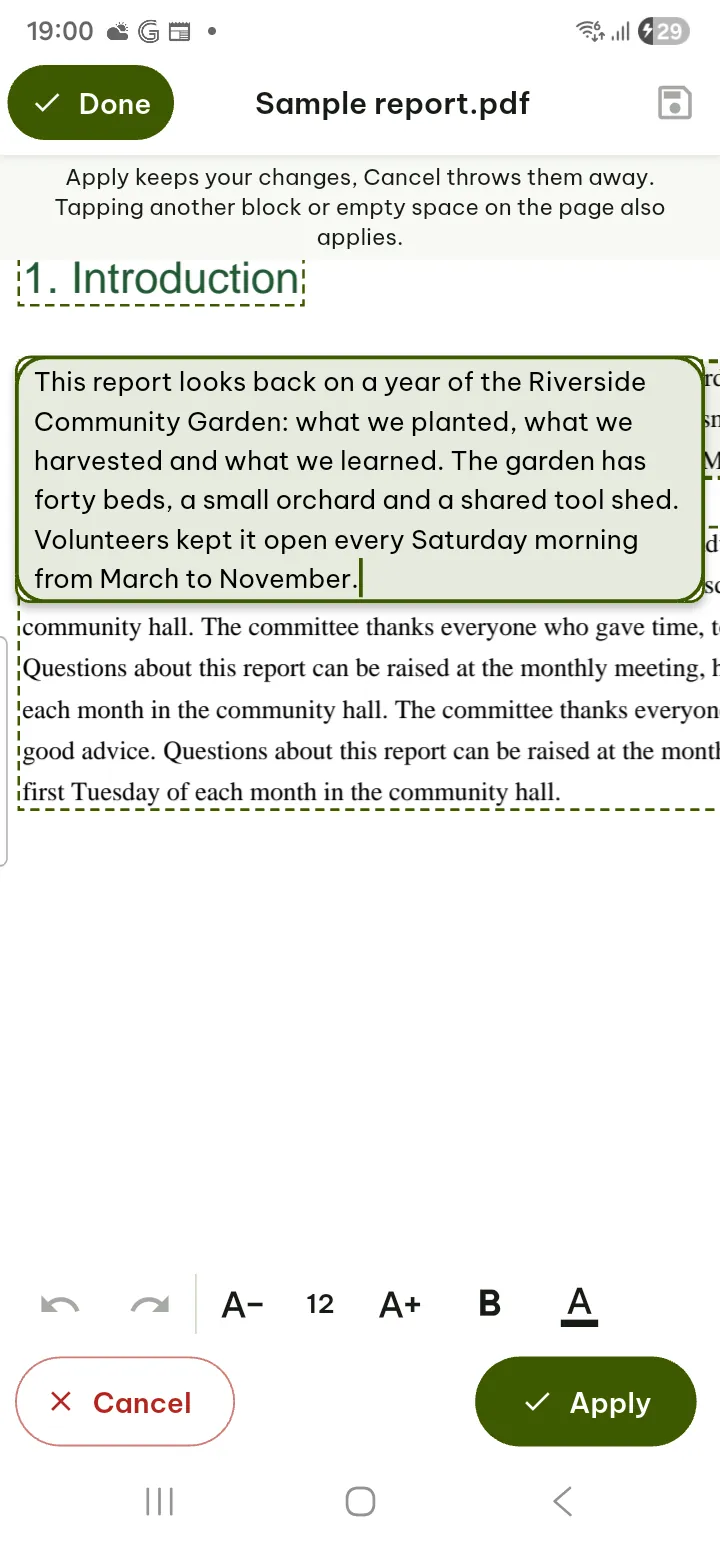
- Tap Edit › Edit text. The text of the page shows in dashed boxes.
- Tap a dashed box and type. The bar has Bold, Text color, Format and Delete.
- Format has the font size (Smaller text, Larger text), Copy and Cut, and Pro: Italic, Underline, Strikethrough, Text alignment, the Font and the width of the box. As in the file goes back to the file's own font.
- Tap the tick to keep the change, or × to throw it away. Your change is also kept when you tap another box.
- Tap Save at the top.
Tips
- Each change is one step of Undo; Redo brings it back.
- Letters that the file's font does not have are drawn with a bundled open font; Poleta tells you when it does.
- If the new text runs into the text below, Poleta warns you; check the page before you save.
If something goes wrong
- A page shows no boxes: it is a picture, such as a scan. Recognized text is hidden text and cannot be edited, but it can be searched and copied.
- A box cannot be edited: rotated or slanted text, right-to-left text and some fonts cannot be edited yet. Tapping the box says why.
- The old words must be gone for good: in a signed file, the text you replace stays in the file's earlier version, which other PDF apps can show. Use Redact for a clean copy.
Pictures and Cut out subject
Move, resize, turn and clean up the pictures of a PDF, or put a new one on a page.
Change a picture of the file
- Tap Edit › Edit text, then tap the picture. It shows a frame with handles.
- Drag it to move it, drag a corner to change its size (its proportions stay), or drag the round handle to turn it.
- The bar has Duplicate, Replace picture Pro, Edit picture, Save picture (the picture as a file of its own) and Delete.
- Tap Save.
Edit picture
- Enhance: Auto fix (clearer, brighter), Gray, Black and white (best for pictures of text).
- Clean up Pro: Erase an area (drag over it; it is filled with the colors around it), Remove background (for a plain, one-color background) and Cut out subject.
Cut out subject Pro
- Select the picture and tap Edit picture › Cut out subject.
- Poleta finds the person or object on your phone and makes the rest of the picture see-through.
- Check the result. Undo at the top brings the picture back; otherwise tap Save.
Put a new picture on a page Pro
- Tap Edit › Picture (from your gallery) or Camera (take a photo now).
- The picture lands on the page you are reading, selected. Move and resize it, then tap Save.
If something goes wrong
- Cut out subject the first time: the tool is downloaded once (Getting the cut-out tool ready), so the first use needs the internet. If it could not download, check your connection and try again.
- No person or object was found: nothing is changed. Try Remove background for a plain background.
- Not available on this device: some phones cannot run it; Remove background still works.
- A picture cannot be changed: it may be drawn on several pages at once (like a watermark), cropped by the page's drawing, part of a signed file, or too large for the phone. Poleta says which.
Fill in forms
Every PDF has the Fill & Sign tab: tap Edit › Fill & Sign. On a PDF form it is the first button of the bottom bar, and Fill & sign on Home asks which PDF to open.
A form with fields
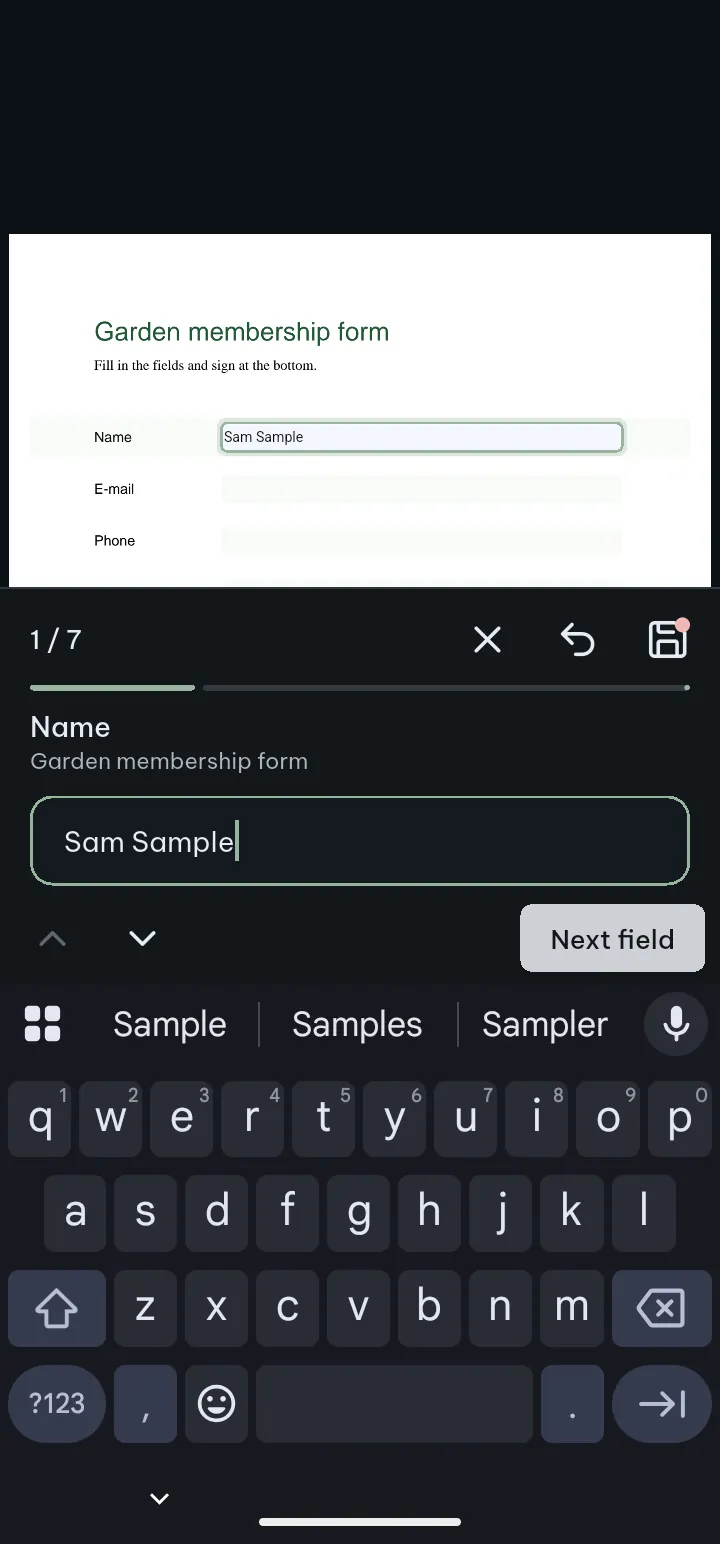
- Tap Fill & Sign › Fill in form. The fields are outlined on the page.
- Type, pick from the list (Choose) or tick the box. A date field offers Today and Yesterday.
- Tap Next field to go on (Previous field goes back). The card shows how many fields are filled and how many required ones are left.
- Tap Done. If required fields are still empty, Before you finish offers Fill the first one or Finish later.
- All filled in then offers Save, Save a copy… and Share.
A paper form without fields
- Tap Text, then the place where the words go, and type.
- Tap Marks for a Tick, Cross, Dot or Box, and Date for today's date.
- Or tap Find blanks Pro: Poleta finds the lines, boxes and check boxes; tap one to type in it.
- Tap Save. Send shares the filled-in form.
Tips
- Tools › Form has All fields (the list; Empty only shows the ones left), Highlight fields and Clear what I typed.
- What you type is kept on your phone until you save it into the PDF.
- To turn a PDF into a fillable form, see Create form fields Pro.
If something goes wrong
- "Not accepted here": the field takes a set format; the card shows an example.
- A field cannot be filled in: read-only fields, password fields, file uploads and buttons that run actions are not supported; tapping one says so.
- Answers cannot be saved into the file: a PDF with a password keeps your answers in the app only. Remove the password first (Remove password).
- A form with scripts or an XFA layout: your answers are saved in its fields, but other apps may show or recalculate them differently.
Sign, dates, ticks and stamps
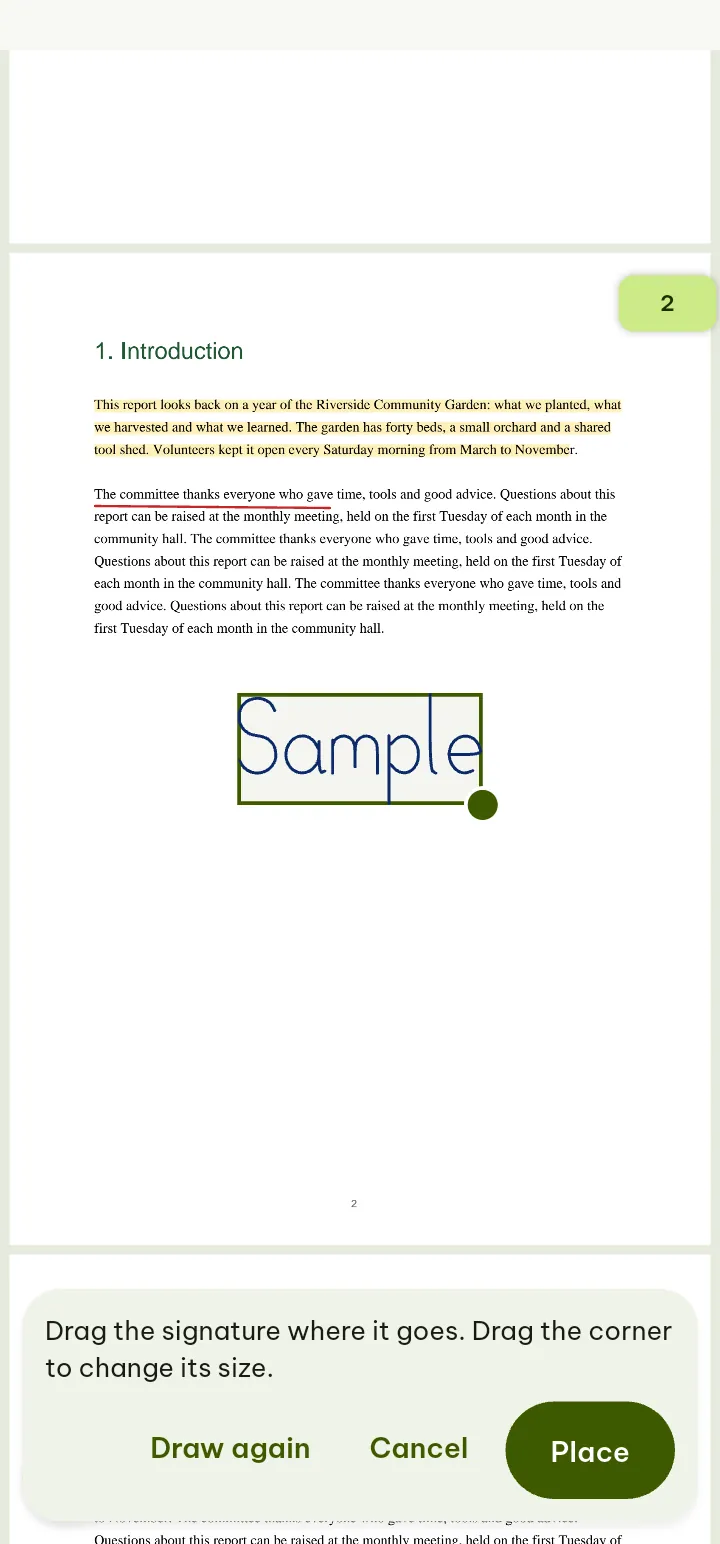
- Tap Fill & Sign › Sign.
- The first time, make your signature: Draw it with your finger, Type your name (it is written in a handwriting style), or use a Photo of your signature on white paper Pro (the paper is taken away and only the ink is kept). Tap Save.
- Tap the page where you want to sign. On a form with a signature field, the signature goes into the field.
- The signature is placed at once and selected: drag it into place, drag a corner to change its size. The strip at the bottom has Delete and Change.
- Tap Save.
Next time, Your signatures lists what you saved: tap one to sign with it. Initials are kept there too (Add initials). One signature and your initials need no Pro; keeping up to 5 signatures (New signature) is Pro. Signatures are kept on your phone only, and deleting one never changes what you already signed.
Stamps
- Tap Edit › Annotate › Stamp and pick a stamp (all stamps are one tap away).
- Tap the page to place it. It comes selected: move it, resize it or delete it.
Approved, Draft and the stamps with today's date (Approved, Received and Paid with the date under the word) need no Pro. Not approved, Final, Confidential, For comment, Paid, Received, Completed and stamps with your own words are Pro.
If something goes wrong
- A typed signature looks plain: the handwriting style has no letters for that script, so a plain font is used. Draw your signature instead.
- You need a certificate signature: what Poleta places is a signature on the page, not a digital (certificate) signature.
Pages of this PDF
The Pages tab changes this file itself, like any other edit: Undo works, and Save writes it.
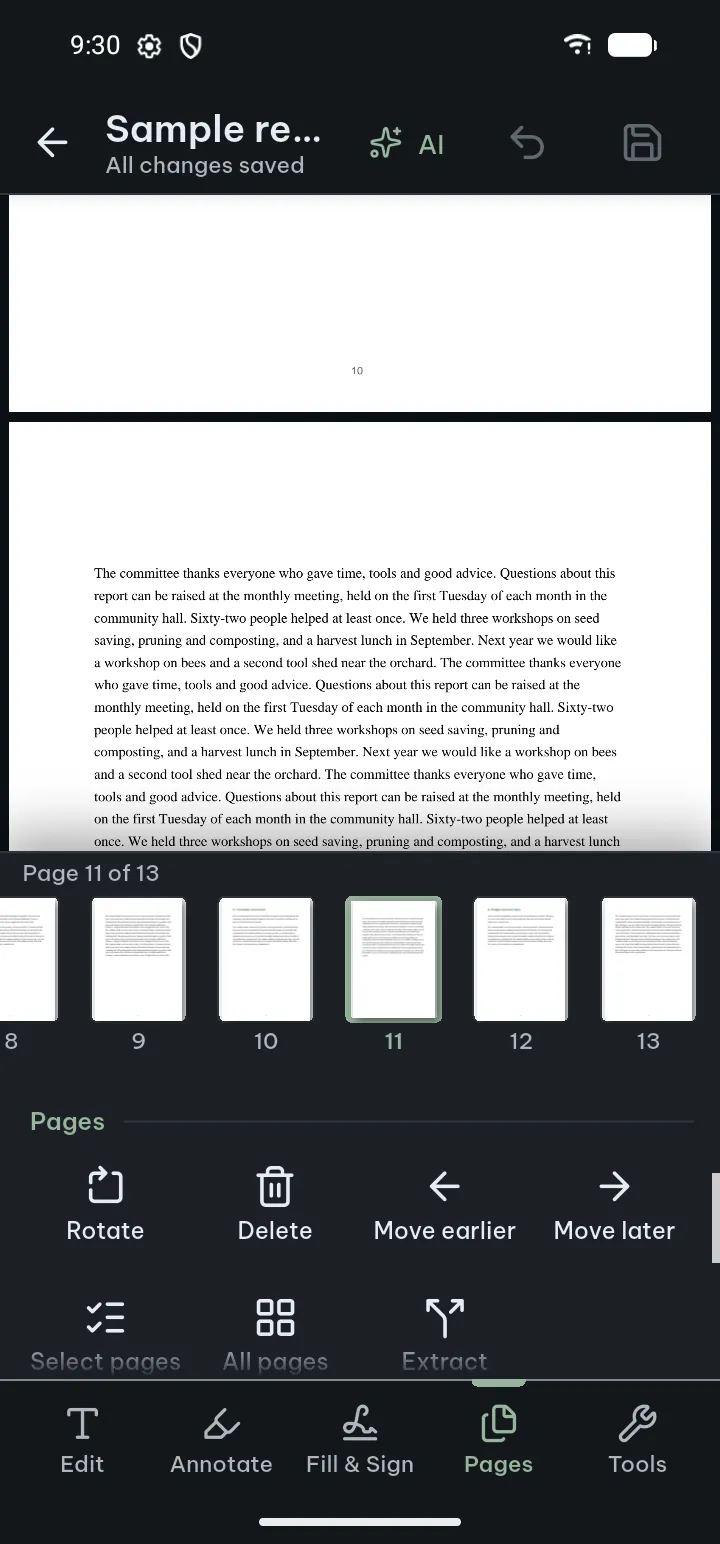
- Tap Edit › Pages. A strip shows the pages of the file.
- Tap a page in the strip, or Select pages to choose several (All pages chooses every page).
- Tap Rotate, Delete, Move earlier or Move later. In the strip you can also hold a page and drag it.
- Insert adds a Blank page, a page From a picture, a Scan or the pages From a PDF.
- Extract pages makes a new PDF of the chosen pages.
- Tap Save.
The reader's Tools sheet has these under Pages too: Delete, move or insert pages, Extract pages, Merge PDFs and Redact Pro. PDF tools lists every tool of the Tools tab for this file.
If something goes wrong
- Pages cannot be deleted, moved or inserted: the file is digitally signed or protected, or text recognition is still running. Poleta says why; rotating still works in some of these cases.
- A tool asks to save first: tools that make a new file from this one work on the saved file, so Save and continue puts your changes in first.
Recognize text in a scanned PDF
- Tap Tools › Recognize text (or Recognize text in the search bar of a scan).
- Wait while the pages are read. It runs on your phone; nothing is uploaded.
- Now you can search, select, copy and listen to the text. Recognized text shows the words of this page, with Save as searchable PDF and Export as text file in its menu.
The recognized text is kept in Poleta; the file itself does not change until you save a searchable PDF. Delete recognized text removes it. Recognition reads Latin-script languages (such as English, French, Spanish and Vietnamese), Chinese, Japanese, Korean and Devanagari.
Redact Pro
Boxes drawn with Draw or Cover only hide what is under them: the text is still in the file. Redact removes it for good, with the pictures, drawings, notes and hidden data under the boxes, and saves the result as a new file. Open it from Edit › Tools › Redact, from Tools › Redact in the reader, or from the Tools tab of the app. Marking the boxes needs no Pro; Pro is asked when you tap Redact to finish, and your boxes stay if you close that screen. Step by step: Redact.
Compare two versions Pro
In the reader, Tools › Compare documents compares this file with another one (a PDF, or a document, slides, spreadsheet or text file). It marks every added, removed, changed and moved word, compares two PDFs page by page as pictures, and makes a report you can save as PDF or share. Choosing the files and the options needs no Pro; Pro is asked when you tap Compare. Step by step: Compare documents.
Page labels
Many books and reports number their pages in their own way, for example i, ii, iii for the front pages or A-1, A-2 in an appendix. When a PDF has such page labels, Poleta shows the label with the page number (for example iv beside 4 / 120), screen readers say it, and Go to page takes a label as well as a number. Organize pages shows each page's label, and when you move, delete or extract pages, each page keeps the label it had.
PDFs for screen readers and for archives
When you make a PDF from a document, spreadsheet or slides with Save as PDF… or Print… (see Print, save as PDF), the PDF file part of that sheet has two switches:
- Tags for screen readers (on by default): the PDF carries its headings, reading order, tables and picture descriptions, so apps that read aloud can follow it in order.
- Archive copy (PDF/A): a PDF/A-2 file for keeping long term, with everything it needs inside. A fillable form with date or number checks cannot be an archive copy, because PDF/A does not allow the scripts those checks need.
A saved PDF also keeps the document's headings as bookmarks, its links and its page numbers.
Save, leave and share
Save
- Save puts your marks, answers and edits into the file, and you keep working. It is in the top bar (with the number of changes waiting), in Edit › Tools (with a dot when something is not saved yet) and in Share.
- Save a copy to… writes a new file and leaves this one as it is.
- Each save keeps the file as it was before: ⋯ › Previous versions brings it back.
Leave with changes not saved
- Tap Back. Poleta asks Save changes to <file name>? and says how many changes are not in the PDF yet.
- Tap Save to keep them, Don't save to throw them away, or Cancel to stay.
Highlights are never lost this way: after Don't save they stay in Poleta, not in the PDF.
Share
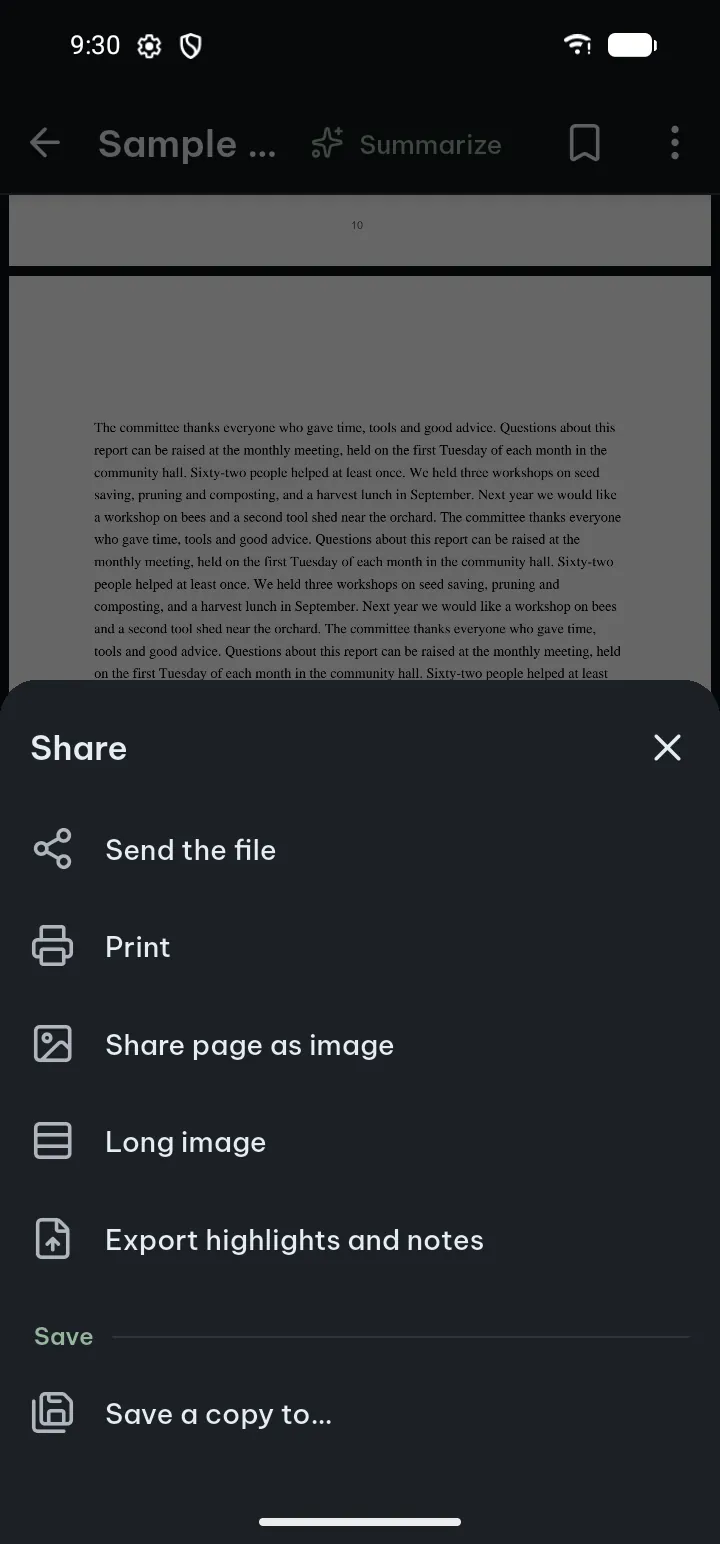
- Share has Send the file, Print, Share page as image, Long image (all pages as one tall picture for chat apps) and Export highlights and notes.
- ⋯ › File info shows the name, size, pages and whether the file is protected.
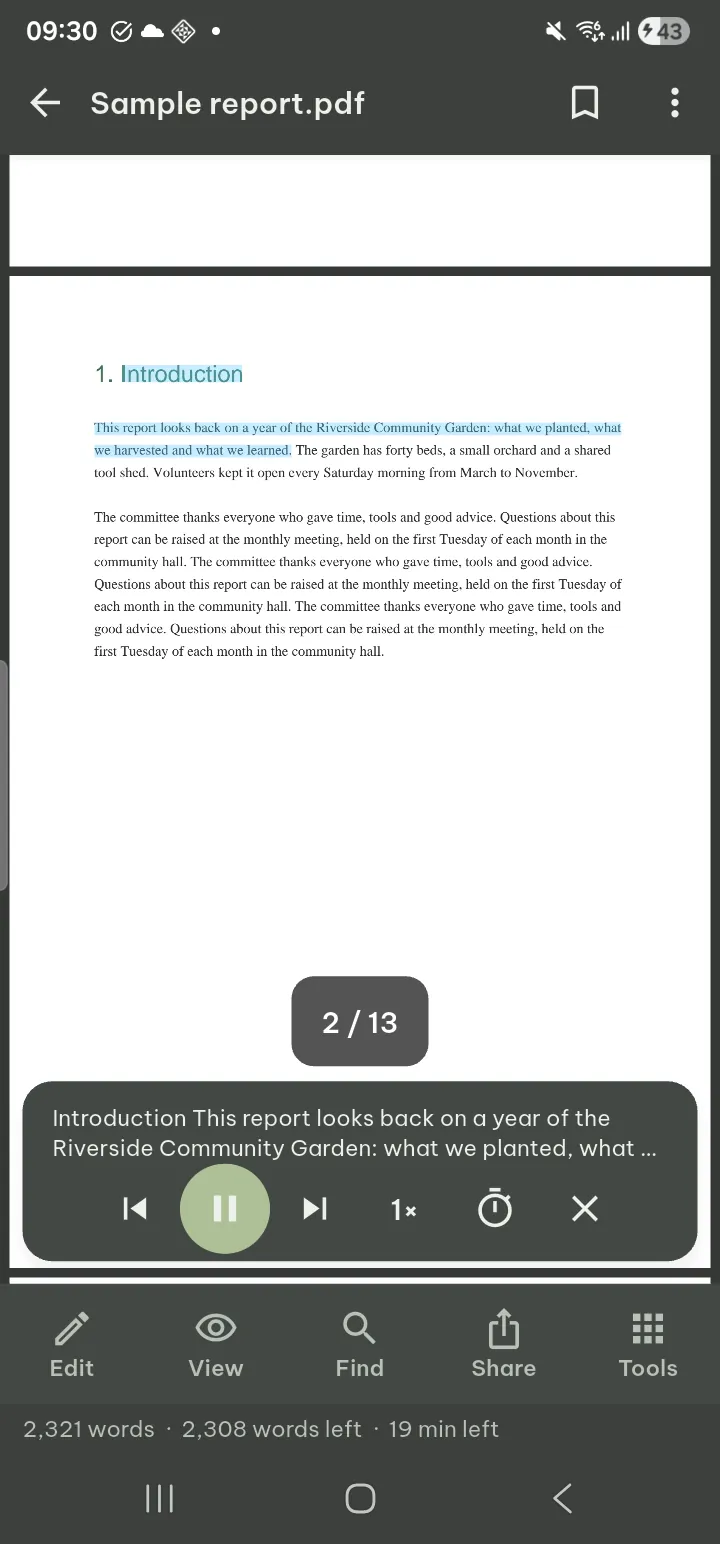
Read aloud
- Tap Listen in the top bar, or View › Read aloud (from this page), or select text and tap Read from here.
- Use Previous sentence, Play and Pause, Next sentence and Speed.
- Sleep timer stops after 15, 30 or 60 minutes.
- Stop reading closes it.
Reading goes on with the screen off, with play and pause on the lock screen and your headset. It uses the voices installed on your phone.
If something goes wrong
- "This document has no text to read aloud": it is a scan. Recognize the text first.
- The voice sounds wrong: install or choose a voice for that language in your phone's text-to-speech settings.
Protected and signed PDFs
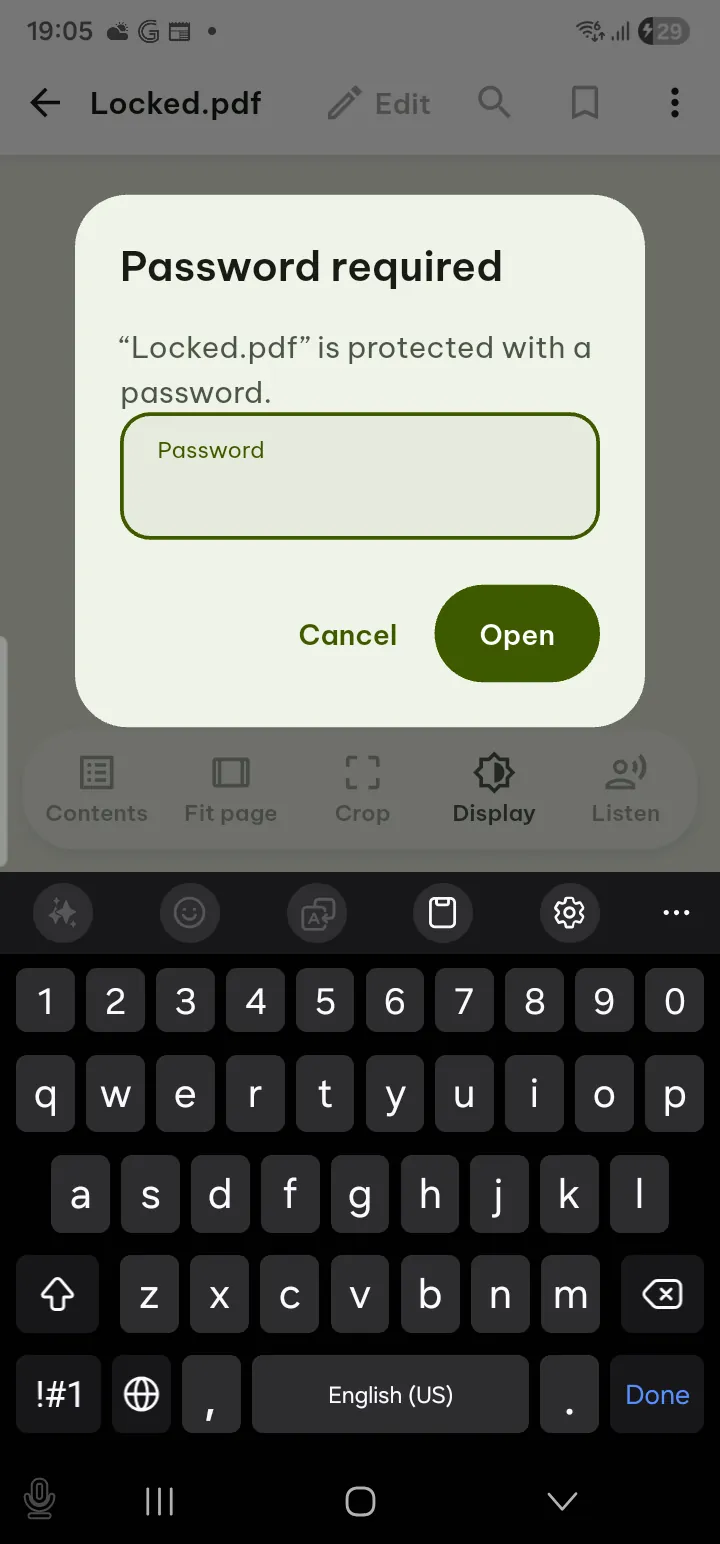
- Password: a password-protected PDF opens after you type its password (Password required). Poleta cannot recover or bypass a password. Marks and answers cannot be saved into a protected file yet; they stay in the app. To edit it, make a copy without the password with Remove password Pro, using the password you know.
- Restrictions: what the author does not allow is not offered. If copying is not allowed, Copy, Share text, Share page as image and the conversions are not offered; if printing is not allowed, Print is not shown.
- Digital signatures: any change to a digitally signed PDF breaks its signature. Poleta does not save marks into such a file (they stay in the app). Edit text, form filling and Create form fields warn you first and say that viewers will report the signature as no longer valid.