
User guide › Vault, backup, settings and Pro
Vault, backup, settings and Pro
Keep private documents locked, back up your library, set the app up the way you like it, make it easier to read, and see what Poleta Pro and AI credits add. Settings is the last tab of the bottom bar; Search settings at its top finds any option by name.
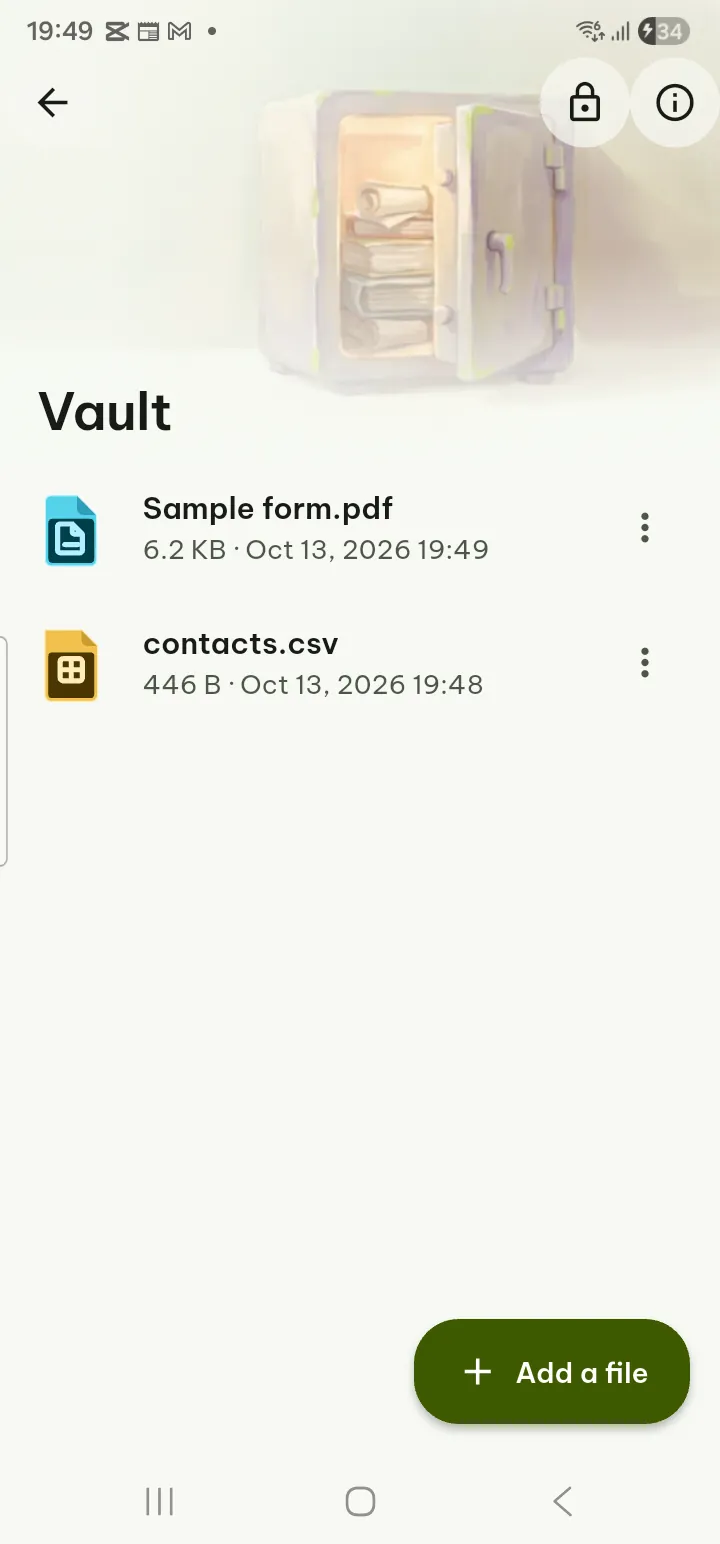
- Vault
- App lock
- Statistics
- Backup and restore
- Space and versions
- All settings
- Easier to read
- Language
- Privacy
- Help and feedback
- Pro
- AI credits
- Invitation codes
- If something goes wrong
Vault Pro
Documents in the Vault are stored encrypted and open only with your fingerprint, face, screen lock or PIN.
- Open Tools › Vault, or Settings › Security & privacy › Vault, and tap Set up the Vault.
- Choose how it opens: Fingerprint, face or screen lock, or PIN, or PIN only, and set a PIN of 6 to 8 digits.
- Make the recovery key and keep it somewhere safe, away from the phone. It opens the Vault if you forget the PIN; there is no other way back in, and nobody, including us, can reset the Vault.
- Add documents with Add a file, or Move to the Vault from a document's menu in the Library (you can keep or delete the original).
- Tap Lock the Vault when you are done. It also closes by itself with the app lock time (Lock after).
Each item has Move out of the Vault, Export a decrypted copy, Earlier versions, rename and Delete for good. Tools used on a Vault document save their result in the Vault. How the Vault protects files in the Security page explains the encryption.
Tips
- Vault screens and the recovery key are never captured in screenshots or screen recordings, and text you copy from a Vault document is marked as sensitive.
- The Vault is never in backups. Keep the recovery key; Make a new recovery key replaces it (the old one stops working, the new one is shown once).
- If Pro ends, you can still open, move out and export everything; only adding needs Pro.
- Printing a Vault document or the recovery key hands a PDF copy to your phone's print service, which keeps it outside the Vault until the print job is finished or canceled. The app says so before you print.
App lock
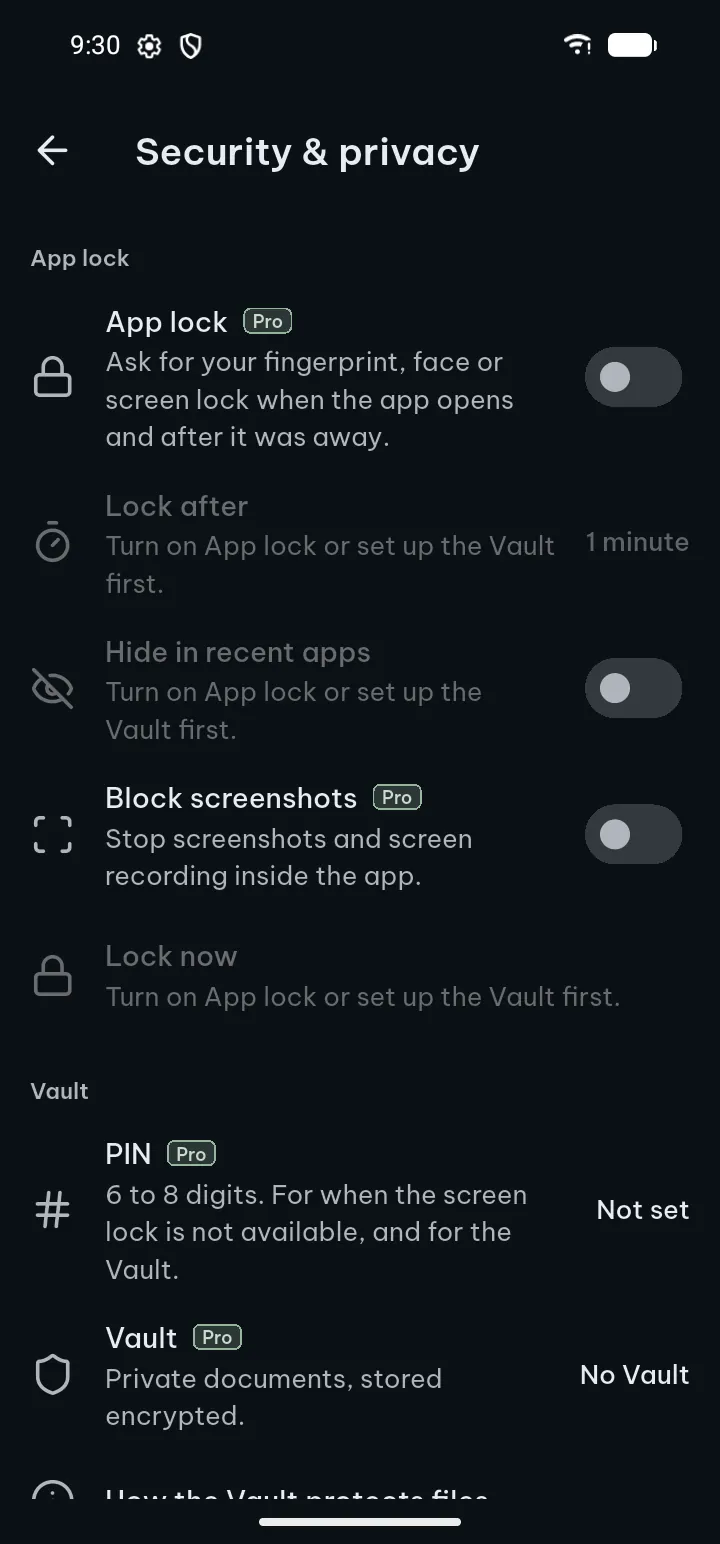
- Open Settings › Security & privacy.
- Turn on App lock Pro: Poleta then asks for your fingerprint, face or screen lock when it opens and after it was away.
- Under Lock after, choose how long it may be away first: Immediately, 30 seconds, 1 minute or 5 minutes. The Vault closes at the same time.
- Under PIN, Set a PIN (6 to 8 digits) for when the screen lock is not available, and for the Vault. Change PIN and Remove PIN are there too.
- Lock now locks the app and closes the Vault right away.
- Block screenshots Pro stops screenshots and screen recording inside the app.
- Hide in recent apps shows a blank card in the list of recent apps.
- After many wrong PIN tries the wait grows (restarting the phone or changing its clock does not shorten it); after 20 the PIN stops working where you have another way in, such as the recovery key or the phone's screen lock.
Turning the lock or screenshot blocking off is always free. A phone with no screen lock uses the PIN.
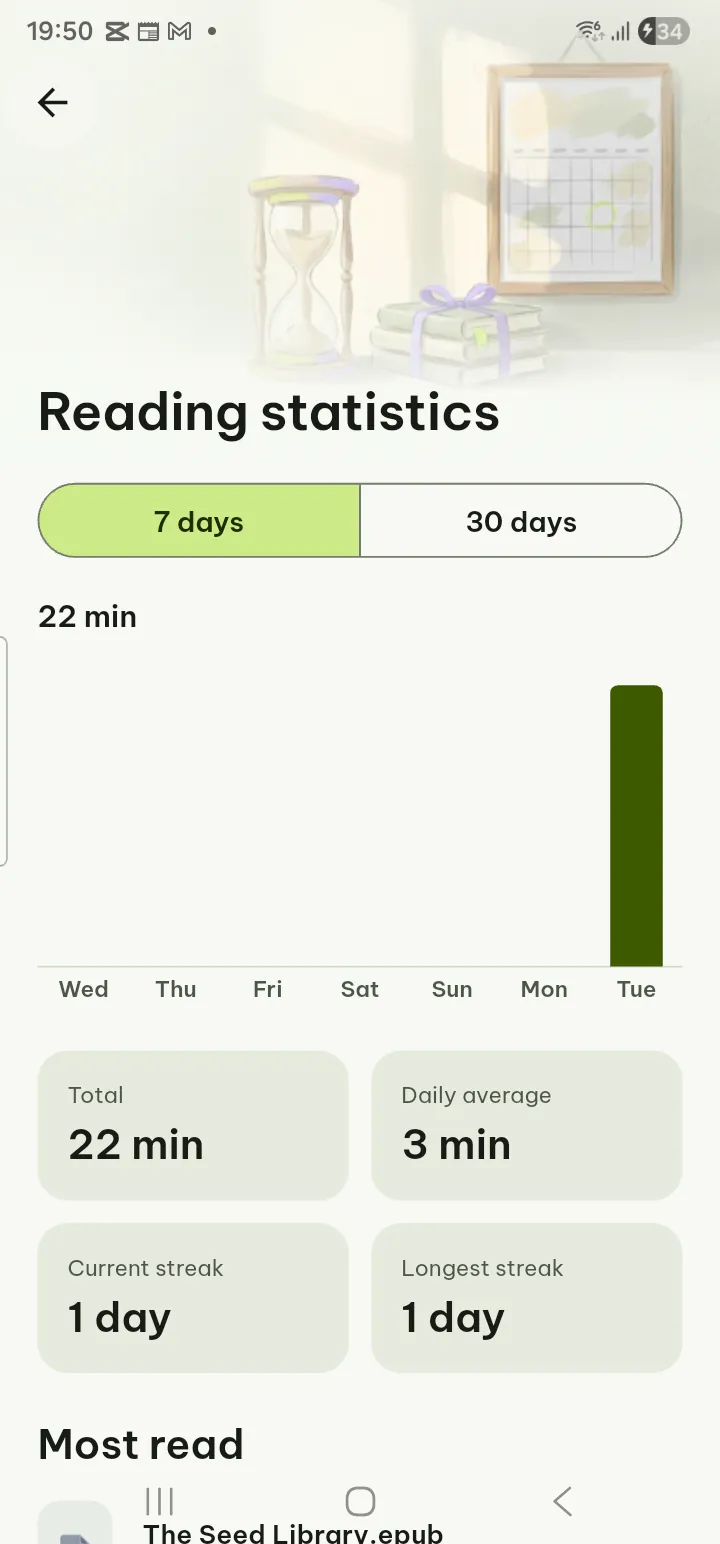
Reading statistics
- On Home, tap the round Your reading button in the top corner, then the Today card. Or open Settings › Reading & study › Reading habits.
- Reading statistics shows minutes per day for 7 days or 30 days, the Total, the Daily average, the Current streak, the Longest streak and what you read most (Most read).
- Set a Daily reading goal in Settings › Reading & study: days that reach it count for your streak.
Statistics stay on your phone. Flashcards and dictionaries are in the same page: see Study.
Backup and restore
Open Settings › Storage & backup. Exporting, importing and restoring are free; a schedule needs Pro.
Back up by hand
- Tap Export data: reading positions, bookmarks, highlights and settings in one file.
- Tick Include OCR results or Include previous versions if you want them.
- Choose Save to device or Send via….
Import a backup file
- Tap Import data and pick the file.
- Choose Merge (recommended) (keeps your library and adds the backup; the newer copy wins) or Replace everything (asks first; it cannot be undone). Also restore settings brings back language, theme, voice and reading options.
- Tap Import.
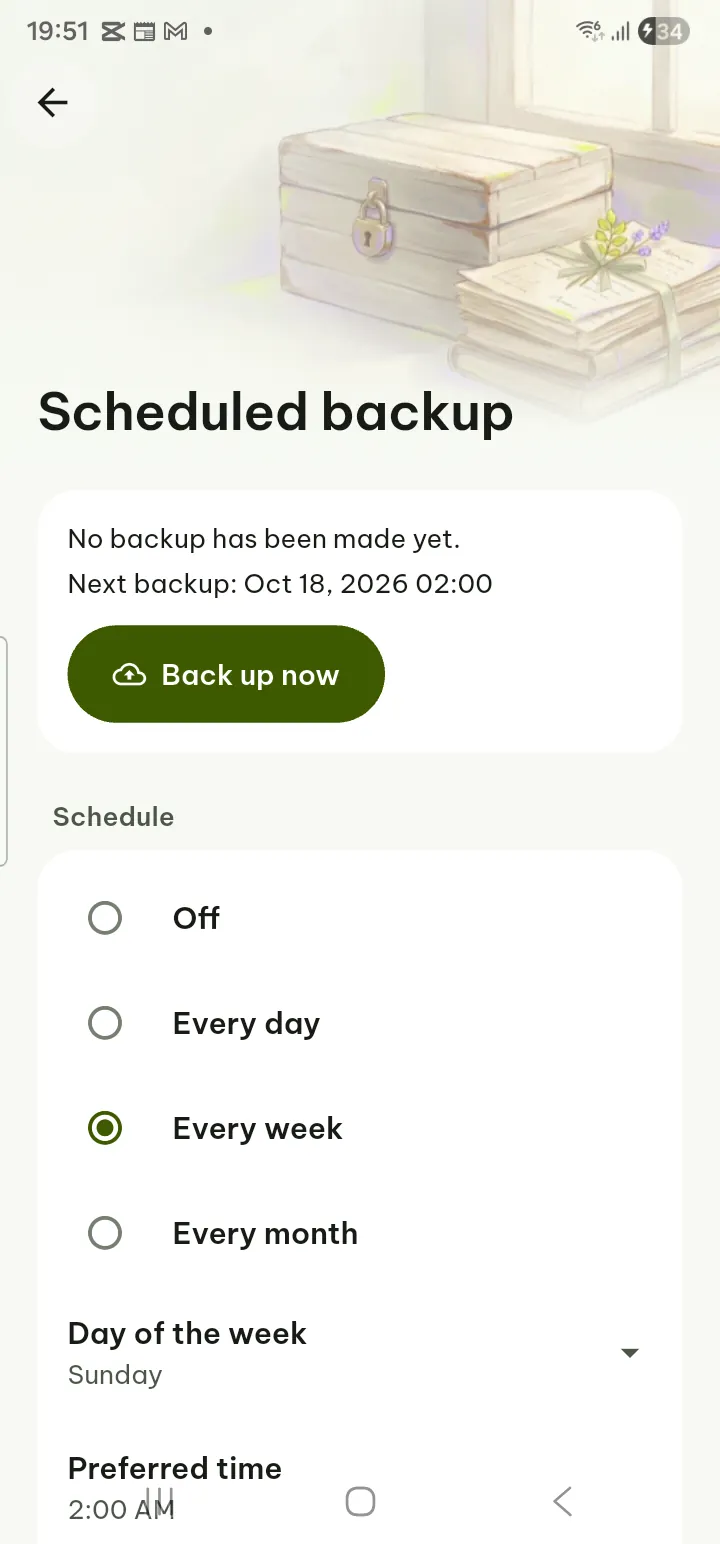
Scheduled backup Pro
- Tap Scheduled backup.
- Under Where to save, tap Choose a folder and pick a folder on this phone. The app can reach only that folder.
- Under Schedule, choose Every day, Every week or Every month, the day, the Preferred time and the window length.
- Under What to include: Library data is always in it (reading positions, bookmarks, highlights, notes on pages, flashcards and Your creations); add App settings, Copies of documents you edited (files over 256 MB are left out), Previous versions and Recognized text of scans as you like.
- Under Keep the last backups, choose how many to keep. Older ones are deleted only after the new one has been saved and checked.
- Encrypt with a passphrase is on for a new setup (AES-256): turning on the schedule or the first Back up now asks you to choose the passphrase. A lost passphrase cannot be recovered, by you or by us.
- Tap Back up now to make one at once. History lists each backup and whether it worked.
Poleta has no background service, so a scheduled backup runs when the app is open: one that came due while it was closed is made the next time you open it. Scheduled backups wait while battery saver is on.
Restore
- Tap Restore from backup and choose a backup in your folder (an encrypted one asks for its passphrase).
- Tick Also bring back the document copies if you want them, and tap Restore.
- Changed your mind? Undo the last restore puts the library and its settings back as they were before.
Never in a backup: the Vault, the app lock and PIN, and account sign-ins. Previous versions in a backup are not put back into the app; Save previous versions as a file saves them so you can open them.
Space, samples and previous versions
- Open Settings › Storage & backup and tap the In use row at the top.
- The Storage used page lists File copies, Thumbnails, Margin cache, Recognized text (OCR), Downloaded templates and Previous versions, each with its size and its own clear button.
- Thumbnails and the margin cache are made again when needed. Recognized text takes time to make again.
- File copies are private copies, so documents still open if the original file is moved or deleted; copies of documents made or changed in Poleta are kept.
- Restore sample documents brings back the app's sample files.
- Empty the library removes every document from the library with its reading history: progress, bookmarks, highlights, notes, flashcards and previous versions. Documents kept only in the app are deleted too. Files on your phone, backups, the Vault, settings and dictionaries stay. It asks first.
Each save of an edited file keeps the version before it: see Previous versions.
All settings
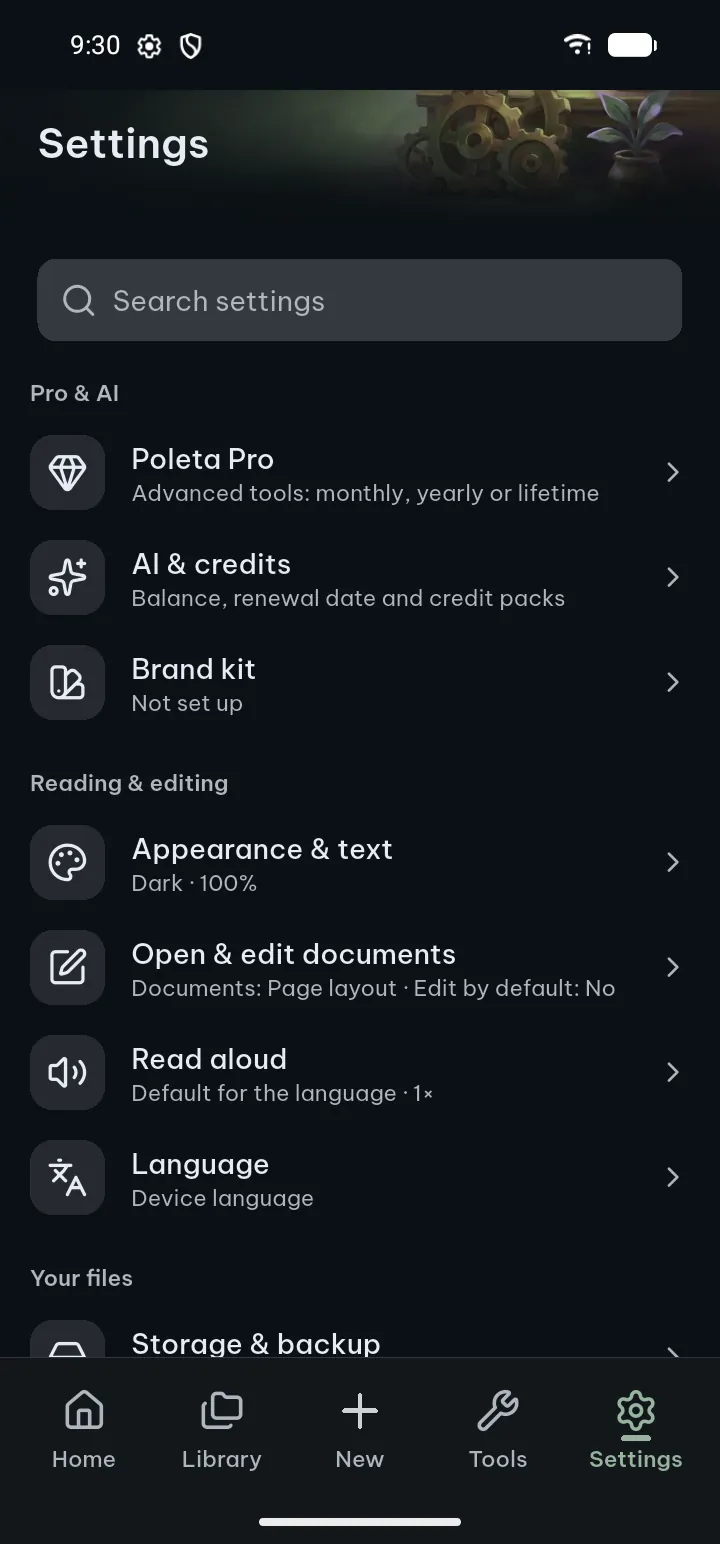
The Settings tab has four groups. Tap a row to open its page; Search settings at the top jumps straight to an option.
Pro & AI
- Poleta Pro: the plans, Restore purchases, Manage subscription and Redeem a code (below).
- AI & credits: your credits, Get credits, Send text to AI, What is sent, Usage history, Restore credits from an earlier purchase, Clear all AI results and Delete my AI data (below).
- Brand kit: your logo, name, colors and fonts for AI documents and templates (Brand kit).
Reading & editing
- Appearance & text: under Display: App theme (Light, Dark, System), Page color, Screen rotation, Keep screen on while reading, Default scroll mode (Continuous scroll or Page by page), Night colors on a schedule and Status bar. Under Personalize: Color theme (Slate is free; Sage, Ocean, Forest, Ember, Rose, Violet and Sand are Pro), Pure black in dark mode Pro and Warm filter Pro. Under TXT reading: font size, font, line spacing, margins and line length for text files. The Preview at the top shows each change at once.
- Open & edit documents: Open documents in Page layout, Spreadsheets open in, Open presentations in, Open documents at, Open documents in edit mode, Edit gesture, Your name, Check spelling and Personal dictionary (Spell check), Ignore accents when searching, Search index, Recognize text in scanned documents automatically (short scans when they open, longer ones while the phone is charging; on the phone, the file is not changed), Suggest what I typed before, Recalculate formulas, Slide show animations, Presenter view in slide shows, Sound of videos on a TV or projector and Play slide sounds.
- Read aloud: Voice, Speed, Skip headers, footers and page numbers and Voice settings.
- Language: the app's language (below).
Your files
- Storage & backup: space used, export, import, scheduled backup, restore, sample documents and Empty the library (above).
- Security & privacy: app lock, PIN, Vault and recovery key.
- Reading & study: Daily reading goal, Reading habits, flashcards (Review flashcards, New flashcards per day, Export all highlights) and Dictionaries.
Help
- Help & about: help topics with Search help, User guide (this website), Show tips, Show all tips again, All tips, Send feedback, Diagnostics, Rate the app, Default PDF reader, Replay welcome, Reset settings and About (version, open-source licenses, privacy policy).
Reset settings puts the app's preferences back as they were at install. Your language, documents and library, reading places, bookmarks, highlights and notes, the Vault, app lock, backups and Pro are always kept.
Easier to read and use
- Bigger text: Poleta follows your phone's font size and display size (Android Settings › Display), up to 200 %. Buttons and panels make room for the bigger text instead of cutting it off.
- Dark theme: Settings › Appearance & text › App theme › Dark, or System to follow the phone. Pure black in dark mode Pro uses true black backgrounds.
- Pages easier on the eyes: Page color (inverted and sepia are easier on the eyes at night), Night colors on a schedule and the Warm filter Pro for the evening.
- Text files and books: font, size, line spacing, margins and line length under TXT reading, and the reader's own text settings (E-books).
- Listen: Read aloud reads documents and books with your phone's voices; choose the voice and speed in Settings › Read aloud.
- Screen readers: buttons, handles and panels have labels for TalkBack.
- Less motion: with Android's Remove animations on, Poleta shows changes without motion.
- Right-to-left languages: in Arabic, Persian and Urdu the whole app is mirrored.
Language
- Open Settings › Language.
- Pick one of the 20 languages, or Device language to follow the phone. Type in the search field to find one.
The app speaks English, Arabic, Bengali, Chinese, French, German, Hindi, Indonesian, Italian, Japanese, Korean, Persian, Polish, Portuguese (Brazil), Russian, Spanish, Thai, Turkish, Urdu and Vietnamese. The language of the app does not change your documents; spell check and Create with AI have their own language choices.
Privacy
Your documents are read, edited, scanned and recognized on your phone. There is no account and no ads. Things leave the phone only when you use a feature that needs the internet (AI, buying, downloads of templates and fonts, feedback), and the privacy policy lists each one.
Poleta sends no usage statistics: there is no analytics in the app.
AI has its own switch: Settings › AI & credits › Send text to AI. Off, the AI buttons stay visible but nothing is sent. Details are in the privacy policy.
Help and feedback
- Open Settings › Help & about. Type in Search help to find a topic, or tap User guide to open this guide in your browser.
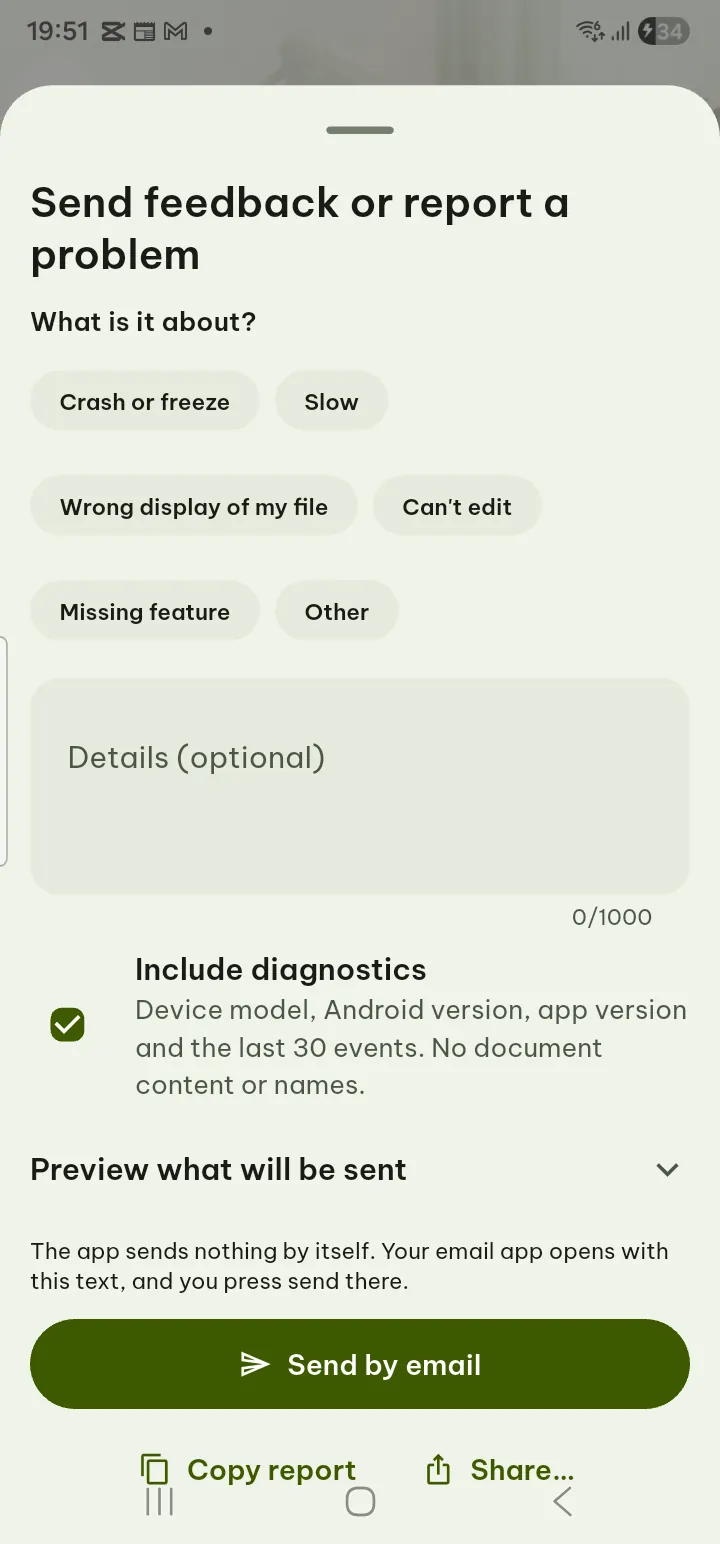
- To tell us about a problem or an idea, tap Send feedback, say what it is about and tick Include diagnostics if you want.
- Tap Send by email, Share… or Copy report. You see everything that would be sent; we answer by email.
- Diagnostics shows problems from the last 3 days (the log is kept on your phone for at most 3 days). Keep a diagnostics log on this device is optional; the log is sent nowhere unless you send it.
- Crash reports asks, after the app closed unexpectedly, before a report is sent to us; Send without asking sends it without the question. Reports hold no document content, names or file paths and are deleted after 90 days (privacy policy).
- More answers on the support page, or write with the contact form.
Poleta Pro
- Open Settings › Poleta Pro, or tap any item marked Pro.
- Under Choose how to pay pick Yearly (new subscribers can start with a 7-day free trial), Monthly or Lifetime (pay once). All three unlock the same Pro; the AI credits differ (below).
- Tap the button under the plans (Start 7-day free trial, Subscribe monthly or Buy Lifetime) and confirm in Google Play.
- When you start a Pro tool without Pro, your settings are kept: after buying you go back and it runs.
- Restore purchases brings back Pro on a new phone or after reinstalling (same Google Play account, or same Apple account on iPhone and iPad).
- Manage subscription opens the store (Google Play, or your Apple account on iPhone and iPad) to cancel a monthly or yearly plan. Pro stays on until the end of the period you paid for; canceling during the trial costs nothing. Two days before the trial ends, Poleta reminds you with a card on Home (and a notification if you allow them).
- Everything Pro includes lists every Pro feature. After Pro has been checked once online, it also works offline.
The full list is on the Pro page. Prices are shown in Google Play or the App Store and in the app, in your currency. Poleta is on Android, iPhone and iPad.
AI credits
The AI features (Create with AI, AI in the editors, summaries and questions about a document) are paid with credits. Every action shows its price first.
- Open Settings › AI & credits to see Your credits: this month's credits and any extra pack credits.
- Tap Get credits to buy a pack of 500, 2,000 or 5,000 credits, with or without Pro.
- Usage history lists the date, action, credits and document of each use, kept only on this phone.
- Pro includes 300 credits a month with the monthly and yearly plans (40 in total during the trial); lifetime includes 1,200 credits once, which do not expire.
- Monthly credits do not carry over, and they have a fair-use limit on AI cost each month: past it they pause until they renew, while pack credits keep working.
- Pack credits are used after the monthly ones and do not expire while Poleta offers AI features. Credits have no cash value.
- Restore credits from an earlier purchase moves pack credits bought on another phone or before a reinstall (see Restore).
- Delete my AI data deletes your credit balance, usage records and device links on our server; unused pack credits are lost then. Clear all AI results removes summaries and answers kept on this phone; your documents are not touched.
Invitation codes
An invitation code gives free Pro for a number of days, with AI credits to use until the pass ends. No payment and no account.
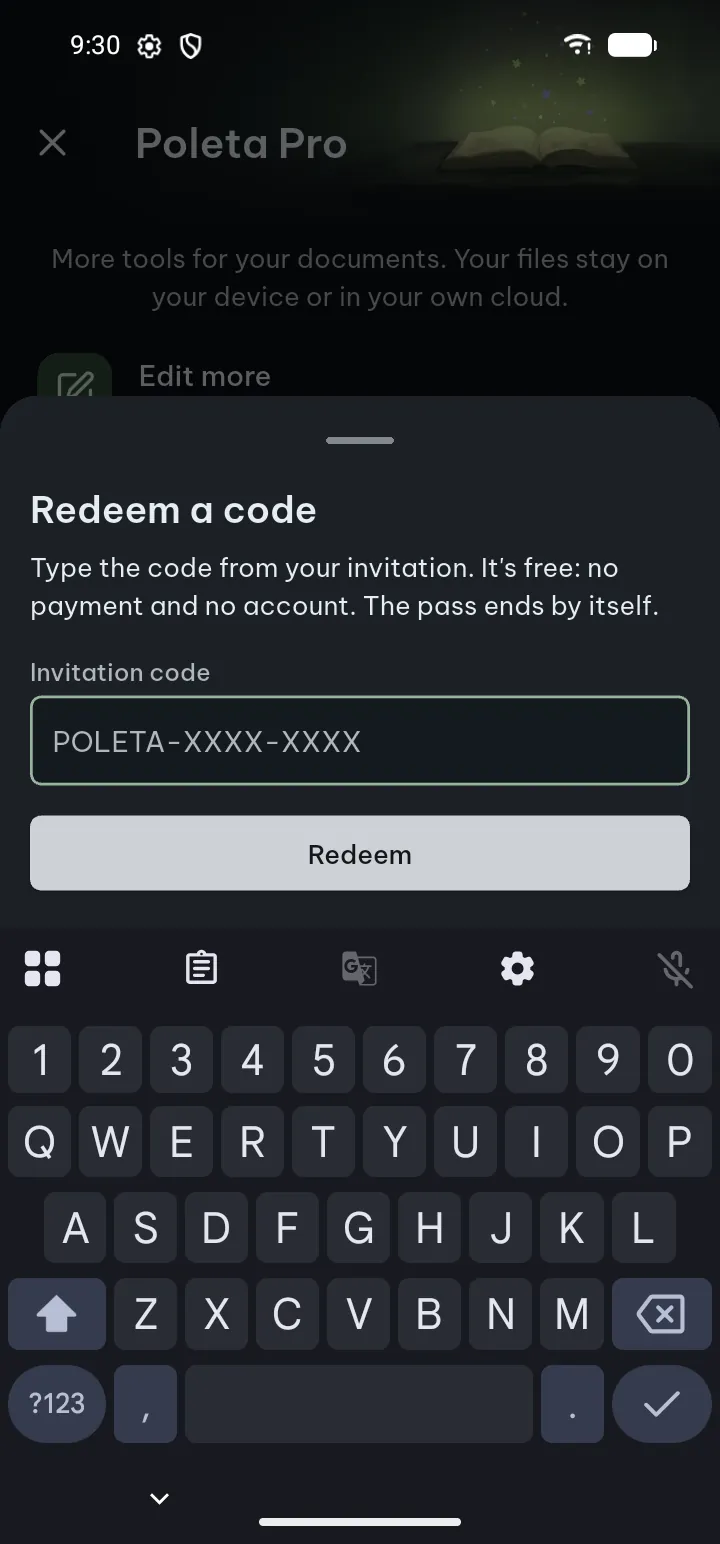
- Open Settings › Poleta Pro and tap Redeem a code (it is also a topic in Help & about). An invitation link opens this sheet with the code already filled in.
- Type the code in Invitation code and tap Redeem.
- The sheet says until when Pro is on and how many AI credits come with it. The Pro screen then shows Pro pass until ….
Each code works once on a device. When the pass ends, Pro tools lock again and nothing you made is lost; files in the Vault can still be opened, exported and moved out. The pass is free, and its AI credits can end early if the invitation is withdrawn.
If something goes wrong
- “This device has no screen lock and no PIN is set.” Set a PIN in Settings › Security & privacy, or a screen lock in the phone's settings, then turn on App lock.
- Forgot the Vault PIN. Use the recovery key. Without it, nobody can open the Vault.
- “Scheduled backup needs Pro.” Back up by hand with Export data; it stays free.
- “A backup is due. It runs when this app is open.” Leave Poleta open for a moment; battery saver also makes it wait.
- “Type your backup passphrase again.” The key kept on this phone is gone (for example after a restore to a new phone). Type the passphrase twice; it is checked against the newest backup before anything is written.
- “Prices could not be loaded.” Check your connection and tap Try again. Everything that is free keeps working.
- “No earlier purchase was found for this store account.” Sign in to the store (Google Play, or your Apple account) with the account that bought Pro, then tap Restore purchases again.
- “Your purchase is waiting for payment approval.” Pro turns on as soon as Google Play confirms it.
- A code “isn't valid”, “has expired” or “All places for this code are taken”. Check the letters, or ask the person who invited you for a new code. “Too many tries”: wait and try later.
- “This copy of the app can't redeem codes.” Install Poleta from Google Play and try again.