
User guide › Quick start
Quick start
Poleta opens, edits and creates documents, spreadsheets, slides and PDFs on your Android phone or tablet, or your iPhone or iPad. These steps take you from the first start to a finished, shared file. There is no account to make: open the app and start.
- The first start
- Open a file
- Read and move around
- Edit and save
- Leaving an edited file
- Make a new file
- Fill in and sign a PDF
- Share, print, save as PDF
- Scan paper
- What next
1. The first start
Three short welcome pages say what Poleta is for. Nothing is needed from you: no account, no sign-in.
- Open Poleta. Go through the welcome pages with Next, or tap Skip. The last page has Get started.
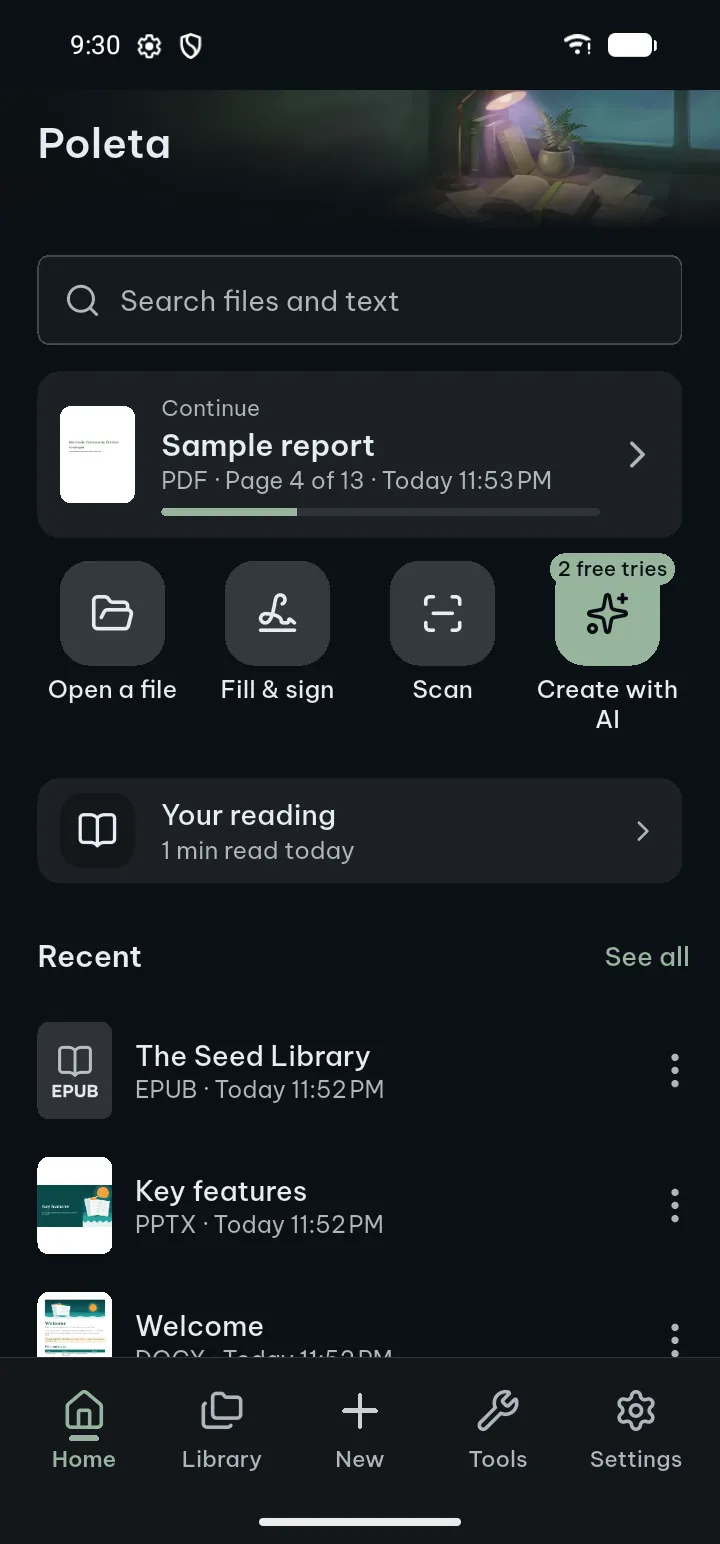
- Home opens. Until you open a file of your own, Home shows Samples to try: a PDF, a document, a spreadsheet, slides and more. Tap one to see how Poleta shows it.
- The bar at the bottom has five places: Home, Library, New (the bold + in the middle), Tools and Settings.
Tips
- See the welcome pages again: Settings › Help & about › Replay welcome.
- Removed the samples and want them back? Settings › Storage & backup › Restore sample documents.
- Language, theme and text size are in Settings: see settings.
2. Open a file
There are three ways in. Every file you open joins your library, so next time it is one tap away on Home.
- From Home: tap Open a file and pick the file in the phone's file picker.
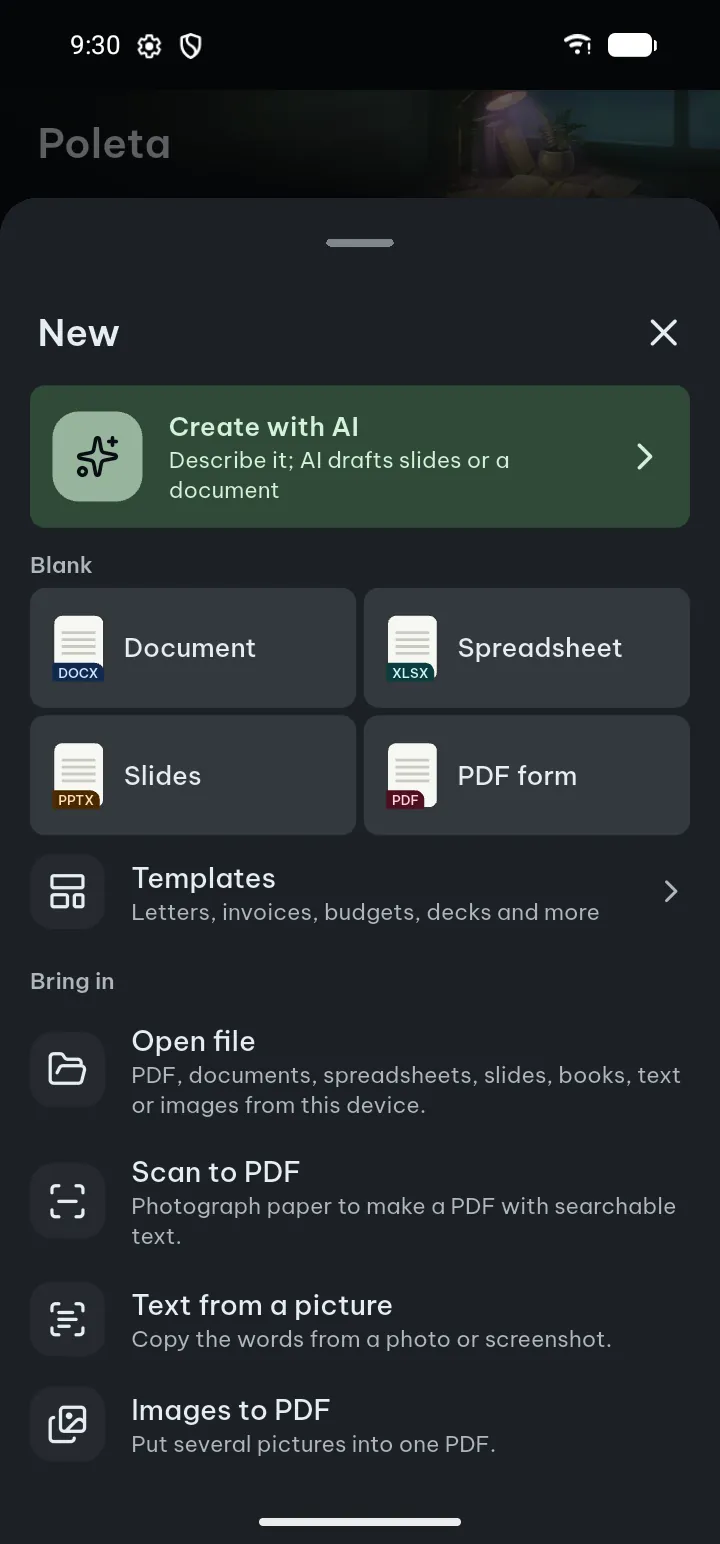
- From the + button: tap + in the bottom bar; under Bring in tap Open file.
- From another app: tap the file in your e-mail, chat or file manager app and choose Poleta under Open with, or use Share and pick Poleta.
The Library also has On this device: a list of the documents already on your phone, once you allow it. Poleta reads a file only when you open it and uploads nothing. More in Opening files.
If something goes wrong
- A password is asked: the file is protected. Type its password; Poleta does not keep it.
- "Couldn't open the file": the file may be damaged, deleted or not what its name says. Open it again from where it came from.
- A book "is protected by DRM": Poleta does not open DRM-protected books.
3. Read and move around
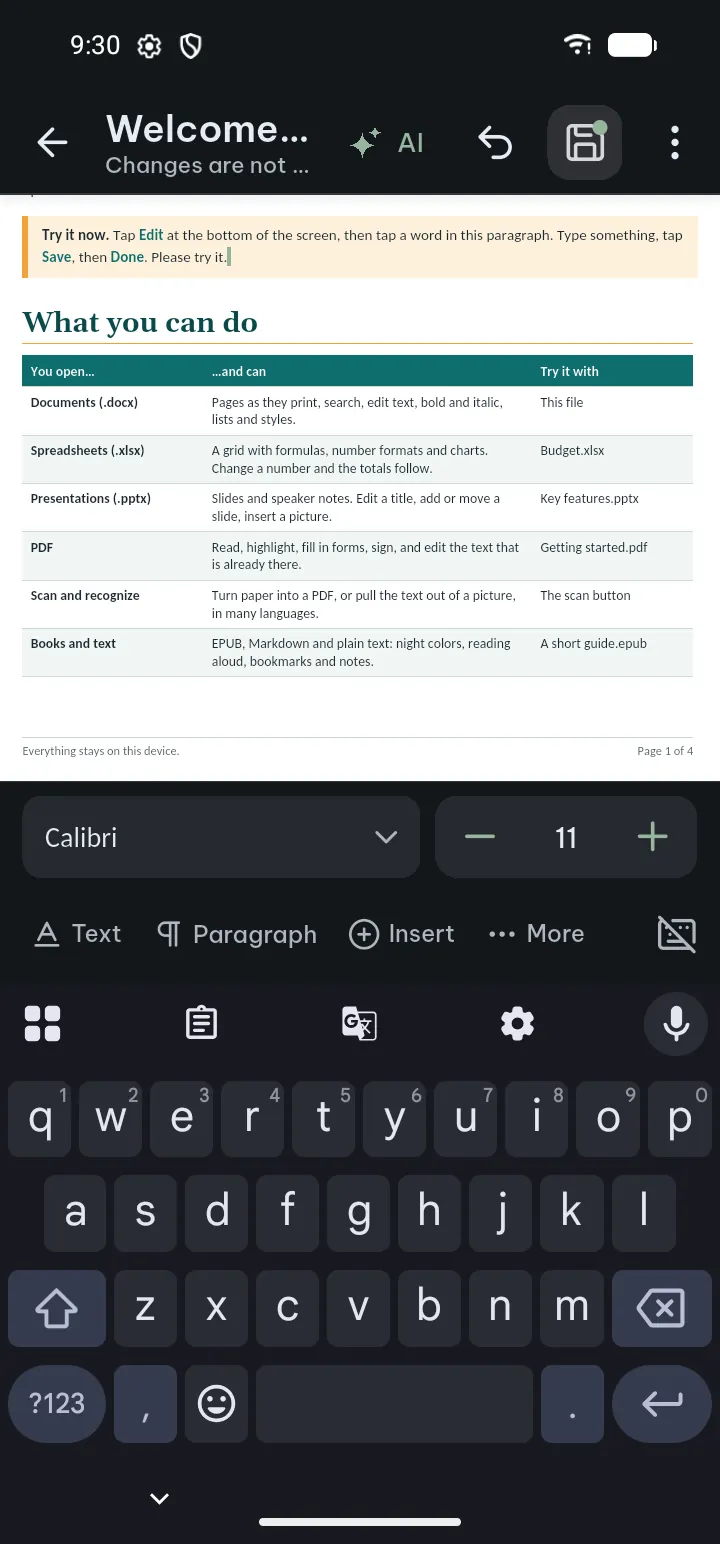
PDFs, documents, spreadsheets, slides and text files share one bar at the bottom: Edit, View, Search, Share and Tools.
- Tap the page to show or hide the bars.
- Pinch to zoom, or double-tap to zoom in on one spot.
- Search finds a word in the file. View has the layout, the display colors and Read aloud.
- A text document opens as printed (Page layout). View › Reading view fits the text to your screen when the print is small.
- ⋯ at the top right has File info, Previous versions and Mark as finished.
A document opens again where you left it. Books (EPUB and others), e-mail and notebooks have their own bar at the top with Search, a bookmark, Contents and ⋯: see e-books and other files.
4. Edit and save
You edit where you read. Tap Edit in the bottom bar, or press and hold (or double-tap) the spot you want to change: editing starts right there, with the cursor in place.
- Text document (.docx): type where the cursor is. The editing bar has named tabs: Text, Paragraph, Insert, Page, Table (inside a table) and Review.
- Spreadsheet (.xlsx, .csv): double-tap a cell and type; the cell bar shows what is in it, formulas too.
- Slides (.pptx): tap a text box to select it (a frame with handles) and tap again to type.
- PDF: Edit opens the editing panel: change the text, add pictures, highlight, draw, fill in and sign, and work with pages.
- Make your changes. Undo and Redo are at the top.
- Tap Save (a dot on it means something is not saved yet). Your edits go into the same file.
- The file as it was before is kept in Previous versions. The first save says so and offers Undo.
- Tap the tick (Done editing) to go back to reading.
Tips
- Want files to open ready to edit? Settings › Open & edit documents › Open documents in edit mode. Edit gesture on the same page chooses Long press, Double tap, both, or Off.
- Details for each kind of file: documents, spreadsheets and slides and PDF.
If something goes wrong
- Edit is dimmed: tap it to see why. Password-protected files, old .doc files and OpenDocument files (.odt, .ods, .odp) open for reading only; an old .xls or .ppt file is edited as a copy.
- "File changed in another app": the file was changed somewhere else after you opened it. Replace writes your version (the other one is kept as a backup); Cancel leaves the file as it is.
- "Saved in the library, but the original file could not be overwritten": the app or folder the file came from does not allow changes. Use Share › Save a copy to… to put the edited file where you want it.
- A digitally signed file: Poleta tells you that any change would make the signature invalid.
5. Leaving an edited file
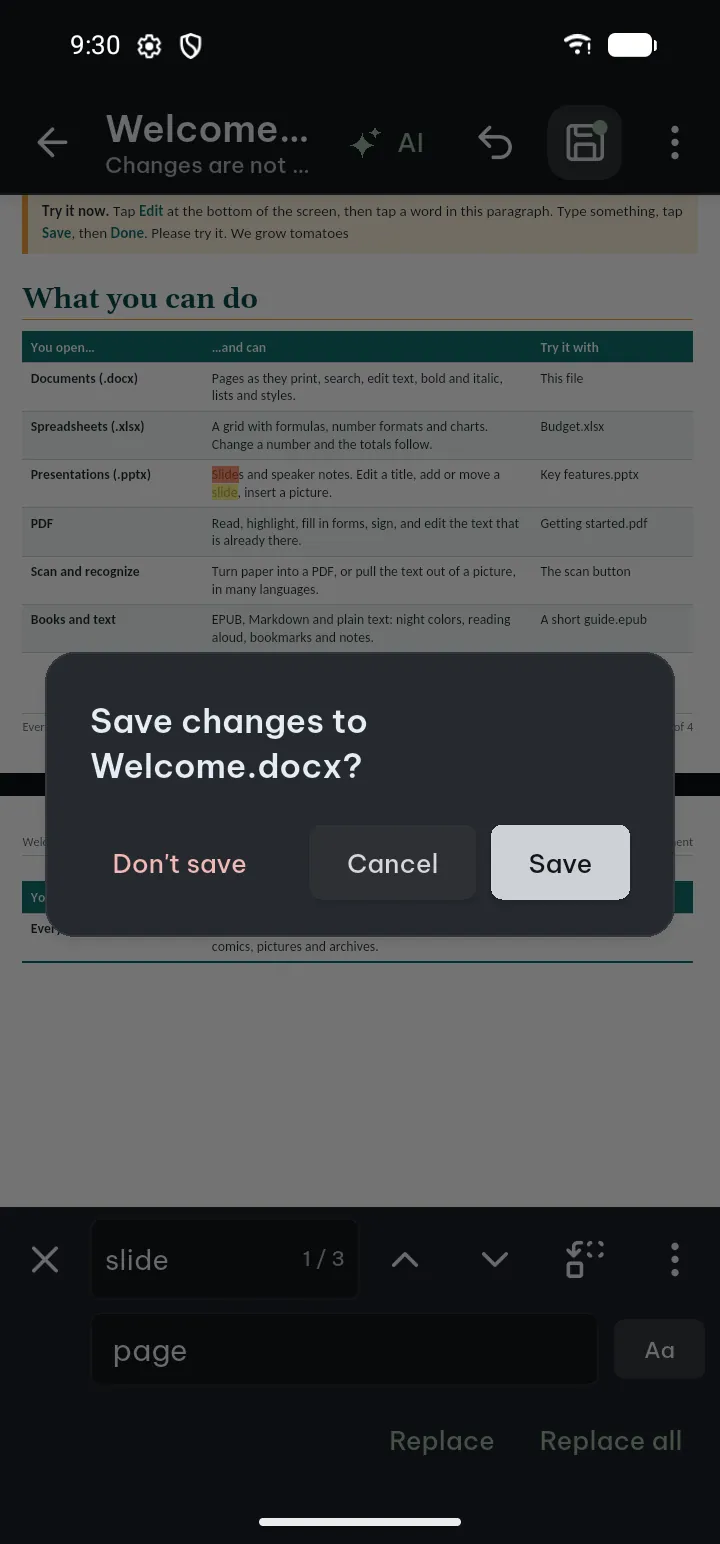
Poleta never drops your work without asking. When you leave an editor (the tick, Back or the back swipe) with changes that are not saved, it asks Save changes to name?
- Save writes the changes into the file and goes back to reading at the same place.
- Don't save drops the changes for good. The file stays as it was.
- Cancel (or a tap outside the question, or Back) keeps you in the editor with every change.
After the app was closed by force
If the app closed before you could answer (the battery ran out, the app crashed or Android closed it), your changes are kept. The next time you open the file, its bottom bar says You have unsaved changes from last time.
- Tap Continue editing to carry on with the changes, then save as usual.
- Or tap the line itself: the Unsaved changes sheet says what was changed and when. Discard drops them (with Undo for a moment); Continue editing takes them back into the editor.
Until you save them, these changes are kept in the app, not in the file.
Some tools work on the file itself (for example the PDF tools or Redact). If you start one with changes not saved, Poleta asks first: Save and continue, or Keep editing.
6. Make a new file
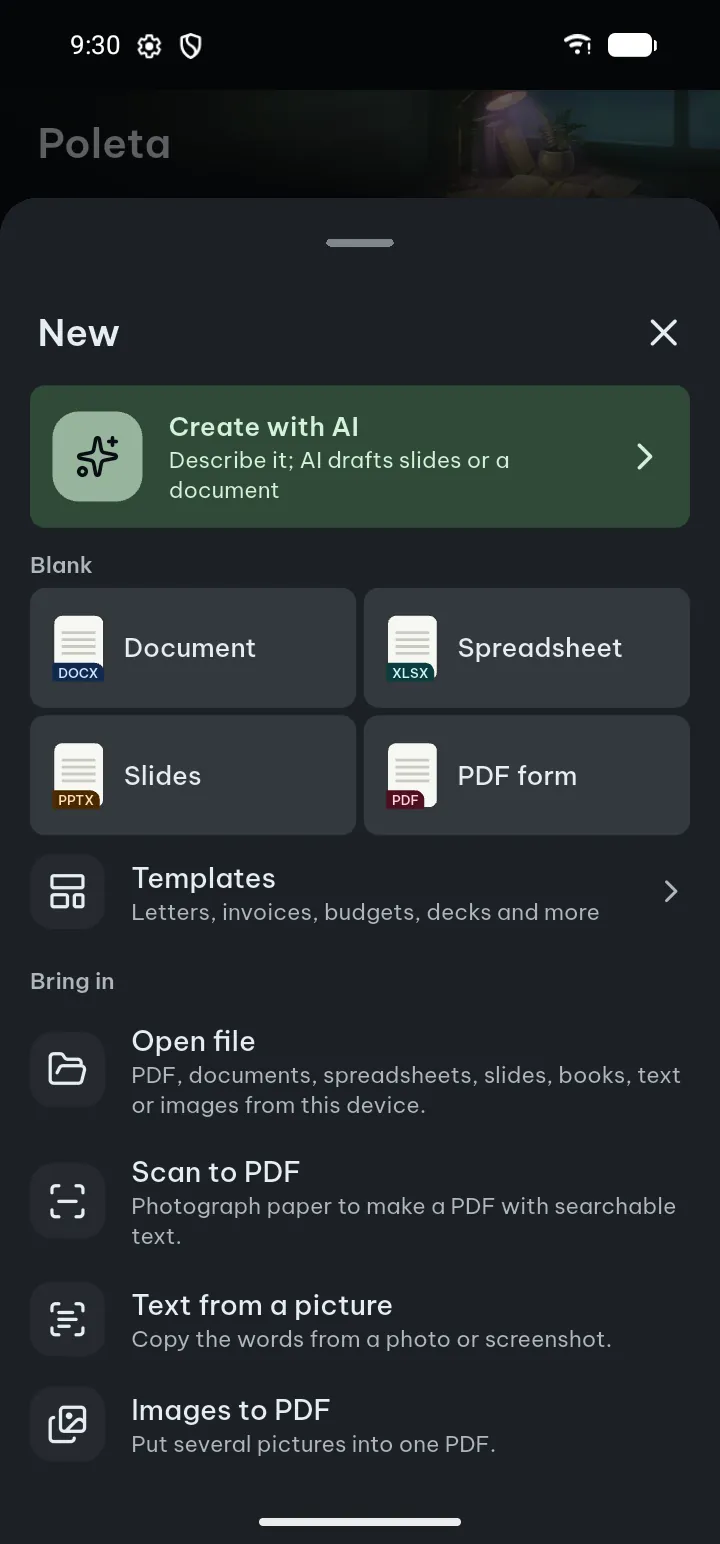
The + in the middle of the bottom bar opens the New sheet.
- Tap +.
- Under Blank, tap Document, Spreadsheet, Slides or PDF form.
- Keep the suggested File name (for example Document 5 Nov) or type your own, and tap Create. The new file opens ready to edit; a blank PDF form opens ready for you to place fields.
Templates in the same sheet opens ready-made letters, resumes, invoices, budgets, planners, slide decks, fillable PDF forms and more. Look at any template's pages and colors, then tap Use this template to make a file of your own; the template itself never changes. 41 templates can be used without Pro; the others show a small lock and need Pro. More in Templates.
Create with AI, at the top of the New sheet and on Home, makes slides, a document, a spreadsheet or a PDF from your description. In Simple, write what you need and tap Create now; in Advanced, pick a style, check the outline, then create. It needs the internet. Your first 2 creations cost nothing (up to 5 pages, 6 slides or 2 sheets); after that it uses AI credits. More in Create with AI.
7. Fill in and sign a PDF
- On Home tap Fill & sign and choose the PDF. (Or open the PDF and tap Edit › Fill & Sign; on a PDF with form fields, Fill & Sign is right in the bottom bar.)
- Tap a field and type. On a PDF without fields, use Text to type anywhere on the page.
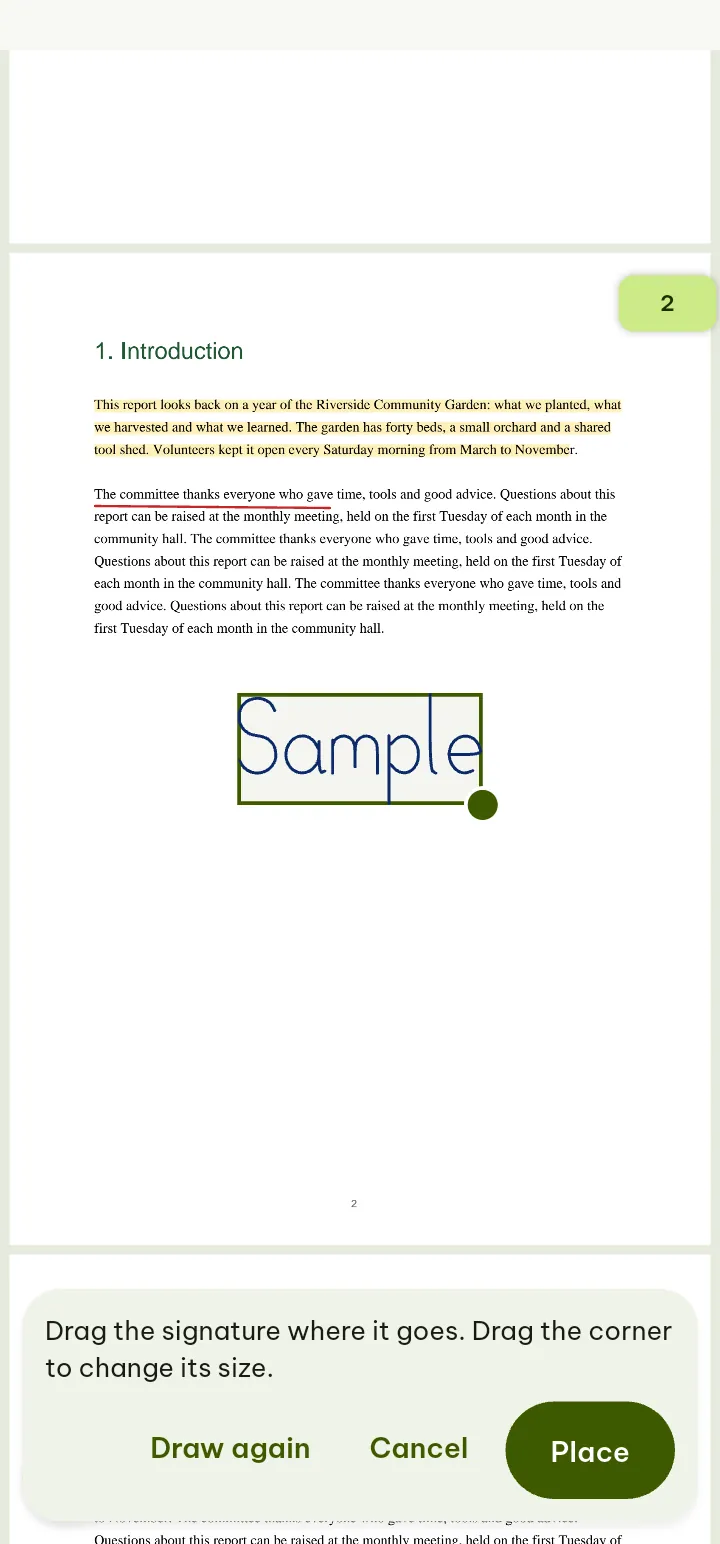
- Tap Sign. The first time, make your signature: Draw it with your finger, Type your name (it is written in a handwriting style), or take it from a Photo Pro. Tap Save.
- Tap the page where the signature goes. Drag it to move it, and make it bigger or smaller with its handles.
- Date puts today's date on the page; Marks adds a tick, cross, dot or box.
- Tap Save, then Send to share the signed file.
Your signature is kept on your phone for next time. More in Fill in forms and Sign.
If something goes wrong
- "This PDF has no form fields to fill in": type on the page with Text, or let Find blanks Pro find the lines and boxes to fill in.
- The PDF was digitally signed: any change makes that signature invalid, and Poleta says so.
8. Share, print or save as PDF
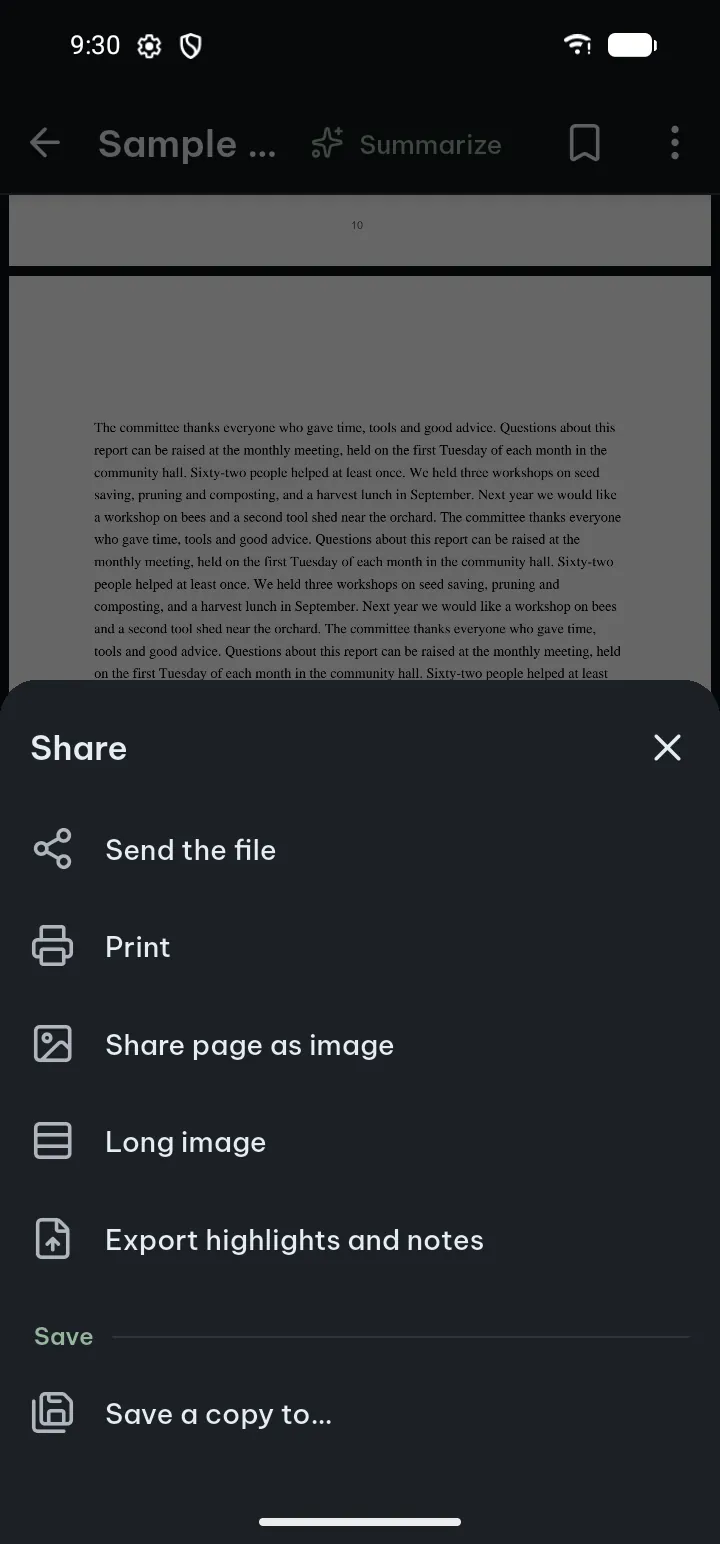
In an open file, tap Share in the bottom bar:
- Send the file shares it with any app (e-mail, chat and so on).
- Print… prints it with the phone's printing.
- Save as PDF… (documents, spreadsheets, slides) makes a PDF copy.
- Save a copy to… saves the file in a folder you choose.
- A PDF also has Share page as image, Long image and Export highlights and notes.
With changes not saved yet, Poleta asks about them first, so you never send an old copy by mistake.
9. Scan paper
- On Home tap Scan (or + › Scan to PDF).
- Photograph the pages. Poleta finds the edges and straightens each page.
- Check the pages, change the crop or the filter if you like, and save.
The text is recognized on your phone, so the PDF can be searched. More in Scan to PDF.
What next
- Find any file or word fast: Home, Library and search.
- Merge, split, compress, protect and convert PDFs in the Tools tab.
- Keep private files in the Vault and back up your bookmarks and highlights in Backup.
- Everything except the AI features works offline, and your files stay on your phone: questions and answers.
- What Pro adds: the Pro page.