
User guide › E-books, study and other files
E-books, study and other files
EPUB, MOBI, AZW3 and FB2 books open in a flowing reader that fits the text to your screen. Pictures, comics, e-mail and notebooks have viewers of their own. Highlights become flashcards, and your own dictionaries work offline. Only the extra reading styles marked Pro need Pro.
- Reading a book
- Text settings and display
- Highlights and notes
- Read aloud and narration
- Dictionaries
- Flashcards and review
- Pictures
- Comics
- E-mail and notebooks
- If something goes wrong
Reading a book
Open a book like any file: from Home, the Library or another app. It opens at the place you left it, and says Continuing from 42% with Start from the top if you want the beginning.
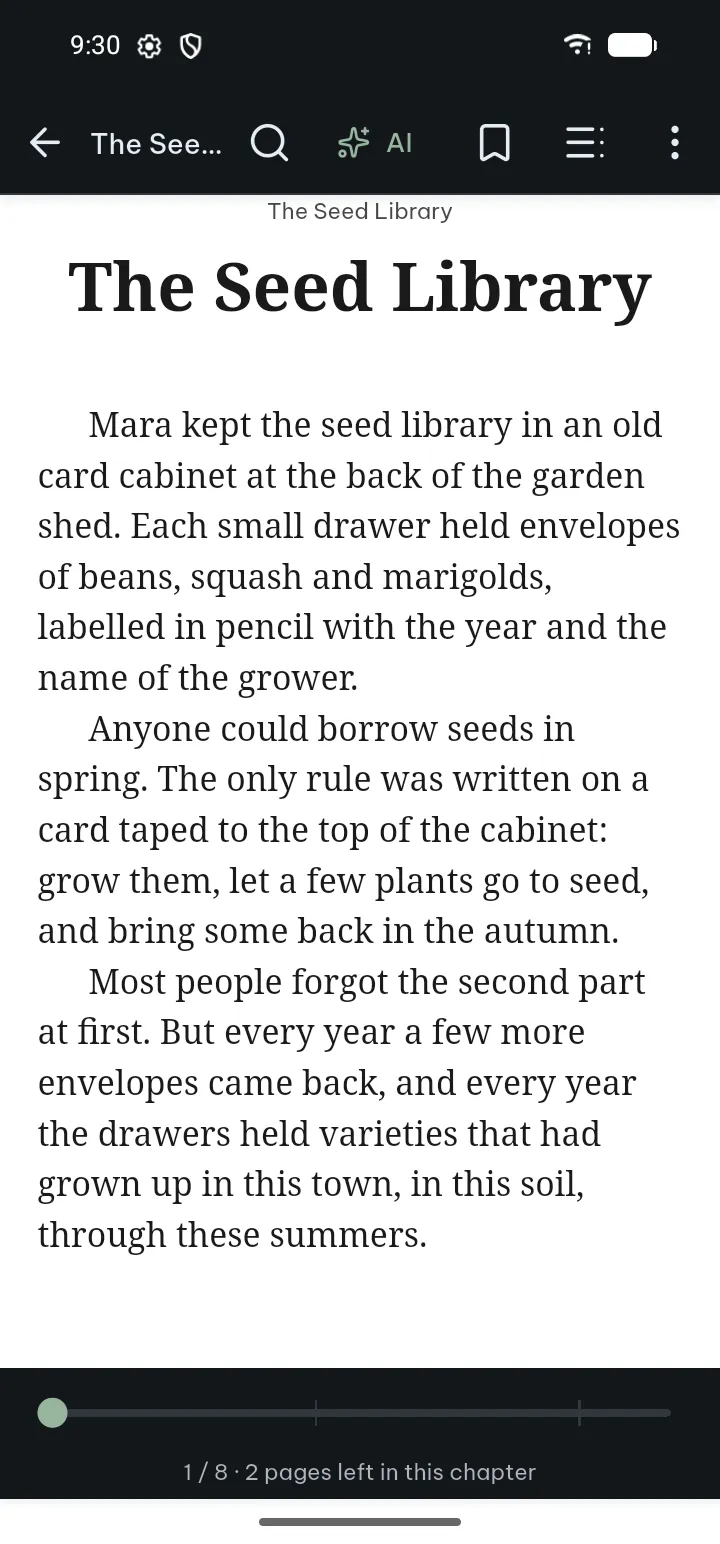
- Swipe or tap the edges to turn pages. Tap the middle to show or hide the bars.
- Contents (top bar) opens the drawer: Contents, Bookmarks, Highlights, Print pages (when the book has the page numbers of its printed edition), Landmarks (cover, title page, index…) and Recent positions, which takes you back after you followed a link.
- Search finds text in the whole book. In the search bar, ⋯ has Whole words and All results.
- The bookmark button marks the current place (Add bookmark); tap it again to remove it.
- ⋯ has Text settings, Display, Read aloud, Mark as finished, Share file, Previous versions, a word count and File info.
Tips
- Mark as finished takes the book off the Continue card on Home; Mark as not finished brings it back.
- Markdown files and web pages open in the same reader, with the same bar as documents (Edit, View, Search, Share, Tools).
- Your place, bookmarks and highlights are kept in the app; the book file is not changed.
Text settings and display
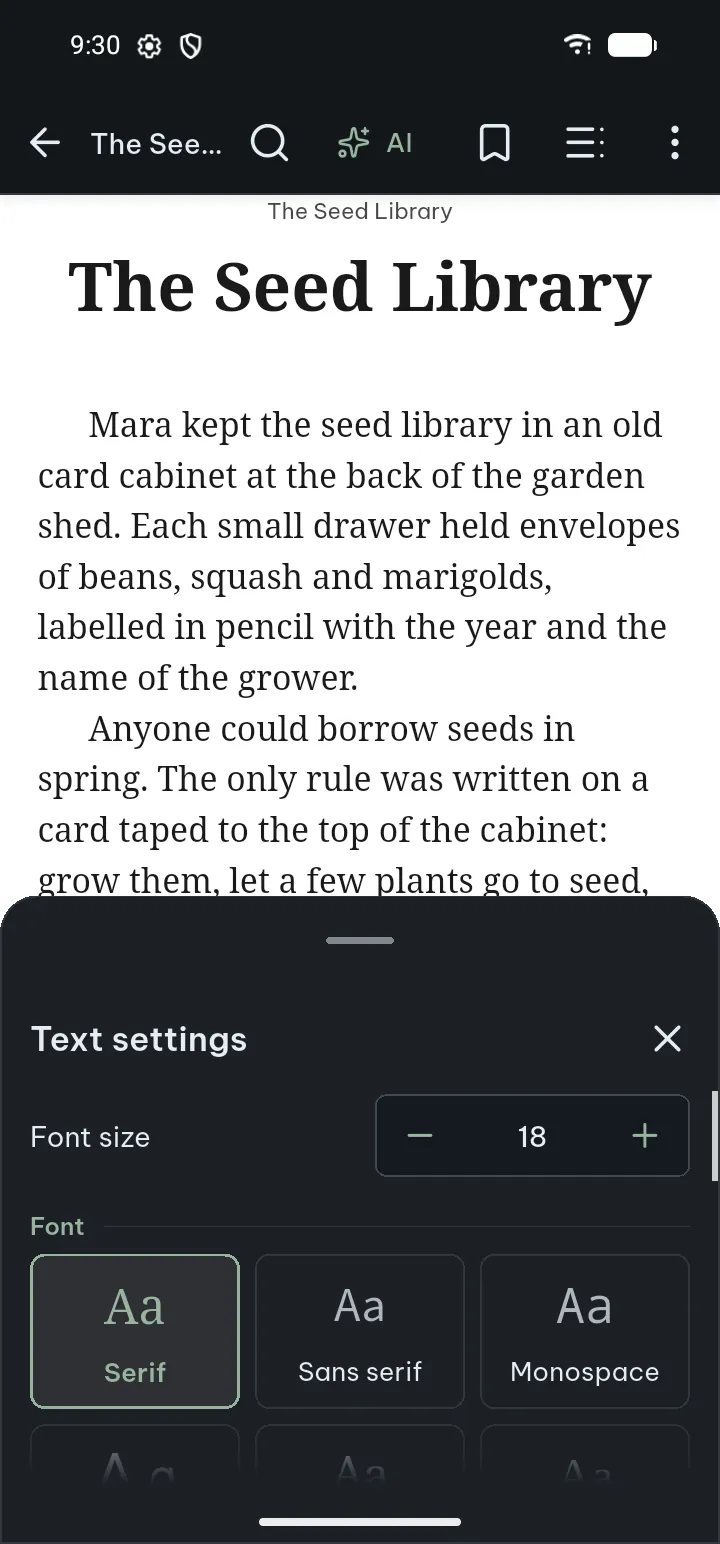
- Tap ⋯ › Text settings.
- Set the Font size and the Font: Serif, Sans serif, Monospace or Easy read (a typeface made for readers with dyslexia), and four more typefaces with Pro.
- Set the Line spacing and the Margins (Tight, Normal, Roomy, Large).
- Line length: Full width, or Narrow, Comfortable and Wide Pro, which keep lines short on a wide screen or with large text.
- Choose the Layout: Pages (turn pages like a book) or Scroll; the Page turn effect (Slide, Curl, None); Two pages side by side on a wide screen; and Turn pages with the volume buttons.
- Publisher's formatting on keeps the book's own fonts, sizes, spacing and colors; off, your text settings are used for every book.
⋯ › Display sets the page color (for example sepia or night) as in the PDF reader. The same text settings are in Settings › Appearance & text for every book and text file.
Tips
- No page-turn animation shows while your phone is set to reduce motion.
- Text settings change the books and text files, not PDFs: PDFs keep their own fonts.
Highlights and notes
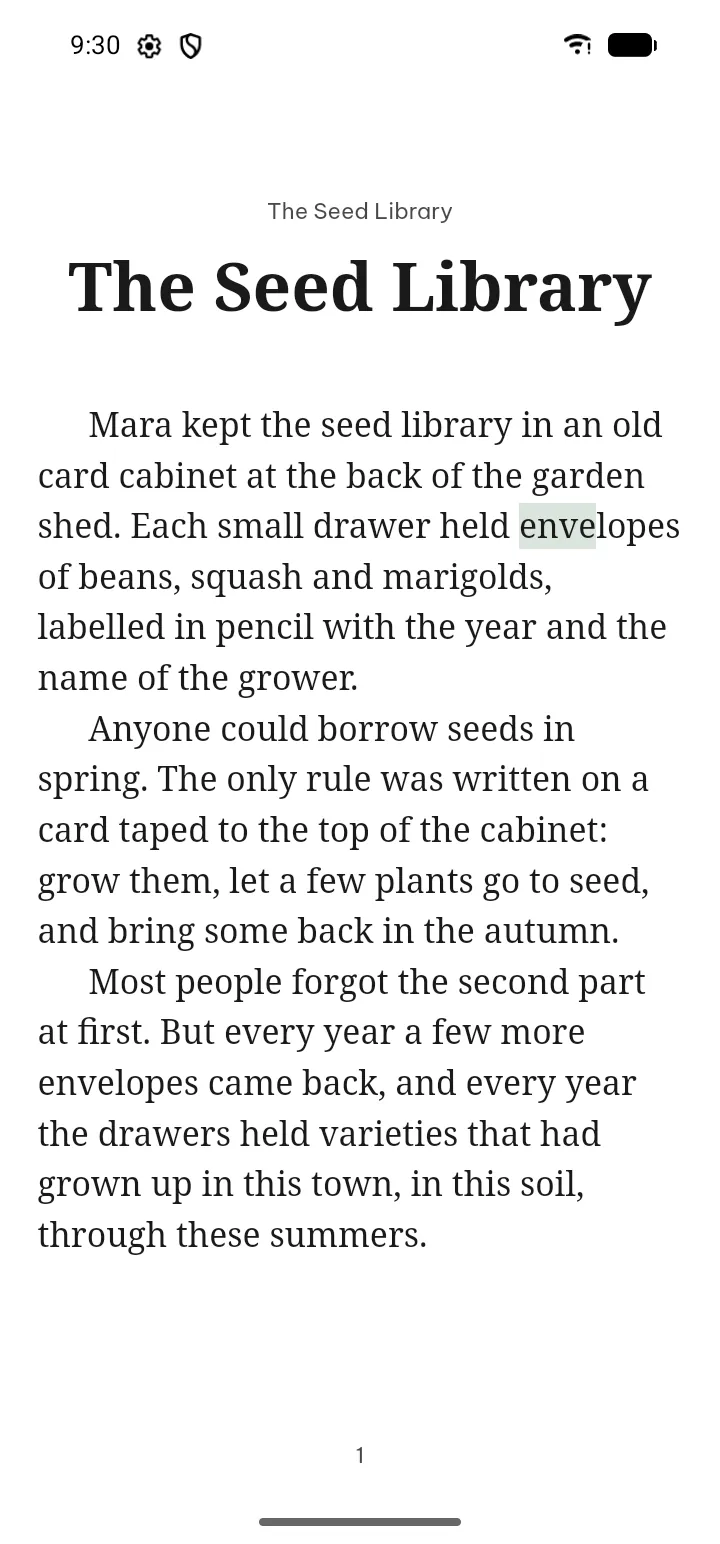
- Press and hold a word and drag the handles over the text you want.
- Choose Highlight, Add note, Look up, Search in document, Share text or Read from here.
- Tap a highlight to Edit note, Make flashcard or Delete highlight (with Undo).
Contents › Highlights lists them all, with Make flashcards from highlights and Export highlights. From the Library, a document's menu has Export highlights and notes as a PDF, .docx, Markdown, HTML or plain text; Settings › Reading & study › Export all highlights makes one Markdown file for every document.
Read aloud and narration
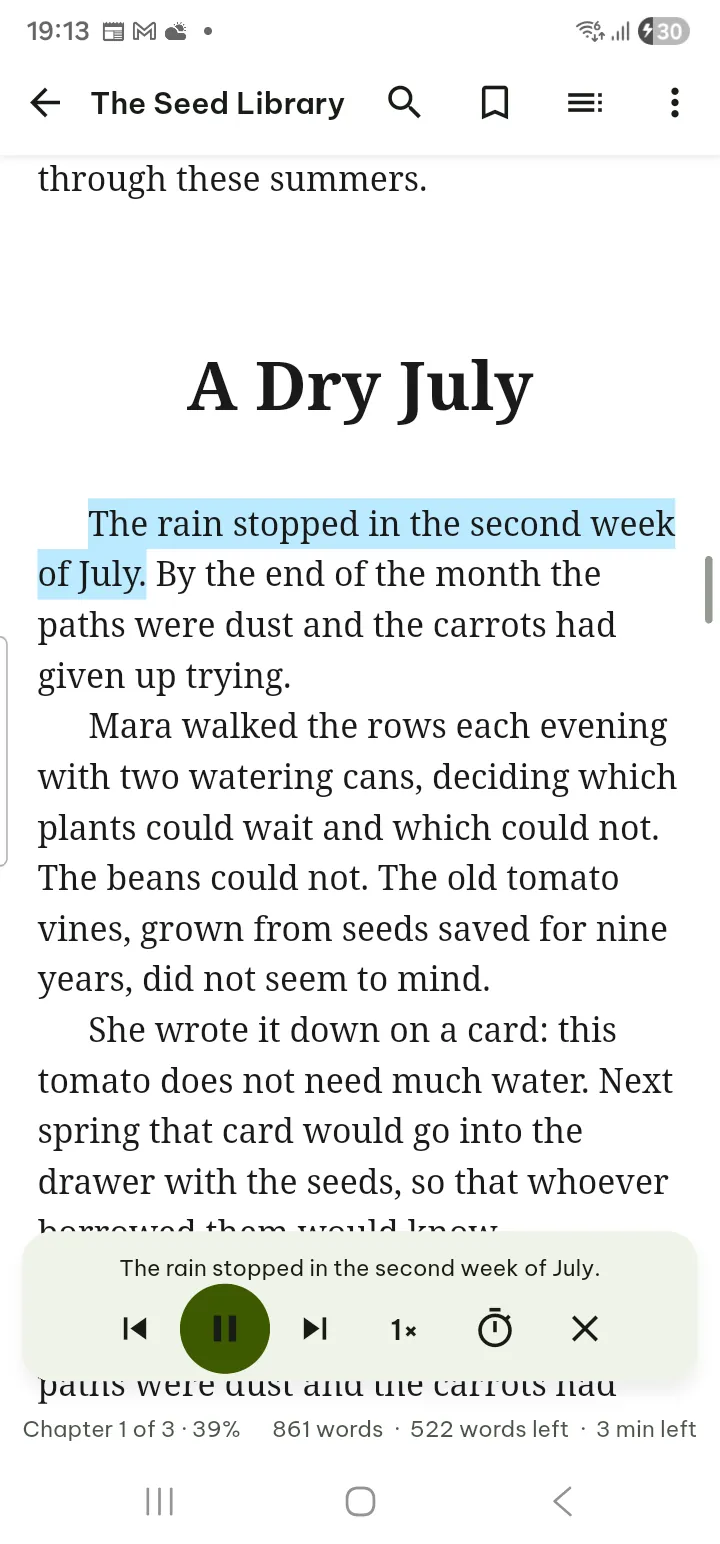
- Tap ⋯ › Read aloud (or select a sentence and tap Read from here). The book is read with your phone's voices, and the sentence being read is marked.
- The panel has Previous sentence, Pause / Play, Next sentence, Speed and Sleep timer (minutes, or End of chapter).
- Stop reading ends it. Next time Poleta offers to continue where you left off.
Reading goes on with the screen off; the notification, the lock screen and headset buttons control it, and it pauses when you unplug headphones or a call comes in.
Books that come with recorded narration (EPUB 3 media overlays) offer ⋯ › Play the book's own narration, which highlights the text as it is read.
Tips
- Settings › Read aloud sets the Voice (or Default for the language), the Speed, and Skip headers, footers and page numbers.
- "No voice is installed for this language": tap Voice settings and download one in the phone's text-to-speech settings.
Dictionaries
Look up words offline in dictionaries you already have. Poleta does not come with dictionaries; you add your own.
- Open Settings › Reading & study › Dictionaries (or, when none is installed, Look up › Manage dictionaries).
- Tap Import dictionary and pick a StarDict dictionary (the .ifo, .idx and .dict or .dict.dz files together, or a .zip or .tar.gz holding them) or a word list with one word, a Tab and its meaning per line (.txt, .tsv, .csv).
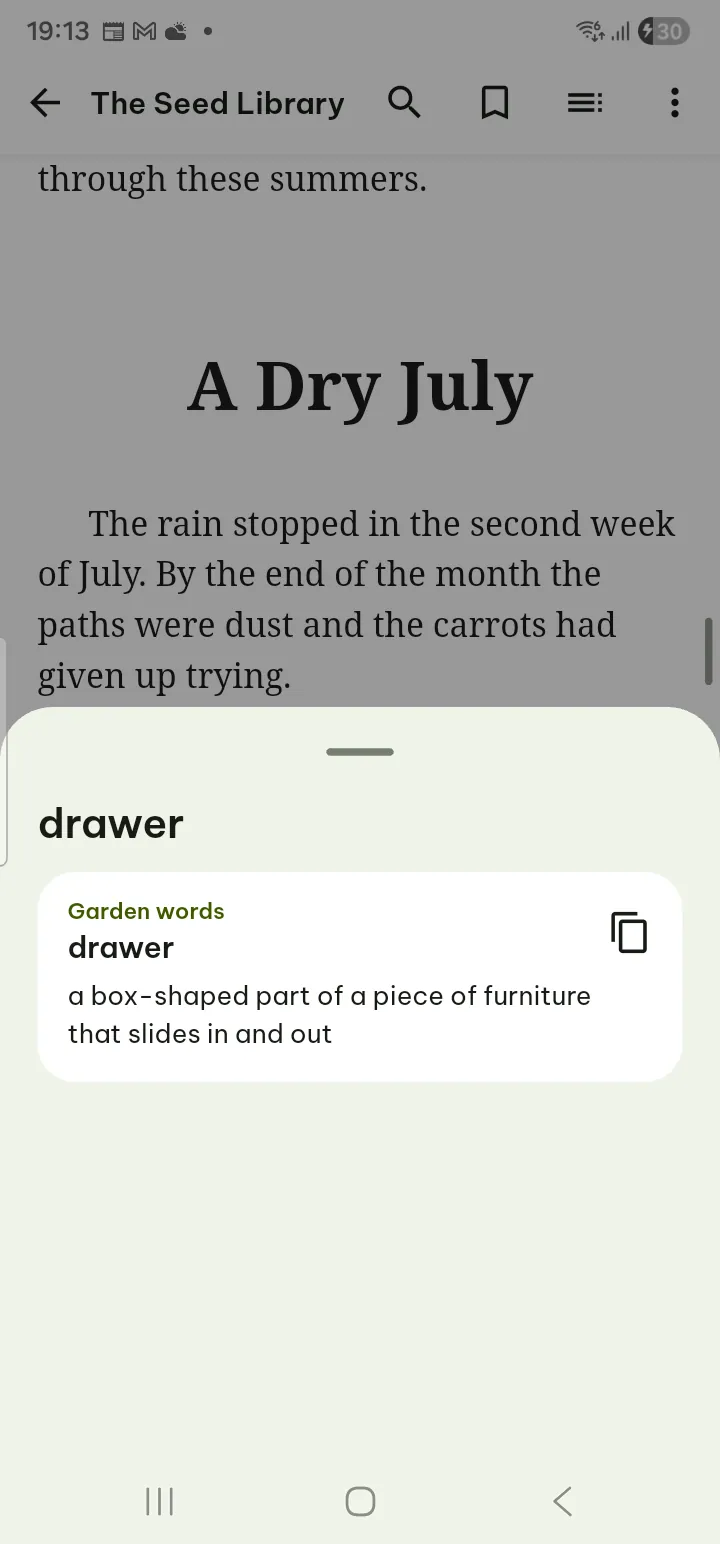
- Select a word in any reader and tap Look up. The sheet shows the meaning, the Base form of the word when it helps, and Words starting with what you selected. Copy definition copies the meaning.
Turn a dictionary off with its Use for Look up switch, or delete it; you can import it again later.
Looking for the personal dictionary of spell check (words you add so they are not marked)? It is in Settings › Open & edit documents › Personal dictionary: see spell check.
Flashcards and review
Turn what you highlight into cards that come back just before you would forget them.
- In a PDF, book or text file, tap a highlight and choose Make flashcard. Or make cards from every highlight at once with Make flashcards from highlights (in a book under Contents › Highlights, in a PDF under Tools).
- Write the Front (question) and the Back (answer).
[…]on the front hides words, for a fill-in card. Tap Save. - When cards are due, Home says so (3 flashcards due). Tap it, or use Settings › Reading & study › Review flashcards.
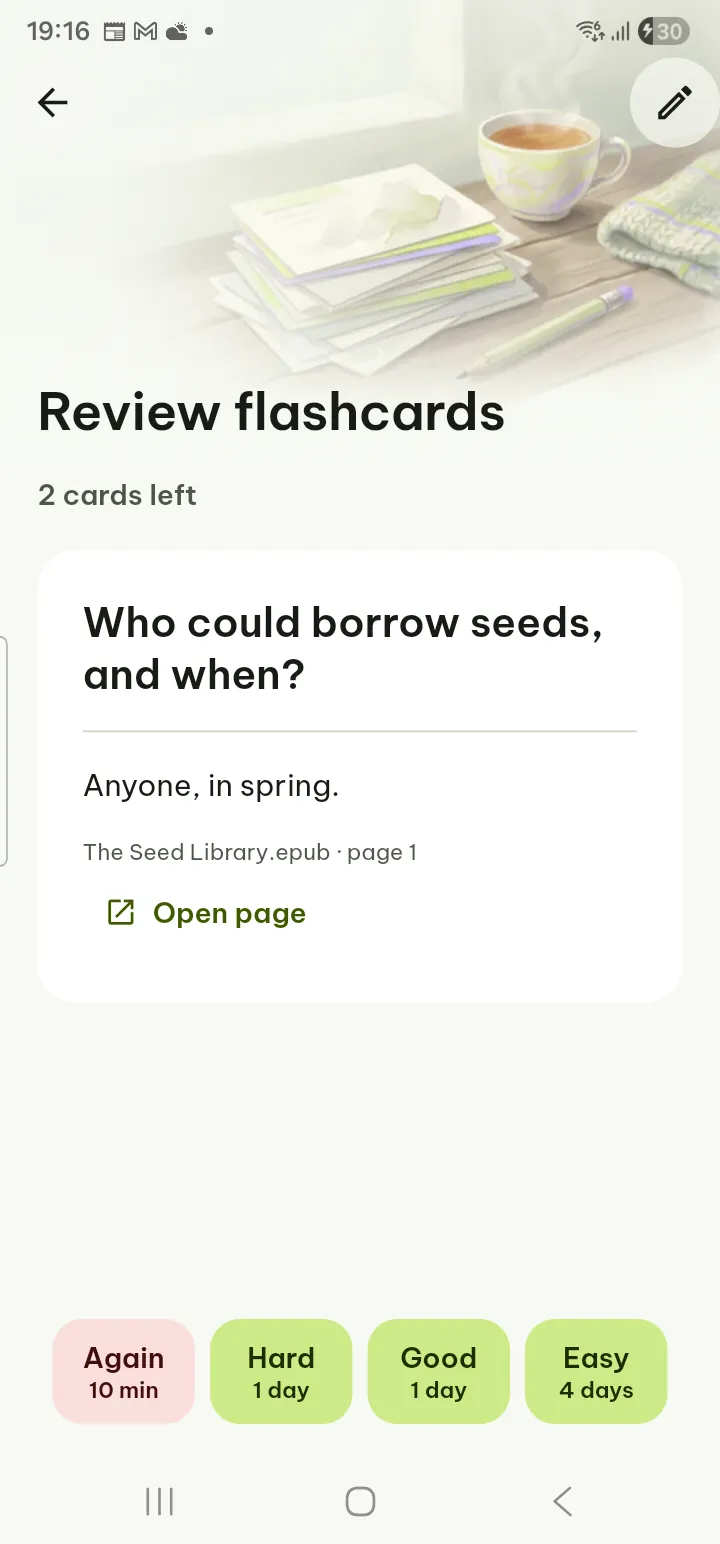
- Tap Show answer and grade yourself: Again, Hard, Good or Easy. Each button says when the card comes back. Open page jumps to where the card came from; Edit changes it.
Settings › Reading & study › Flashcards appears once you have highlights or cards. It also sets New flashcards per day; cards you already know come back when due, without a limit.
Pictures
JPEG, PNG, WebP, GIF, BMP, HEIC (when the phone can decode it), TIFF (including several pages), SVG and ICO open in the picture viewer.
- Pinch or double-tap to zoom; animated GIFs play and pause; a TIFF with several pages has Previous page and Next page.
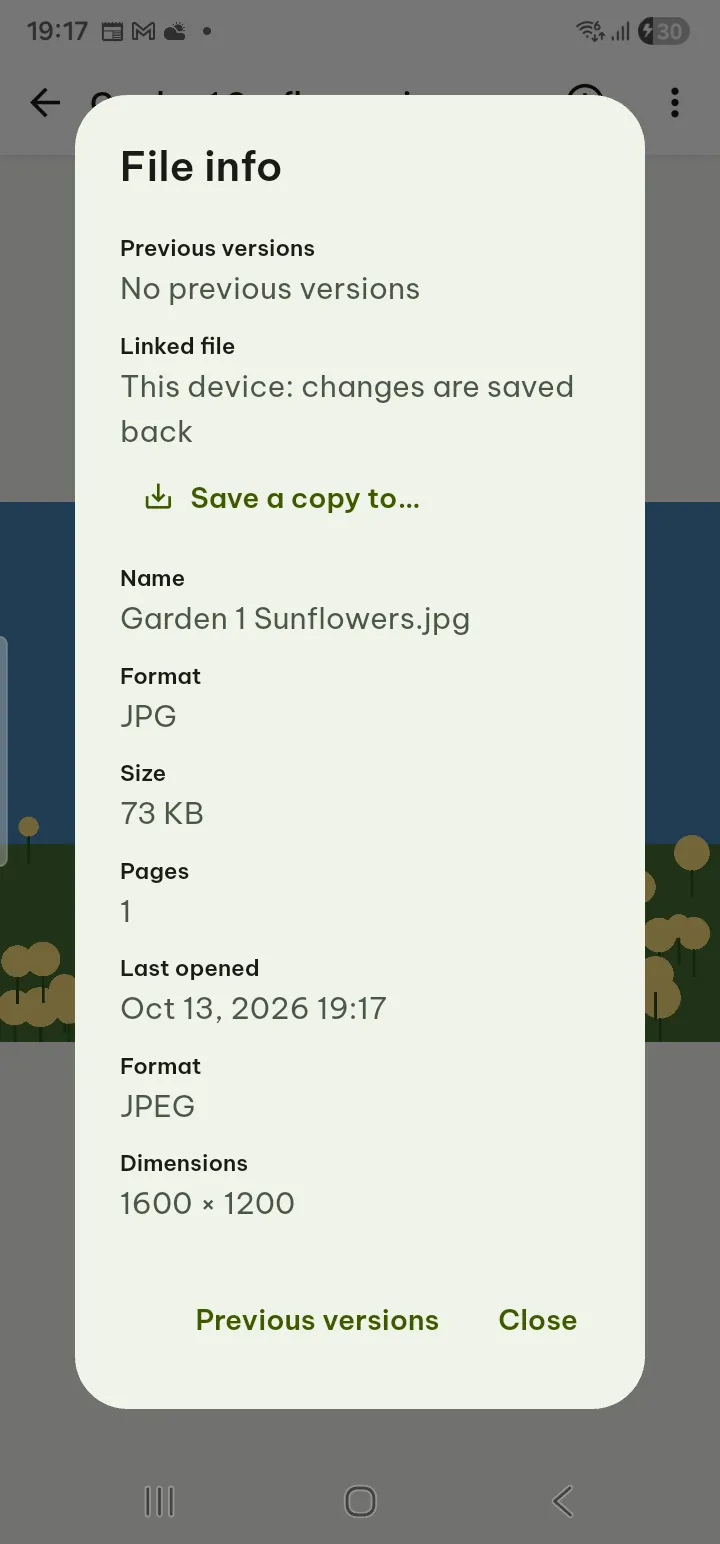
- The info button shows Picture info: format, dimensions, when it was taken, camera, lens, exposure, and whether a location is recorded.
- ⋯ has Rotate left and Rotate right (the view only; the file is not changed), Text from a picture, Print…, Save as PDF…, Share file, Remove location and share and File info.
Tips
- Remove location and share sends a copy without the place where the photo was taken; your own file keeps it.
- "This device can't open HEIC pictures": convert it to JPEG first.
Comics
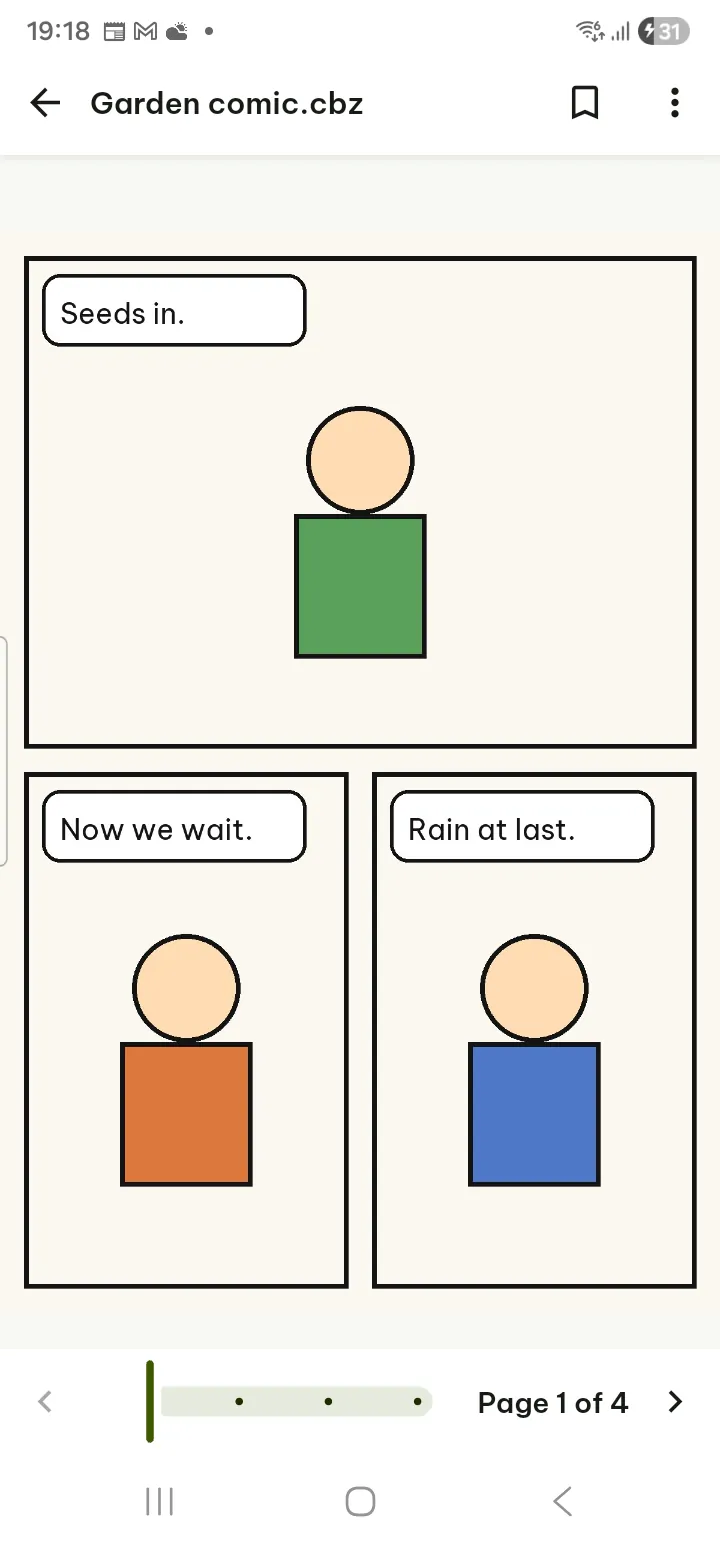
.cbz and .cbt comics open page by page.
- Swipe to turn pages; pinch or double-tap to zoom.
- ⋯ has Right to left (manga), Two pages side by side, Bookmarks, Share file and File info, which shows the series, issue, publisher, year and summary when the comic has them.
- .cbr and .cb7 comics are not supported.
E-mail and notebooks
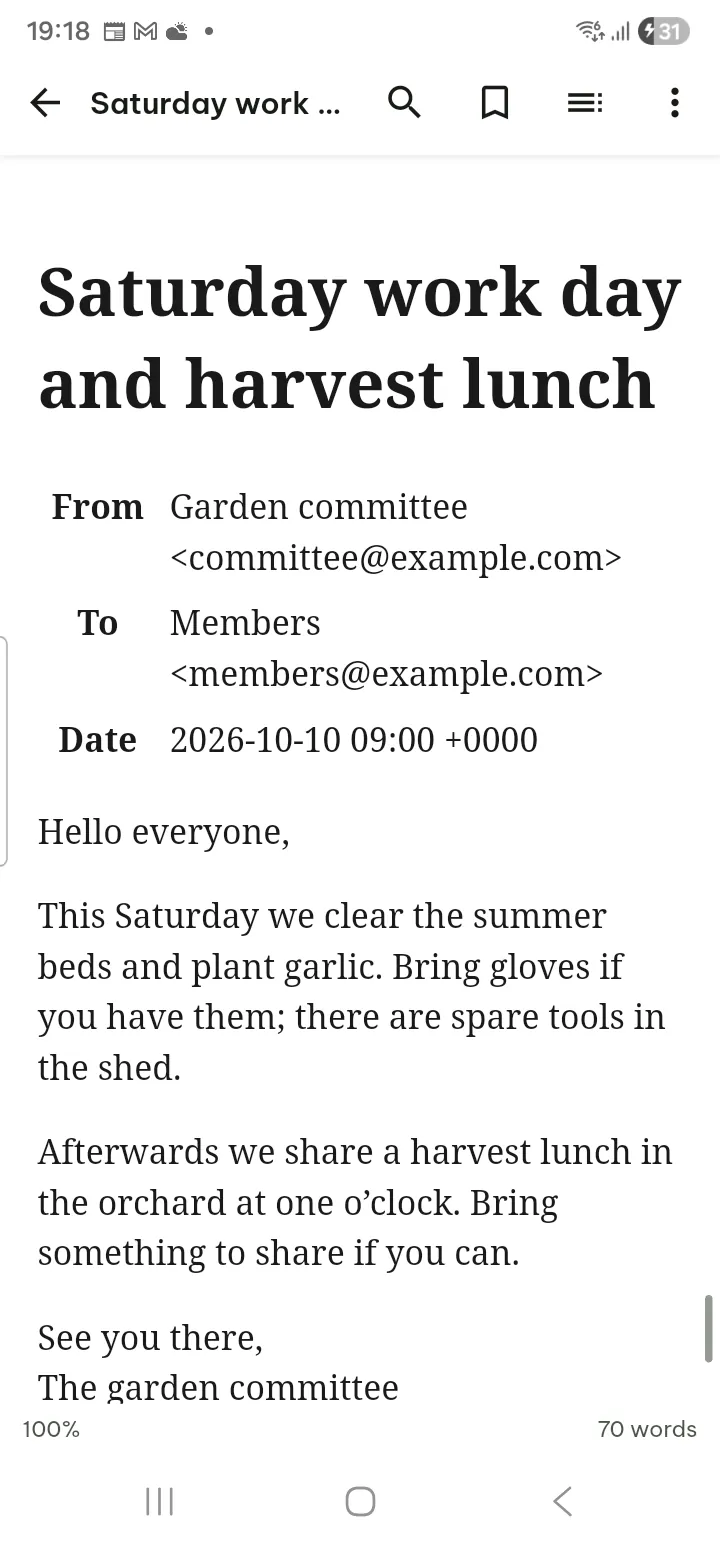
- .eml and .msg show From, To, Cc, Date and Subject, then the message. Nothing is loaded from the internet.
- ⋯ › Attachments lists the attachments: Open, Save or Share each one. Attachments are never run; opening one only shows it in Poleta.
- .ipynb notebooks show text, code and saved outputs; nothing is run. ⋯ › Show hidden and collapsed parts shows everything.
If something goes wrong
- "This document is protected by DRM": books with DRM cannot be opened. Use a DRM-free copy.
- Read aloud is dimmed: the book has no text (only pictures).
- "This book has no table of contents": use Search or bookmarks to move around.
- "No dictionary found in these files": pick StarDict files (.ifo, .idx, .dict) together, or a word list.
- A link "points to a part of the book that is not available": the book file is missing that part.