User guide › Documents, spreadsheets and slides
Documents, spreadsheets and slides
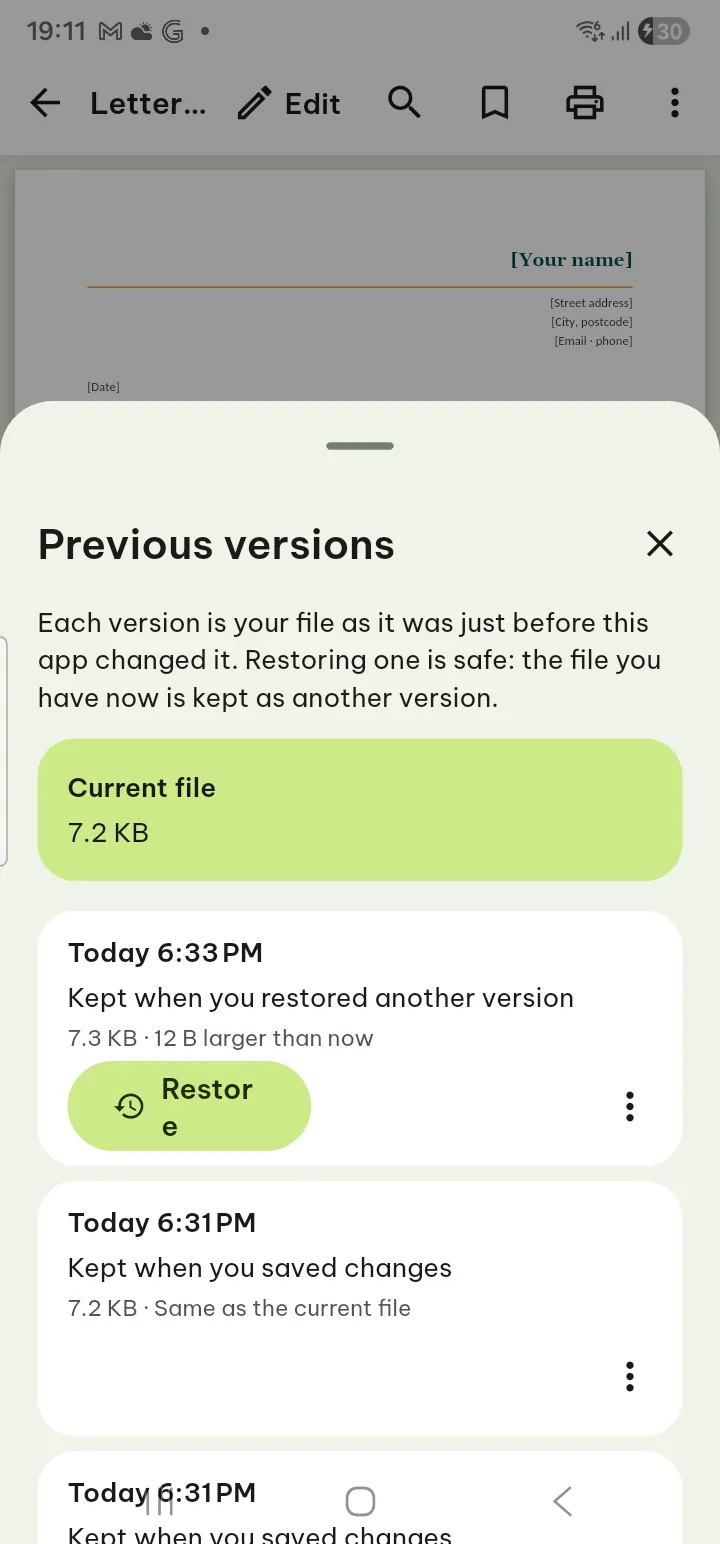
Make new documents, spreadsheets and slides from a blank file or a template, and edit the ones you have. Poleta opens .docx, .doc, .rtf, .odt, .xlsx, .xls, .csv, .tsv, .ods, .pptx, .ppt and .odp files. You edit .docx, .xlsx, .csv and .pptx files directly; an old .xls or .ppt file is edited as a copy in the newer format; the others open for reading. Edits are saved into the same file, and the file as it was before each save is kept in Previous versions.
- New document
- Text documents
- Font and size
- Find and replace
- Tables
- Page layout and Reading view
- Spreadsheets
- CSV files
- Slides
- The Format panel
- Charts on slides
- Transitions
- Color schemes
- Infographics
- Present
- Text, Markdown, HTML
- Spell check
- Personal dictionary
- AI in the editors
- Leaving an edited file
- Unsaved changes after a crash
- Old .xls and .ppt files
- Print, save as PDF
- Saving, versions and limits
New document
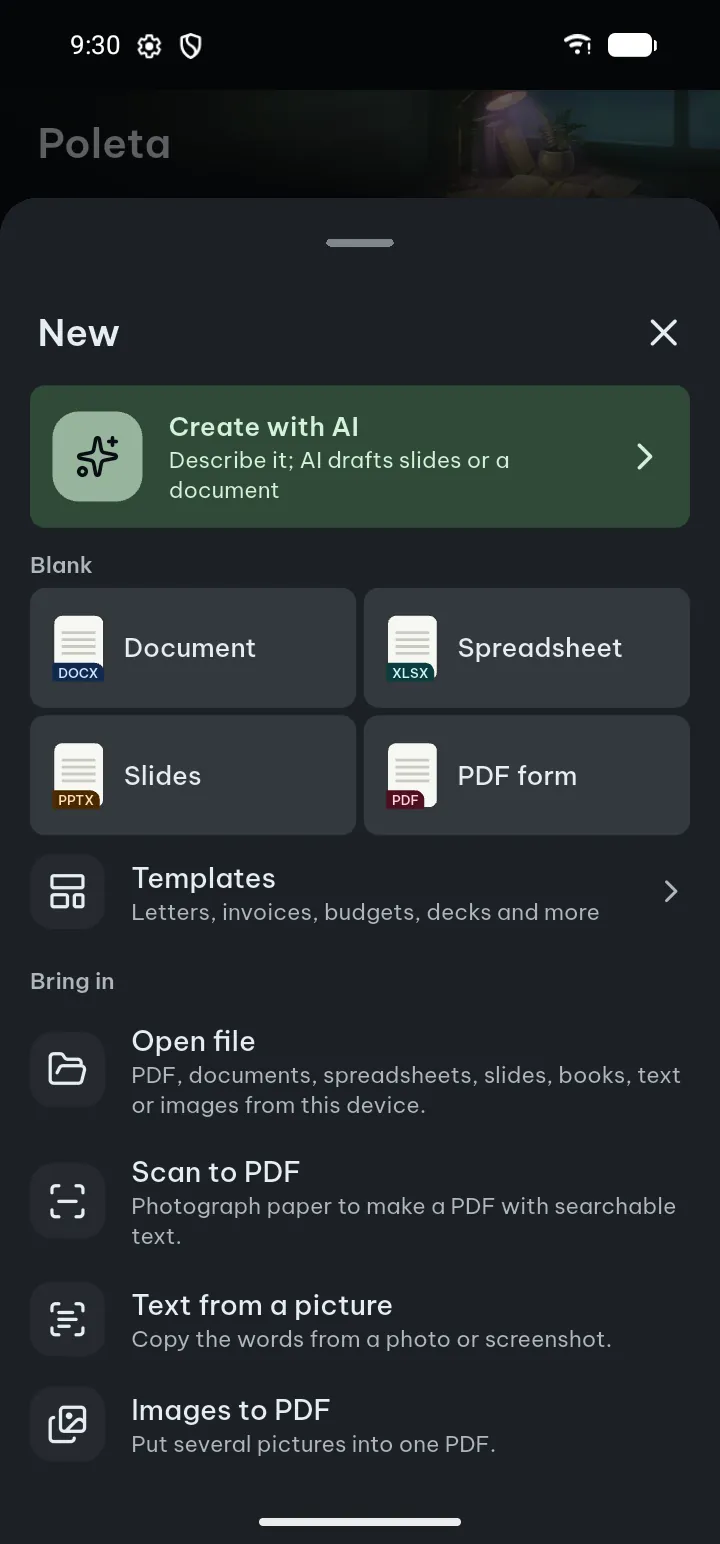
Start from a blank file, from one of Poleta's own templates, or from a description with AI.
- Tap + › New (it is also in Tools).
- Choose a tab, Documents, Spreadsheets, Slides or PDF, and tap Blank or a template. More templates lower in each tab has more designs.
- Type a name in Name your file and tap Create. The new file opens ready to edit, with the cursor in place (a new spreadsheet opens with the first cell selected).
Templates (at the top of the New sheet) opens the template library: ready-made documents, spreadsheets, slides and fillable PDF forms. Search or filter, and tap one to look at its pages and colors. Use this template makes a new file of your own to edit; the template itself never changes.
41 templates are free to use: 11 documents, 14 slide decks, 9 spreadsheets and 7 PDF forms, chosen for the most common jobs. A template with a small lock needs Pro to use; looking at every page and color of any template is free, and blank files are always free. Searching, filters, color versions and using templates offline: Templates.
Create with AI, also in the New sheet, makes a document, slides, a spreadsheet or a PDF from your description, with your brand if you set one up: see Create with AI.
Tips
- Give the file its real name now: the name is what the Library, search and the leave question show.
- A template's colors can be changed before you use it, on the template's preview.
Text documents (.docx)
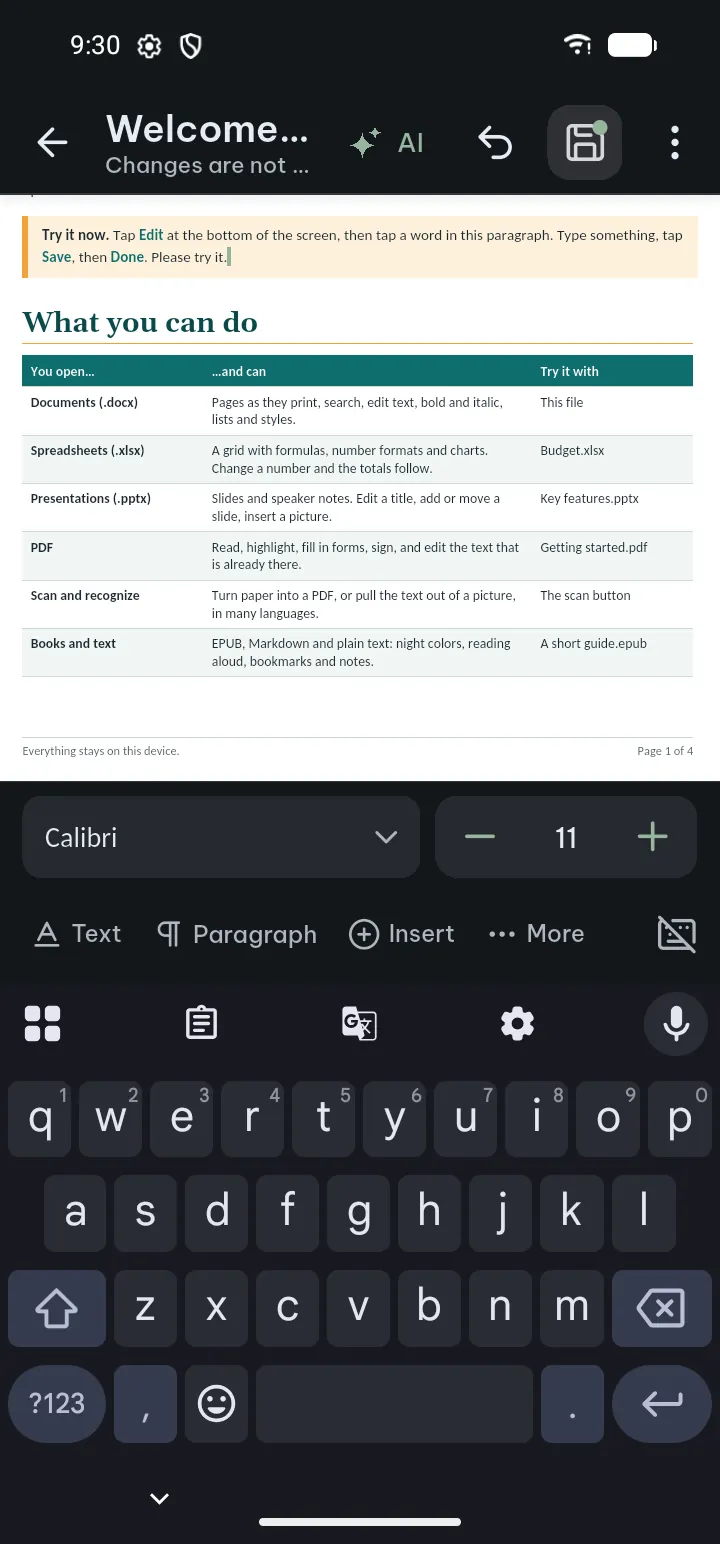
Documents open in Page layout, the document as printed. You edit right on the page, and what you see is what is saved.
- Double tap the word you want to change: it is selected and the keyboard opens, so you can type over it. Or tap Edit in the bottom bar: the cursor is in the paragraph you were reading. Enter starts a new paragraph.
- Use the tabs of the editing bar. Each tab shows its name; Undo and Redo are at the left. Tools that need Pro carry a small lock: you can set them up first, and Pro is asked only when you apply them.
- Text: the font and size control, Bold, Italic, Underline, Strikethrough, superscript and subscript, Text color, Highlight, Change case, Format painter, Clear formatting, cut, copy and paste.
- Paragraph: Paragraph style (Normal, Heading 1 to 6 and the document's own styles), alignment, Bullets, Numbering, Bullets and numbering… (list levels, number styles, bullet symbols, restart or continue), indents, Spacing, Border, Shading and Drop cap. Changing a style and New style from this paragraph… are Pro.
- Insert: Table, Picture, Camera, Link, Page break, Symbol, Date, Page number; a new Text box, Shape, Footnote, Endnote or Table of contents is Pro.
- Page Pro: Margins, Orientation, Paper size, Columns, Header, Footer, Page number, Hyphenation.
- Table (when the cursor is in a table): see Tables below.
- Review: the word count (Words, Characters, Paragraphs, Pages; for the selection too), Find, replace, Spelling, comments (read them, Reply, Resolve, edit or delete them), Changes (go through tracked changes and Accept or Reject them, one by one or with Accept all / Reject all); a new Comment Pro and Track changes Pro (turning it off is free).
- Tap Save (also on the Changes are not saved yet bar); you keep editing. When everything is in the file, the bar says All changes saved.
- Tap Done or Back to stop editing. If something is not saved yet, Poleta asks first: see Leaving an edited file.
The editor's ⋯ also has Find and replace…, Delete paragraph and Save a copy….
Pictures, text boxes and shapes: tap one to select it (a frame with handles). Drag it to move it, drag a handle to resize it (a picture keeps its proportions), turn it, duplicate it or delete it. Undo takes every step back.
What is already in the file stays free to change: tap a header or footer on the page to edit it, select a text box, shape or picture to move, resize, rotate, duplicate or delete it, edit or delete existing footnotes, and update a table of contents. Only adding the new things above needs Pro.
Tracked changes are free to see, accept and reject: while reading, the Review button shows how many there are, and in the editor they are under Review › Changes. A few kinds Poleta cannot decide yet; it says so, and you can decide them on a computer. A paragraph that still holds tracked changes takes no typing until its changes are accepted or rejected. Recording your own edits as tracked changes needs Pro; in a file that tracks changes, without Pro your edits are saved as plain edits and Poleta tells you so. The name shown with your comments and tracked changes is asked the first time one needs it, and kept in Settings › Open & edit documents › Your name.
Documents made with AI: before you open one, you can change any part of it with AI or switch its look on the Ready screen (change part of an AI document). In the editor, Look & colors in the Text tools changes the colors of a document AI made, free. A designed document of 3 or more pages has page numbers in a real header and footer and a contents page: after editing, use Table of contents › Update table. Its infographics are ordinary shapes and text you can edit.
Tips
- Format painter: select text with the look you want, tap Format painter, select the text to change, and tap it again.
- To open documents ready to edit every time, turn on Settings › Open & edit documents › Open documents in edit mode.
If something goes wrong
- A paragraph takes no typing: it still holds tracked changes (accept or reject them first), or it is in a part the editor cannot change yet, and Poleta says which.
- The document does not open for editing: a document with restricted editing, marked as final or digitally signed is not edited in place; Poleta offers an editable copy. .doc, .rtf and .odt files open for reading only; save them as .docx on a computer to edit them here.
- “This document does not define that style”: choose one of the document's own styles from the list.
Font and size
The documents, slides, spreadsheet and PDF text editors share one font and size control: the font chip, which shows the font's name in its own face, and the size beside it.
- Select the text (or put the cursor where you will type).
- Tap Smaller or Larger beside the size, or tap the font chip to open Font and size.
- In that sheet, change the Size (tap the number to type one), use Search fonts, or pick a font from Recent, Used in this file or Fonts in the app. Each pick is applied at once and is one step of Undo; the sheet stays open until you close it.
When the selected text has more than one font or size, the chip shows “—” until you choose one.
Tips
- A font the file names but your phone does not have is listed under its own name, with Shown with and the look-alike Poleta draws it with. Why this font? explains: the look-alike has the same sizes, so lines and pages stay in place, and the file keeps the original name, so it looks the same on a computer.
- Poleta never adds font files to your document: the font's name is saved, and other devices show it if they have it.
Find and replace
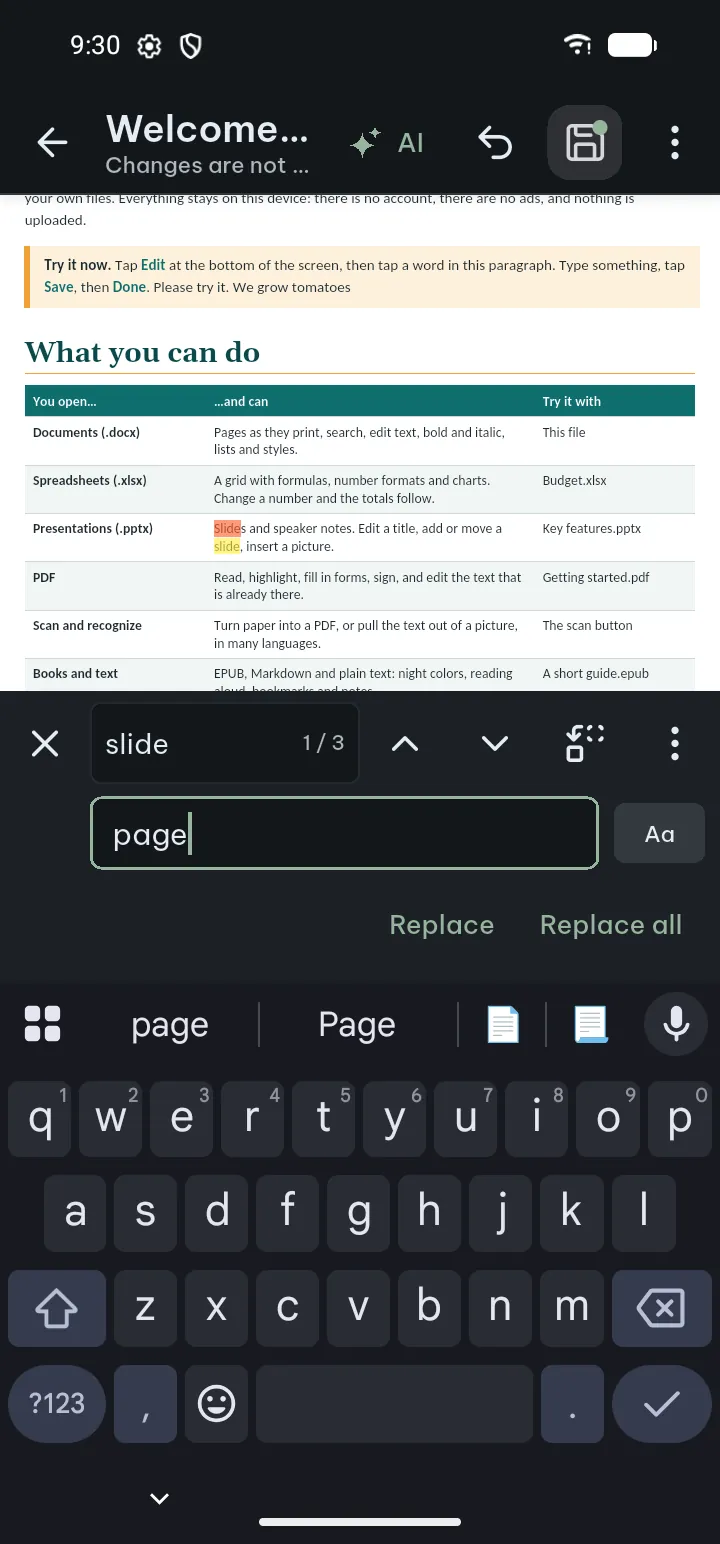
Find a word in the file you are reading or editing, and replace it once or everywhere.
- Tap Search in the bottom bar while reading. In the editor use Review › Find, replace (documents), Home › Find and replace (spreadsheets), Slide › Find and replace (slides) or ⋯ › Find and replace….
- Type in Search in document. The count shows which result you are on; Previous result and Next result move between them, and All results lists them. Whole words skips the word inside longer words.
- To replace, open Find and replace, type in Replace with, and tap Replace for this result or Replace all. Match case finds only the same capitals.
Replace all is one step of Undo. In slides the search covers every slide, table and group, and the speaker notes if you ask.
If something goes wrong
- “Nothing was replaced”: the results are in text the editor cannot change yet.
- In a spreadsheet: Poleta says in how many cells and how many times it will replace before it does it. Cells that hold formulas, numbers, dates or formatted text are left as they are.
- A word with accents is not found: Settings › Open & edit documents › Ignore accents when searching makes “cafe” find “café”.
Tables in text documents
- Put the cursor where the table goes and tap Insert › Table.
- Choose the number of rows and columns, whether the first row is a header row, and a table style from the document if it has some. Tap Insert: the table is in the document at once.
- With the cursor in a table, the Table tab opens.
- Free: Row above, Row below, Column left, Column right, Delete row, Delete column, Delete table, Sort…, Table style… with the styles the document already has, AutoFit and size… and Row height….
- Pro Pro: Merge right, Merge down, Split cell, Cell align, Cell shading, Borders, Column width, Header row, Formula… (such as a sum of the cells above), and Poleta's own table styles for a document that has none.
Typing in the cells, moving between them and changing the text format in them are free, as everywhere in the document.
Page layout, Reading view and Edit
A .docx, .doc or .odt document has two views. In Page layout switch with View › Reading view; in Reading view use the Page and Reading switch in the top bar (on a narrow screen, in ⋯), where the filled half is the view that is open. View › About these views (in Reading view, ⋯ › About these views) and Settings › Help & about explain them in the app too.
- Page layout shows the document as printed: pages, margins, headers and footers, columns and pictures in place. You can print it, save it as PDF and edit it. The text keeps the document's own fonts and sizes, so small print may need zooming; read aloud is in Reading view.
- Reading view fits the text to your screen in your font, size and theme, and can read it aloud. Page numbers are approximate and the look is simplified, so it does not match the printed pages.
- Edit opens the document in Page layout: tap where you want to type, then save. Only .docx files can be edited.
Settings › Open & edit documents › Open documents in Page layout chooses the view documents open in, and Open documents at whether they open where you left off or at the beginning. A very long document that does not fit in the phone's memory in Page layout can still be read to the end in Reading view.
Spreadsheets (.xlsx)
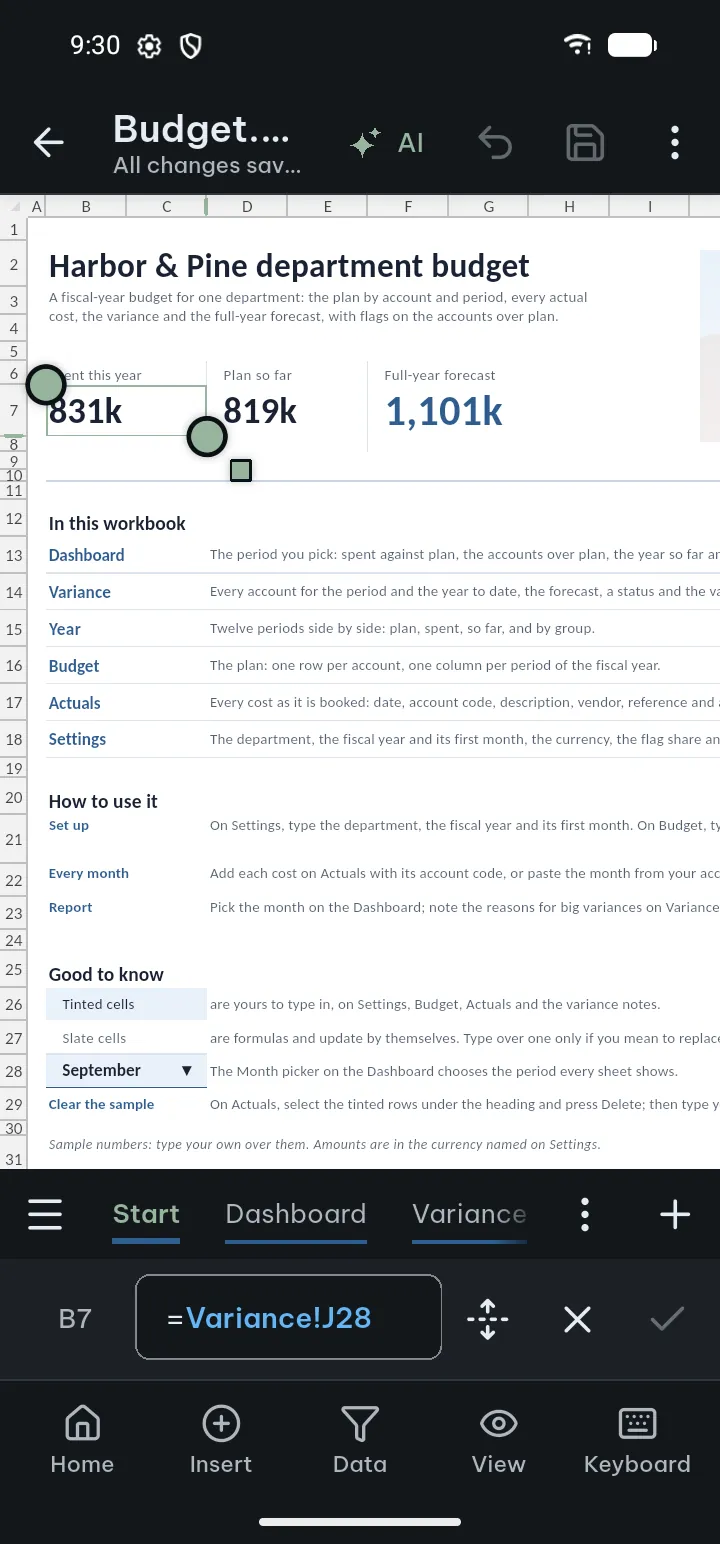
Spreadsheets open in a grid. Sheets are tabs at the bottom.
- Edit a cell: double-tap it, or select it and tap Edit in the bottom bar, then type in the cell bar. Next moves to the next cell. Formulas start with =; they are checked before they are accepted and recalculated. Typing a formula yourself is always free.
- Select cells: tap a cell, then drag the handles of the selection to take in more cells.
- Tap Tools for the tools, in four tabs:
- Home: a quick row with Bold, Italic, Text color, Fill color and Sum; then Format cells, Merge cells and Wrap text; Cut, Copy, Paste (also only Values or Formats); Find and replace, Average, count…, Fill down, Fill right, Smart Fill (fills the column like the examples you typed) and Clear.
- Insert: Insert row above, Insert row below, Insert column left, Insert column right, Insert cells, Delete cells, Delete rows, Delete columns, and charts and functions.
- Data: tables, pivot tables, sort and filter, data validation.
- View: freeze panes, column width and row height, hide and show, and sheets (Add sheet, rename, Duplicate, delete, move, Tab color, hide).
- Tap Save. Leaving with unsaved changes asks first (details).
- Sort and filter, free: select a cell in your data, then Data › Sort A to Z or Sort Z to A; Filter turns the filter on, and Filter by value… shows only the rows with the values you tick. Show all rows brings the others back.
- Pivot tables already in the file: select a cell in one and tap Data › Pivot table to Refresh it, or Refresh all pivot tables. Poleta says what changed in size.
- Pro tools Pro: Sort… (custom sort, several columns), Filter by condition…, Remove duplicates…, Text to columns, Data validation…, Conditional formatting…, a new chart (Insert chart) and changing a chart's type, colors, axis titles, data labels and cells, Freeze first row and the other freeze panes, the function picker (fx), table columns, total rows and table styles, and inserting or deleting several rows or columns at once (one at a time is free).
Charts already in the file are drawn in the sheet; changing a chart's title and legend is free. Undoing a Pro effect (show all rows, remove validation, clear rules, unfreeze) is always free. View › Reading view shows the rows as text, for reading aloud and small screens; Grid view in its top bar goes back. Settings › Open & edit documents has Spreadsheets open in (grid or reading view) and Recalculate formulas. .xlsb and .ods open for reading only; an old .xls is edited as a copy.
If something goes wrong
- A formula is refused: the message says what is wrong; fix it in the cell bar.
- A tool is greyed out: it needs a selected cell or range first; Merge cells needs more than one cell.
- A column shows ####: the number is wider than the column; make the column wider in View.
CSV and TSV files
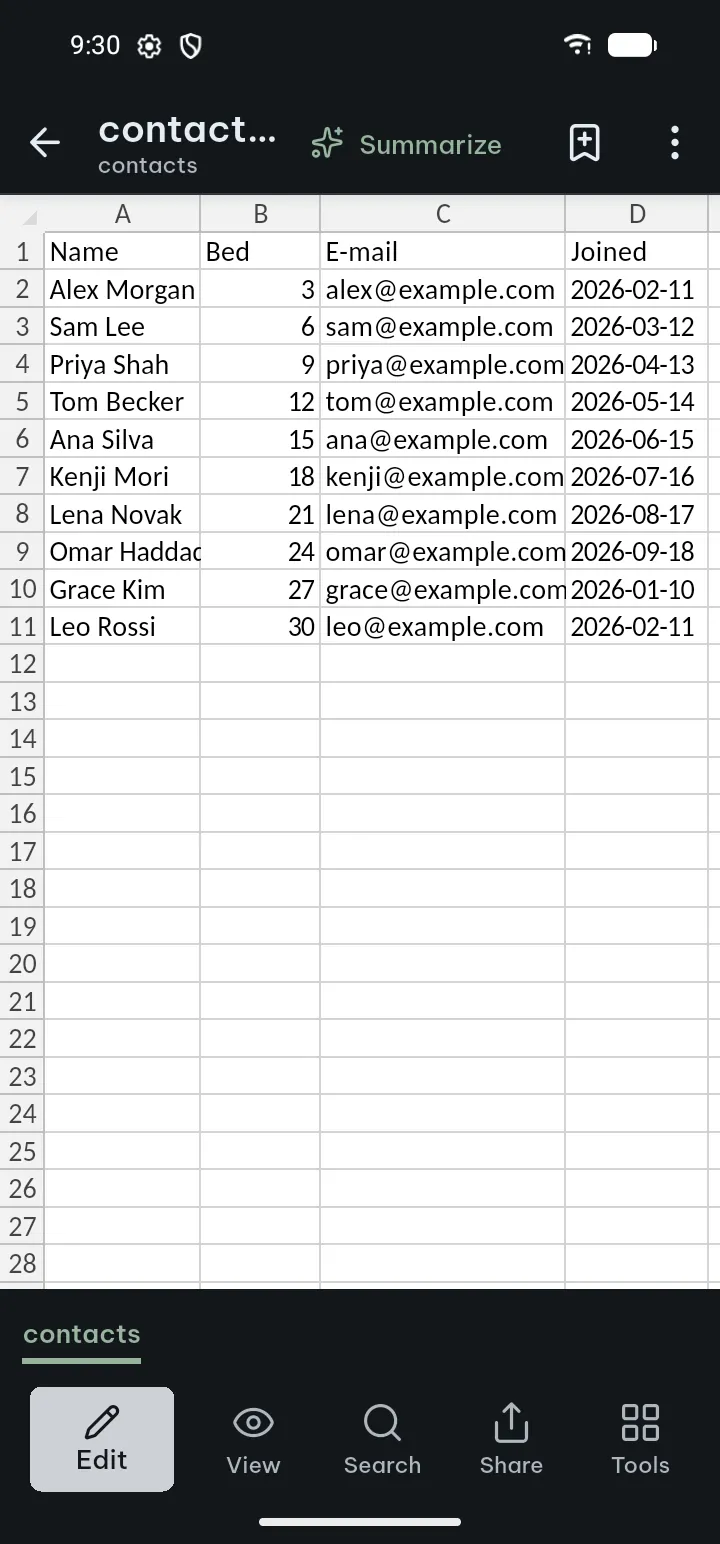
.csv and .tsv files open in the same grid. You edit the text of the cells with the Home tools (cut, copy, paste, fill, clear, find and replace); Undo is in the top bar. There are no formulas or formats in a CSV file, and only the cells you change are rewritten. Free, up to 24 MB.
Slides (.pptx)
Presentations open as slides (or as text, if you choose Settings › Open & edit documents › Open presentations in › Reading). Tap Edit to change them.
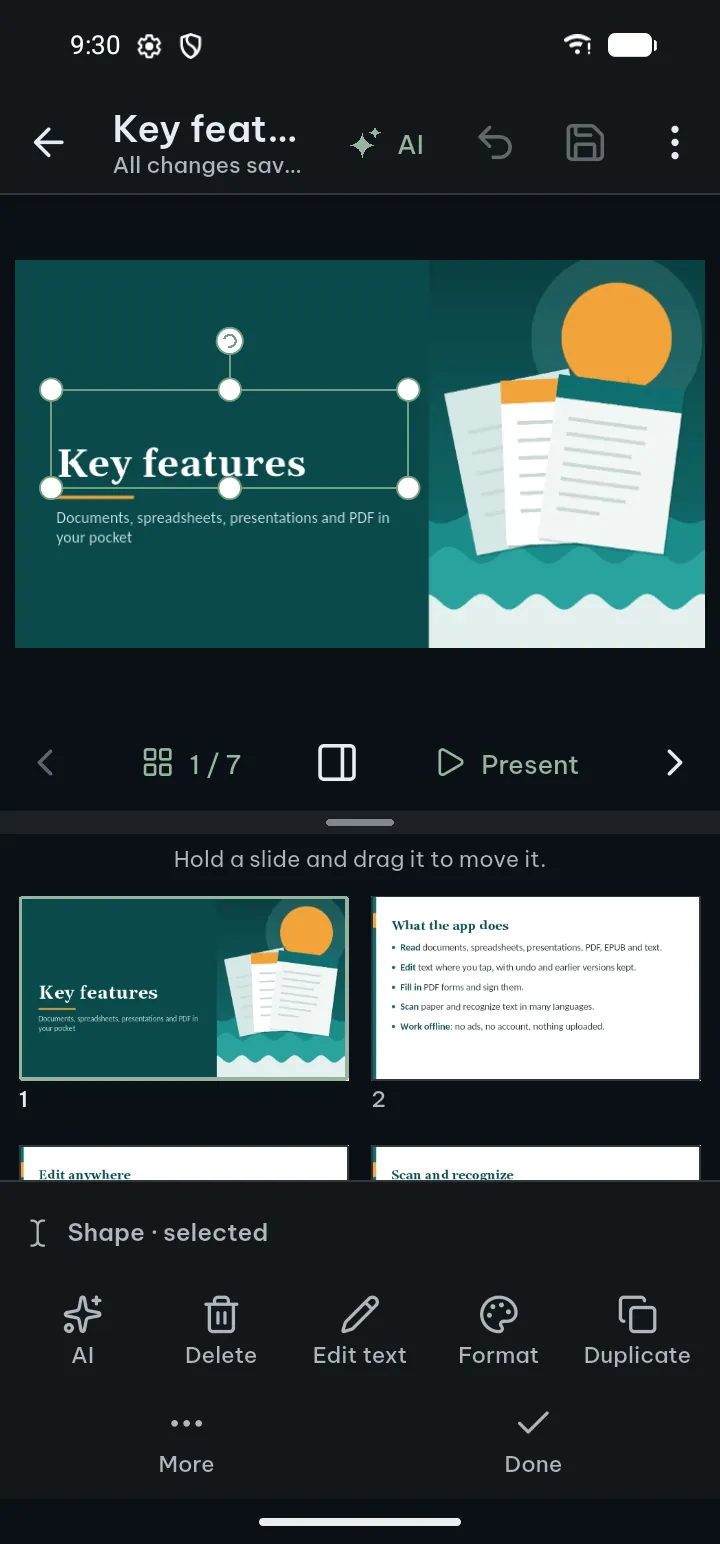
- Edit text: tap a text box to select it and tap it again to type (an empty placeholder types at once). Format the text with the font and size control, bold, italic, underline, color, alignment and bullets.
- Select an object: tap a text box, shape, picture, chart or table. A frame with handles shows it is selected, and a bar of tools opens under the slide: Edit text, Format (the Format panel), Effects, Arrange, Select more, Duplicate, Delete and More (Size and position, Alt text, Change shape, Text options, a link, Animation). A picture adds Crop, Replace and Border.
- Move, resize, turn: drag the object to move it, drag a handle to resize it (pictures keep their proportions), and use the turn handle to rotate it. Zoom to selection and Fit slide help with small objects.
- Several at once: tap Select more and tap the other objects; Done ends choosing. Group Pro and Ungroup are in the same bar; moving and resizing a group and editing the shapes inside it are free.
- Slides: Slide has New slide, New slide with layout…, Move slide up, Move slide down, Find and replace, Spelling, Sections and Delete slide; Layout, Duplicate slide, Hide slide and Slides from another file are Pro.
The other tabs of the bar at the bottom of the editor:
- Insert: Text box, Picture, QR code, Notes and Comments; Shape, Table, Chart and Text art are Pro.
- Design: Text, Background (color, gradient or picture), Color scheme (details), Slide size (16:9 or 4:3), and Slide master Pro. A deck AI made also has Look & colors.
- Transitions: Transition Pro (details), Animate the selected shape Pro and Effects order.
- View: Present from start, Present from this slide, All slides, Slide thumbnails, Notes under the slide and Reading view.
Changing existing shapes (fill, arrows, shadow, arrange, size and position, alt text), cropping and replacing pictures, notes, links and comments are free. Effects a shape already has in the file can be changed or removed for free; adding a new advanced effect, connectors, changes to sections and animation changes need Pro. Opening the panels of these tools and looking at what they show is free. .ppt files are edited as a copy; .odp files open for viewing and presenting only.
Slides made with AI: select a part AI made and tap Change with AI; Slide also has Change this slide with AI and Change the whole deck with AI, and Design › Look & colors changes the colors, look and corners of the whole deck, free. Every designed slide uses a named layout, so Layout works on it here and in other presentation apps; decks of 6 or more slides get slide numbers, which you change in Slide master › Footer, date and slide number. Prices and details: change part of an AI document.
If something goes wrong
- A shape cannot be formatted: Poleta could not read its look, so the panel says why and changes nothing rather than paint over what it cannot see.
- A picture cannot be moved: it is stored in an older format; it can be deleted, but not moved or resized here.
The Format panel (slides)
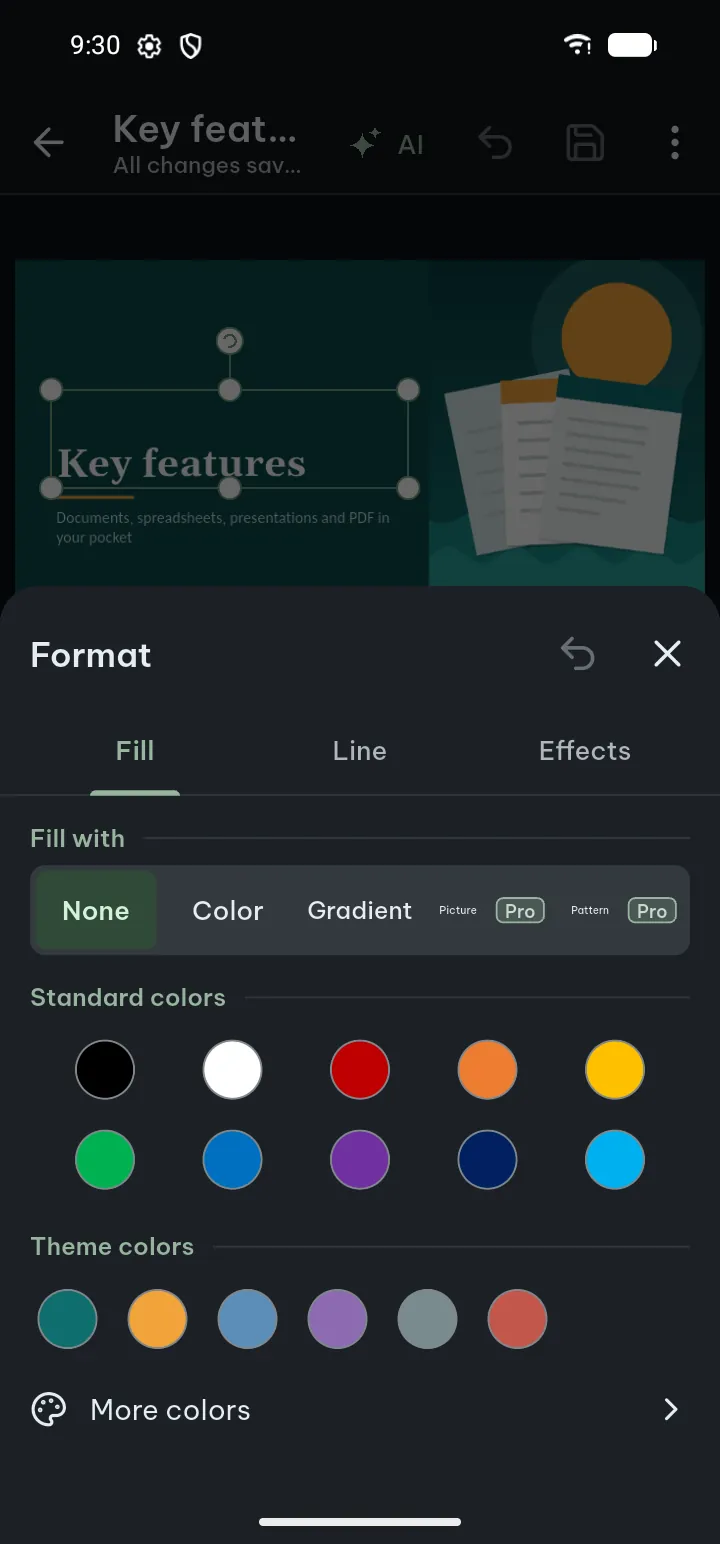
One panel for the fill, the line and the effects of the selected shapes, text boxes and pictures. It stays open while you try things: every tap is applied at once and is one step of Undo.
- Select one or more objects on the slide (a group counts as all its shapes).
- Tap Format in the bar under the slide, or Effects to open it on the effects.
- Choose a tab:
- Fill (not for pictures and lines): none, a color, a gradient, a picture or a pattern. More shows the details, such as the gradient type, angle and stops, and transparency.
- Line: color, width, dashes, line ends, arrow heads and corners.
- Effects: Shadow, Glow, Soft edges and Reflection, with size, blur, distance and direction under More.
- Close the panel when the shape looks right. Undo in the panel's title row takes back the last step.
Free and Pro: no fill, colors, the first six gradients, line color and width, three dashes, arrow heads, the first shadow and no shadow are free. Adding the newer options (picture and pattern fills, gradient details, transparency, the other dashes, line ends, corners, the other shadows, glow, soft edges, reflection) to a shape that did not have them is Pro, asked at the tap that applies it. Changing or removing an option the shape already had in the file is always free, and so is opening the panel.
Tips
- A slider applies when you lift your finger, so one drag is one Undo step.
- To give several shapes the same look, select them together with Select more, then open Format once.
Charts on slides
Insert a real, editable chart from numbers you type or paste. Pro
- In the slide editor tap Insert › Chart. The Insert chart screen opens with a preview.
- Pick the Chart type: column, bar, line, pie, area or scatter.
- Type the category names and the numbers in the grid. Add row and Add series make it bigger; Paste table takes a table you copied from another app (one row per line, values split by tabs, commas or semicolons). Add a Chart title (optional).
- Tap Insert. The chart comes selected in a free area of the slide, so you can move, resize, duplicate or delete it, and Undo takes it back.
To change it later, select the chart and tap Chart in the bar: its type, colors, axis titles, data labels and numbers (Edit chart data). Opening the chart and changing its title and legend are free; the other changes are Pro. It stays a real chart in other presentation apps too.
If something goes wrong
- “Type at least one number to make the chart”: the grid has no number yet.
- A value is not a number: the message names the row; remove the text or the unit from that cell.
- A pie shows only one series: a pie chart draws the first column of numbers. A scatter chart takes its X values from the first column.
Transitions
A transition is how a slide comes in during the slide show. Pro
- Go to the slide and tap Transitions › Transition.
- On Effect, pick one: None, Fade, Push, Wipe, Split, Cover, Uncover, Zoom, Dissolve, Blinds, Checkerboard, Circle or Diamond. The slide plays it as you choose; Preview plays it again.
- Set the Direction (where the effect has one) and the Duration with Shorter and Longer.
- On the Next slide tab choose On click or Automatically after a number of seconds.
- Apply to all slides gives every slide the same transition. Tap Done.
Every choice is one step of Undo. Slide sounds a deck already has are played in the show (see Present).
Color schemes
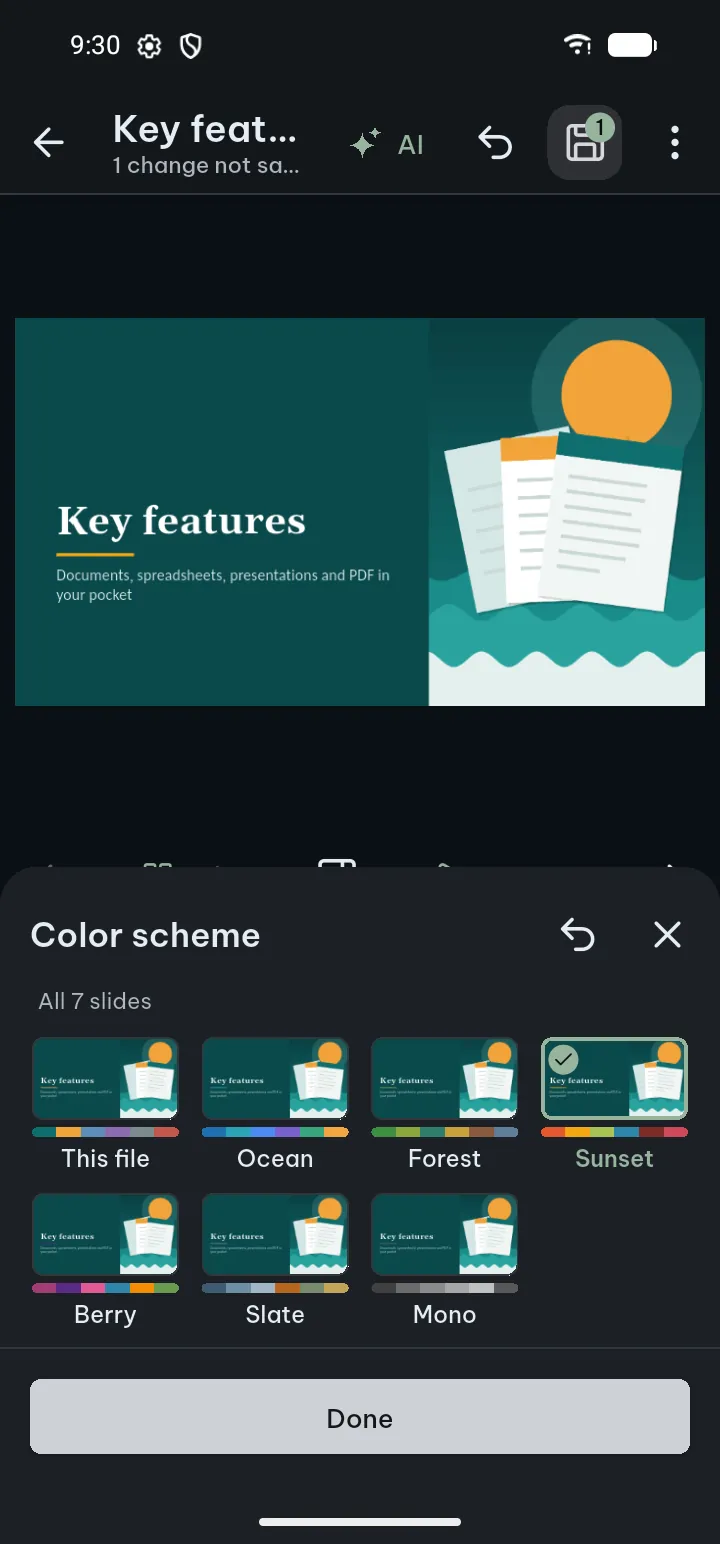
A color scheme is the set of theme colors a deck uses. Changing it recolors every slide at once, free.
- In the slide editor tap Design › Color scheme.
- Each choice shows the slide on your screen drawn in that scheme, with its six accent colors under it. This file is the scheme the deck had.
- Tap one: it is applied to all slides at once. Try others, or tap This file to go back.
- Tap Done. Undo in the title row takes back each choice.
If something goes wrong
- Only a few parts change: the slide uses its own fixed colors instead of the theme colors, and Poleta says so.
Infographics
Designs made with Create with AI and many templates show facts as infographics: dozens of kinds, such as timelines, steps, key numbers, cycles, funnels, pyramids, comparisons, pros and cons, progress bars and rings, mind maps, org charts, roadmaps, SWOT, Venn diagrams, Gantt charts, waterfalls, maps, pricing tables, gauges, flowcharts, agendas, scorecards, treemaps and fishbone diagrams. Each kind has several layouts and follows the colors and style of its design: flat, outlined, bold, soft or over a photo.
- Editable: an infographic is made of ordinary shapes, text and icons, never one flat picture. Select a part in the slides or text document editor to change its text, colors, size or place; Edit on a selected infographic changes its content. It opens as editable shapes in other presentation and word-processing apps too.
- Driven by the numbers: numbers set the shapes, such as a funnel's widths, a progress ring's arc or a bar's length.
- Another kind, free: on the Ready screen of Create with AI, Change this › Show as turns an infographic into another kind for the same content, and Use my numbers puts your own numbers in, both free and without AI (details).
Present
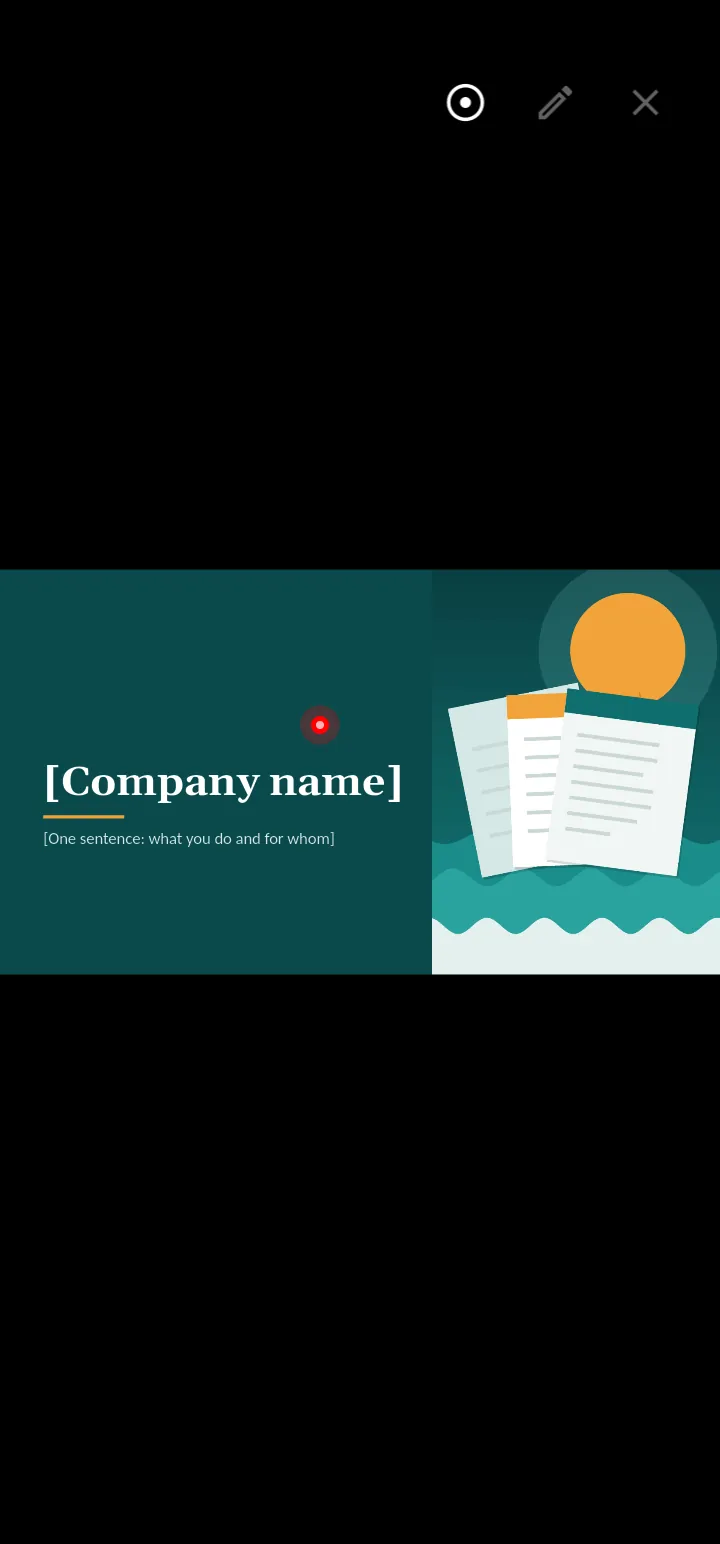
- While reading, tap View › Start slide show, or press and hold a slide thumbnail and choose Start slide show from this slide. In the editor, tap Present, or in View choose Present from start or Present from this slide.
- Swipe or tap to move. Use Laser pointer, Pen and Erase ink; Speaker notes shows your notes. Video and sound in the slides play with Play.
Free, also for .ppt and .odp.
Transitions and sounds: a slide show plays each slide's transition and, when the slide has one, its sound. Decks made in the app move in different ways from slide to slide and play our own short sounds on the title, section and closing slides; other presentation apps play them too. In Settings › Open & edit documents, Play slide sounds turns the sounds off, Slide show animations chooses On, Off or Like the device, and Presenter view in slide shows chooses when the phone shows your notes, the next slide and a timer. On Android there is no sound while the phone is on silent or vibrate; the slide still changes on screen. In Create with AI, Advanced › Language and more chooses whether a new deck moves at all.
On a TV or projector: with a second screen connected, the slide shows there alone and the phone keeps the presenter view Pro. Without Pro the first such show is a free try; after it the screen mirrors the phone.
Text, Markdown and HTML files
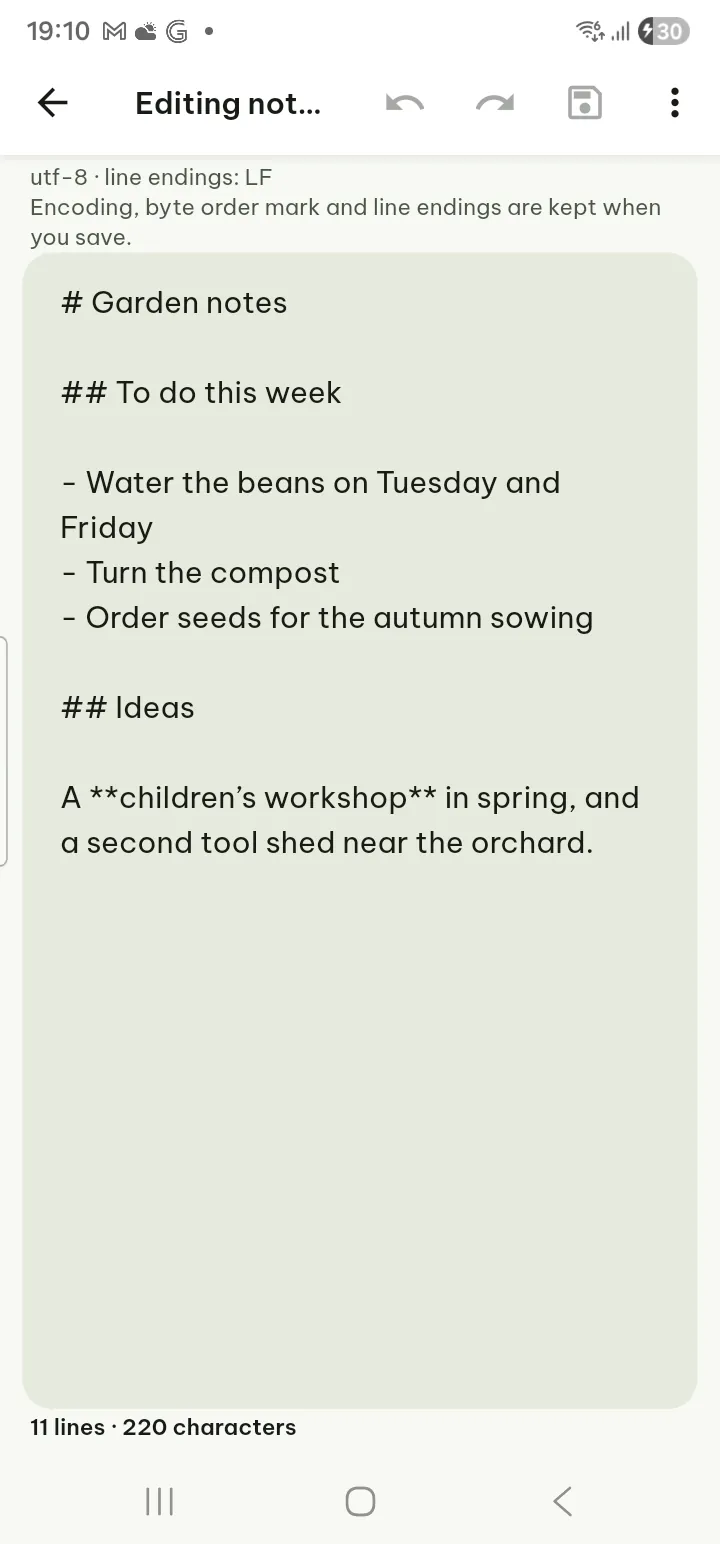
- .txt files and code or data files (.json, .xml, .log and many more) open as text, with syntax colors and line numbers for code. ⋯ › Encoding changes how the characters are read.
- Markdown and HTML files are shown formatted. ⋯ › View source shows the source.
- Edit: tap Edit in the top bar. Encoding, byte order mark and line endings are kept when you save. Up to 3 MB. Free. Leaving with unsaved changes asks first, as in the other editors.
- Text settings sets the font, size, line spacing, margins and line length. Extra typefaces and narrower line lengths are Pro (reading style).
Spell check
While you edit a text document, a slide or a spreadsheet cell, words your phone’s spell checker does not know are underlined. Spell check is free.
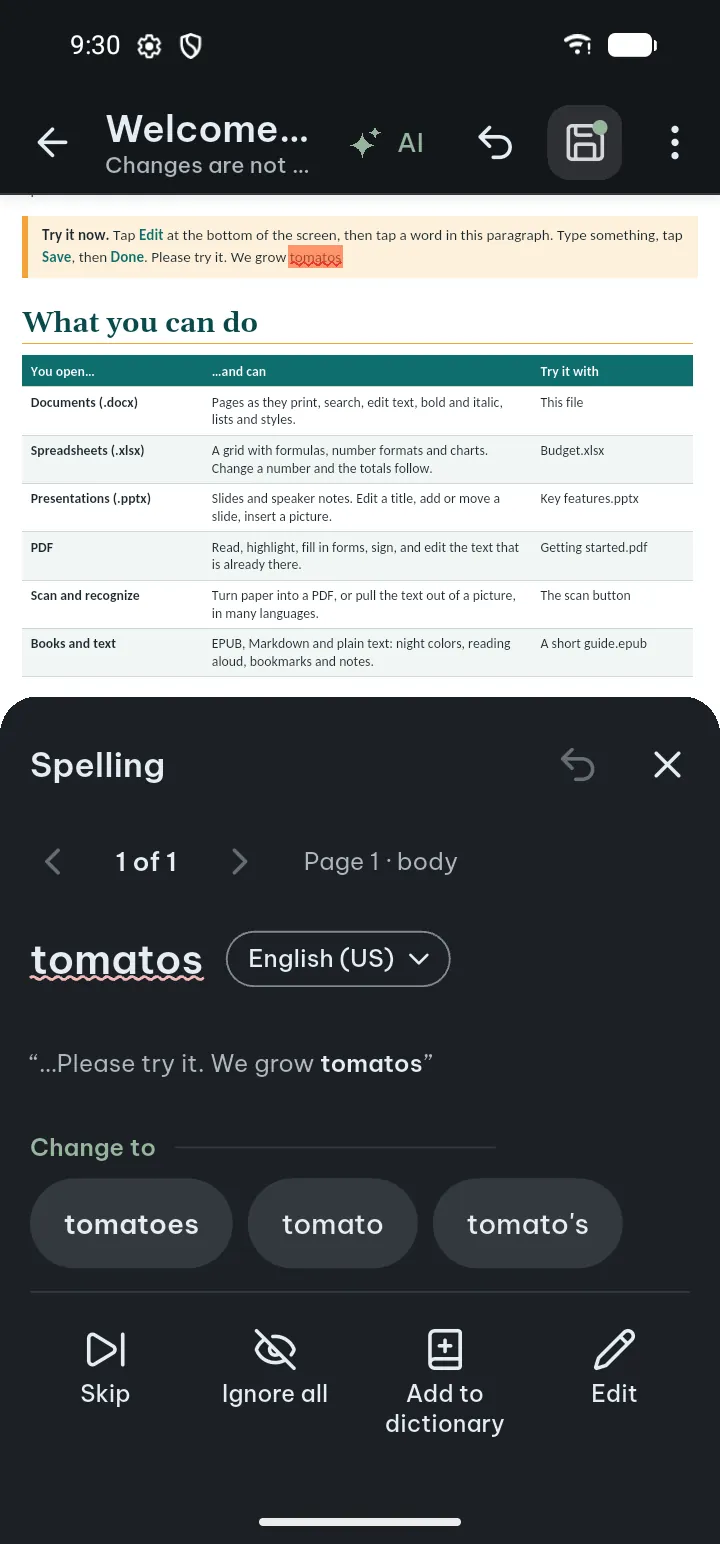
- Tap an underlined word. Choose a suggestion, Ignore all or Add to dictionary. A fix is one Undo step.
- Check the whole file: Review › Spelling in a text document (the body, headers, footers, footnotes, endnotes, text boxes and comments), Slide › Spelling in slides (speaker notes included).
- The Spelling sheet opens under the page, so the word stays in view. It shows where the word is (for example “Page 2 · body” or “Slide 3 · notes”) and how far you are (“4 of 12”).
- For each word: tap a suggestion under Change to, Skip it, Ignore all, Add to dictionary, or Edit to type the fix yourself. Previous word and Next word move between them; Undo is in the sheet.
- At the end it says No more spelling to check and how many words were checked in which languages. Tap Done.
Languages: each paragraph is checked in its own language when your phone has a checker for it. To change it, tap the language in the Spelling sheet and choose one for This paragraph or the Whole document (in slides, This text box or the Whole deck). Don't check this text is for names, codes and quotes in another language; text the file already marks that way is left alone.
Tips
- Turn spell check on or off in Settings › Open & edit documents › Check spelling.
- The words go only to the spell checker on your phone, never to us (privacy policy).
If something goes wrong
- Nothing is underlined: Check spelling may be off, or the phone's spell checker is off or missing. The Spelling sheet says which; Turn on switches the setting back on, and Phone settings opens the phone's settings, where you can turn a spell checker on or choose one. A keyboard app with spell checking can add one.
- “Text was not checked”: your phone has no spell checker for that language; add the language in the phone's keyboard settings.
- The language cannot be changed: not while Track changes is on; turn it off in Review first.
- “Use Edit to change this text”: the word is in a part the sheet cannot change directly; tap Edit and type the fix.
Personal dictionary
Names and terms you add are never marked again, in any file.
- Open Settings › Open & edit documents › Personal dictionary. It shows how many words you have.
- To add a word, type it in Add a word and tap Add. Or tap a marked word while editing and choose Add to dictionary.
- To find one, use Search words. To remove one, tap its remove button; Undo on the message brings it back.
The dictionary holds up to 5,000 words, added one at a time (letters, digits, apostrophes and hyphens). It is kept on your phone and in the backups you make.
If something goes wrong
- “This list could not be read”: your words are still kept in the file; tap Repair. Until it is repaired, backups leave the dictionary out and say so.
AI in the editors
In the text document, slides, spreadsheet and PDF editors, AI in the top bar (or first in the selection menu) opens the AI panel for the selection, or for the paragraph the cursor is in. The page stays in view above it.
- Select the text (or put the cursor in a paragraph) and tap AI.
- Choose Shorter, Fix spelling & grammar, More formal, Friendlier, or under More AI actions Simpler, Longer and Explain this. Or type your own instruction in Ask AI to….
- The result shows what changes (removed words struck through, new words underlined). Accept puts it in as one Undo step; or tap Try again (the first time is free) or Discard. Nothing is written into your file until you tap Accept.
Spreadsheets: select a cell, tap AI, then Describe the formula (for example “total of column C for May”) and Insert, or Explain this formula on a cell that has one.
Prices: each row shows its price before you tap. Making up to 300 words shorter, longer, more formal, friendlier or simpler, or following your own instruction, is 2 credits (9 for up to 1,500 words); fixing the spelling and grammar of up to 1,500 words 9; explaining a selection 2; a formula from your words 2 and explaining a formula 1. Stopping within the first 3 seconds is free. It uses AI credits (Pro or a credit pack). Only the selected text and your instruction are sent, and in a spreadsheet the sheet’s name, its first rows and the selected cell (privacy policy). AI can make mistakes, so read the result before you accept it.
Leaving an edited file
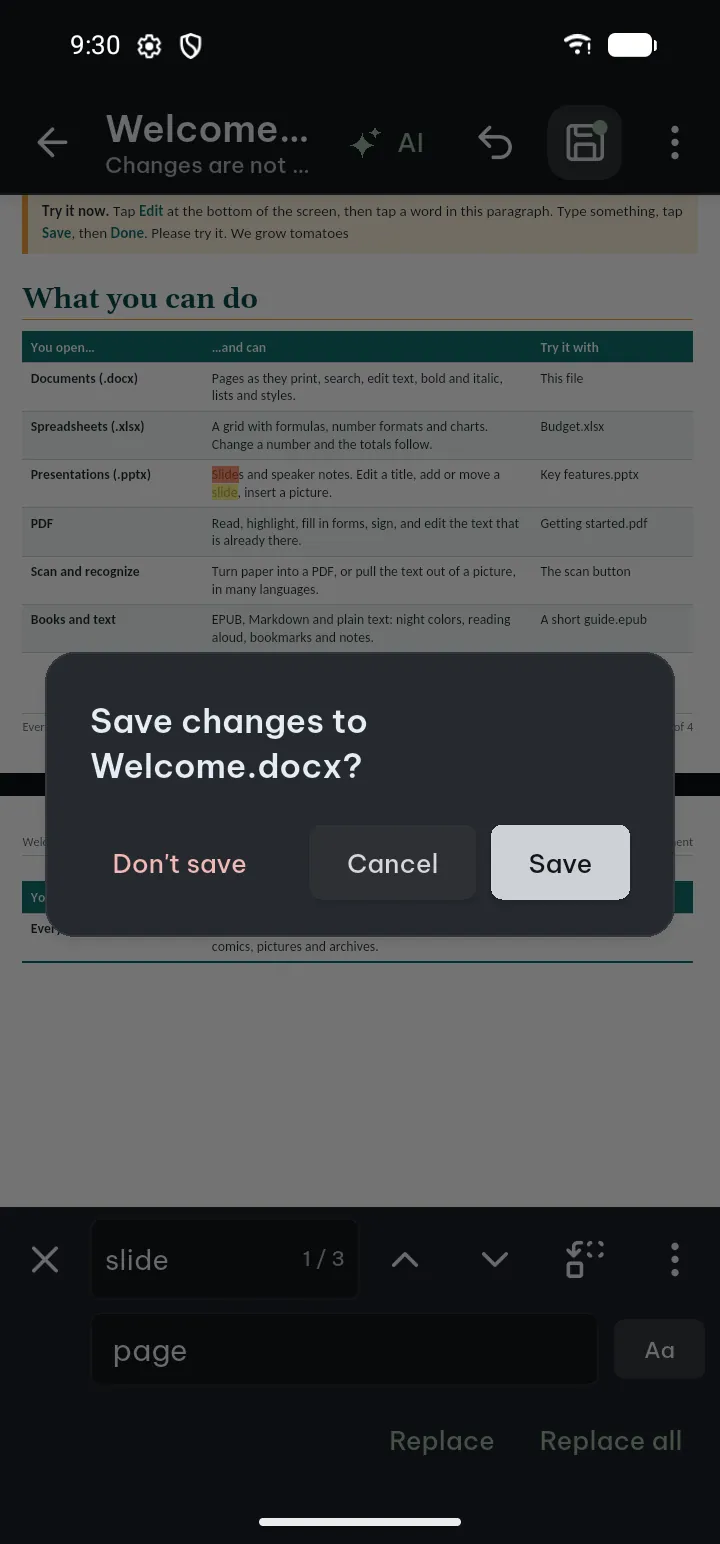
When you leave an editor (Back, Done or close) with changes that are not saved yet, Poleta asks first. The documents, spreadsheet, slides, text and PDF text editors all ask the same question.
- The question names the file, for example Save changes to Letter.docx?
- Tap Save to write the changes into the file and leave.
- Tap Cancel to stay and keep editing.
- Tap Don't save (in red) to leave and throw the changes away.
Smaller screens that have nothing to save into a file yet, such as the numbers of a new chart or text typed into a box, ask Discard or Keep editing instead.
Tips
- Back, the back gesture and closing the editor never lose your edits without this question.
- Saved by mistake? The file as it was before each save is in Previous versions.
Unsaved changes after a crash
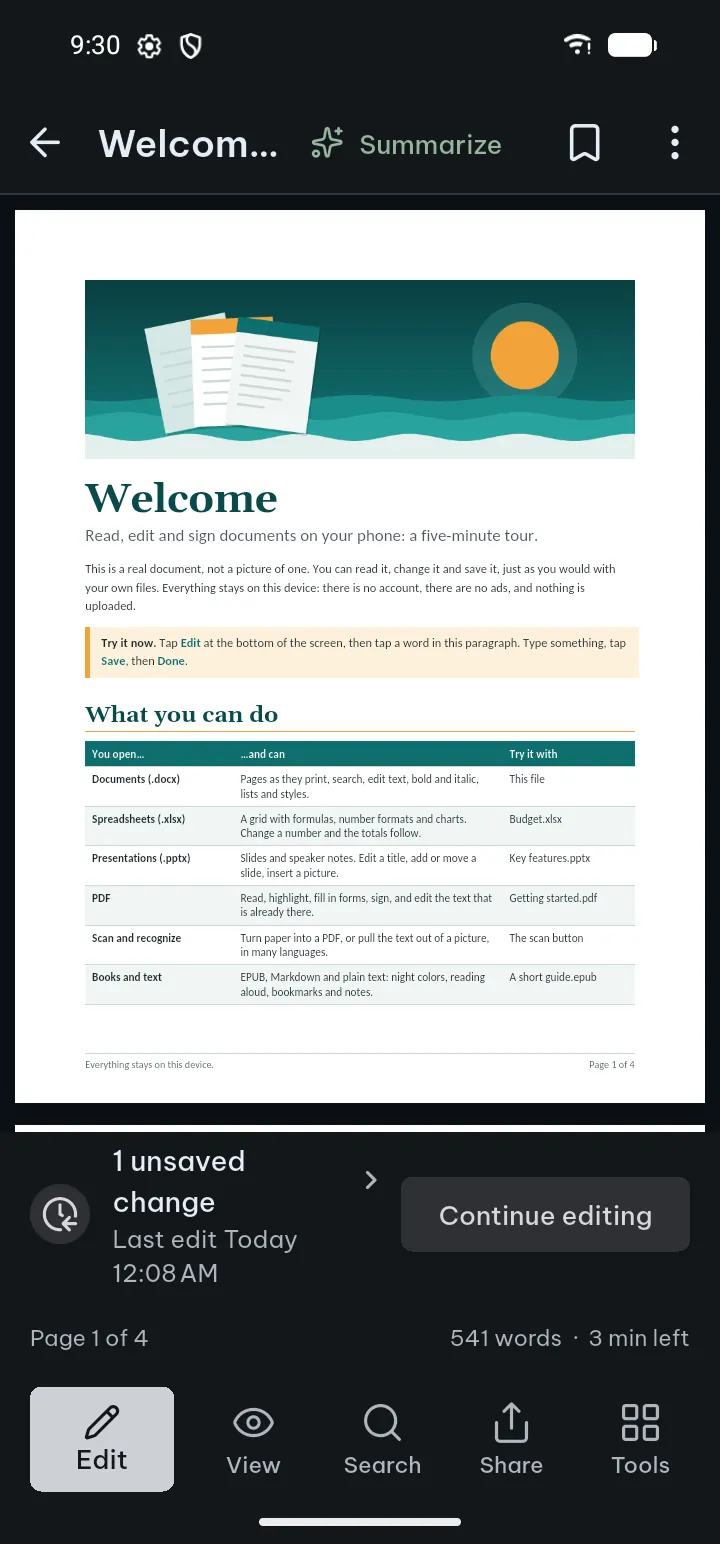
If Poleta was closed from outside while you edited (the phone ended it, the battery ran out, the app crashed), the changes you had not saved are kept in the app, not lost.
- Open the same file again. A line in the bottom bar says how many unsaved changes there are and when you last edited them.
- Tap Continue editing on that line to go on where you were, then Save.
- Or tap the words of the line to open Unsaved changes. It says that the app closed before these were saved and that they are not in the file yet, lists the kinds of changes (such as Edited text, Changed formatting, Added or copied slides, or Edited cells with the cells named), and has a way to Previous versions.
- In that sheet, Continue editing opens the editor with the changes. Discard throws them away; Undo on the message Unsaved changes discarded brings them back.
The kept changes are not in the file yet. If you share, print, save as PDF, save a copy or compare first, Poleta asks: Continue editing, or Use the saved file to go on with the file as it is saved (the changes stay kept).
Old .xls and .ppt files
Old binary spreadsheets (.xls) and presentations (.ppt) cannot be changed directly. Poleta makes an editable copy in the newer format and leaves the original as it is.
- Open the file and tap Edit. The question Edit a copy as .xlsx (or .pptx) names the copy.
- Poleta checks what comes along and lists only what the file has: what is Changed in the copy (such as formulas kept as their values, or tables kept as shapes with their text) and what is Left out of the copy (such as macros, charts or sounds, which stay in the original).
- Tap Make a copy. The copy is added to your library next to the original and opens for editing.
If you already made a copy, Poleta offers to open it instead. Old .doc files are not converted: save them as .docx on a computer to edit them here.
If something goes wrong
- “Can't make a copy”: the file has a password, could not be read completely, or is too large. You can still read it; the message says what to do.
Print or save as PDF
Printing belongs to the open document.
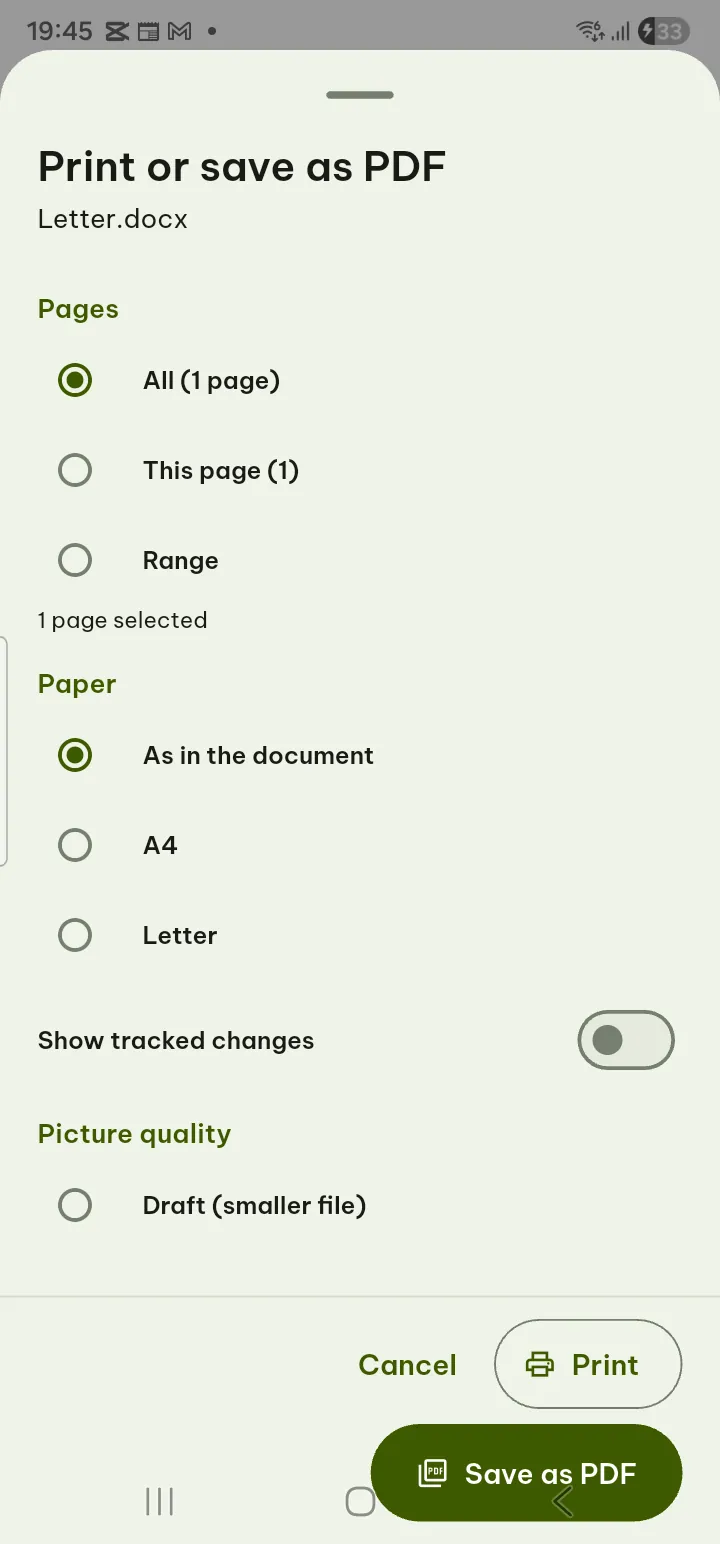
- Open the document and tap Share › Print… or Save as PDF… (both also at the top of Tools; in Reading view, Markdown, HTML and text files they are in ⋯).
- Choose the paper and pages. For documents, spreadsheets and slides the sheet also has Tags for screen readers and Archive copy (PDF/A) (see PDF/A and tags).
- Print through the phone's print service, or save the PDF.
In the PDF reader, Print is in Share and Tools. Free. If the document has changes kept from last time, Poleta asks first (see above).
Saving, versions and limits
- Poleta saves back into the file you opened when the storage allows it; otherwise use Share › Save a copy to… (in the editor, ⋯ › Save a copy…).
- Parts of the file the app does not understand are kept as they were. Original font names are kept; fonts your phone does not have are shown with look-alikes.
- The file as it was before each save is in Tools › Previous versions (in Reading view and text files, ⋯ › Previous versions), where you can Restore it or Save as a copy.
- Password-protected .docx, .xlsx and .pptx files open with your password but cannot be edited. Macros are never run.
- Print… and Save as PDF… work for every document type on this page.
If something goes wrong
- The file was changed by another app while it was open: Poleta asks before it writes, and can keep your edits only inside the app, leaving the original file as it is.