
Save a document as a PDF that screen readers can follow
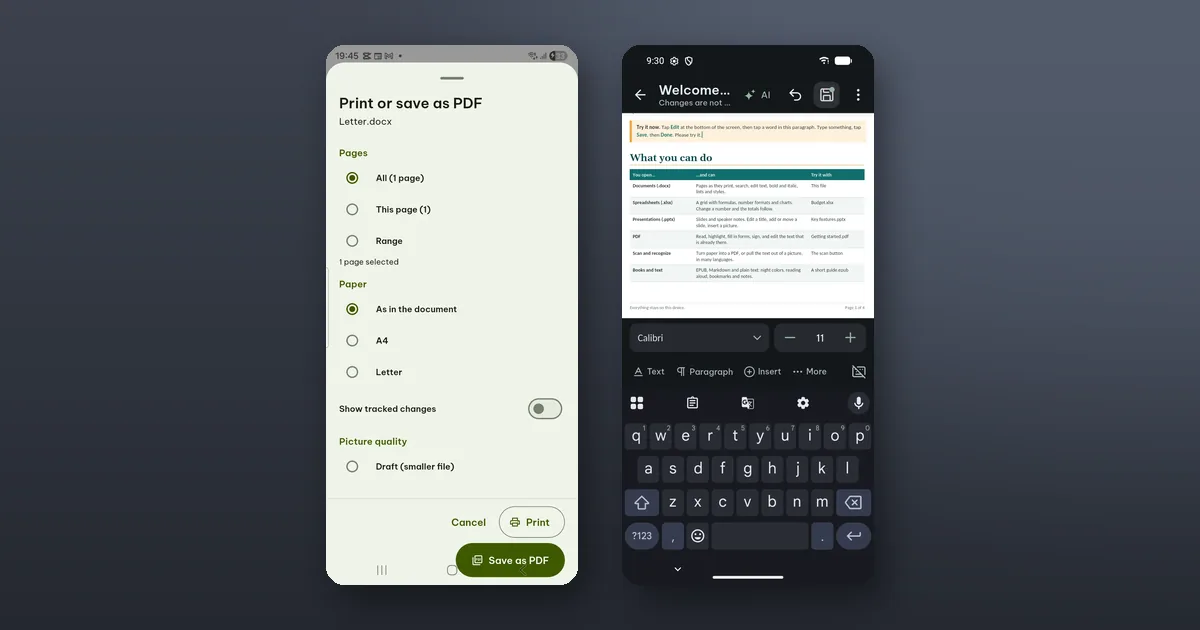
When you save a text document, spreadsheet or slide deck as a PDF in Poleta, the PDF carries its headings, reading order, tables and picture descriptions. That is Tags for screen readers, and it is on unless you turn it off. Saving as PDF is free.
Most people never see this, and that is fine. It matters to the person on the other end who listens to documents instead of reading them, and to whoever has to open your file again in ten years.
Where the switches are
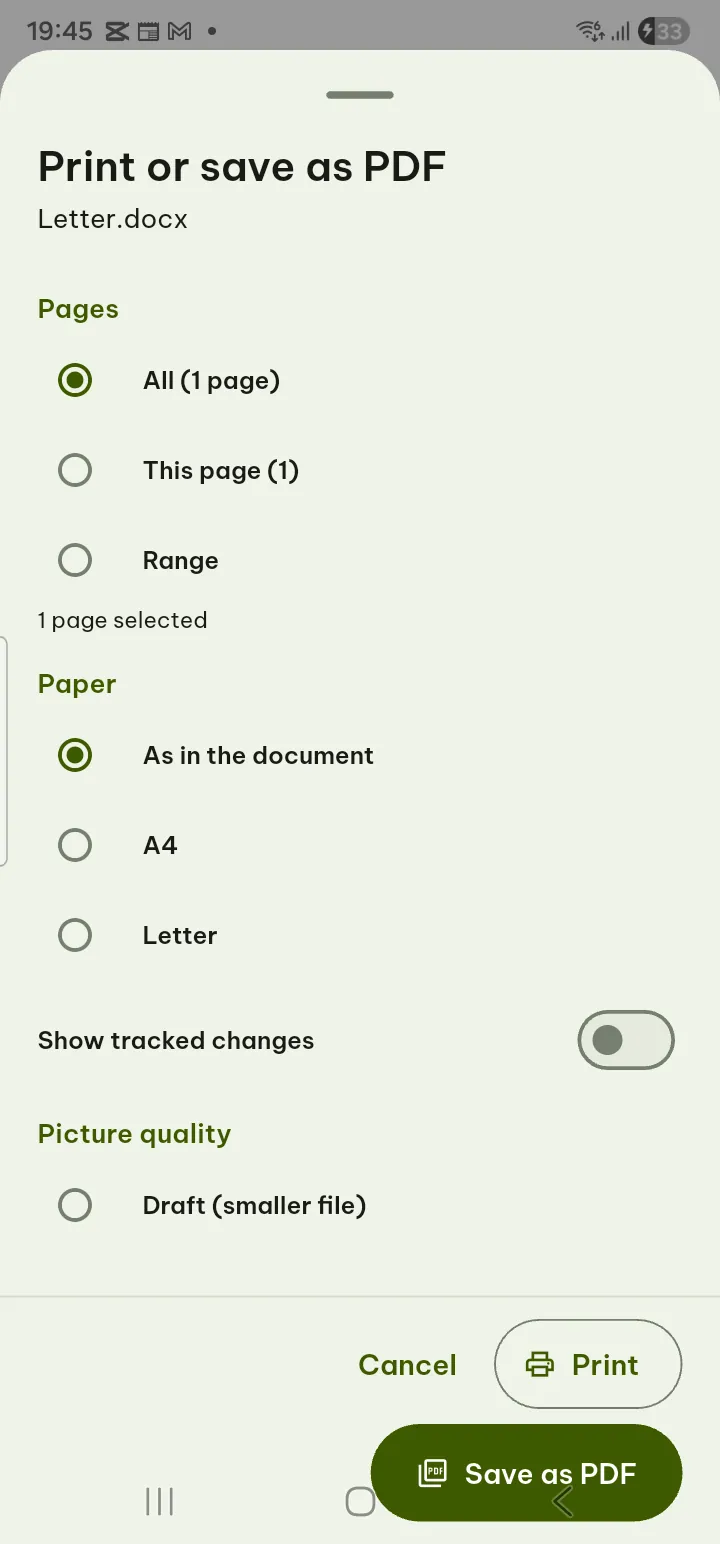
Open the document and tap Share › Save as PDF… (or Print…). Both are also at the top of Tools. For a file you have not opened, Tools › Convert to PDF lets you pick it from your library or from the device and opens the same sheet.
Choose the paper and the pages. For documents, spreadsheets and slides, the PDF part of the sheet has two more switches: Tags for screen readers and Archive copy (PDF/A).
What the tags do
A PDF without tags only says where each letter goes on the page. A screen reader then has to guess what is a heading and in what order to read, and a two-column page or a table is easy to get wrong.
With tags, the PDF says which line is a heading, in what order the text is read, which cells belong to which table, and what each picture shows. Apps that read aloud can then follow the document in order, and someone using one can jump from heading to heading the way you skim with your eyes.
Leave the switch on. There is rarely a reason to send a PDF that a screen reader has to guess its way through.
Bookmarks, links and page numbers
A saved PDF also keeps the document's headings as bookmarks, its links and its page numbers. In a long report, the bookmarks give the reader a contents list to jump through, which helps everybody, not just screen-reader users.
The archive copy
Archive copy (PDF/A) makes a PDF/A-2 file. PDF/A is the version of PDF meant for keeping long term: the file holds everything it needs inside, so it does not depend on anything outside the file to show the same way later.
Turn it on when the file is for keeping, not just for reading this week. One case where it cannot be used: a fillable form with date or number checks cannot be an archive copy, because PDF/A does not allow the scripts those checks need.
Which formats
The two switches are in the sheet for text documents, spreadsheets and slides. Convert to PDF also takes .doc, .odt, .xls, .csv, .ods, .ppt, .odp, plain text, Markdown, HTML, FB2, MOBI, e-mail and notebooks. Two cases that do not convert: a document with a password (remove it in the app that made it first) and a very old presentation from 1995 or earlier (save it as .pptx in a newer app first).
Poleta itself
The same goes the other way round. Buttons, handles and panels in the app have labels for TalkBack, Poleta follows your phone's font and display size up to 200 %, and with Android's Remove animations on it shows changes without motion. The full list is in the guide under Easier to read and use, and the PDF options under PDFs for screen readers and for archives.