
Make a PDF easier to read on a phone screen
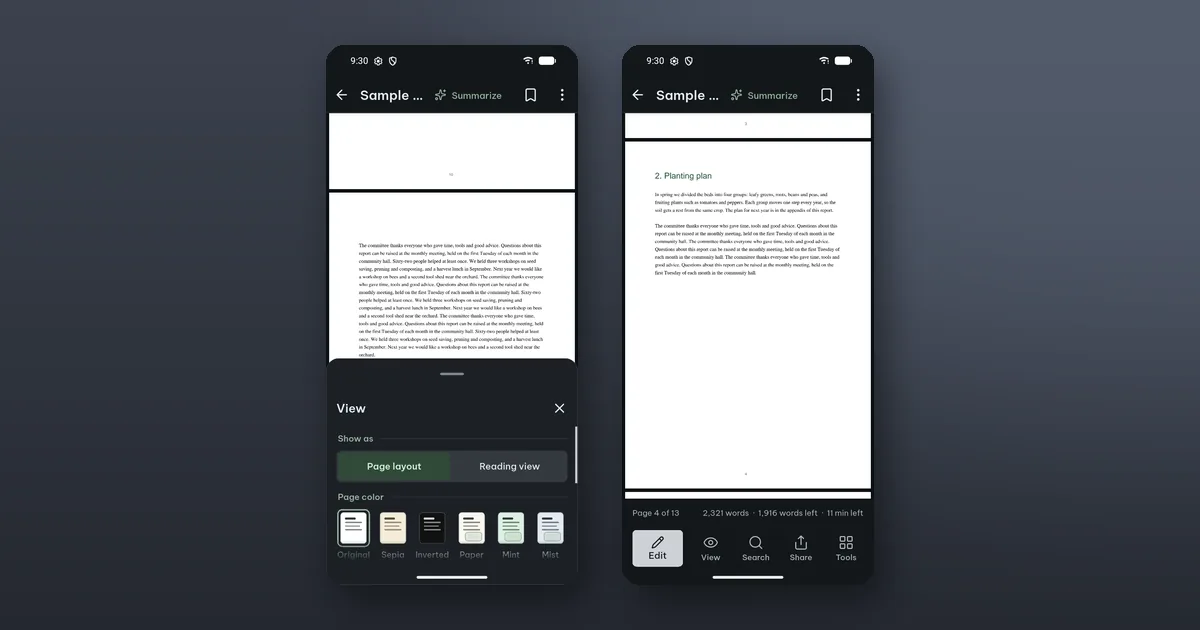
A PDF is a printed page, and most were made for A4 or Letter paper, not for a screen the width of your hand. For text-heavy PDFs, the biggest single change is View › Reading view: the text is reflowed to the width of your phone, with its own text size and font. It is free.
Reading view does not suit every file. Tables, forms and pages where the layout matters read better as pages. For those, the settings below get you most of the way.
Start with the margins and the width
Tap View › Page and screen. The sheet stays open and every change applies at once, so you see the result behind it.
- Fit width makes the text column as wide as the screen. Fit page shows the whole page.
- Hide white margins drops the empty borders around the text. Choose Same for all pages, Odd and even pages separately (books with a wider inner margin) or Each page its own.
Hide white margins only changes what you see. The file is not cut. If you want the pages of the file itself trimmed, that is Tools › Crop pages (Pro).
Scroll or turn pages
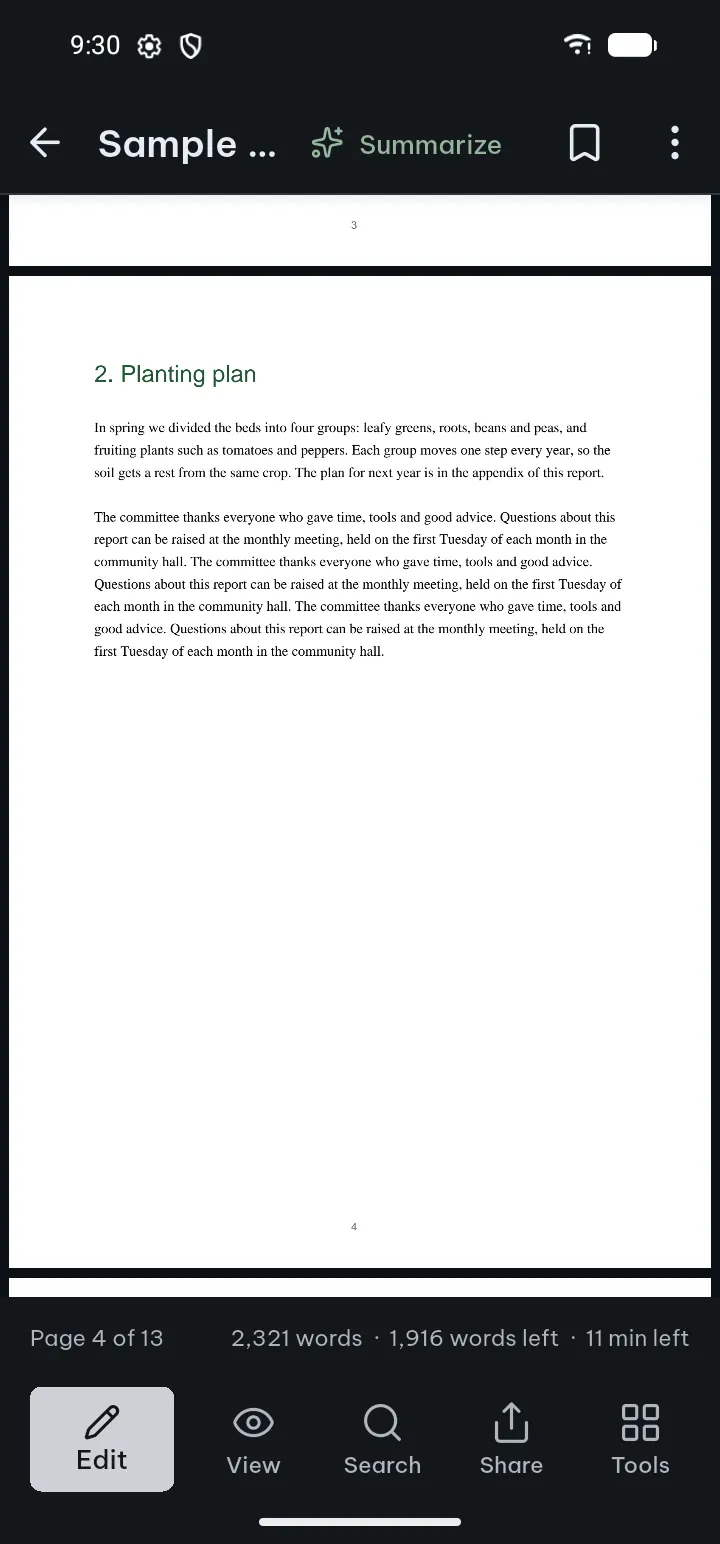
Under Scrolling, Continuous scroll runs the pages together, which suits reports and articles. Page by page turns one page at a time, which suits slides and books. Page by page adds Right-to-left page turning, and on a wide screen Two pages side by side with Cover page alone.
The same sheet has Brightness, Screen rotation (Auto, Portrait or Landscape) and Keep screen on while reading. That last one matters more than it sounds: there is little more annoying than a screen going dark halfway through a dense paragraph.
Change the page color
Under Page color in View, choose Original, Sepia or Inverted (light text on dark). Sepia and inverted are easier on the eyes at night. These three are free, and Pro adds three more page colors.
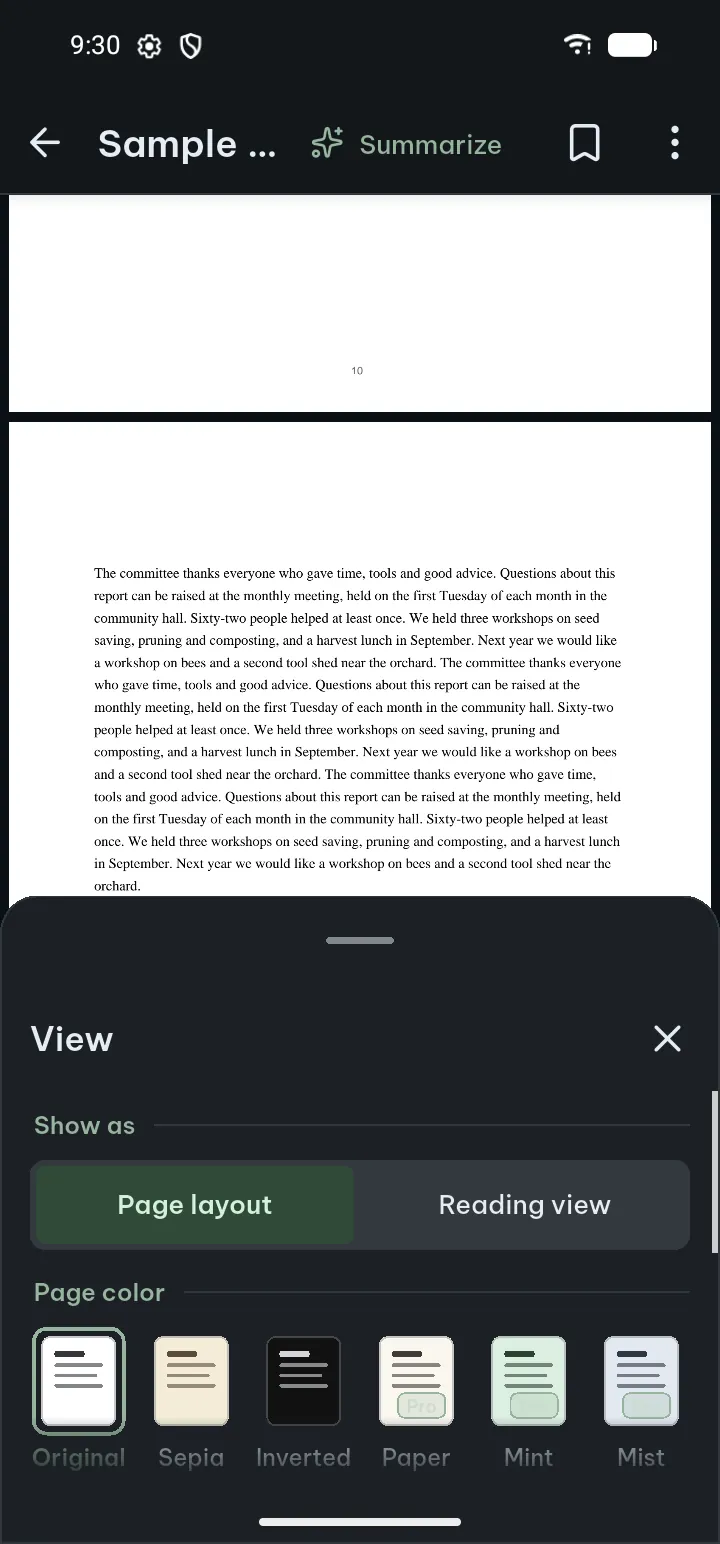
Like the margins, the page color changes only the screen. The file stays as it is, so a PDF you send on still prints white.
If you read in the evening, View › Reading aids › Night colors on a schedule switches the colors on by themselves at the hours you choose (also free, also in Settings). With Pro there is also the Warm filter for the evening.
Keep your place in long text
View › Reading aids has two more tools for long reading:
- Reading ruler dims the text outside a clear band, so your eye does not slip to the wrong line;
- Auto-scroll moves the page for you, with Slower and Faster.
And if your eyes have had enough for the day, the reader can read the PDF to you with your phone's voices, also with the screen off. That has a post of its own.
Bigger text everywhere
Poleta follows your phone's font size and display size (Android Settings › Display), up to 200 %. Buttons and panels make room for the bigger text instead of cutting it off. That changes the app, not the PDF page; for the page, zoom or Reading view is the answer.
All of these are in the guide under Zoom, scrolling and layout and Page color and Reading view.