
Move, clean up and cut out the pictures in a PDF
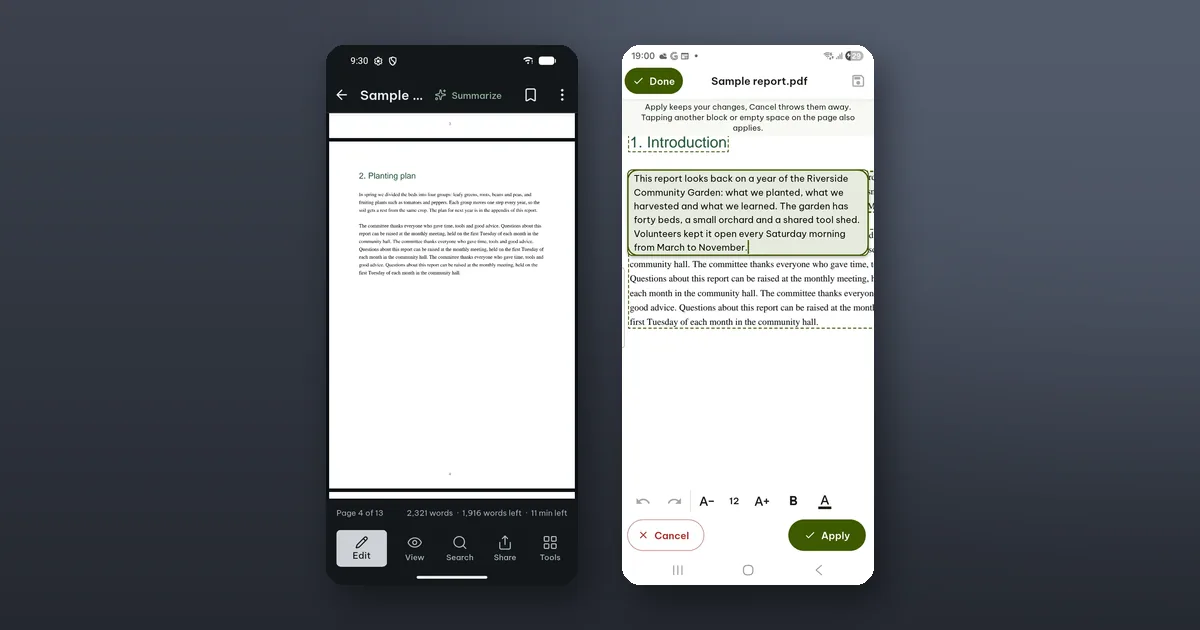
In an open PDF, tap Edit › Edit text, then tap a picture on the page. It gets a frame with handles, and you can move it, resize it, turn it, duplicate it, delete it or save it as a file of its own. All of that is free.
People expect a PDF to be finished. Often it nearly is: the logo is in the wrong corner, a photo is too dark to print, or the picture you need is stuck inside the file and you want it on its own. Those are small jobs, and they should not need a computer.
Changing a picture of the file
The picture tools live in the same mode as text editing. Tap Edit › Edit text; text blocks show dashed frames, and pictures can be tapped.
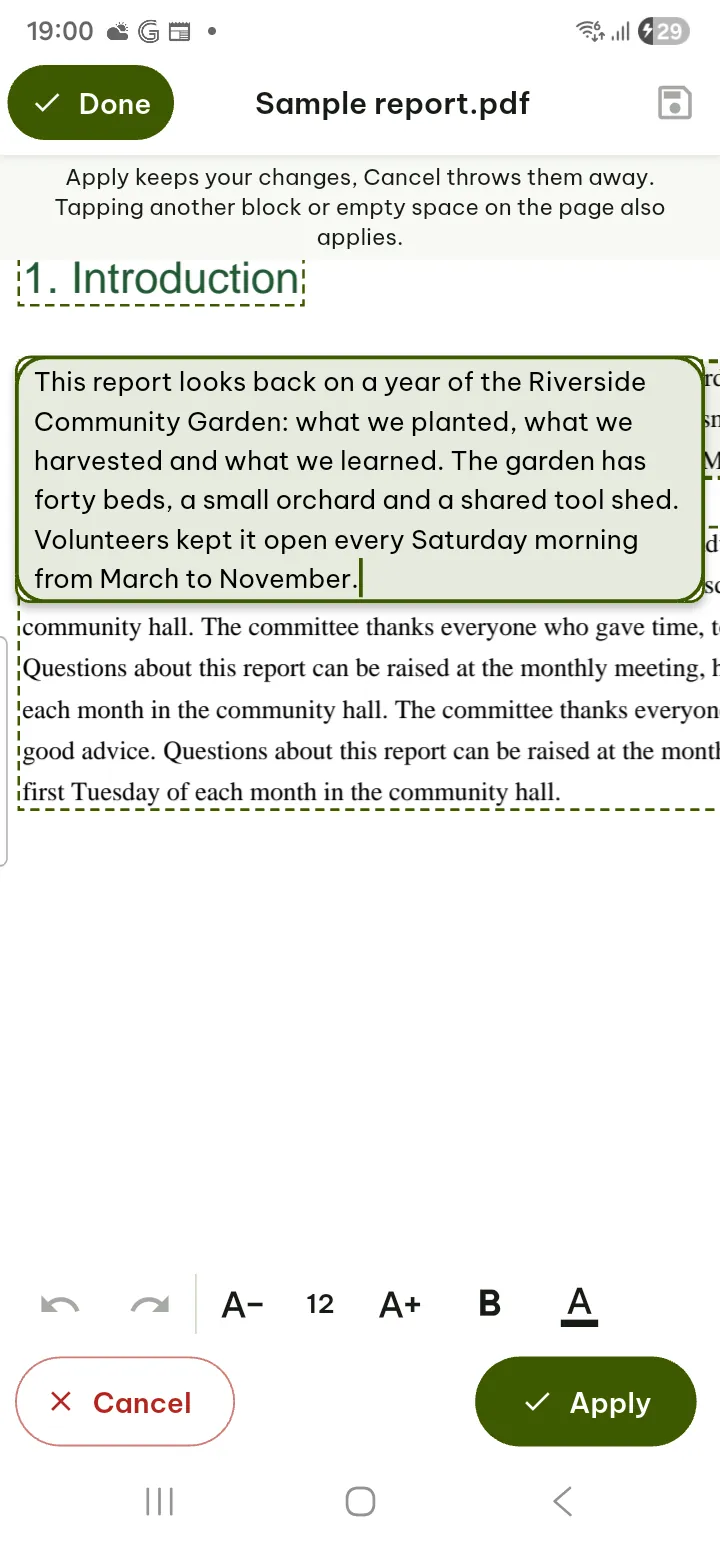
With a picture selected:
- drag it to move it;
- drag a corner to change its size (its proportions stay, so faces do not get stretched);
- drag the round handle to turn it.
The bar under it has Duplicate, Replace picture (Pro), Edit picture, Save picture and Delete. Tap Save when you are done. Save picture is the quick answer to "can you send me the photo from page 3": it saves the picture as its own file.
Making it clearer
Edit picture › Enhance has three free choices:
- Auto fix makes it clearer and brighter;
- Gray;
- Black and white, best for pictures of text, such as a photographed receipt pasted into a report.
Cleaning up (Pro)
Edit picture › Clean up has three tools that need Pro:
- Erase an area: drag over it, and it is filled with the colors around it. Good for a date stamp or a stray mark on a scanned photo.
- Remove background: for a picture on a plain, one-color background.
- Cut out subject: Poleta finds the person or object and makes the rest of the picture see-through.
Cut out subject, in more detail
Cut out subject runs on your phone. The tool itself is downloaded once, the first time you use it (the screen says Getting the cut-out tool ready), so that first use needs the internet.
Check the result before you save. Undo at the top brings the picture back.
Its limits, as the guide lists them:
- if no person or object is found, nothing is changed; try Remove background if the background is plain;
- some phones cannot run it, and then Remove background still works.
Adding a new picture (Pro)
Edit › Picture puts one from your gallery on the page you are reading, and Camera takes a photo for it now. It lands selected, so you move and resize it straight away, then tap Save.
When a picture will not move
A few pictures cannot be changed, and Poleta says which reason applies:
- it is drawn on several pages at once, like a watermark;
- it is cropped by the page's drawing;
- it is part of a signed file;
- it is too large for the phone.
A signed PDF is a case of its own anyway: any change to it breaks its signature, and viewers will report the signature as no longer valid.
The steps are in the guide under Pictures and Cut out subject.