
How to send a PDF as pictures in a chat app
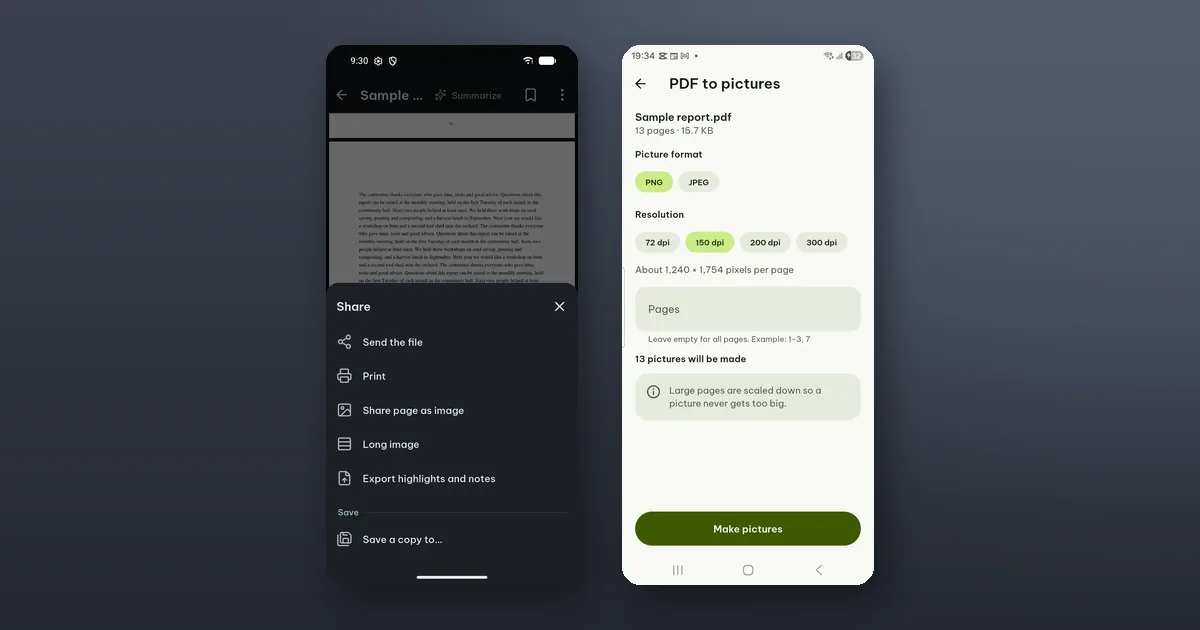
In an open PDF, tap Share › Long image. Poleta puts all the pages, or the ones you pick, into one tall picture that the other person scrolls through right in the chat, without opening a PDF viewer. It is free.
That is often what people actually want when they ask you to "just send a photo of it": a menu, a timetable, a one-page notice, a short set of instructions. A PDF attachment in a chat is one more tap and a download on their side; a picture shows up in the conversation.
Making the long image
From the reader it is Share › Long image; from the Tools tab it is Tools › Long image, then choose the PDF. Then set:
- Width: 1080, 1600 or 2400 px. The narrowest suits chat apps.
- Space between pages: Small or None. Small keeps the pages visibly apart; None reads like one continuous sheet.
- PNG or JPEG, and the pages.
Tap Make long image. Like every tool, it makes a new file and leaves your PDF as it is.
A long PDF can make a picture taller than one image can be. Poleta then makes it as a few parts, and says how many and whether a narrower width would make fewer. If a report comes out in several parts, that is a hint it wants to go as a PDF after all.
Just one page
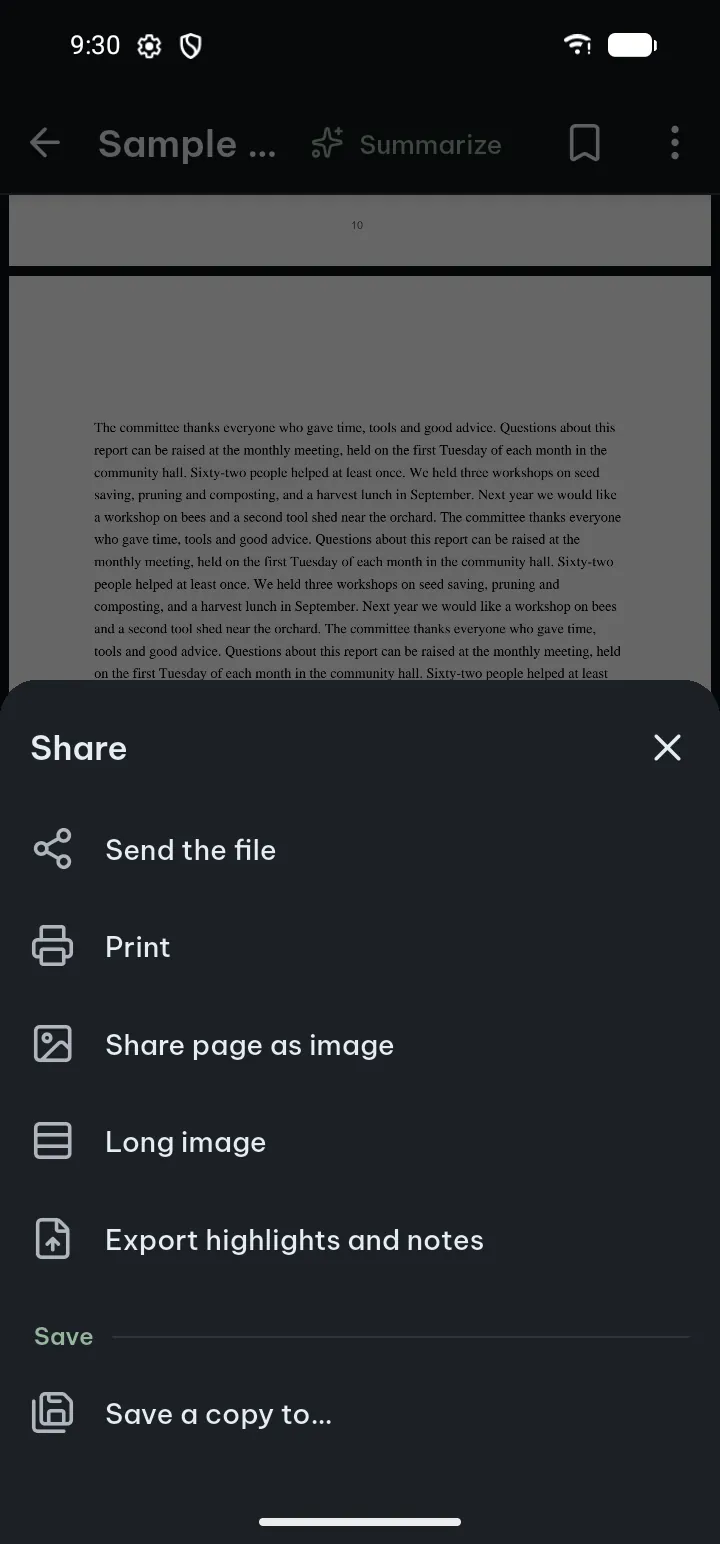
When the other person needs one page, Share › Share page as image in the reader sends a single page as a picture. Also free, and the quickest of the three.
A picture for every page
When you need separate files, for example to put pages into a slide, a post or another document, use Tools › PDF to images (Pro):
- Choose the PDF.
- Pick the Picture format: PNG gives the sharpest text, JPEG smaller files and is good for photos.
- Pick the Resolution: 72, 150, 200 or 300 dpi. The size of each picture in pixels is shown, so you can see what you get before you make it.
- Choose the pages and tap Make pictures. Share them, or Save all as .zip.
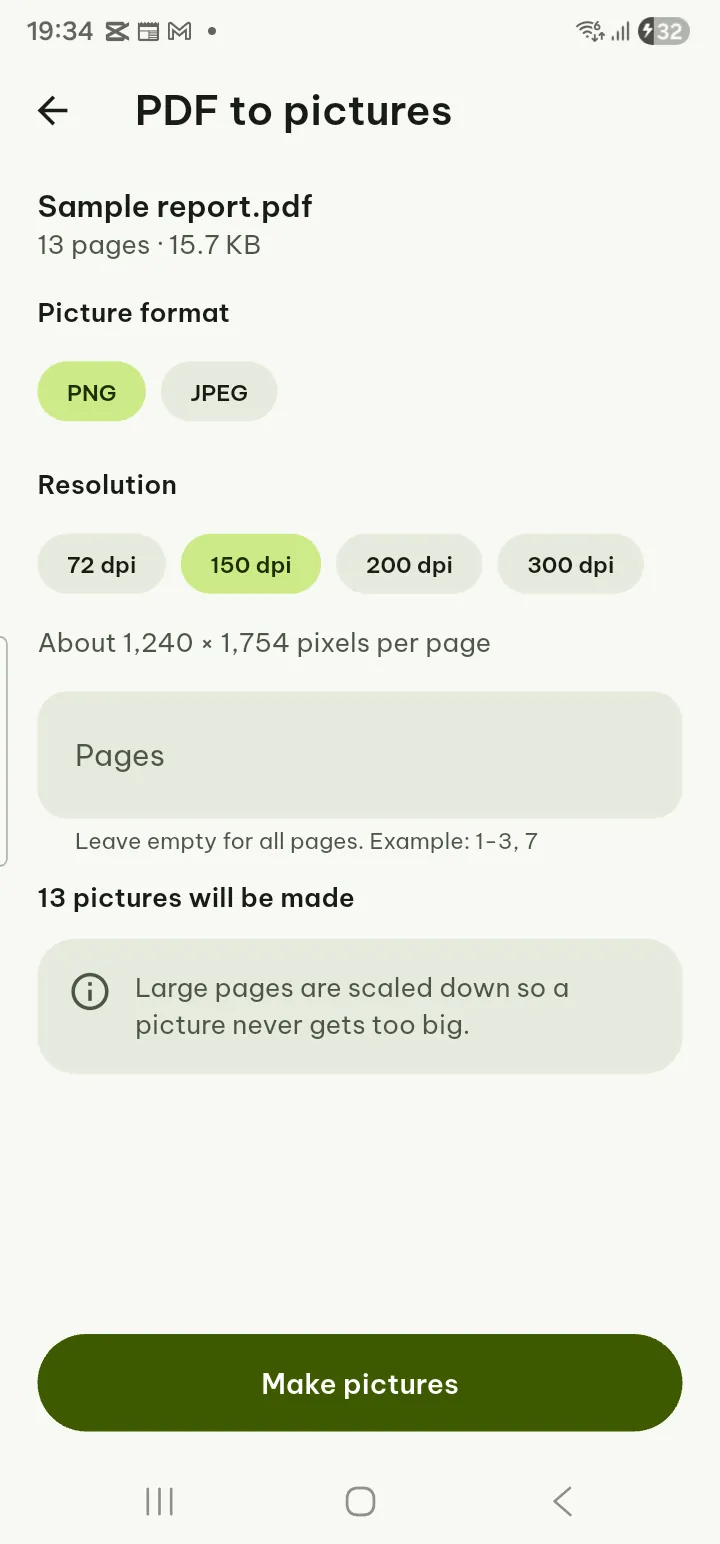
Like other Pro tools, it opens for everyone: you can set it up and see the options, and Poleta asks for Pro only when you tap the button that runs it.
What a picture loses
A picture of a page is only a picture. The text cannot be selected, searched or copied, links do not work, and form fields are just drawings of boxes. For anything the other person has to fill in, sign or copy from, send the PDF itself (Share › Send the file).
If they need the words rather than the look, Tools › PDF to text (Pro) makes a .txt file, with a line marking where each page starts if you leave Mark where each page starts on. It uses the text in the PDF or text recognized in the app, so a scanned page needs text recognition first.
One limit: a PDF whose author does not allow copying cannot be turned into pictures or text.
The options are listed in the guide under PDF to images, Long image, PDF to text.