
Find and replace a word in a document, sheet or slide deck

A client changed its name, a date moved, a product got a new code. In Poleta, Find and replace changes it in the whole file in one go, in text documents, spreadsheets and slides. It is free in all three.
Where it is
Each editor keeps it on the tab where its other text tools are:
- text documents (.docx): Review › Find, replace;
- spreadsheets (.xlsx and CSV): Home › Find and replace;
- slides (.pptx): Slide › Find and replace.
In any of them, ⋯ › Find and replace… gets you there too, if you do not remember the tab.
Only want to find, not change? While reading, tap Search in the bottom bar. That works in PDFs as well.
Finding the right word
Type in Search in document. The count shows which result you are on, Previous result and Next result step through them, and All results lists them.
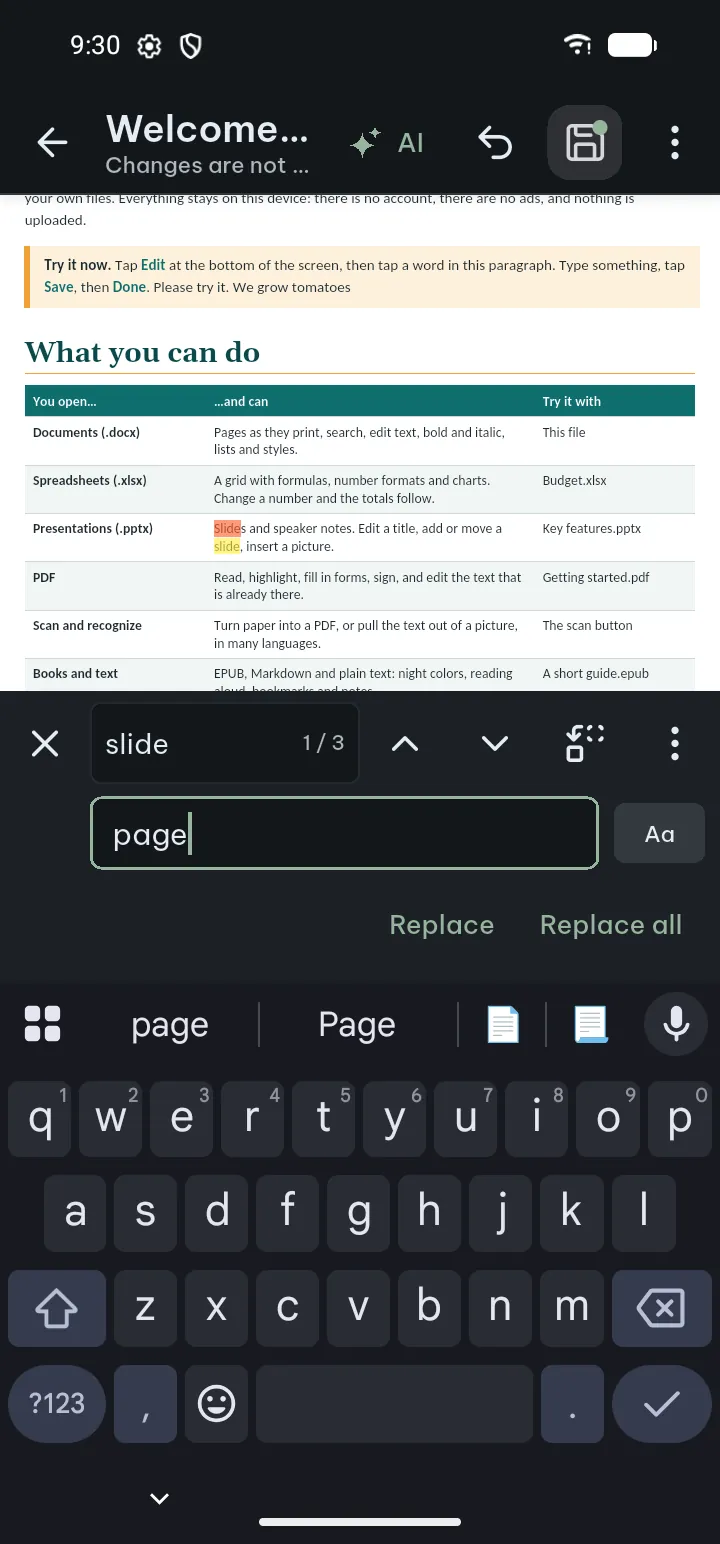
Two switches decide what counts as a match, and they matter more for replacing than for finding:
- Whole words skips the word inside longer words. Replacing "art" with "design" without it would also give you "designicle" in place of "article", which is the kind of mistake you only notice after sending.
- Match case finds only the same capitals, so "May" the month and "may" the verb stay apart.
For languages with accents, Settings › Open & edit documents › Ignore accents when searching makes "cafe" find "café".
Replacing
Type the new text in Replace with. Then either tap Replace for the result you are on and move to the next, or Replace all.
Going one by one is slower and safer when the word has more than one meaning. Replace all is quick, and it is one step of Undo, so if the result looks wrong, one tap on Undo puts every change back.
In slides
The search covers every slide, and also the text inside tables and groups, which are easy to miss when you look through a deck by hand. The speaker notes are included if you ask for them, handy when the notes still say last year's figures.
In spreadsheets
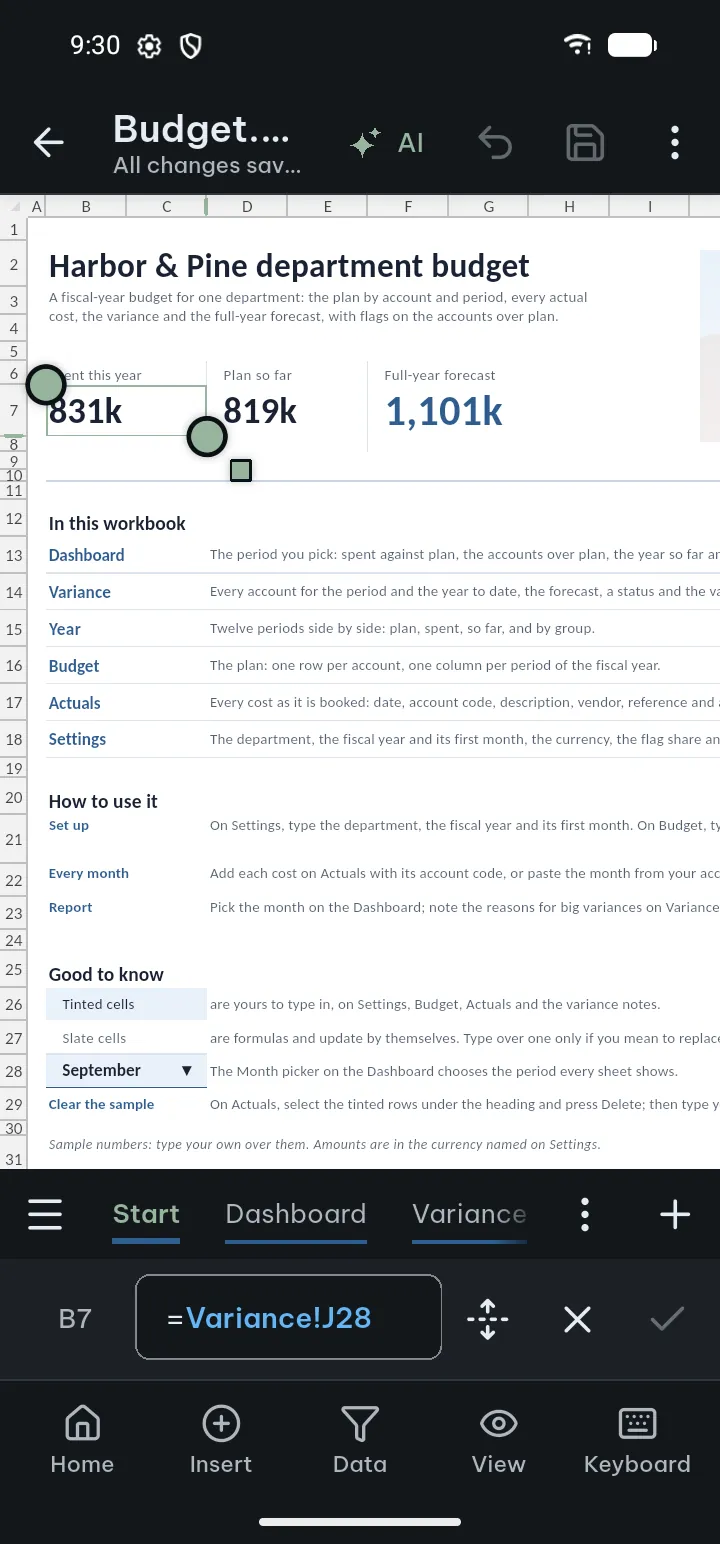
A spreadsheet is more careful, because a cell is not always just text. Before it replaces anything, Poleta says in how many cells and how many times it will replace. Cells that hold formulas, numbers, dates or formatted text are left as they are. So a name typed into a cell is changed, while the same word inside a formula is not. If you need those changed, edit the cells themselves.
When nothing changes
"Nothing was replaced" means the results are in text the editor cannot change yet. The words are found, but they sit in a part of the file the editor does not edit yet.
If what you really want is to find a file rather than a word inside one, see Find any document by what you remember about it. The steps of this post are in the guide under Find and replace.