
What you can do with old .doc, .xls and .ppt files
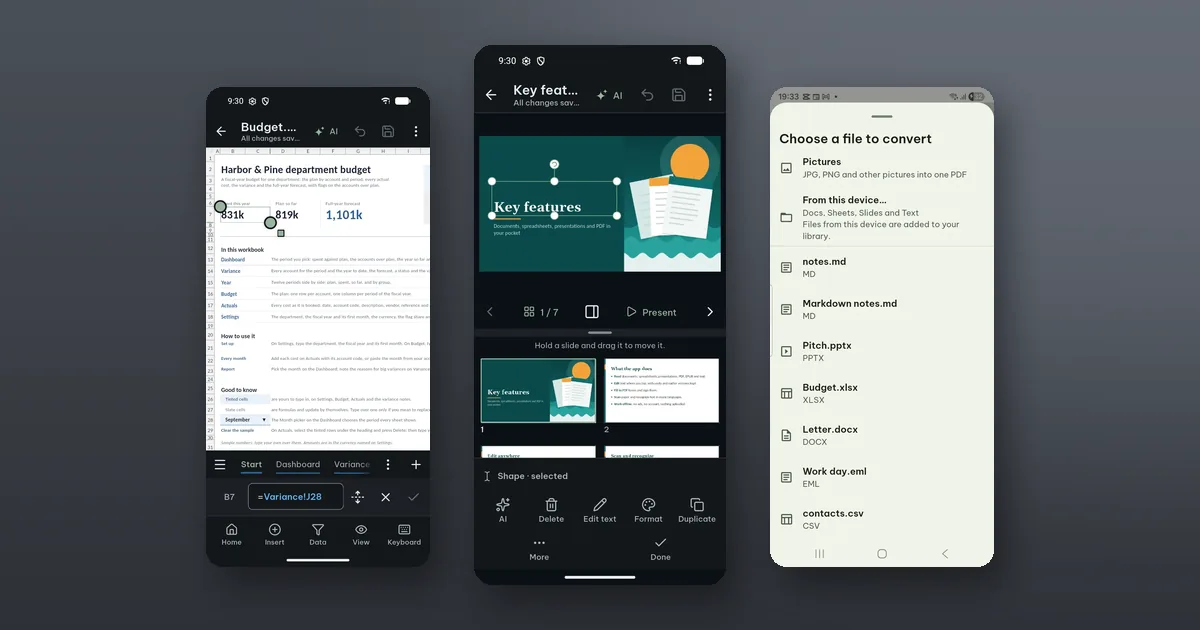
Files ending in .doc, .xls and .ppt open in Poleta, and reading, printing and turning them into a PDF are free. Editing is where they differ: an old spreadsheet or slide deck can be edited as a copy in the newer format, and an old text document cannot be edited on the phone at all.
These are the formats desktop office suites wrote before the current ones (.docx, .xlsx, .pptx) took over. They still turn up all the time: in a company's shared folder, as an attachment from someone who never changed a default, in the archive of a school or a club. So here is what works, what does not, and why.
Two different kinds of file
A .docx, .xlsx or .pptx file is a ZIP package of XML parts. When Poleta saves one, it patches the parts you changed and keeps the parts it does not understand as they were. That is how an edit on the phone can leave the rest of a file intact.
The old formats are binary files with a structure of their own. Poleta reads them, but it does not write into them. For spreadsheets and slides it makes a copy in the newer format instead, and the original stays exactly as it was.
Reading and printing
All three open like any other document:
- .doc, .rtf and .dot: read only, with PDF and print;
- .xls, .xlsb and .xlt: read only, with PDF and print;
- .ppt, .pps and .pot: slides and the slideshow, with PDF and print.
To make a PDF, open the file and tap Share › Save as PDF…, or use Tools › Convert to PDF and pick it from your library. The Save as PDF sheet shows the pages before you save. That is usually what the other person needs anyway: something that looks the same on every device.
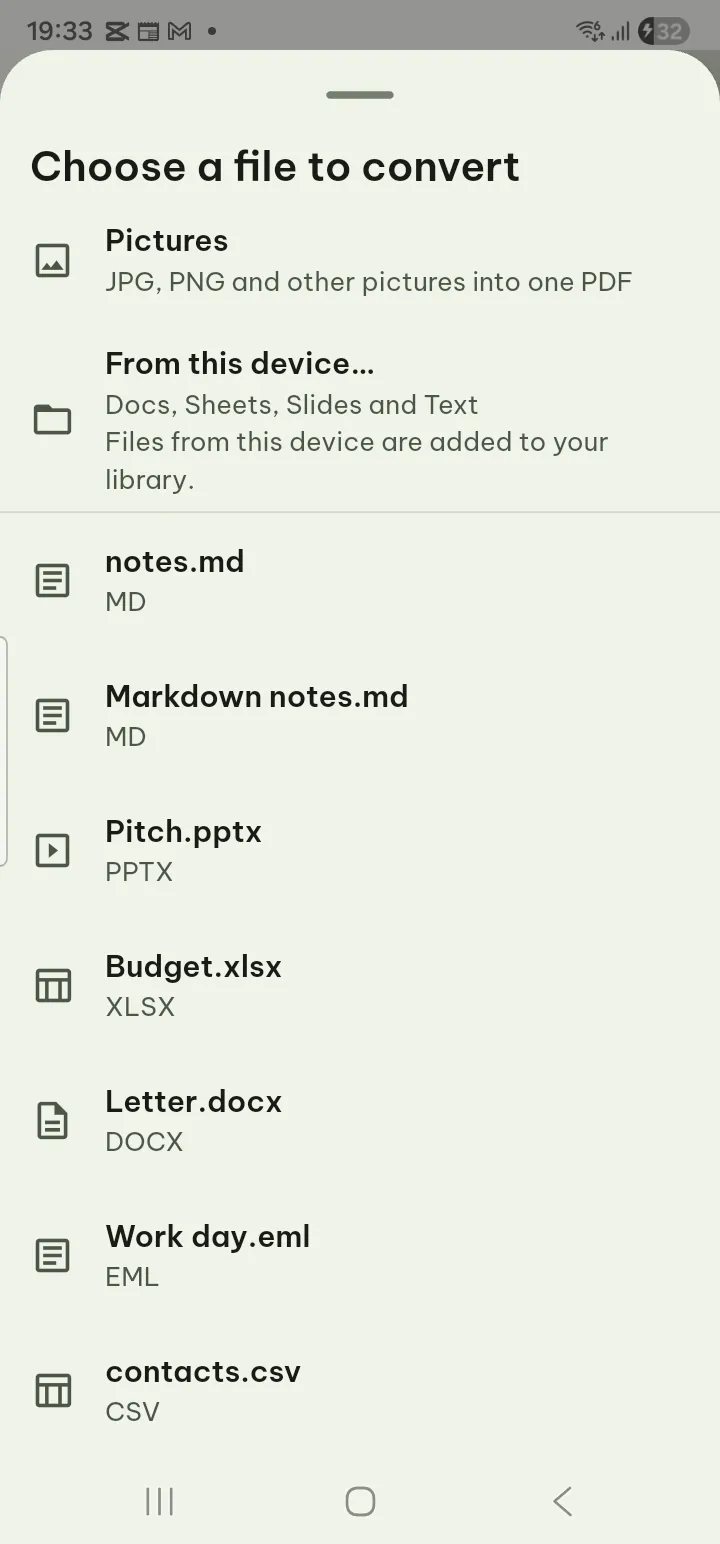
One exception the guide lists: a very old presentation, from 1995 or earlier, has to be saved as .pptx in a newer app first.
Editing an .xls or .ppt: a copy
Open the file and tap Edit. Instead of the editor, Poleta asks Edit a copy as .xlsx (or .pptx) and names the copy it would make.
Before you tap, it checks what would come along and lists only what this file has:
- Changed in the copy, for example formulas kept as their values, or tables kept as shapes with their text;
- Left out of the copy, for example macros, charts or sounds. Those stay in the original.
Read that list. If a spreadsheet's whole point is its formulas, a copy where they became values is a different file, and you may prefer to edit the original on a computer.
Tap Make a copy. The copy is added to your library next to the original and opens for editing. The original is not changed. If you made a copy before, Poleta offers to open that one instead of making another.
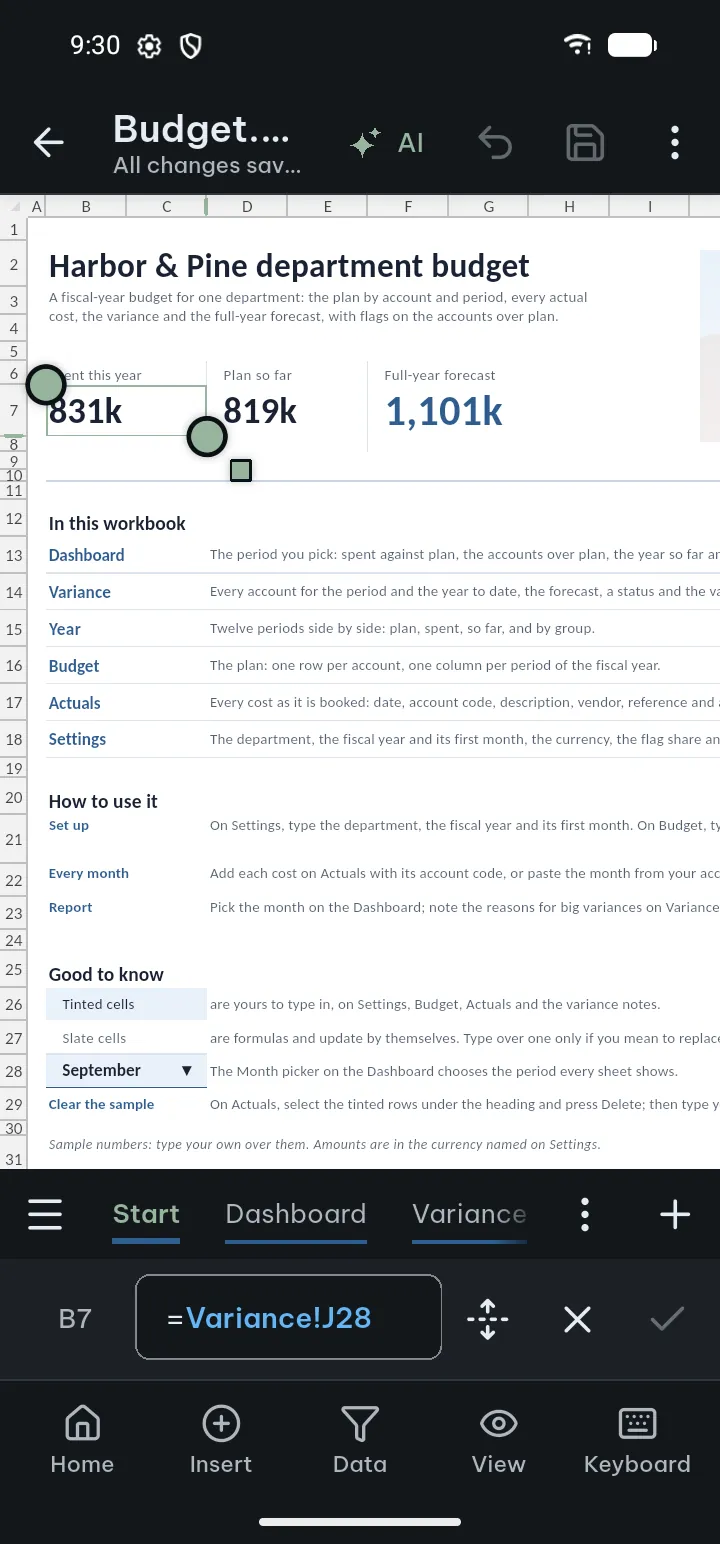
From there it is an ordinary .xlsx or .pptx file: the basic editing is free, and the extra tools are listed on the Pro page.
Why .doc files are not converted
Old text documents are not turned into an editable copy. The guide says it plainly: save them as .docx on a computer to edit them here. Until then you can read it, print it and make a PDF of it.
If you only need to fill in a few lines of an old .doc form, a PDF can be the quicker route: save it as PDF, then in Edit › Fill & Sign tap Text to type on the page, Marks for a tick and Sign for your signature. The result is a PDF, not a .doc, which is fine for sending back and not for editing again later.
When it does not open as a copy
"Can't make a copy" means the file has a password, could not be read completely, or is too large. You can still read it, and the message says what to do.
The full list of formats and what each one allows is in the format table.