
How to check spelling in a document on your phone
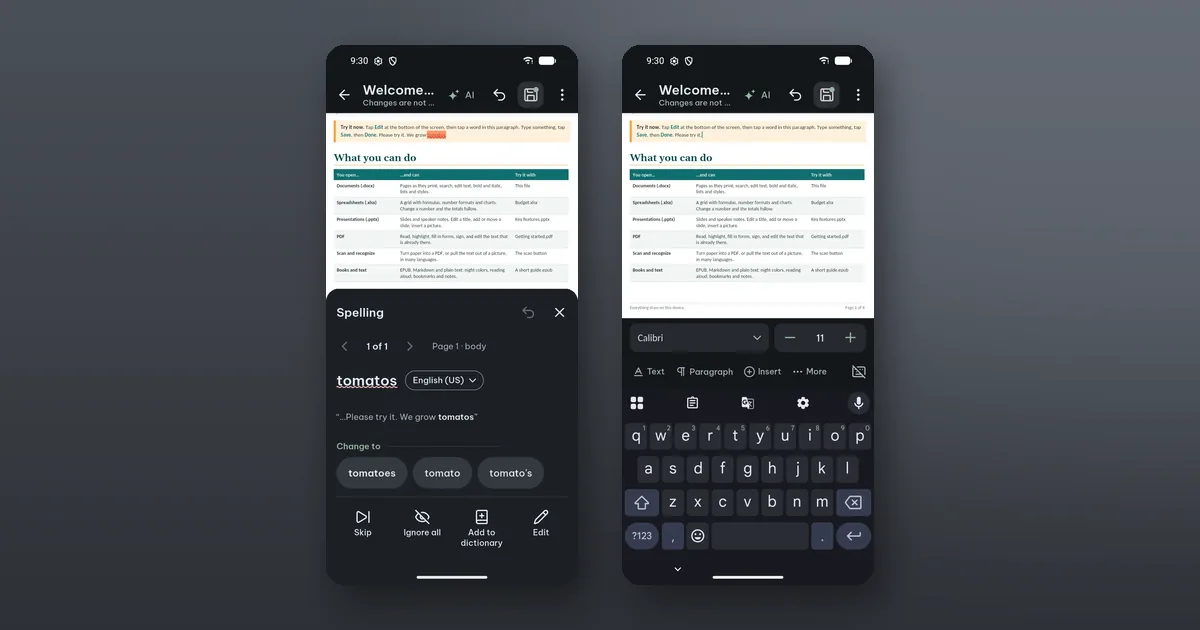
Open the document, tap Edit, then Review › Spelling. Poleta goes through the whole file one word at a time, with the word in view above the sheet. It is free, in text documents, slides and spreadsheet cells.
For a quick fix you do not need the sheet at all. While you edit, words your phone's spell checker does not know are underlined. Tap one and choose a suggestion, Ignore all or Add to dictionary. Each fix is one step of Undo.
Checking the whole file
Underlines are fine for the paragraph you are typing. Before you send a document, the full check is the safer way, because it also looks where you rarely scroll on a phone:
- in a text document: the body, headers, footers, footnotes, endnotes, text boxes and comments (Review › Spelling);
- in slides: every slide and the speaker notes (Slide › Spelling).
The Spelling sheet opens under the page, so the word stays visible. It says where the word is, for example "Page 2 · body" or "Slide 3 · notes", and how far you are, such as "4 of 12".
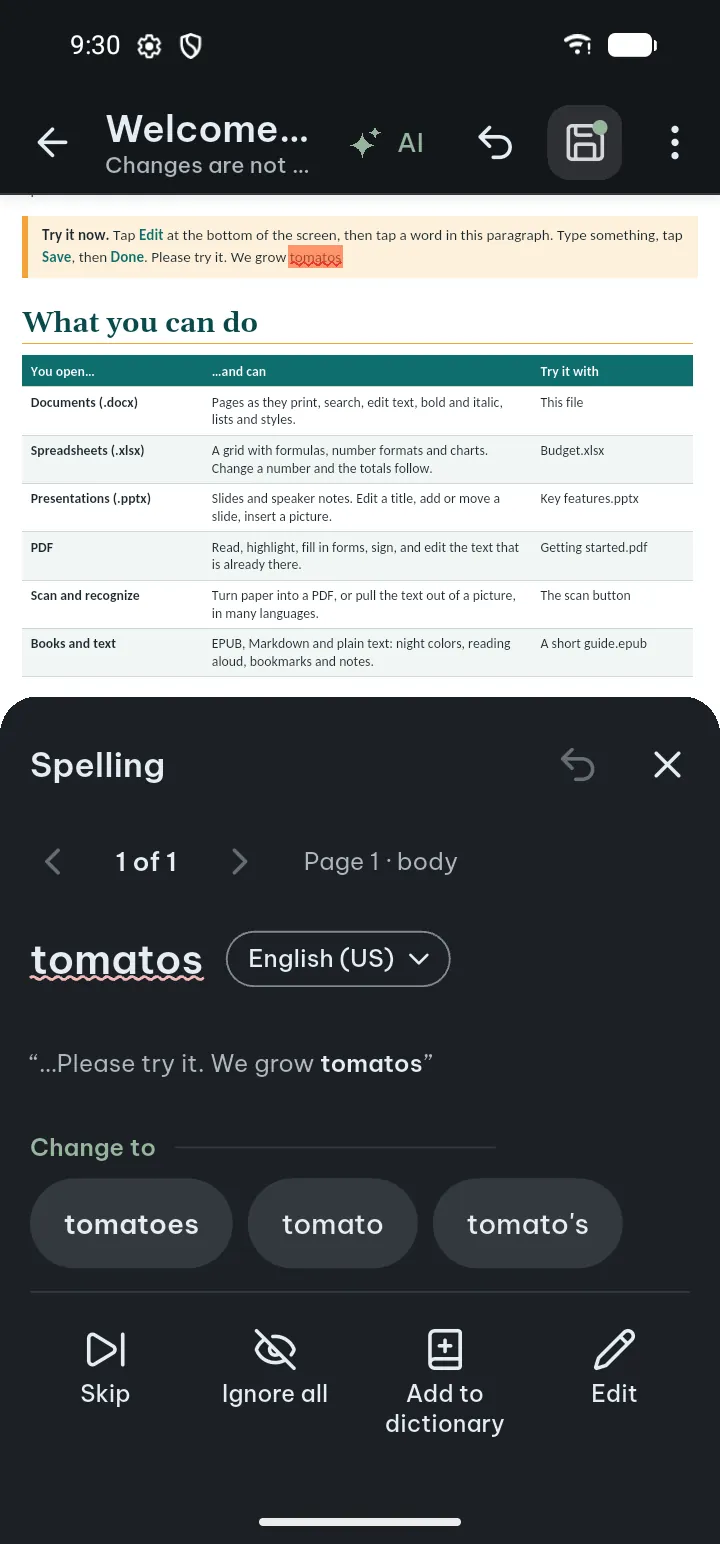
For each word you can tap a suggestion under Change to, Skip it, Ignore all, Add to dictionary, or tap Edit and type the fix yourself. Previous word and Next word move between them, and Undo is in the sheet too. At the end it says No more spelling to check and how many words were checked in which languages. Tap Done.
Documents in more than one language
Each paragraph is checked in its own language, as long as your phone has a checker for it. If a paragraph is checked in the wrong one, tap the language in the Spelling sheet and choose a language for This paragraph or the Whole document. In slides the choices are This text box and the Whole deck.
For names, product codes and quotes in another language, choose Don't check this text. Text the file already marks that way is left alone.
One limit: the language cannot be changed while Track changes is on. Turn it off in Review first.
Your own words
Names, place names and the jargon of your work get marked in every new file until you teach the checker. Words you add with Add to dictionary go into your personal dictionary and are never marked again, in any file.
To see or edit the list: Settings › Open & edit documents › Personal dictionary. You can type a word in Add a word, find one with Search words, or remove one (Undo on the message brings it back). It holds up to 5,000 words, added one at a time, and it is kept on your phone and in the backups you make.
Where the words go
Nowhere outside your phone. Spell check uses the spell checker built into Android, and the words go only to it, never to us.
That also explains most problems. If nothing is underlined, either Check spelling is off in Settings › Open & edit documents, or the phone's own checker is off or missing. The Spelling sheet says which, and has Turn on for the first case and Phone settings for the second. If you see "Text was not checked", your phone has no checker for that language: add the language in the phone's keyboard settings.
Spelling is not grammar
A spell checker finds words it does not know. It will not notice "their" where you meant "there", or a sentence that lost its verb.
If you want that too, the editors have AI › Fix spelling & grammar. Select the text (or put the cursor in a paragraph) and tap it. Struck-through and underlined words show what would change, and nothing goes into the file until you tap Accept. It costs AI credits (up to 1,500 words is 9 credits), from Pro or a credit pack, and it sends the selected text to our AI service: not stored by us, not used for training, and our provider normally deletes it within 30 days. AI can make mistakes, so read the result before you accept it. The free spell check stays on the phone.
All the steps are in the guide under Spell check.