
How to add a table to a text document on your phone
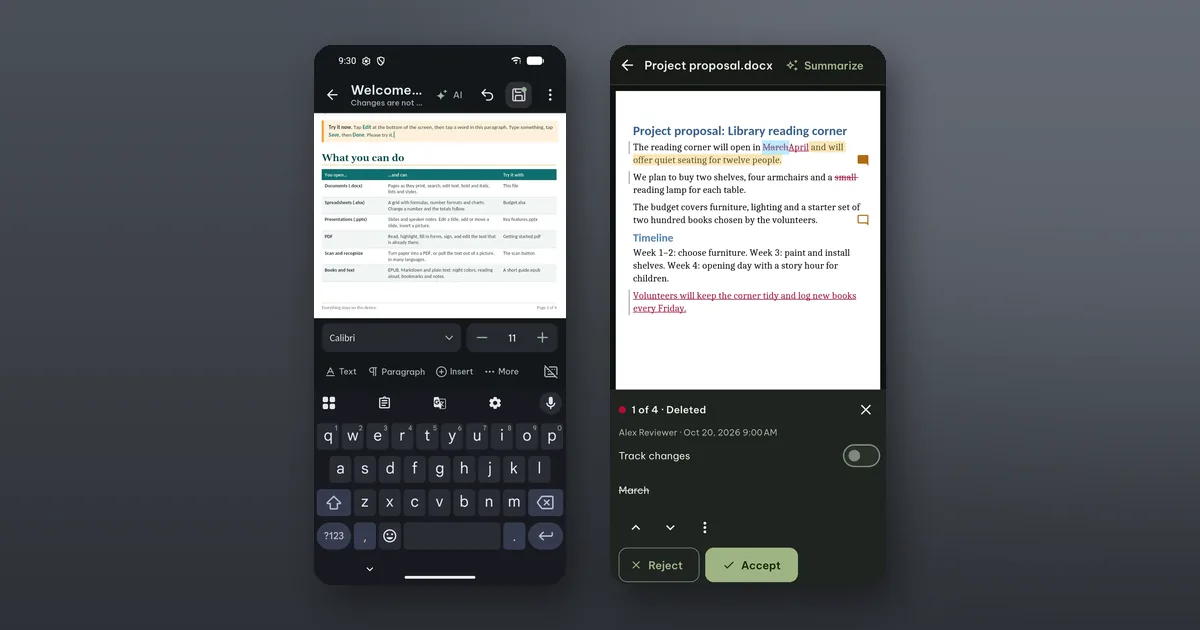
Put the cursor where the table should go and tap Insert › Table. Choose the rows and columns, tap Insert, and the table is in the document. Making a table and working with its rows and columns is free.
Tables are where a phone editor usually gets awkward: small cells, fiddly selection, a menu for every change. Here is how it works in Poleta's text document editor, so you know what to expect before you start a price list or a timetable on the bus.
Inserting the table
The Insert table sheet asks three things:
- the number of rows and columns;
- whether the first row is a header row;
- a table style, if the document already has some.
Tap Insert. There is no preview step: the table appears in the page where your cursor was, and Undo takes it out again if it is not what you wanted.
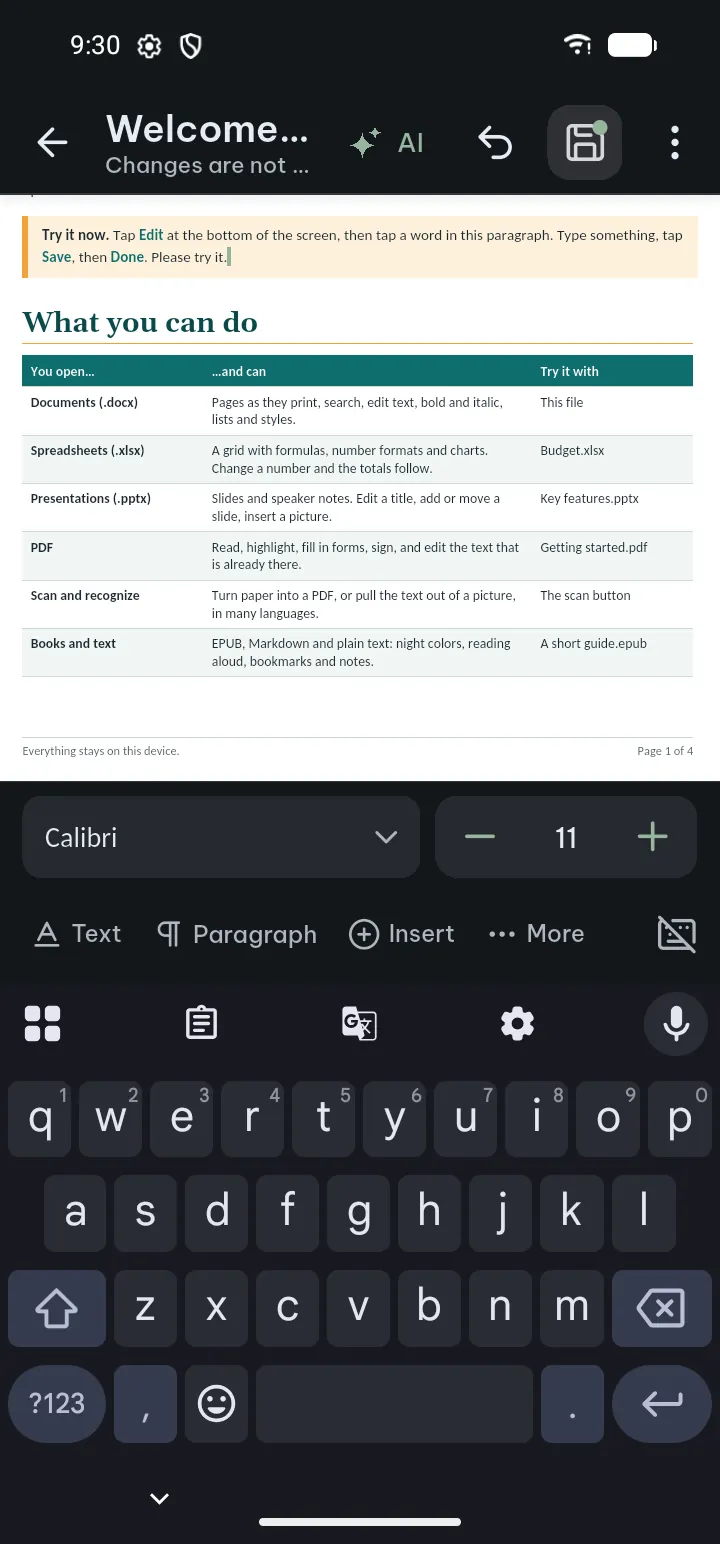
The Table tab
Tap into any cell and a Table tab opens in the editing bar. Typing in the cells, moving between them and formatting the text are the same as anywhere else in the document. The tab holds the table's own tools. These are free:
- Row above, Row below, Column left, Column right;
- Delete row, Delete column, Delete table;
- Sort…;
- Table style… with the styles the document already has;
- AutoFit and size… and Row height….
Sorting rows
Sort… is the one people do not expect on a phone, and it saves the most retyping. Pick the column to sort by and what it holds: Text, Numbers or Dates. The order follows from that: A to Z, smallest to largest, oldest to newest, or the reverse.
Leave The first row is a header on and the heading row stays at the top instead of being sorted in with the rest. Sorting as Numbers matters for prices and quantities: as text, 100 comes before 20.
One case it refuses: a table with merged cells. Poleta says so and asks you to split them first, rather than shuffle rows that are joined together.
Styles and sizes
Table style… lists the styles in this document. A document from a template or from someone's company usually has a few, and using them keeps your new table looking like the old ones. When a table has a style, you can also choose which parts it shows: Header row, Total row, First column, Last column, Banded rows, Banded columns.
If the document has no table styles of its own, Poleta offers four of its own (Blue header, Green header, Gray header, Light lines), and those need Pro.
AutoFit and size… has Fit to contents, Fit to window and Fixed column widths, plus Distribute rows evenly and Distribute columns evenly. Row height… sets a row to Auto, At least a height, or Exactly a height, for one row or every row of the table.
What needs Pro
The finer cell work is Pro: Merge right, Merge down, Split cell, Cell align, Cell shading, Borders, Column width, Header row and Formula…. As with every Pro tool in the editor, they carry a small lock: you can set them up and Pro is asked only when you apply them.
Formula… puts a sum, average, count, smallest, largest or product of the cells above, below or beside into a cell. It is a field, not a spreadsheet: desktop office apps work the result out again when they update fields. For anything with more than a total row, a spreadsheet (.xlsx) is the better tool.
A table that is already there
Tables that came with the file work the same way: tap a cell to type, and the Table tab opens. When you save, Poleta patches the parts you changed and keeps the rest of the file as it was.
The full list of table tools is in the guide under Tables in text documents.