
How to turn a PDF into a document you can edit
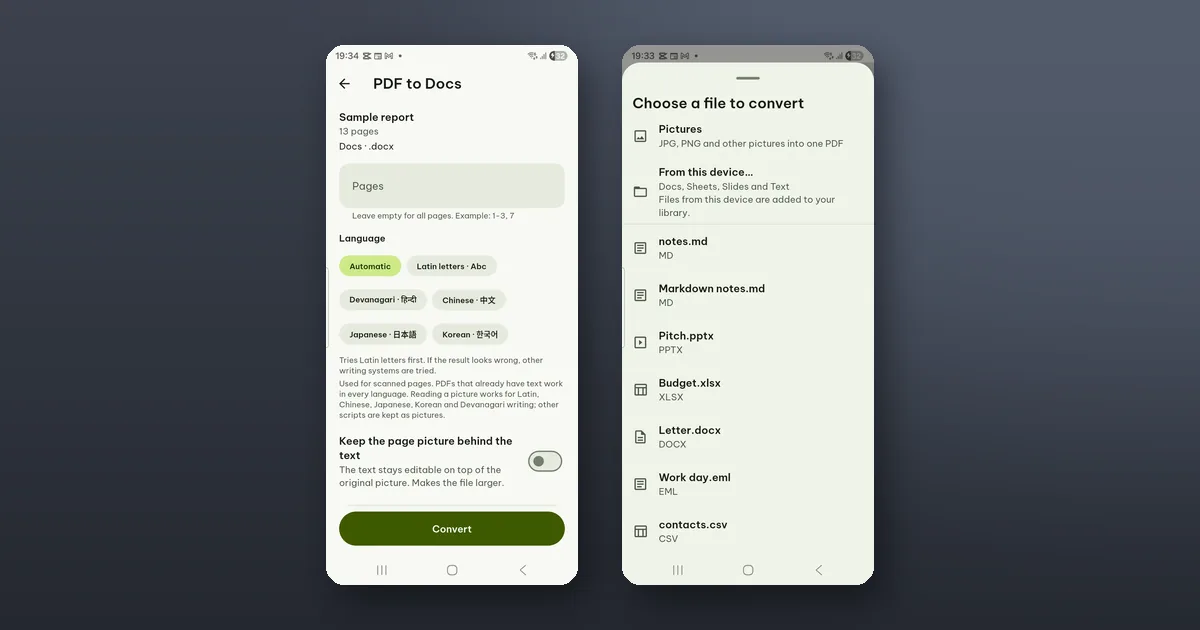
To get a PDF you can edit as a normal document, open it in Poleta and tap Tools › Convert to document (.docx), then Convert. When it is done, Open puts the new file straight into the editor. This needs Pro. The PDF itself is not changed.
The same works for tables and slides, and for paper. Here is what each tool makes, and where a converted file will still need your hand.
Five tools, one place
On the Tools tab, the Convert group has five of them:
- PDF to document: text, headings, lists, tables and pictures as a .docx.
- PDF to spreadsheet: every table in the PDF on its own sheet of a .xlsx.
- PDF to slides: one slide per page, with the title, text boxes, tables and pictures, as a .pptx.
- Scan to document: photograph or pick pages and get a .docx.
- Scan to spreadsheet: find the table in a photo or scan, check it, and get a .xlsx.
All five run on your phone, and nothing is uploaded.
The options worth knowing
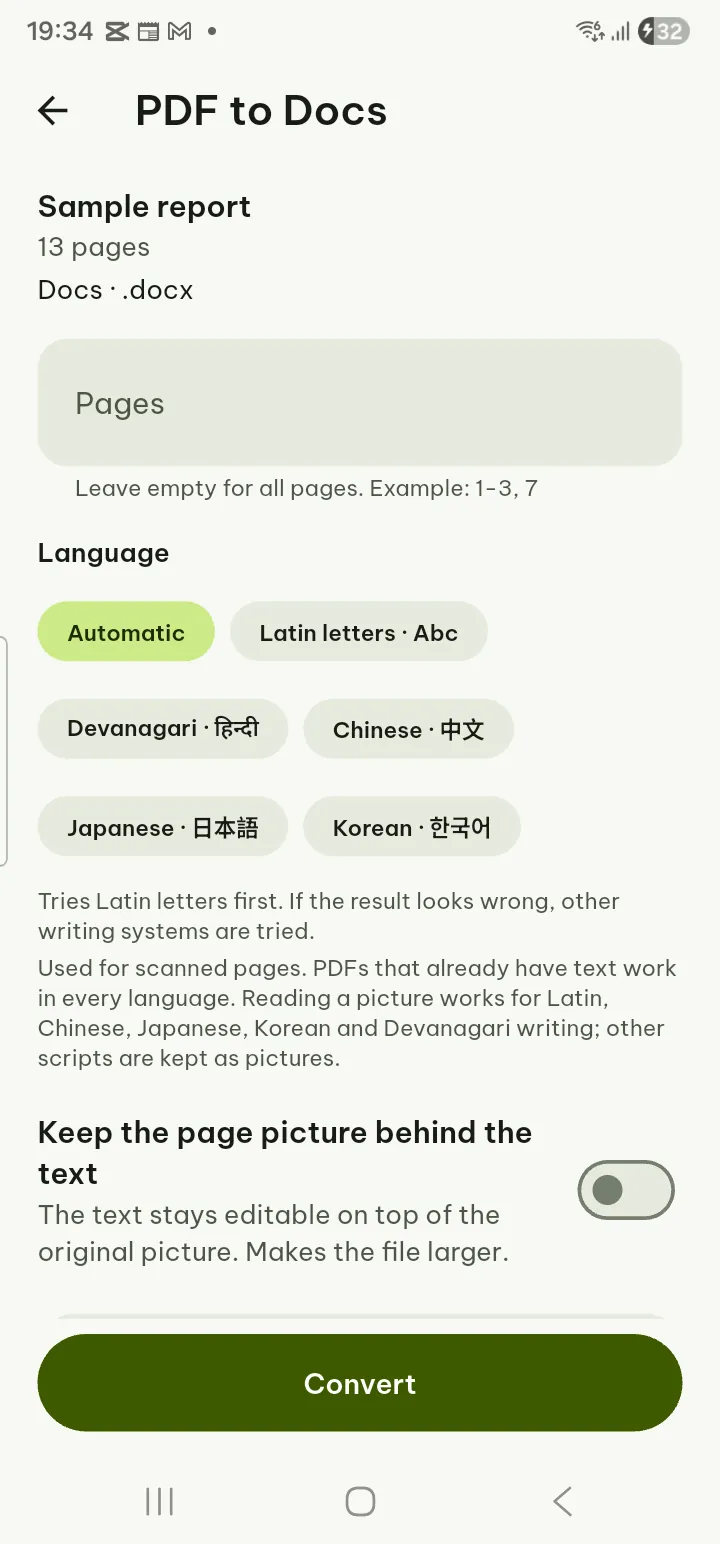
Language matters only for pages that are pictures (scans, photos). A PDF that already has text works in every language. Reading text from a picture works for Latin, Chinese, Japanese, Korean and Devanagari writing; text in other scripts is kept as a picture rather than turned into wrong letters.
Keep the page picture behind the text (PDF to document only) puts the editable text on top of the original page picture. It looks closer to the paper, and the file gets larger.
Widescreen slides (16:9) (Slides only): off keeps the shape of each page, on fits each page into a widescreen slide.
If you have drawn on or filled in the open PDF and not saved yet, Poleta asks first: Save and convert brings your changes into the new file, Convert without them uses the PDF as it is. Your changes stay open either way.
What comes across
From a PDF that has real text (one saved from a text document, a report, an invoice), the .docx keeps the fonts by name, bold and italic, colours and line spacing. Fonts are never embedded; if a font is not on the phone or computer that opens the file, that app shows a look-alike and the name stays.
In a spreadsheet, numbers and dates arrive as values you can calculate with, and the column widths are kept. Anything that only looks like a number, such as a phone number, a code with a leading zero or a very long ID, stays as text, so its digits are not changed.
A chart or diagram drawn in the PDF comes across as one picture, with its labels part of the picture.
What does not
The screen says it plainly after each run: "Layout may need adjusting." Some things we do not try to rebuild:
- footnotes, formulas, vertical or rotated text and tables inside tables (their text comes across in reading order);
- bold and italic from a scan (the text recognition does not report them);
- the fonts and colours of cells in a spreadsheet (only the header row is made bold).
For a scan, there is a second note: "Text in pictures is read on this device. Check numbers and names." Recognition is good on a clear page and still makes mistakes, and an amount or a surname is where a mistake hurts.
Tables from paper
Scan to spreadsheet has a step the PDF tool skips. After reading the page it shows Check the table: the picture of the page with the column and row lines it found. Drag a line to move it, or use Add column line, Add row line and Remove line until each cell holds the right text, then Make the spreadsheet.
Thirty seconds here saves fixing a whole column of merged cells later. A slanted photo is harder: lines that lean more than a little may not be found, so take the picture square to the page.
If no table is found, the app says so and suggests choosing the pages that have it or taking a sharper picture.
What is free and what needs Pro
All five tools need Pro, and so do PDF to text and PDF to images. You can open each tool, choose the file, the pages and the options for free; Pro is asked for when you tap Convert.
Free, and often enough:
- Edit › Edit text in the PDF itself, when you only need to fix a date or a name (not on scanned pages). See Edit existing text.
- Scan to PDF, which makes a searchable PDF from paper: the text can be found and copied, the layout stays as it was.
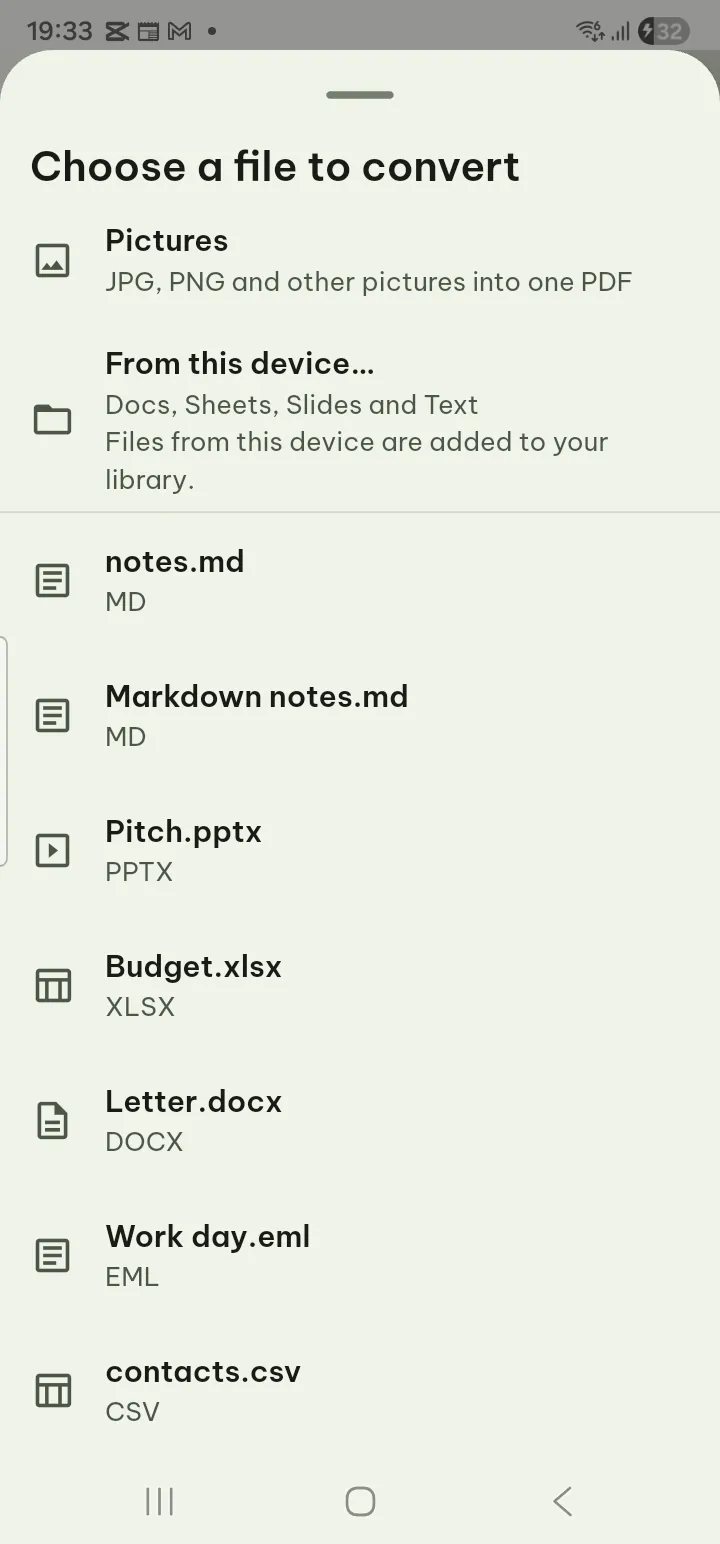
- The other direction: Tools › Convert to PDF turns a .docx, .xlsx, .pptx, their older and OpenDocument versions, .csv, text, Markdown, HTML, e-books and e-mail into a PDF.
When to convert at all
Converting is the right move when you will rewrite or reuse the content: a contract to adapt, a table to add up, a deck to rework. If you only need to sign, fill in or correct a line, edit the PDF and keep its layout exactly as the sender made it.
The steps for every tool are in the guide under Scan or PDF to documents, spreadsheets and slides.