
How to add page numbers and a watermark to a PDF
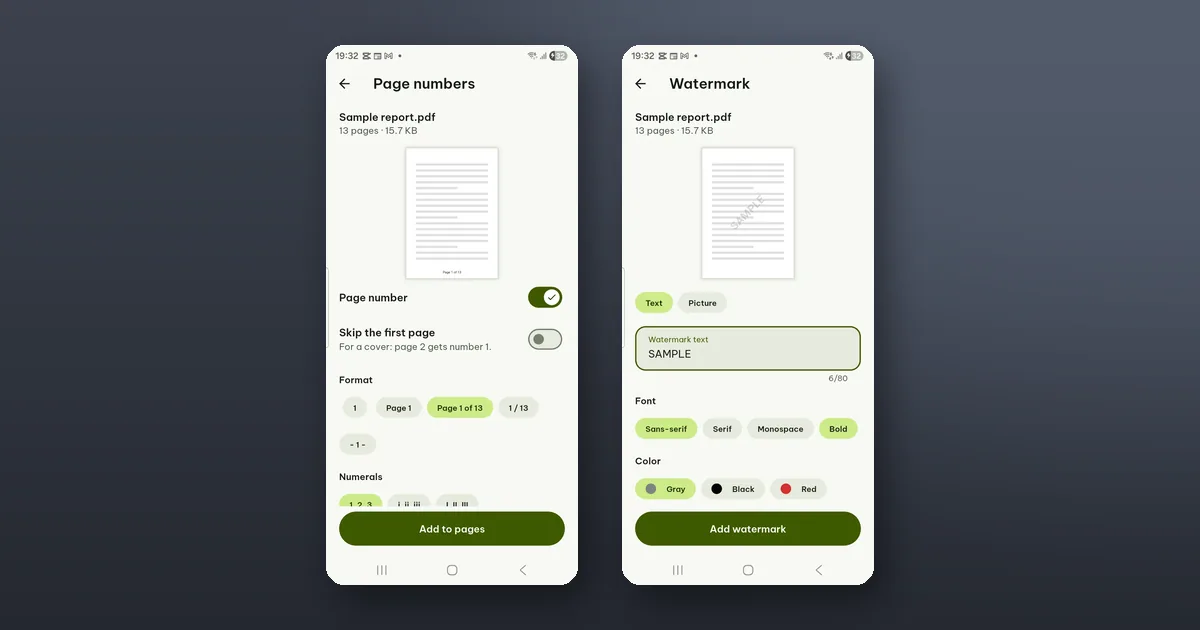
Both tools are in the Tools tab: Page numbers and Watermark. You choose a PDF, set the options while a preview shows the result, and tap one button. Both need Pro, but only at that last tap; you can try every option and see the result in the preview first.
Neither tool touches your original. Each makes a new PDF next to it in the library, named "(numbered)" or "(watermark)".
Page numbers
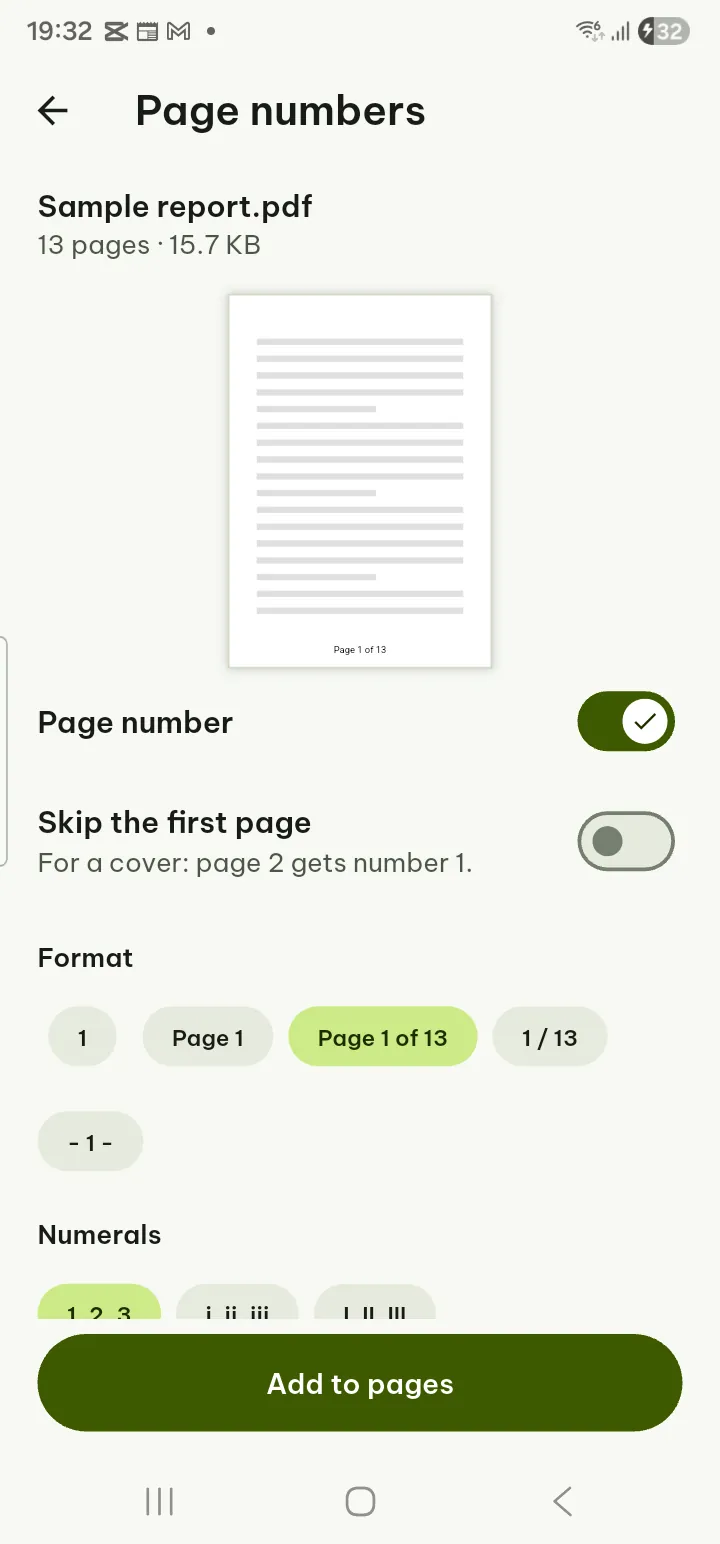
Turn Page number on and the preview shows where it goes. Then:
- Format: 1, Page 1, Page 1 of 13, 1 / 13 or - 1 - (the preview uses your file's real page count).
- Numerals: 1, 2, 3 or i, ii, iii or I, II, III.
- Position: top or bottom, left, center or right.
- Skip the first page: for a cover. Page 2 gets number 1.
- First number: leave it empty to use each page's own number, or type the number to start from.
The Pages field limits all of this to a range, such as 3-12. With a range, its first page gets the First number. That is how you number an appendix from 1, or leave the last pages bare.
Headers and footers
Below the number options is Header or footer text (optional). Type a line, for example the report's title or "Draft for the board", and insert Page number, Total pages or Date into it where you want them. It has its own position, so the title can sit at the top left while the number stays at the bottom. Size, font and color are set below, then tap Add to pages.
Watermark
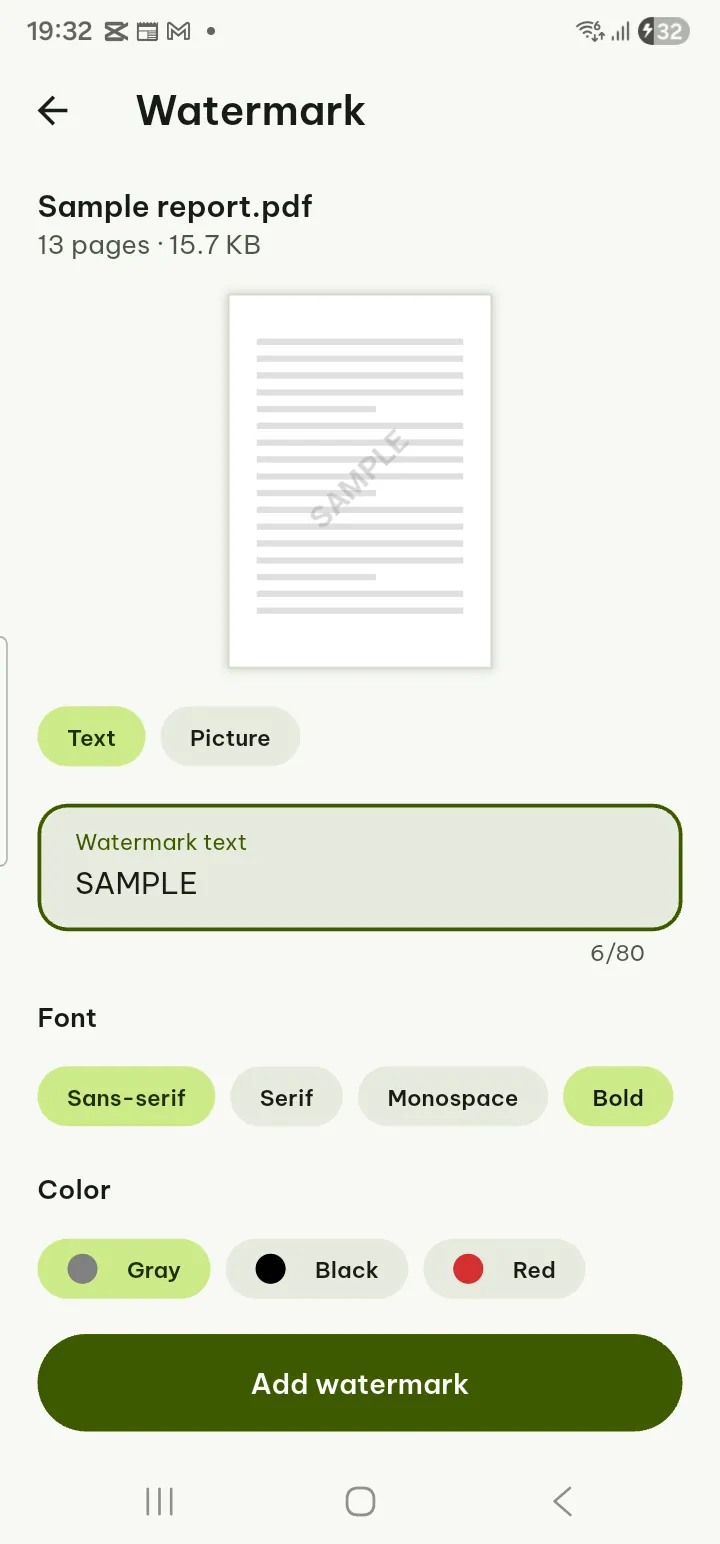
Choose Text or Picture.
Text starts as CONFIDENTIAL; type your own (up to 80 characters), and pick the font (Sans-serif, Serif, Monospace), Bold and the color (gray, black, red, blue or green). Picture takes an image from your phone, such as a logo or a stamp.
Then where and how strong it is:
- Position: nine places, from the corners to the center.
- Size as a share of the page, Opacity, and rotation: Straight, Diagonal or the angle you set.
- Over the page or Behind the page.
- Pages: empty means all of them.
Over or behind is the choice people get wrong most easily. Over the page is drawn on top of the text, so it always shows. Behind the page looks gentler on a typed document, but it is hidden by pages with a solid background, and scans are exactly that: a scan is one big picture covering the page. For a scanned PDF, use Over the page with a low opacity.
Tap Add watermark.
What is written into the file
The numbers, header and watermark are added to the pages as new page content, drawn before (behind) or after (over) what is already there. The page's own content is not rewritten: its text is still text, so it can still be searched, selected and copied, and its links and layout stay as they were. The added text is real text too, set in Poleta's own bundled open fonts, and only the characters used are put into the file. A character none of those fonts has is drawn as a small picture instead.
Because they are part of the page and not a comment, the numbers and watermark show in every PDF viewer and on paper. They cannot be switched off like a comment layer.
Two kinds of PDF need a step first:
- A digitally signed PDF. Poleta warns you: the new file is a different file, so the signature cannot be kept in it. Tap Continue without the signature if that is fine, which it usually is for a copy you are about to hand out. The original stays signed.
- A PDF with a password. You are asked to take the password off first with Remove password (Pro). The new file then has no password and no limits; if it needs one, add it back with Add password (Pro) when you are done.
A watermark is a label, not a lock
"CONFIDENTIAL" across a page tells the reader what the file is. It does not stop anyone from copying the text under it, which, as above, is still there. To control who can open or copy a PDF, see How to password-protect a PDF, and what the password stops; to take something out of a page for good, see How to redact a PDF so the text is really gone.
Twenty files to number? Batch (Pro) runs Page numbers or Watermark on up to 300 files with the same settings. The reference steps are in the user guide under Page numbers and Watermark.