
Open a CSV file without mangling it
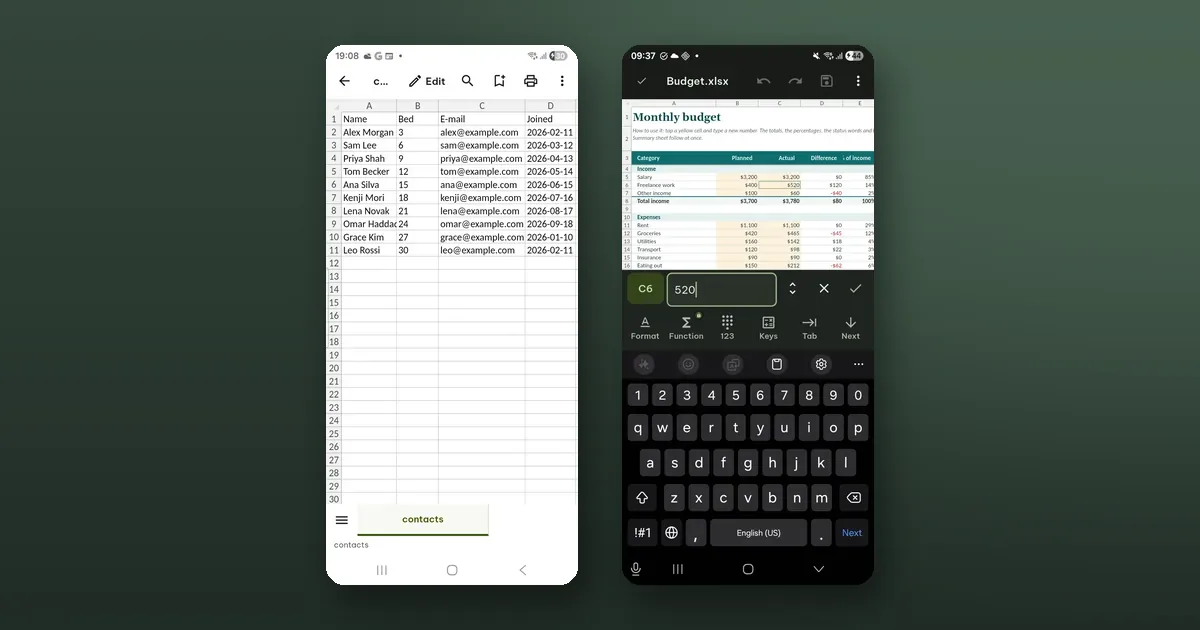
A CSV file is plain text: values with commas (or semicolons, or tabs) between them. The trouble starts when a program decides what those values "really" are. A postcode 01234 becomes 1234, a product code 3E5 becomes 300000, a long card or account number loses its last digits, and a date is turned around.
Poleta does not do that. It shows every value exactly as it is written in the file, and when you save, it rewrites only the cells you changed. Opening and editing .csv, .tsv and .tab files is free.
Opening it
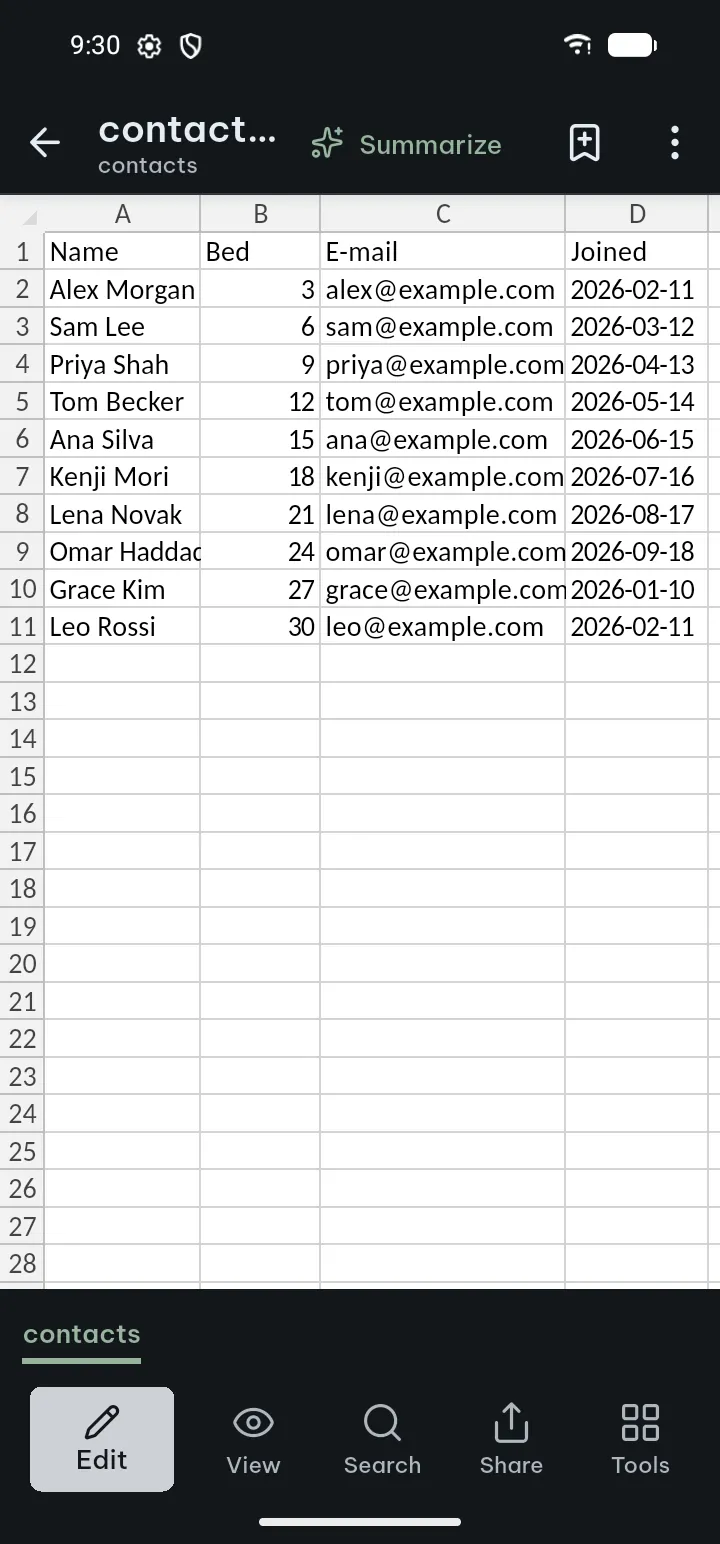
Tap the file in a chat or file manager and choose Poleta, or use Open file. It opens as a grid, one sheet named after the file.
You do not have to tell Poleta what separates the values. It looks at the first rows and picks the separator that splits them most evenly: comma, semicolon, tab or pipe. When semicolons or tabs split the rows consistently, they win over commas, because commas often appear inside values and as the decimal mark in many countries. A first line like “sep=;”, which some desktop spreadsheet apps write, is respected.
Quoted values work as the CSV standard (RFC 4180) describes: a value in double quotes can hold the separator, line breaks and quotes of its own. Rows may have different numbers of values. A byte order mark at the start is not shown as junk.
The text encoding is detected too, from UTF-8 and UTF-16 to older single-byte and regional code pages, so accented letters and other scripts usually come out right.
Editing it
Tap Edit. You change the text of cells, and the Home tools give you cut, copy, paste, fill, clear and find and replace. Undo is in the top bar.
What you type is kept as you typed it. A CSV has no formulas and no number formats, so there is nothing for the app to "correct": type 007 and the file gets 007.
What a save changes
Only the cells you edited. Poleta does not read the file into a table and write a new one; it replaces the bytes of the fields you changed and leaves the rest exactly as it was:
- the encoding and the byte order mark, if there was one;
- the separator;
- the quotes around values you did not touch;
- the line ending of every row, even in a file that mixes two kinds.
After building the new file, Poleta reads it back and checks that it holds your edits and nothing else. A system that imports the file afterwards sees the same file with your changes, not a re-exported one.
The save goes back into the file you opened when the phone's storage allows it; otherwise ⋯ › Save a copy…. The version before each save stays under Previous versions.
When editing is switched off
We would rather not edit a file than change it in a way you did not ask for. So editing is offered only when Poleta can write the file back byte for byte. You can still read the file in each of these cases, and the app says which one applies:
- the file is larger than 24 MB;
- its encoding cannot be written back exactly (for example a double-byte code page, or UTF-16 without a byte order mark);
- it holds bytes that are not valid in its encoding;
- its quotes or line breaks are used in a way the editor cannot keep exactly, such as a quote that never closes;
- it has more rows or cells than the app keeps, so only part of it is shown.
One smaller limit: if you type a character the file's encoding has no room for, Poleta says "can't be written in this file's text encoding" and asks you to use another one.
When you need more than a CSV can hold
A CSV is one sheet of text. Tap + in the sheet tabs and Poleta explains that, with Save as .xlsx next to it. That makes a .xlsx copy in your library and opens it; the CSV is not changed.
In the copy, plain numbers such as 4879 or -0.39 become numbers you can add up. Anything that could be read two ways stays text exactly as written: leading zeros, thousands separators, a decimal comma, percentages, currency signs, values like 2.5e3, and numbers longer than 15 digits. Formulas, sorting and the other spreadsheet tools then work as in any .xlsx; some of them need Pro, as listed on the Pro page.
Need it on paper or as a PDF? Print… and Save as PDF… work on a CSV too, and Tools › Convert to PDF accepts .csv files.
The guide's short version is under CSV and TSV files.