
Recolor a whole slide deck and set its transitions
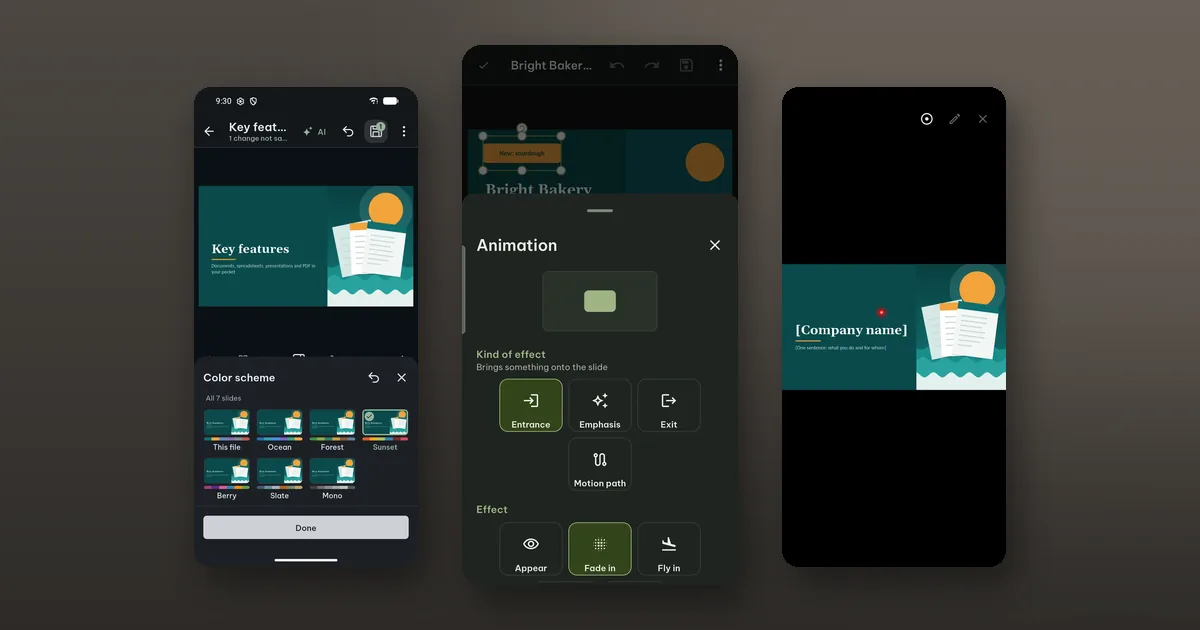
To give a deck different colors, open it, tap Edit, then Design › Color scheme and tap a scheme. Every slide changes at once. That part is free.
It is the change people most often want from a deck someone else made: same content, colors that match their own company, or simply ones that do not clash with the projector in the meeting room. Doing it slide by slide on a phone would take the evening.
How color schemes work
A deck has a set of theme colors, among them six accent colors. The parts of a slide that use theme colors follow the scheme, so when you change the scheme they all change together.
The Color scheme sheet shows the slide you are on, drawn in each scheme, with its six accent colors under it. The first choice, This file, is the scheme the deck had when you opened it.
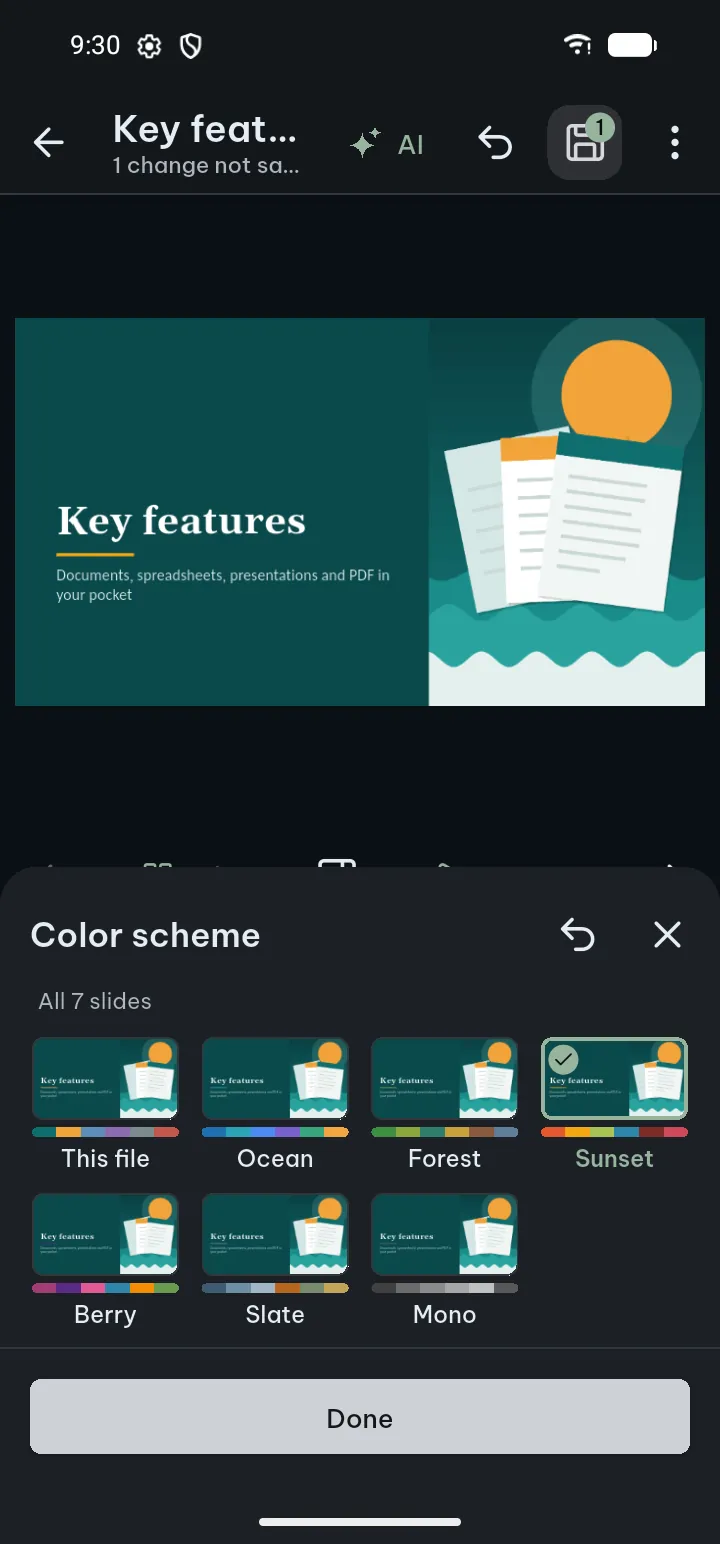
Tap one and it is applied to all slides. Try a few; This file goes back to the original, and Undo in the title row takes back each choice. Tap Done.
When only some parts change
If you pick a scheme and half the slide stays as it was, those parts use their own fixed colors instead of the theme colors. Poleta says so rather than repaint them. You can still change them one by one: select the shape and use Format.
Decks made with Create with AI also have Design › Look & colors, which changes the colors, look and corners of the whole deck, also free.
Transitions (Pro)
A transition is how a slide comes in during the slide show. Go to the slide and tap Transitions › Transition.
- On Effect, pick one: None, Fade, Push, Wipe, Split, Cover, Uncover, Zoom, Dissolve, Blinds, Checkerboard, Circle or Diamond. The slide plays it as you choose, and Preview plays it again.
- Set the Direction, where the effect has one, and the Duration with Shorter and Longer.
- On the Next slide tab, choose On click or Automatically after a number of seconds.
- Apply to all slides gives every slide the same one. Tap Done.
Our advice, for what it is worth: pick one quiet transition, such as Fade, and apply it to all. Thirteen different effects in a ten-slide deck draw more attention than the slides. The automatic timing is the more useful half: it turns a deck into something that runs on its own, on a screen at a stand or in a shop window.
Animations on a single shape
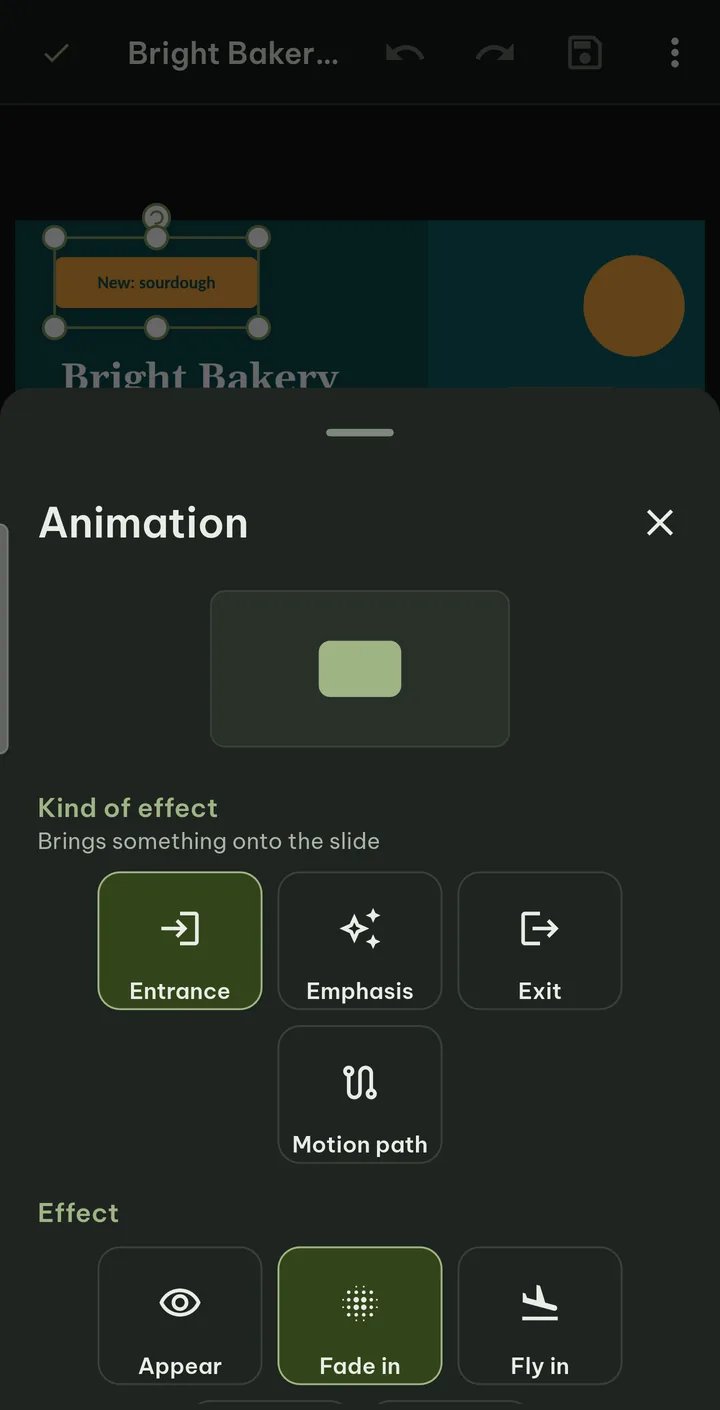
Transitions move whole slides. To make one shape come in, stand out or leave, select it and use Transitions › Animate the selected shape (Pro). Effects order sets which comes first.
Every choice in the Transition sheet is one step of Undo.
Showing it
View › Present from start plays the deck, and the slide show plays each slide's transition and, when the slide has one, its sound. If motion bothers you or your audience, Settings › Open & edit documents › Slide show animations can be set to Off. There is more on presenting in How to edit and present slides from your phone.
The guide has both steps, under Color schemes and Transitions.