
Lock the app with your fingerprint and keep documents off the screen
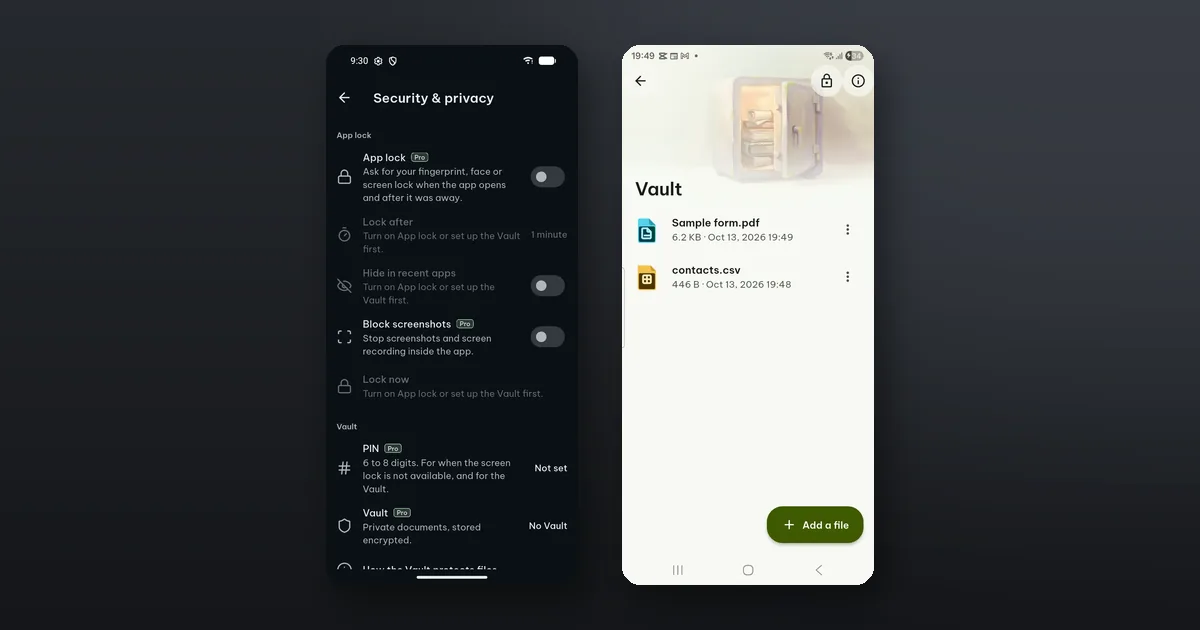
Open Settings › Security & privacy and turn on App lock. From then on, Poleta asks for your fingerprint, face or screen lock when it opens and after it has been away. App lock is part of Pro; turning it off again is always free.
Your phone already has a lock. This one is for the minutes when the phone is open and in someone else's hand: passed to a child for a game, to a colleague to show a photo, to someone at a counter to type a number. With the app lock on, your contracts, bank letters and medical papers are one more fingerprint away.
How long it may be away
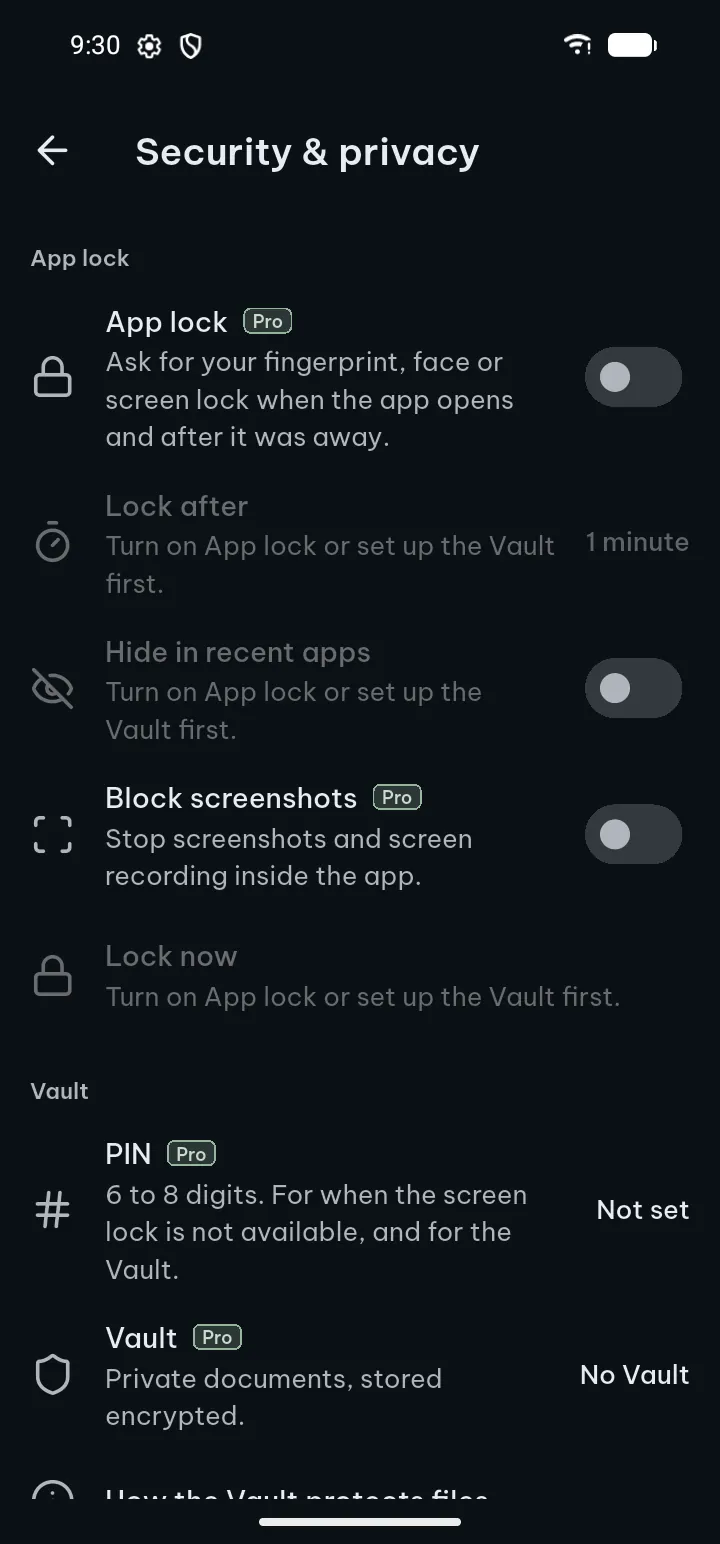
Lock after decides how long Poleta can be out of sight before it asks again: Immediately, 30 seconds, 1 minute or 5 minutes.
Immediately is the strict choice, and it means a fingerprint every time you switch to a chat to copy an address and come back. If that gets in the way, 30 seconds or a minute lets you make quick trips to another app without a fingerprint each time. The Vault closes at the same time as the app locks.
Lock now, on the same page, locks the app and closes the Vault right away, for the moment before you hand the phone over.
The PIN
Under PIN you can Set a PIN of 6 to 8 digits. It is used when the fingerprint or screen lock is not available, and it is also what opens the Vault. If the Vault opens with this PIN, the PIN cannot be removed.
A phone with no screen lock at all uses the PIN. If there is neither, the app cannot ask anything, and the page tells you to set one.
Wrong PINs are slowed down. After many tries the wait grows, and restarting the phone or changing its clock does not shorten it. After 20 wrong tries the PIN stops working where you have another way in, such as the phone's screen lock or the Vault's recovery key.
Keeping documents off the screen
Two more switches cover the ways a document can leave the app without anyone opening it:
- Block screenshots (Pro) stops screenshots and screen recording inside the app. Worth turning on if you share your screen in video calls, where it is easy to forget what is open.
- Hide in recent apps shows a blank card instead of the document in the list of recent apps. Without it, the last page you looked at is visible to anyone who swipes up. It works while the app lock is on or the Vault is open.
The trade-off of Block screenshots is the obvious one: you cannot take a screenshot of a page either. To send a page as a picture, use Share › Share page as image in the PDF reader instead.
App lock or the Vault
The app lock keeps people out of the whole app until you open it with your fingerprint, face or PIN. Once it is open, everything in your library is visible. The Vault is for the few documents that should stay closed even then: they are stored encrypted, and opening them takes the fingerprint or PIN again. There is a separate post on the Vault.
Many people only need one of the two. If you share your phone with family, the Vault for a handful of files is often enough. If you hand it to strangers, the app lock with a short Lock after covers more.
What it does not cover
The lock is on Poleta, not on the files. A document saved in your phone's Downloads folder can still be opened by other apps and by the phone's file manager. For a file that has to stay closed wherever it goes, give it a password: How to password-protect a PDF explains what that does.
The settings are listed in the guide under App lock.