
What a PDF says about you, and how to remove it
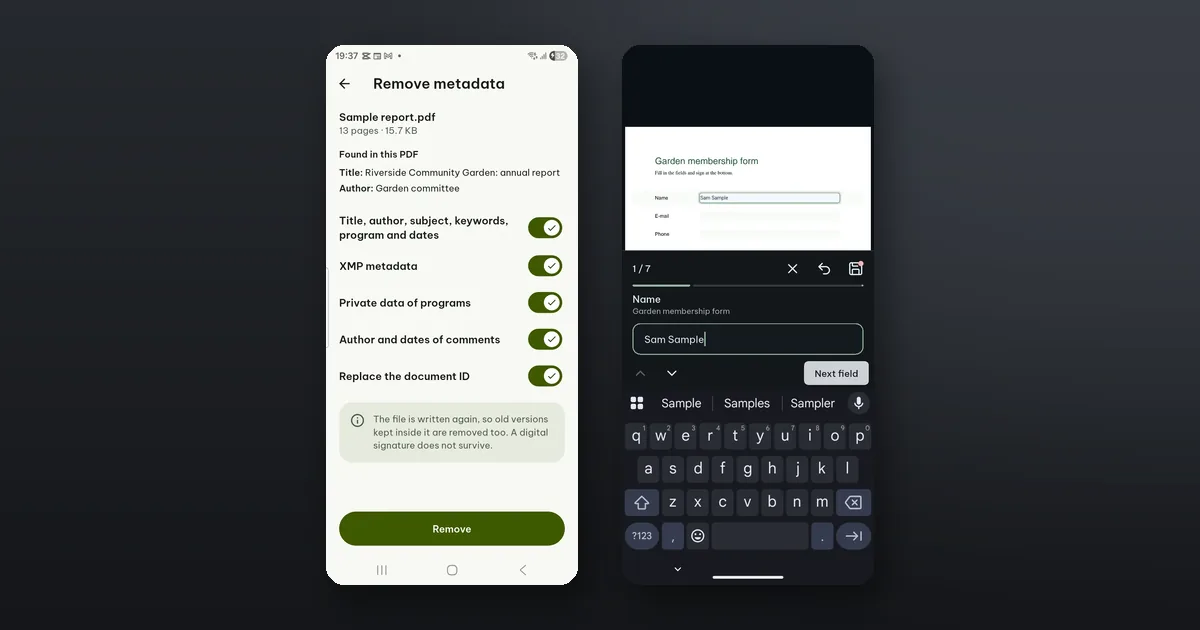
Besides the pages you see, a PDF can hold a title, an author name, keywords, the program that made it, the dates it was made and changed, and the name of everyone who left a comment. Tools › Remove metadata shows what is in a file and clears what you tick. It needs Pro.
Most of the time none of this matters. It starts to matter when the file leaves your hands: a CV whose author field still says the name of the person whose template you used, a quote sent to a client with your colleague's draft comments under it, a report that shows which month it was really written.
See what is there first
Choose the PDF and the screen opens with Found in this PDF. It lists only what this file has: the title and author, XMP metadata (a second copy of the details that many programs write), Private data of the program that made the file, and how many comments carry an author or a date. If there is nothing, it says No title, author or hidden data found.
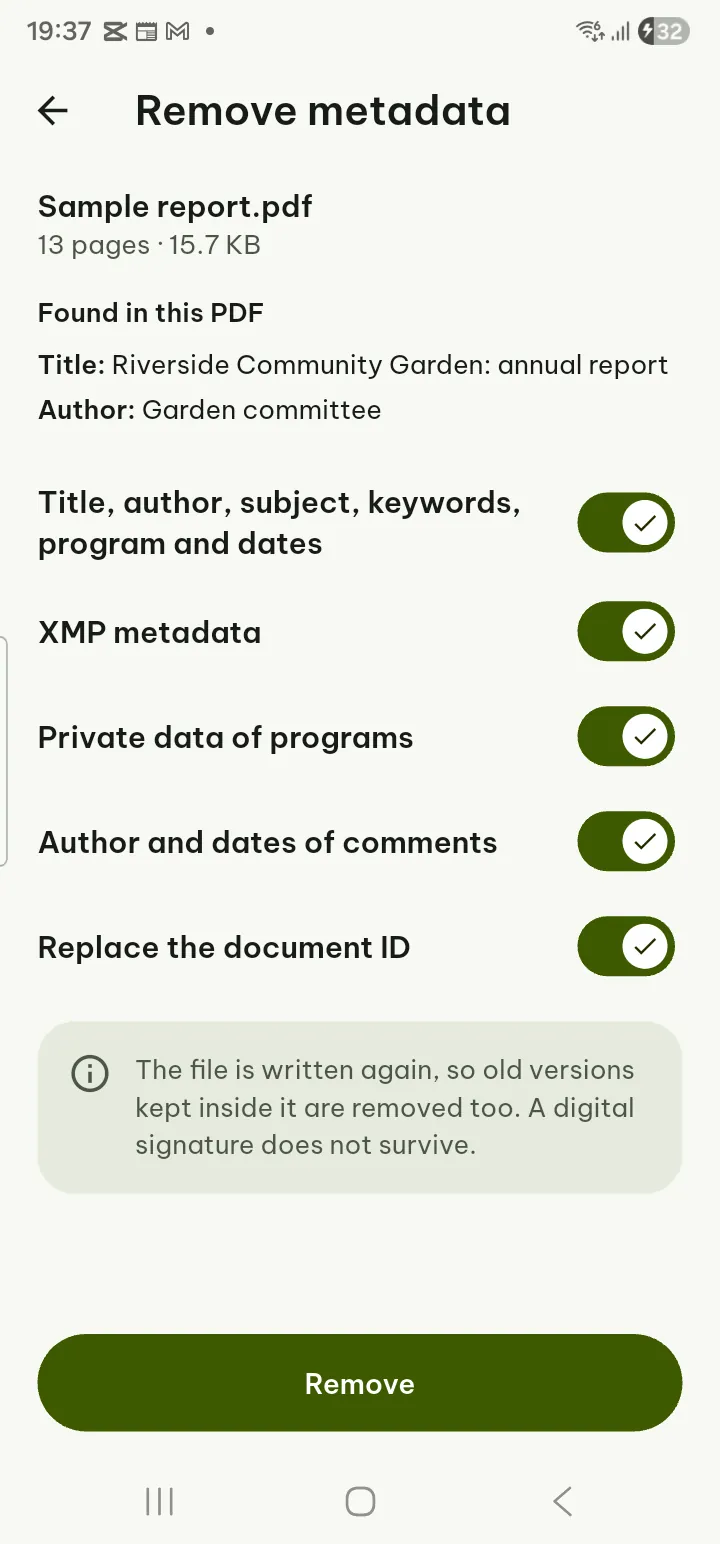
That first look is useful on its own, even if you then remove nothing.
What you can remove
Tick any of these, then tap Remove:
- Title, author, subject, keywords, program and dates;
- XMP metadata;
- Private data of programs;
- Author and dates of comments, which keeps the comments but drops who wrote them and when;
- Replace the document ID, so the copy cannot be matched to the original by its ID.
The file is written again. One effect you may not have thought of: a PDF that was edited can still hold older versions of itself inside, and writing it again removes those too.
Like every tool, it makes a new file in your library and leaves the original as it is.
Flatten: when the fields should stop being fields
The other half of tidying a PDF before it goes out is Tools › Flatten (also Pro). Tick Form fields, Comments and drawings, or both (each shows how many there are), and tap Flatten.
They become part of the page: what was typed in a field is still there, but nobody can change it, and a highlight or a drawing can no longer be deleted. Links keep working. The new file is named with "(flattened)" after the old name.
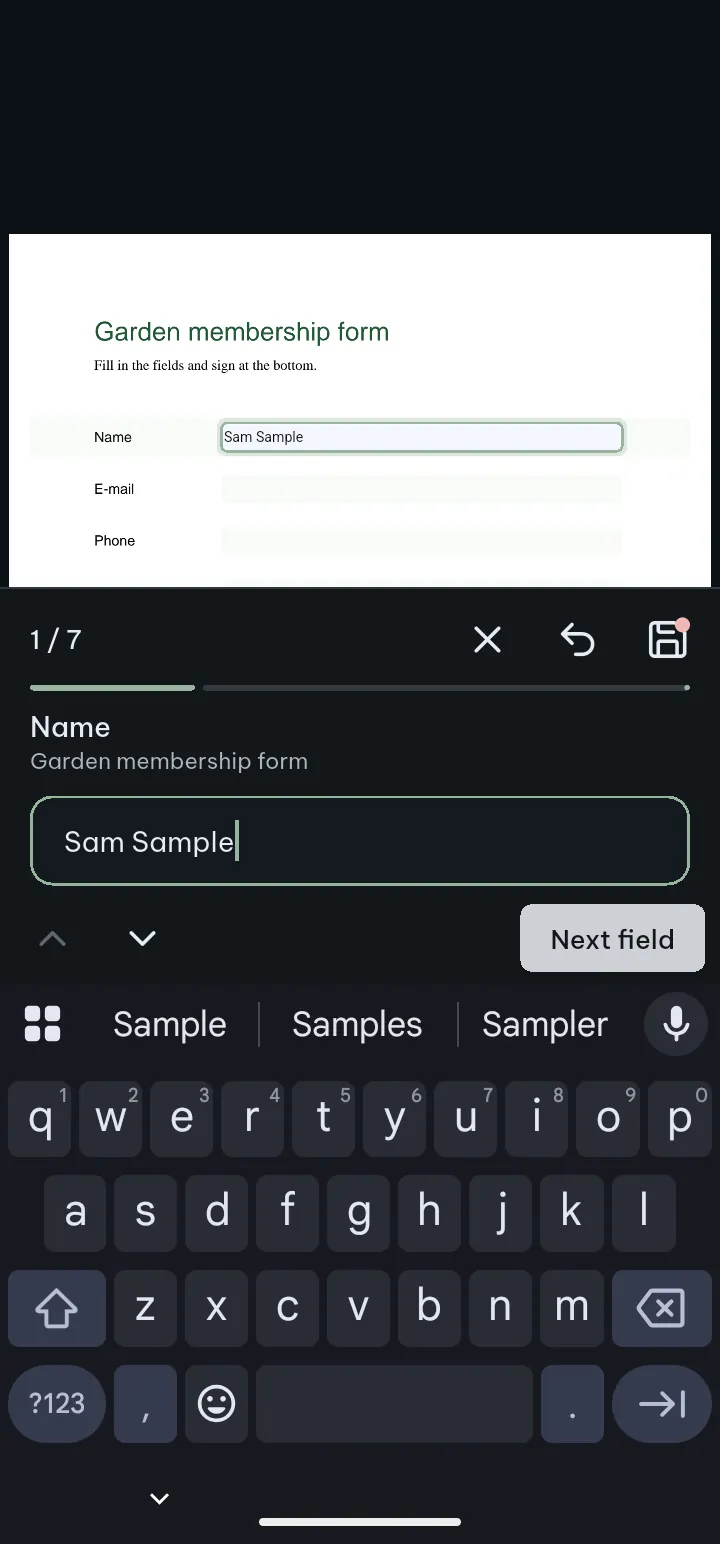
Flatten a form you filled in when the answers should arrive exactly as you sent them. Do not flatten one the other side still has to fill in.
If an item has no look of its own to draw, Poleta leaves it as it is and says how many.
What these two do not do
Neither tool touches the text on the page. A name in the letter itself stays a name in the letter. For that, use Redact, which removes the text under the black box; there is a post on redacting.
A digital signature does not survive Remove metadata, because the file is written again and the signature belonged to the file as it was. Remove the details before the file is signed, not after.
Many files
Batch (Pro) runs Remove metadata or Flatten on up to 300 files with the same settings, and leaves the originals as they are.
The reference steps are in the guide under Flatten, Remove metadata.