
Back up your library before you change phones
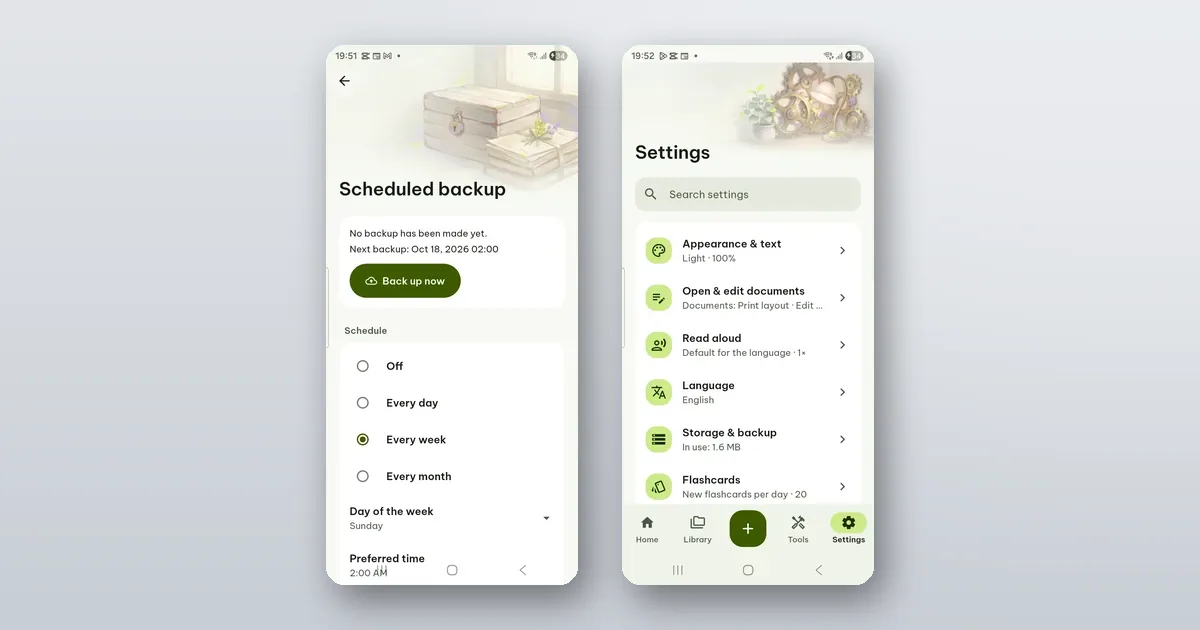
Poleta has no account and keeps nothing on our servers, so your reading positions, bookmarks and highlights live on your phone and nowhere else. Before you reset or replace the phone, make a backup file and put it somewhere that is not that phone. The free way takes about a minute.
On the old phone: Export data (free)
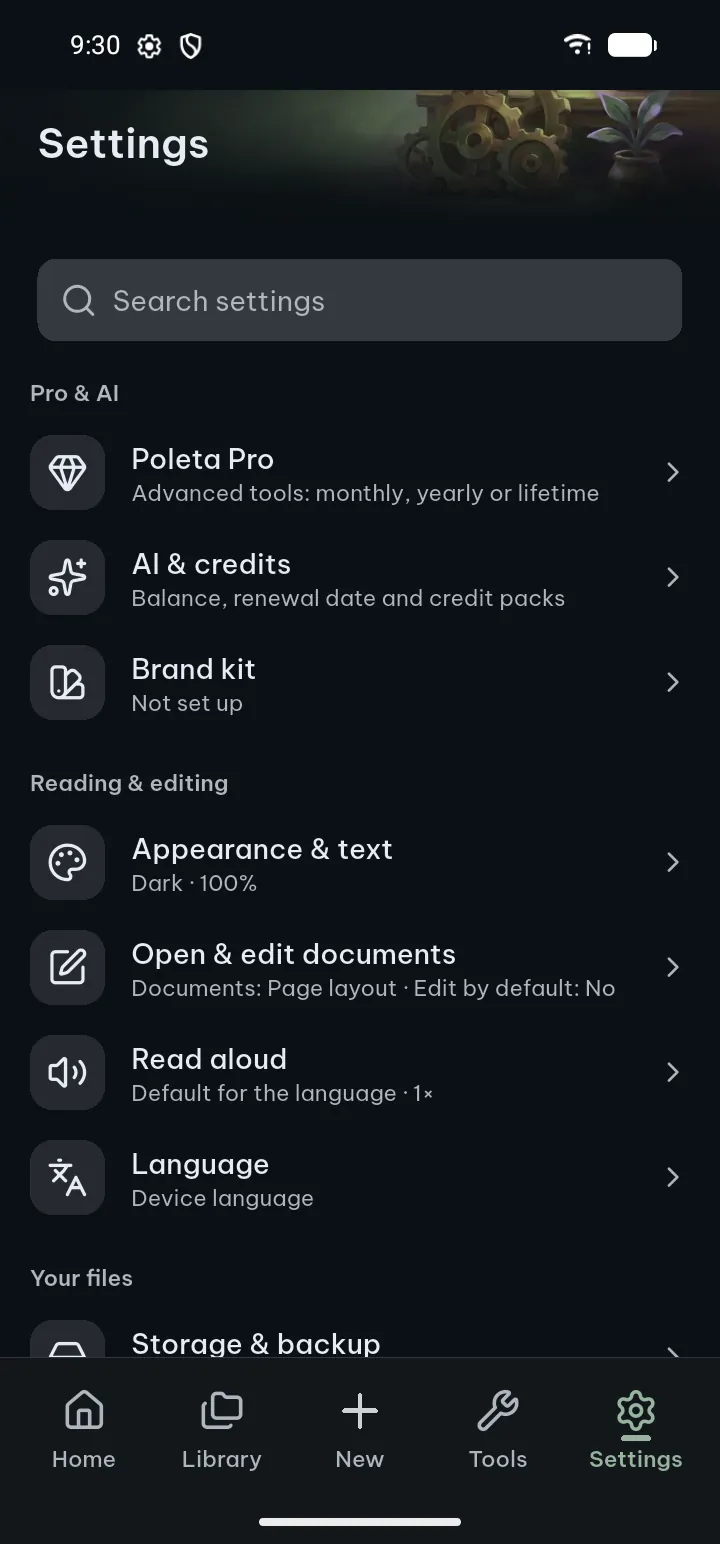
- Open Settings › Storage & backup.
- Tap Export data. Tick Include OCR results to keep the text Poleta recognized in your scans. Tick Include previous versions if you want the older copies of your edited files; they go into a separate .zip next to the backup and can be large.
- Choose Send via… to mail the file to yourself or put it on a computer, or Save to device and copy it off the phone afterwards.
The file holds your reading progress, bookmarks, highlights and settings. It is a plain JSON file, so keep it as private as the notes in it.
What a backup does not hold
This is the part people miss. A backup is about your work on the documents, not the documents themselves:
- The files. Export data does not copy your PDFs, books or spreadsheets. Copy the documents to the new phone as you would any files. A scheduled backup can include Copies of documents you edited; files over 256 MB are left out.
- The Vault. It is never in a backup, Export data or scheduled. Before you change phones, open each item and use Move out of the Vault or Export a decrypted copy, then move those files like the others and add them to the Vault again on the new phone (adding needs Pro).
- The app lock and its PIN. Set them up again.
- Pro. That comes back with Restore purchases on the Pro screen, signed in to the same Google Play account.
On the new phone: Import data
Install Poleta, copy your documents across, then Settings › Storage & backup › Import data and pick the file. You get two choices:
- Merge (recommended) adds what is in the file to what is already there.
- Replace everything makes the app match the file. It asks first, because this cannot be undone.
Poleta recognises a document by its content, not by its name or folder. Open the same file on the new phone and its page, bookmarks and highlights are there. If the library lists a document whose file is not on the phone yet, Poleta asks you to pick the file again and keeps your progress, bookmarks and highlights with it.
Scheduled backup (Pro)
Export data is something you have to remember. Scheduled backup remembers for you, on the same page.
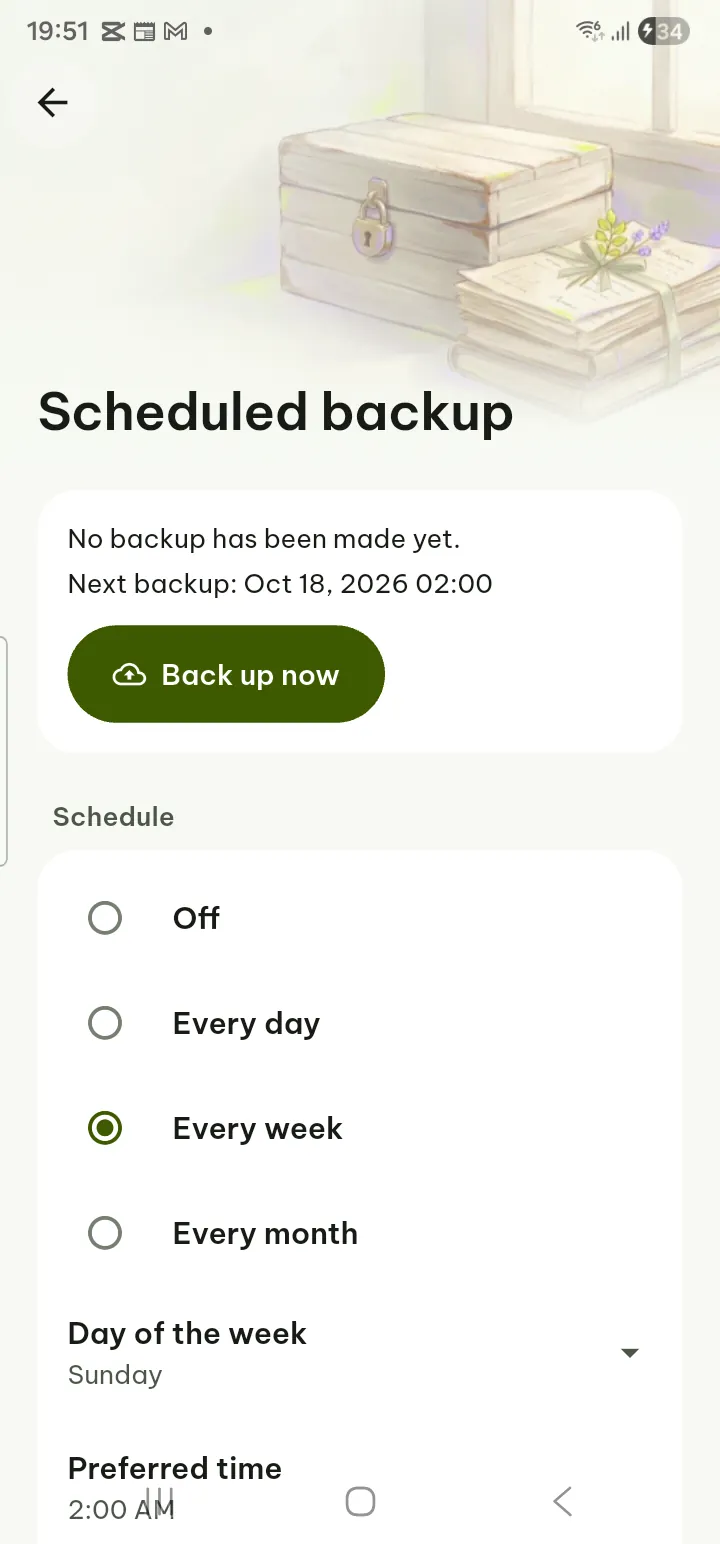
- Choose a folder on the phone. The app can reach that folder and nothing else on your storage.
- Pick a Schedule: every day, every week or every month.
- Choose what to include. Library data (reading positions, bookmarks, highlights, notes on pages and flashcards) is always in. App settings, copies of documents you edited, previous versions and recognized text of scans are your choice.
- Set how many backups to keep. Older ones are deleted only after the new one has been saved and checked.
Encrypt with a passphrase is on for a new setup, with AES-256. The first backup asks for the passphrase. Take that warning seriously: the passphrase is not stored anywhere, and a lost one means the backups cannot be opened, by you or by us.
One honest limit: Poleta has no background service, so a backup runs while the app is open. One that came due while the app was closed is made the next time you open it. Back up now makes one at once, which is what you want on the day you switch.
The folder is on the phone. That protects you from a bad edit or a deleted document, not from losing the phone. Copy the backup folder to a computer or a memory card now and then, and always before a phone change.
Restoring a scheduled backup
Restoring is free, also without Pro. On the new phone, copy the backup folder over, open Settings › Storage & backup, choose that folder with Choose a folder, then Restore from backup. Choose the backup, enter the passphrase if it is encrypted, pick Merge or Replace and tap Restore.
- Also bring back the document copies puts the edited files from the backup back into the library.
- Previous versions in the backup are not put back into the app; Save previous versions as a file gives you them to open yourself.
- A copy of your current data is kept until the next restore, and Undo the last restore puts things back if you picked the wrong backup.
The guide has every option under Backup and restore.